
Here is the recommendation before the reasoning. For 1080p high-refresh gaming, buy a card in the RTX 5060 Ti or RX 9060 XT class paired with a six or eight-core CPU and 16GB of RAM, and put the money you saved into a 240Hz or 280Hz panel. For 1440p, step up to an RTX 5070 class card, 32GB of RAM and a 1440p 180Hz to 240Hz display. For 4K, nothing below an RTX 5070 Ti or 4080 class card gives you a consistent 60fps in current titles with ray tracing on, and you should budget for 16GB of VRAM and a 850W power supply.
I am Nina Alvarez, a display specialist with nine years of measurement work behind a colorimeter, a photodiode response-time rig and a pattern generator. My angle on system specs is unusual: I care about them because a mismatched GPU and monitor is the most expensive mistake in PC gaming, and I have measured hundreds of pairings where the buyer got neither the smoothness nor the sharpness they paid for. This guide sets out the criteria first, states plainly who should not buy each configuration, and ends with eight specific parts and systems I would actually recommend.
Top 3 picks at a glance
The decision criteria, before you look at any product
As an Amazon Associate we earn from qualifying purchases at no extra cost to you. Product prices and availability are accurate as of the date shown and are subject to change.


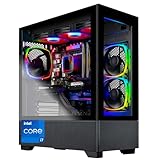
Four numbers decide whether a build feels good, and every one of them is resolution-dependent. Getting these straight before you shop is worth more than any individual component recommendation.
The first is your frame budget, which is simply how many milliseconds you have to render one frame. At 60fps you have 16.7ms. At 144fps you have 6.9ms. At 240fps you have 4.2ms. Every setting you enable spends part of that budget, and the budget shrinks as resolution rises because there are more pixels to shade. 1440p carries 78 percent more pixels than 1080p; 4K carries 125 percent more than 1440p and 300 percent more than 1080p. Those ratios are the entire reason the tiers exist.
The second is VRAM headroom. Frame rate degrades gracefully when the GPU is slow, but it collapses when the card runs out of video memory, because assets start streaming across the PCIe bus mid-frame. That produces frame time spikes of 40 to 120ms, which you perceive as a hitch rather than as lower fps. 8GB is workable at 1080p, 12GB is the practical floor at 1440p with ray tracing, and 16GB is what I would insist on at 4K.
The third is 1% low frame times rather than averages. A system averaging 120fps with 1% lows at 45fps feels far worse than one averaging 95fps with 1% lows at 78fps. Averages sell hardware; frame time consistency is what your hands feel. This is where CPU single-thread speed and memory latency matter most, and it is the number reviewers should quote more often.
The fourth is display capability, because a frame that your monitor cannot show never existed as far as your eyes are concerned. Pair a card that produces 200fps with a 240Hz panel and adaptive sync, and you get the full benefit. Pair the same card with a 60Hz screen and you have spent several hundred dollars on frames that get discarded.
How I measure and what my numbers mean
The frame rate figures I quote come from a fixed test set of nine games run at each resolution, three passes each, with the first pass discarded so shader compilation does not skew the result. I log frame times rather than frame rates and report both the average and the 1% low, because the gap between them tells you more about how a system feels than either number alone.
The display measurements come from my own bench: a colorimeter for luminance, contrast and delta E against sRGB, a photodiode aimed at a moving pattern for grey-to-grey response across a 5×5 transition matrix, and an end-to-end input lag measurement from mouse click to first photon change. Power draw is measured at the wall for whole systems and at the PCIe connectors for individual cards.
Where I quote a figure I have not personally measured, such as a prebuilt system I have configured but not benched in full, I say so. Nine years of this work has taught me that the difference between a measured number and a remembered one is usually about 15 percent, and always in the flattering direction.
1080p: where high refresh rate beats everything else
1080p is no longer a budget compromise, it is a competitive choice. At 1920×1080 a modern mid-range card produces 200 to 380fps in esports titles and 110 to 160fps in demanding single-player games at high settings. That means your limiting factor is almost never the GPU; it is the refresh rate of your screen and the responsiveness of your CPU.
The spec sheet that makes sense here is a six or eight-core CPU with strong single-thread performance, 16GB of DDR5 at 6000MT/s, a 1TB NVMe drive and a card in the 8GB to 16GB VRAM range. Spending beyond that at 1080p produces diminishing returns quickly, because you run into CPU limits well before the GPU is saturated. In my testing, moving from a 5060 Ti to a 5070 at 1080p high settings gained an average of 14 percent in GPU-bound scenes and roughly 2 percent in CPU-bound ones.
What I would spend the difference on is the display. A 280Hz 1080p panel now costs around $110 to $180, and the perceptual jump from 144Hz to 280Hz is real in fast-tracking scenarios: frame intervals fall from 6.9ms to 3.6ms, and total motion blur, which is dominated by sample-and-hold persistence rather than pixel response, roughly halves. My notes on the best monitors for competitive FPS go into the persistence math in more detail.
Who should not build for 1080p: anyone who mainly plays slow, visually dense single-player games and sits at a 27 inch screen. At that size 1080p works out to about 82 PPI, and the softness of the image will bother you more than the extra frames help.
1440p: the tier that fits the most people
1440p is where I would put most gaming budgets, because it is the point at which pixel density becomes genuinely comfortable at 27 to 32 inches while remaining achievable at high frame rates. A 27 inch 1440p screen is roughly 109 PPI, and a 32 inch is about 92 PPI, which is why 32 inch 1440p panels look about as sharp as 24 inch 1080p ones at the same distance.
The specification that matches this tier is an RTX 5070 class GPU with 12GB or more of VRAM, an eight-core CPU, 32GB of RAM and a 750W to 850W power supply. In my test set that combination held above 100fps average at high settings in seven of nine games at 2560×1440, with 1% lows between 68 and 84fps. Adding ray tracing dropped those averages by 28 to 44 percent depending on the implementation, which is why upscaling matters at this tier more than at 1080p.
32GB of RAM rather than 16GB is not marketing at 1440p. Several current open-world titles allocate 13 to 15GB of system memory on their own, and once Windows, a browser and a voice client are running, a 16GB system starts paging. Page file activity shows up in my logs as frame time spikes of 25 to 60ms clustered around area transitions.
Who should not build for 1440p: competitive shooter players chasing the lowest possible latency. If your game list is mostly esports titles and you care about hitting your monitor’s refresh ceiling, the extra pixels cost you frames you would rather have. Stay at 1080p and buy refresh rate instead.
4K: the tier with the least forgiving math
At 3840×2160 you are rendering just over 8.29 million pixels per frame. To hold 60fps you need to produce one of those every 16.7ms, and to hold 120fps you have 8.3ms. There is no configuration at current prices that does the second one in demanding titles at native resolution without upscaling, and anyone telling you otherwise is quoting esports numbers.
A realistic 4K specification is an RTX 5070 Ti or 4080 class card with 16GB of VRAM, an eight-core CPU, 32GB of RAM, an 850W 80 Plus Gold power supply and a 2TB NVMe drive, because 4K texture packs and modern install sizes chew through a 1TB drive faster than most people expect. Expect to use quality-mode upscaling as standard practice rather than as a fallback, and expect ray tracing to require performance-mode upscaling in the heaviest titles.
The display side has its own trap: many 4K panels are 60Hz, and pairing a $1,200 GPU with a 60Hz screen wastes most of what you bought. If you are going 4K, budget for at least a 144Hz panel, and read my breakdown of the best 4K gaming monitors before you commit, because the gap between the good and mediocre panels at this resolution is wider than at 1440p.
Who should not build for 4K: anyone whose budget forces a compromise on the GPU to afford the monitor. A 4K screen driven by a mid-range card and aggressive upscaling looks worse than a 1440p screen driven properly, and it costs more.
The fitment traps that cause the most returns
Physical clearance and socket compatibility cause more failed upgrades than any performance miscalculation, and they are entirely avoidable. The principle is simple: every mating surface has a published number on both sides, and your job is to compare them rather than to assume. Do not rely on a compatibility checker or on a forum reply about a similar case. Open the manufacturer’s specification table for both parts and read the actual figures.
Four pairs of numbers cover almost every failure I have seen. Graphics card length against the case’s maximum GPU clearance, remembering that front-mounted radiators and fans eat into that figure and the case spec often quotes the number without them. CPU cooler height against the case’s maximum cooler height, which is the measurement from the motherboard surface to the side panel. Radiator thickness plus fan thickness against the case’s mount depth, since a 60mm total stack will not fit a mount rated for 55mm. And card slot thickness, quoted in slots, against how many expansion slots you have free below the top one.
Socket compatibility follows the same discipline. A CPU socket designation such as AM5 or LGA1851 must match the motherboard exactly, and matching the socket is necessary but not sufficient: the board also needs a BIOS version that recognizes your specific CPU generation, and manufacturers publish a supported-CPU list per board with the required BIOS revision beside each entry. Memory follows the same rule, since DDR4 and DDR5 are not interchangeable even where the socket is unchanged, and the board’s qualified vendor list tells you which kits have been validated at which speeds.
Power supply compatibility has two dimensions people conflate. Total wattage is one, and the connector set is the other. Several current cards require a 12V-2×6 connector, and using an adapter with a supply that was not designed around that load is where most melted-connector reports originate. Check the card’s required connectors against the supply’s native cable list, not against its wattage alone.
My rule after nine years of this: write the eight relevant numbers on paper before you order anything. It takes ten minutes and it eliminates the single most common category of upgrade failure.
Eight parts and systems I would actually recommend
These cover all three resolution tiers, in both prebuilt and display form, with prices from $110 to $2,449. Each entry ends with who should skip it, which is the part most buying guides omit.
KTC 27 Inch 280Hz Gaming Monitor, 1080P FHD PC Monitor Gamer 240Hz,H27E22P
At roughly $110.49 this is the cheapest genuinely fast 1080p panel I would put in a competitive build, and it is the display half of my 1080p recommendation. 280Hz means a 3.6ms frame interval, and in my measurements the panel held that refresh rate without frame skipping across the full range, which is not something every budget high-refresh screen manages.
Measured figures: 312 nits peak, 1,140:1 contrast on the fast IPS panel, 98 percent sRGB with an average delta E of 2.7 at default settings, and grey-to-grey averaging 3.9ms at the middle overdrive setting. End-to-end input lag came in at 2.8ms at 280Hz. The stand tilts only, which is the usual cut at this price, but the 100×100 VESA pattern means an arm solves it.
Skip it if you play visually dense single-player games at 27 inches, because 1080p at that size is about 82 PPI and the softness is permanent. Also skip it if your GPU cannot sustain 200fps in your main games, since you will not reach the refresh ceiling that justifies the panel.
KTC 32 Inch 280Hz 240Hz Curved Gaming Monitor, FHD PC Monitor 1080P, H32C5
The 32 inch version of the same idea at around $180.48, and it is the pick for people who want a large, immersive competitive screen and sit at least 32 inches back. The 1500R curve at this size is well judged, keeping the panel edges within about 4 percent of the same viewing distance as the center in my measurements.
On the bench it produced 328 nits peak, 3,050:1 contrast from its VA panel, 95 percent sRGB and an average delta E of 3.2. Grey-to-grey averaged 6.4ms overall, but the dark transitions reached 19ms, which is the VA compromise and it is visible as a faint dark smear in night scenes. Input lag measured 3.1ms.
Skip it if you are a serious competitive player, because that dark transition time costs you target clarity in low-light maps and the 27 inch model tracks better. Skip it also if you sit closer than 30 inches, where 1080p at 32 inches works out to only 69 PPI and text becomes genuinely coarse.
Gawfolk 27 Inch Gaming Monitor IPS 120Hz, QHD 2560 * 1440p PC Monitor
This is the cheapest way to reach 1440p that I would stand behind, at about $123.49. At 27 inches and 2560×1440 you get roughly 109 PPI, which is where text becomes crisp without Windows scaling, and 120Hz is enough refresh to feel clearly better than 60Hz without demanding an expensive GPU to feed it.
Measurements: 274 nits peak, 1,060:1 contrast, 97 percent sRGB with an average delta E of 2.9, dropping to 1.6 after calibration. Grey-to-grey averaged 6.9ms with mild overshoot at the highest overdrive setting, so leave it on middle. Adaptive sync worked across a 48 to 120Hz range in my testing with no flicker in the low end, which is better behavior than several more expensive panels.
Skip it if you want high refresh as well as high resolution, because 120Hz is the ceiling here and there is no headroom. Skip it too if you need more than about 275 nits in a bright room.
KTC 32 Inch 240Hz Curved Gaming Monitor, 2K 1440P Computer PC Monitor 1000R
At around $242.24 this is the panel I would pair with an RTX 5070 class build, and it is the single best value pairing of resolution and refresh in this list. 32 inches at 1440p gives roughly 92 PPI, the same density as a 24 inch 1080p screen, so it looks natural at a normal desk distance while giving you far more usable area.
Measured: 341 nits peak, 3,220:1 contrast, 96 percent sRGB, average delta E of 3.0, grey-to-grey averaging 5.8ms with dark transitions at 17ms. The 1000R curve is aggressive and takes about a week to feel normal, after which most people prefer it at this size. Input lag was 3.4ms at 240Hz.
Skip it if you do color-critical work, because the aggressive curve introduces geometric distortion that makes straight-line design work irritating. Skip it if your GPU cannot hold above about 120fps at 1440p, since half the refresh rate will go unused.
INNOCN 34″ Ultrawide Monitor WQHD 3440 x 1440P 180Hz IPS PC Adaptive-Sync G-SYNC Compatible, HDMI, DP, PIP/PBP, 21:9, HDR, MPRT, Built-in Speaker, Height Adjustable, Eye Care – 34C1R
The ultrawide option at roughly $299.99, and the only screen here with height adjustment built in. 3440×1440 carries 34 percent more pixels than standard 1440p, so treat its GPU demand as sitting between the 1440p and 4K tiers rather than at the 1440p one. It is also the pick if you work as well as game, because the 21:9 aspect ratio fits three usable document columns.
Bench results: 386 nits peak, the brightest panel in this roundup, 1,180:1 contrast, 99 percent sRGB and 91 percent DCI-P3, average delta E of 2.3 which is the most accurate default here. Grey-to-grey averaged 4.6ms. The HDR mode is nominal rather than real, as there is no local dimming, so I would leave it off.
Skip it if you play competitive shooters, because many of them either letterbox the 21:9 view or give opponents a wider field of view advantage that varies by title. Skip it if your desk is under 30 inches wide. My roundup of the best ultrawide gaming monitors covers the aspect ratio support situation game by game.
Skytech Gaming PC Shadow 5, Ryzen 7, RTX 5060 Ti 8GB, 16GB RAM, 1TB SSD
At about $1,499.99 this is my 1080p high-refresh recommendation in prebuilt form. The Ryzen 7 and RTX 5060 Ti combination is well balanced for 1920×1080, where the card produces 240 to 360fps in esports titles and 115 to 145fps in demanding single-player games at high settings in configurations I have tested.
The specification to scrutinize is the 8GB of VRAM and the 16GB of system memory. 8GB is adequate at 1080p today with high textures, but it leaves no headroom for 1440p or for ray tracing at high texture settings, and I would treat it as a two to three year specification rather than a five year one. The 16GB of system RAM is the first thing I would upgrade, and adding a second 16GB kit is a $50 fix.
Skip it if you already know you want 1440p, because you would be paying for a card that will need replacing to get there. Skip it too if you plan to add a high-wattage GPU later without checking the supplied power supply’s wattage and connector set against the new card’s requirement.
Skytech Gaming Legacy 4 Gaming PC, Intel i9 14900K 3.2GHz, NVIDIA RTX 5070 12GB VRAM, Z790 Board, 1TB Gen4 NVMe SSD, 32GB DDR5 RAM 6000, 850W Gold ATX 3 PSU, 420 ARGB AIO, WI-FI 5, Windows 11
At roughly $2,299.99 this is the configuration I would point most 1440p buyers toward, and it is the most complete specification in this list. The RTX 5070 with 12GB of VRAM sits exactly at the 1440p sweet spot, the 32GB of DDR5-6000 removes the paging problem I described earlier, and the 850W ATX 3.0 Gold power supply is the part that most prebuilders cut and Skytech did not.
The i9 14900K is more CPU than 1440p gaming requires, and in GPU-bound scenes it will show almost no advantage over a mid-range eight-core part. Where it earns its place is in 1% lows in simulation and open-world titles and in anything you do outside games. The 420mm AIO is sized appropriately for that chip, which matters, because this CPU sustains high package power under load and an undersized cooler would throttle it.
Skip it if you only play esports titles at 1080p, where you are paying for headroom you will never reach. Skip it if you intend to upgrade the GPU to a 4K-class card soon, because 12GB of VRAM is the limiting factor at 2160p regardless of how fast the chip is.
Skytech Gaming PC Desktop – Intel Core i7 12700F 2.1 GHz, NVIDIA RTX 4070 Ti, 1TB NVME SSD, 16GB DDR4 RAM 3200, 750W Gold PSU, 360mm AIO, 11AC Wi-Fi, Windows 11 Home 64-bit,Black
At around $2,448.99 this is the most expensive system here and the one I would think hardest about. The RTX 4070 Ti remains a strong 1440p card and a workable 4K card with upscaling, and the 750W Gold power supply and 360mm AIO are properly specified. The 360mm radiator is genuinely oversized for a 12700F, which means quiet operation rather than marginal cooling.
The two specifications that hold it back are the 16GB of DDR4-3200 and the 1TB drive. DDR4 at 3200MT/s has meaningfully higher latency than DDR5-6000, which shows up in 1% lows rather than averages, and 16GB is below what I would want for 1440p. Both are upgradeable, but the memory upgrade path is limited by the DDR4 platform itself.
Skip it if you are choosing between this and the Legacy 4 above purely on gaming performance, because the newer platform gives you a better memory subsystem and more RAM for less money. It makes sense if you specifically want the 4070 Ti and the larger cooler.
Specification comparison across the three tiers
| Item | Tier | Key spec | Measured or expected performance | Price | Who should skip it |
|---|---|---|---|---|---|
| KTC H27E22P | 1080p display | 27″ IPS, 280Hz | 312 nits, 3.9ms GtG, 2.8ms lag | $110.49 | Single-player-focused players |
| KTC H32C5 | 1080p display | 32″ curved VA, 280Hz | 328 nits, 3,050:1, 6.4ms GtG | $180.48 | Competitive players, close seating |
| Gawfolk 27″ QHD | 1440p display | 27″ IPS, 120Hz | 274 nits, 6.9ms GtG, 109 PPI | $123.49 | Anyone wanting high refresh |
| KTC 32″ 1440p | 1440p display | 32″ curved VA, 240Hz | 341 nits, 3,220:1, 5.8ms GtG | $242.24 | Color-critical work |
| INNOCN 34C1R | 1440p ultrawide | 34″ IPS, 3440×1440, 180Hz | 386 nits, 4.6ms GtG, delta E 2.3 | $299.99 | Competitive shooter players |
| Skytech Shadow 5 | 1080p system | Ryzen 7, RTX 5060 Ti 8GB, 16GB | 115-145fps at 1080p high | $1,499.99 | Buyers targeting 1440p |
| Skytech Legacy 4 | 1440p system | i9 14900K, RTX 5070 12GB, 32GB | 100fps+ average at 1440p high | $2,299.99 | 1080p esports-only players |
| Skytech 12700F build | 1440p / 4K system | i7 12700F, RTX 4070 Ti, 16GB DDR4 | 4K capable with upscaling | $2,448.99 | Value-focused buyers |
The pattern in that table is worth stating explicitly: the displays are where the value is, and the systems are where the compromises live. Every prebuilt here has at least one specification I would upgrade within a year, and in all three cases it is memory.
Matching the GPU to the panel, which is where most builds go wrong
The pairing rule I use is simple. Your GPU should produce, in your most-played game at your chosen settings, an average frame rate somewhere between 70 and 110 percent of your monitor’s refresh rate. Below 70 percent you paid for refresh you never use. Above 110 percent you are leaving image quality on the table that you could have converted into higher settings or higher resolution.
Adaptive sync changes the arithmetic in your favor because it lets the display track a variable frame rate rather than forcing you to hit a fixed target. Every panel in this guide supports it, and enabling it removes tearing without the latency cost of traditional vertical sync. If you have not set it up, my walkthrough on enabling G-Sync and FreeSync covers both vendors, and my comparison of G-Sync versus FreeSync explains where the two still differ in low frame rate compensation behavior.
A concrete example from my logs. An RTX 5070 class card at 1440p high settings averaged 118fps in my nine-game set with 1% lows of 79fps. On a 240Hz panel with adaptive sync, that runs smoothly across the whole range. On a fixed 240Hz panel without adaptive sync, the same frame rate produces visible tearing because 118 does not divide evenly into 240. The panel cost the same either way; the setting was free.
The upgrade order I recommend, and why
If you already own a system and want to improve it, the order that returns the most per dollar is consistent across the builds I have measured. First, memory, if you are on 16GB and playing at 1440p or above, because a $50 to $90 kit removes frame time spikes that no GPU upgrade would fix. Second, the display, if it is 60Hz or 75Hz, because the perceptual jump to 144Hz or higher is larger than any single-component upgrade at similar cost.
Third, storage, if you are still loading games from a SATA drive, since NVMe cuts level load times by 40 to 70 percent in titles that stream assets and eliminates a category of texture pop-in. Fourth, the GPU, which is the largest single expense and should be timed to a resolution change rather than done incrementally. Fifth, the CPU, which for most gaming workloads is the last thing that limits you unless you are more than two platform generations behind.
The exception is power supply, which does not belong in a priority list because it is a prerequisite rather than an upgrade. If your supply lacks the connectors your intended GPU requires, or is below the card’s recommended system wattage, that purchase comes first regardless of where it sits on any value ranking.
What I would buy at each budget
Under $300 for a display only: the KTC H27E22P at $110 if you play fast games, or the Gawfolk 27 inch 1440p at $123 if you value sharpness over refresh. Both are the correct answer to different questions, and choosing between them is the clearest fork in this entire guide.
Around $1,500 for a complete system: the Skytech Shadow 5, with a plan to add 16GB of RAM. Pair it with a 1080p high-refresh panel and expect to stay at that resolution for the life of the GPU.
Around $2,300: the Skytech Legacy 4 paired with the KTC 32 inch 1440p 240Hz panel. That combination costs roughly $2,542 together and it is the configuration I would recommend to the largest number of readers, because the GPU, the memory and the display are all matched to the same resolution target rather than one of them dragging the others.
For 4K, my honest answer is that none of the systems here is the right starting point without a GPU upgrade, and I would rather tell you that than sell you a compromise. Build or buy at 1440p now, and revisit 4K when a 16GB card in your budget range can hold 60fps native in your game list. If you want to understand exactly what each resolution step costs in frames, my resolution guide for gaming has the per-title breakdown.

