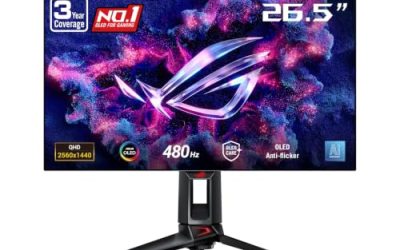
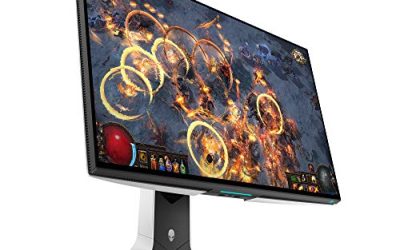
The best 24 inch gaming monitor for most players is a 1080p IPS panel running 144Hz to 240Hz with Adaptive Sync, and several current models fit that description. Below are seven picks sorted by refresh rate and budget tier, three alternatives, and a buying guide that explains which specs actually matter at this size.
A 24-inch screen is still the default for competitive shooters, battle royale and MOBA players. It fits a normal desk, keeps your eyes close to the whole image, and a mid-range graphics card can push very high frame rates at 1080p. This guide is built from published specifications and maker pages, so it avoids claims we cannot back up. Where a detail is missing from a listing, we say “not listed” and suggest you check the maker.
Our Top Picks
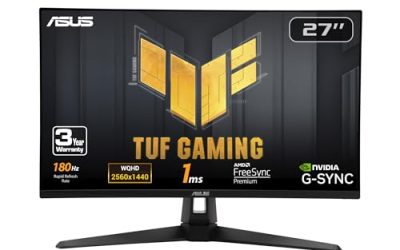
 ASUS TUF Gaming VG249QML5A 24 Inch 1080p 240Hz7.908.1 x 21.3 x 20.7 inches10.8 poundsCheck on Amazon
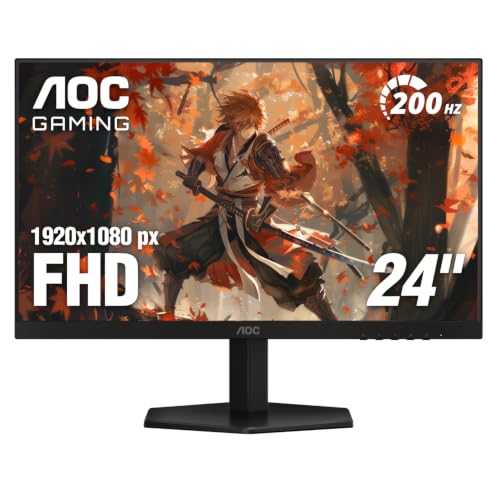 AOC 24" Gaming Monitor FHD 200Hz IPS NVIDIA24" 200Hz7.03 x 21.25 x 16.68 inches6.4 poundsCheck on Amazon
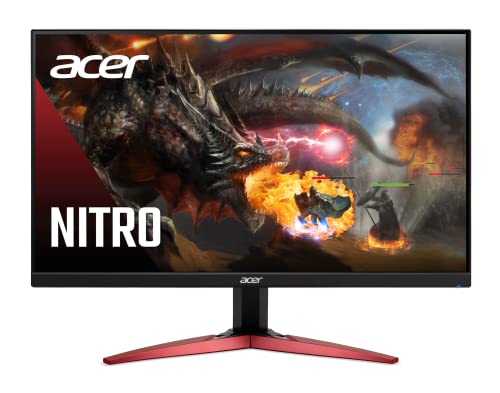 Acer Nitro 23.8in FHD 1920x1080 180Hz Gaming Monitor23.8-inch21.27 x 7.44 x 16.3 inches8.4 poundsCheck on Amazon
 New! Sceptre 24-inch Prime Gaming Monitor DisplayPort x224 inches6.7 x 21.3 x 15.6 inchesCheck on Amazon


Top 3 picks at a glance
Picks at a Glance
- Best overall balance: LG 24G411A-B (144Hz overclock, IPS, G-Sync Compatible)
- Best 240Hz value tier: Dell SE2426HG (240Hz IPS)
- Best feature set: ASUS TUF Gaming VG249QML5A (240Hz, ELMB Sync, Fast-IPS)
- Best response-time spec: AOC 24G42HE (200Hz, 0.3ms listed)
- Best for console and PC mix: Samsung Odyssey G3 G30H (200Hz IPS)
- Best Acer option: Acer Nitro KG241Y Sbiip (180Hz, FreeSync Premium)
- Best budget tier with real ports: Sceptre E248 Prime (165Hz, 2x DisplayPort, 2x HDMI)
Comparison Table
| Monitor | Panel | Refresh rate | Sync | Budget tier |
|---|---|---|---|---|
| LG 24G411A-B | IPS, 1080p | 144Hz (overclock) | G-Sync Compatible | Entry |
| Dell SE2426HG | IPS, 1080p | 240Hz | Listing: not stated here | Entry to mid |
| ASUS TUF VG249QML5A | Fast-IPS, 1080p | 240Hz | G-Sync, FreeSync Premium | Mid |
| AOC 24G42HE | IPS, 1080p | 200Hz | G-Sync Compatible | Entry to mid |
| Samsung Odyssey G3 G30H | IPS, 1080p | 200Hz | Check the maker | Mid |
| Acer Nitro KG241Y Sbiip | 1080p | 180Hz | FreeSync Premium | Entry to mid |
| Sceptre E248 Prime | 1080p | 165Hz | Adaptive Sync | Entry |
1. LG 24G411A-B: Best Overall Balance
As an Amazon Associate we earn from qualifying purchases at no extra cost to you.
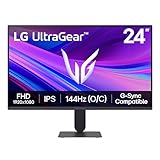
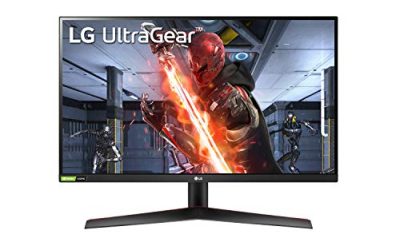
The LG 24G411A-B is a 24-inch UltraGear Full HD (1920 x 1080) IPS monitor. The listing gives a 144Hz refresh rate that can be overclocked, a 1ms MBR (motion blur reduction) mode, and NVIDIA G-Sync Compatible support. It is a straightforward esports-style screen: IPS colour and viewing angles, a modern refresh rate, and a brand that publishes full spec sheets.
- Panel: 24-inch IPS, 1920 x 1080
- Refresh rate: 144Hz (O/C per listing)
- Response: 1ms MBR
- Sync: G-Sync Compatible
Best for: players who want a clean, no-surprises 144Hz IPS screen with a trusted brand name. Skip if: you own a graphics card that can push 240 frames per second in your main game and want the matching refresh rate.
Pros: IPS colour and angles; G-Sync Compatible; strobing-style MBR option; simple setup. Cons: MBR modes normally lower brightness and cannot run together with variable refresh on most monitors (check LG’s manual); 144Hz is no longer top of the range.
2. Dell SE2426HG: Best 240Hz Value Tier

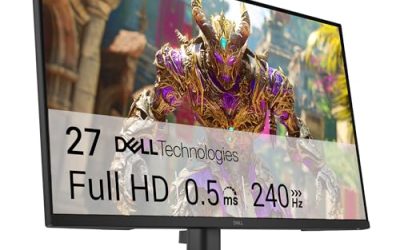
The Dell 24 240Hz Gaming Monitor SE2426HG is listed as a 23.8-inch FHD (1920×1080) display with in-plane switching technology and a 240Hz refresh rate. Dell sells it in the lower part of its gaming range, so it is a way to reach 240Hz without paying for a premium feature stack.
- Panel: 23.8-inch IPS, 1920 x 1080
- Refresh rate: 240Hz
- Sync technology: not listed in the short listing text, check Dell’s spec page
Best for: shooter players with a capable GPU who want the smoothest motion at a modest budget tier. Skip if: you need height adjustment or a rich port selection; check the stand and port details on Dell’s page first.
Pros: 240Hz at 1080p is easy for most current GPUs to feed; IPS panel; Dell support network. Cons: stand features are not listed in the summary; feature set is basic compared with the ASUS below.
3. ASUS TUF Gaming VG249QML5A: Best Feature Set

The ASUS TUF Gaming VG249QML5A is a 24-inch 1080p 240Hz G-SYNC gaming monitor. The listing names ELMB Sync (ASUS’s motion blur reduction that can work alongside variable refresh), FreeSync Premium, Gaming AI features, and a Fast-IPS panel. That mix is why it sits in a higher tier than the other 240Hz option here.
- Panel: Fast-IPS, 24-inch, 1080p
- Refresh rate: 240Hz
- Sync: G-SYNC, FreeSync Premium, ELMB Sync
Best for: competitive players who want blur reduction and adaptive sync together. Skip if: you play mostly slower single-player games where 144Hz is already smooth.
Pros: ELMB Sync; both G-SYNC and FreeSync Premium named; Fast-IPS response; 240Hz. Cons: higher budget tier than most 24-inch screens; extras only matter if your games run at very high frame rates.
4. AOC 24G42HE: Best Response-Time Spec
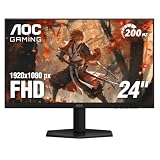
The AOC 24G42HE is a 24-inch gaming monitor with FHD resolution, a 200Hz IPS panel, and a 0.3ms response time as written on the listing, plus NVIDIA G-SYNC Compatible and HDR 10 support. Treat any sub-1ms claim as a best-case figure: makers usually quote it for a specific overdrive mode, so real-world pixel transitions are slower than the headline number.
- Panel: IPS, 1920 x 1080
- Refresh rate: 200Hz
- Response: 0.3ms (maker figure)
- Sync: G-SYNC Compatible; HDR 10 listed
Best for: fast shooters on a tight budget tier who want 200Hz. Skip if: you want a true HDR experience; HDR 10 support on a low-cost IPS panel is mostly a signal-compatibility label.
Pros: 200Hz IPS; G-SYNC Compatible; competitive budget tier. Cons: HDR is a label rather than a visual upgrade at this tier; brightness and stand details are not in the listing summary.
5. Samsung Odyssey G3 G30H: Best for a PC and Console Mix
The Samsung 24-inch Odyssey G3 (G30H) is described as an IPS FHD 200Hz gaming monitor. Samsung’s Odyssey line is aimed at gamers who want a recognisable brand and a clean design; the listing text itself is short, so confirm the ports, stand and sync support on Samsung’s product page before you buy.
- Panel: IPS, Full HD
- Refresh rate: 200Hz
- Ports and sync: check the maker
Best for: PC players who want a 200Hz IPS screen from a major brand. Skip if: you need full spec transparency from the listing alone.
Pros: 200Hz IPS; brand support; clean look. Cons: several specs not listed; mid budget tier for a 1080p panel.
6. Acer Nitro KG241Y Sbiip: Best Acer Option
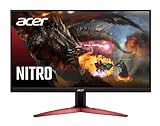
The Acer Nitro KG241Y Sbiip is a 23.8-inch FHD (1920×1080) gaming monitor with a 180Hz refresh rate, a 1ms response figure, AMD FreeSync Premium, two HDMI inputs and a DisplayPort input, plus VESA mounting. If you were searching for an Acer 24-inch gaming screen, this is the model in the store that is built for play rather than for the office.
- Panel: 23.8-inch, 1920 x 1080
- Refresh rate: 180Hz
- Sync: AMD FreeSync Premium
- Ports: 2x HDMI, DisplayPort; VESA mount
Best for: players who want multiple inputs and a dedicated gaming Acer. Skip if: you want a NVIDIA G-Sync Compatible badge; check Acer’s page.
Pros: 180Hz; three video inputs; FreeSync Premium; VESA mount. Cons: panel type is not stated in the short listing; sync support for NVIDIA cards not listed.
7. Sceptre E248 Prime: Best Budget Tier With Real Ports

The Sceptre 24-inch Prime Gaming Monitor lists two DisplayPort inputs and two HDMI inputs, both at up to 165Hz, along with built-in speakers. Sceptre sells in the lowest budget tier, and two DisplayPorts is unusual at that level: it makes the monitor practical for a PC plus a second source.
- Refresh rate: 165Hz on DisplayPort x2 and HDMI x2
- Audio: built-in speakers
- Panel type: not listed in the summary
Best for: first-time gaming monitor buyers and secondary setups. Skip if: colour accuracy and viewing angles matter to you; panel details are thin.
Pros: low budget tier; four video inputs; 165Hz; speakers included. Cons: built-in speakers are basic; panel specifics not listed; stand likely tilt-only (check Sceptre’s page).
Also Consider
Philips 241V8LB (100Hz VA)

The Philips 24 Inch Computer Monitor 241V8LB is an FHD 100Hz VA monitor with a 4ms GtG figure and Adaptive Sync. It is a general-purpose screen that happens to work for casual play. Pick it if you mainly work and only game now and then.
msi PRO MP243L E14 (144Hz)

The msi PRO MP243L E14 is a 24-inch IPS FHD monitor at 144Hz with FreeSync, HDR Ready, HDMI, a VGA port and VESA mounting. It is billed as a gaming office monitor: sensible for a hybrid desk, and the VGA port helps with older hardware.
ASUS VA249QG (120Hz)

The ASUS VA249QG is a 24-inch 1080p 120Hz eye-care gaming monitor with HDMI and DisplayPort, an IPS panel and 99% sRGB on the listing. It suits players who spend long hours at the desk and care about comfort features.
How We Chose
This is a research-based guide. We did not use the products ourselves. We compared the specifications printed on current store listings and maker pages, filtered for 24-inch (including 23.8-inch viewable) gaming monitors at 1080p, and favoured models with at least 144Hz, adaptive sync and an IPS-type panel. We limited each brand to a small number of picks, skipped refurbished and unavailable items, and left out any claim we could not find on a listing. Where a spec is missing, we say so rather than guess.
Buying Guide: What Matters on a 24 Inch Gaming Monitor
Refresh rate thresholds
- 60 to 100Hz: office use and casual play. Fine for slow games, but you give up the main reason to buy a gaming monitor.
- 144 to 165Hz: the sweet spot for most players and most GPUs. A big jump in smoothness from 60Hz.
- 180 to 240Hz: for competitive shooters where your GPU already holds well above 144 frames per second. Gains from 144 to 240 are smaller than from 60 to 144.
Resolution: why 1080p fits 24 inches
At 24 inches, 1920 x 1080 gives about 92 pixels per inch, which looks sharp enough at normal desk distance. A QHD panel at this size is rare, and it asks more from your graphics card. If you want a higher resolution, move up to 27 inches rather than pushing the pixel count at 24.
Panel type
IPS panels offer wide viewing angles and good colour. VA panels offer higher contrast but can smear in dark scenes. For fast games, IPS is the safer default, which is why most picks above use it.
Adaptive sync
FreeSync and G-Sync Compatible both remove screen tearing when your frame rate varies. Most modern monitors support at least one; check which one your graphics card needs. NVIDIA cards work with G-Sync Compatible monitors and with many FreeSync models, while AMD cards work with FreeSync.
Response time claims
Numbers like 0.3ms or 1ms are usually best-case figures in a special overdrive mode. A 1ms MPRT figure also describes strobing rather than pixel speed. Use them to compare models from the same maker, not across brands.
Ports and stand
DisplayPort is the safest way to reach the top refresh rate on a PC. HDMI is needed for consoles. A stand that tilts only is fine for most desks; a height-adjustable stand or VESA mount helps if you share a desk or use an arm.
24 Inch PC Monitor Price: What Sets the Tier
Price on a 24-inch monitor mostly follows refresh rate, panel type and extra features. We do not list exact figures because they change often, but the tiers look like this.
- Entry tier: 100 to 165Hz, basic stand, panel type often unlisted. Sceptre and Philips sit here.
- Entry to mid tier: 144 to 200Hz IPS with adaptive sync. LG, AOC, Dell and Acer sit here.
- Mid tier: 240Hz Fast-IPS with motion blur reduction and extra features. The ASUS pick sits here.
Check the current listing for today’s figure, and compare the same refresh rate and panel type across brands before you decide.
Acer Monitor 24 Inch: Gaming Line or Office Line?
Acer sells two very different families at this size. The Nitro line (for example the KG241Y above) is built for gaming, with refresh rates from 144Hz to 180Hz and FreeSync Premium. The Vero, SB and KB lines are office monitors: they are often 100Hz to 120Hz, aimed at everyday work, and some include speakers and eco-friendly materials. An office Acer at 120Hz can still be a good first monitor for casual play, but for shooters, pick the Nitro.
Match the Monitor to Your Games
Competitive shooters and battle royale
Aim for 180Hz to 240Hz if your graphics card can hold those frame rates at low settings. In titles such as Valorant, Counter-Strike 2 and Apex Legends, lower input lag and smoother motion help you track targets. The ASUS, Dell and AOC picks fit this group. If your PC averages 120 frames per second, a 144Hz monitor already shows you nearly everything it can render.
MOBA, strategy and sports games
These games are less sensitive to refresh rate, so 144Hz to 165Hz is plenty. Put your budget into panel quality and a stand you like. The LG and Sceptre picks are well suited.
Single-player and story games
Colour and contrast matter more than raw speed. An IPS panel at 144Hz is a good fit, and you can leave variable refresh on to smooth out dips. If you mainly play cinematic games, a 24-inch screen can feel small; consider moving up to 27 inches.
Console players
Consoles connect over HDMI, and most Full HD monitors accept 60Hz or 120Hz from a current console depending on the model. Check the HDMI version and the maker’s console notes. The Acer Nitro KG241Y Sbiip and Sceptre E248 Prime both list two HDMI inputs, which helps if you share the screen with a PC.
Pairing a Monitor With Your Graphics Card
A monitor is only as fast as the frames your system sends it. As a rough guide, a budget graphics card in a current build will often hold 100 to 144 frames per second in popular esports titles at 1080p, while a mid-range card can run those same games well beyond 200. In demanding single-player titles, frame rates are much lower, which is where adaptive sync earns its keep. Buy the refresh rate you can use. A 240Hz screen paired with a card that delivers 90 frames per second gives you no extra smoothness, and a 144Hz IPS screen is better value in that case.
Setup Tips to Reach the Full Refresh Rate
- Use the right cable. The DisplayPort cable in the box is usually the safest way to reach the top refresh rate. If you use HDMI, check that your cable and port version support the mode.
- Set the refresh rate in Windows. Many monitors default to 60Hz until you change it. Open Display settings, choose Advanced display, and select the highest refresh rate.
- Turn on overdrive carefully. A medium setting usually gives the cleanest result. The fastest setting can add overshoot, which looks like a pale trail behind moving objects.
- Enable adaptive sync in the monitor menu and the GPU control panel. It is not always on by default.
- Cap your frame rate slightly below the refresh rate. This keeps adaptive sync working smoothly and keeps input delay low.
- Calibrate brightness. Factory defaults are often too bright and oversaturated; lower brightness for evening play.
Common Mistakes When Buying a 24 Inch Gaming Monitor
- Paying for 240Hz without the GPU to use it. Frame rate is the limit, not the monitor.
- Trusting the response time headline. A 0.3ms or 1ms figure does not describe typical performance. Compare monitors from the same maker or look for independent review data.
- Ignoring the stand. A tilt-only stand can leave the screen too low. Check for height adjustment or a VESA mount.
- Skipping the panel type. Some very cheap models do not list it. If it is not on the page, ask or check the maker.
- Confusing office and gaming lines. A 100Hz or 120Hz office monitor is a fine first upgrade from 60Hz, but it is not a competitive screen.
- Believing HDR labels at this tier. HDR 10 on a monitor with modest brightness mostly means it accepts an HDR signal. It rarely looks dramatically different.
When to Choose 27 Inches Instead
If your desk is deep enough and you want sharper text or a higher resolution, a 27-inch QHD monitor is the next step up. It asks more from your graphics card and costs more, but you get a larger image with much better pixel density. For competitive play on a small desk, 24 inches still has the edge because you can see the whole screen without moving your eyes.
Desk Setup: Distance, Height and Lighting
A 24-inch monitor works best about 60 to 80 centimetres from your eyes, with the top edge of the screen at or just below eye level. Sit so that your arm is slightly bent when your hand is on the mouse. If the stand cannot raise the screen, a monitor arm or a stack of books under the base fixes it, and any monitor with a VESA mount can use an arm. Keep a soft light behind the screen to reduce eye strain during long sessions, and avoid a bright window behind you, because IPS panels show reflections on glossy bezels and dark scenes. Turn on a night mode or lower the blue light setting for evening play if the glare bothers you.
Dual-monitor setups
Many players pair a 24-inch gaming screen with a second office monitor. Put the gaming screen in front of you and the second one to the side, and set the faster screen as the primary display. Mixed refresh rates are fine in modern versions of Windows, though some users see small stutters in the slower window while a game is running. If that happens, check the GPU control panel and keep both screens on the same cable type.
FAQ
Is a 24 inch monitor good for gaming?
Yes, 24 inches is the standard size for competitive gaming because it fits your field of view and allows very high frame rates at 1080p. Move to 27 inches only if you want a higher resolution.
Is 144Hz or 240Hz better on a 24 inch monitor?
240Hz is smoother, but only if your PC holds well over 144 frames per second in your game. For most players, 144Hz to 165Hz is the best balance of cost and smoothness.
Should I buy IPS or VA for a 24 inch gaming monitor?
IPS is the safer choice for fast games thanks to better viewing angles and cleaner motion. VA offers deeper blacks but can show smearing in dark scenes.
Do I need G-Sync or FreeSync?
You need some form of adaptive sync to avoid tearing. Both work on most modern graphics cards, so choose based on what the monitor lists and what your GPU supports.
Can I use a 24 inch gaming monitor with a console?
Yes, through HDMI. Consoles generally run at up to 120Hz at 1080p on supported monitors, but check the HDMI version and the maker’s console notes first.
Is a 24 inch 1080p monitor sharp enough?
At normal desk distance, yes. At 24 inches, 1080p gives about 92 pixels per inch, which looks clean for games though text is less crisp than on a higher-resolution screen.
What does the O/C refresh rate mean on a listing?
O/C means overclock: the monitor can run above its base refresh rate through a setting in the menu. It usually works, but the maker may not cover it as a rated spec.
Which One Should You Buy?
- Want the safest all-round pick: LG 24G411A-B.
- Want the fastest screen at a sensible tier: Dell SE2426HG or AOC 24G42HE.
- Want blur reduction plus adaptive sync: ASUS TUF VG249QML5A.
- Want an Acer gaming screen with many ports: Acer Nitro KG241Y Sbiip.
- Want the lowest budget tier: Sceptre E248 Prime.
Confirm the ports, stand and sync details on the maker’s page before you commit, since several short listings leave these out.
Sources
- LG Electronics UltraGear product pages
- ASUS TUF Gaming monitor specifications
- Dell gaming monitor product pages
- AOC, Samsung, Acer and Sceptre maker spec sheets
Last updated: November 2026
Related guides
More from Amazon
Programs that pair well with the guide above. Offers and eligibility are set by Amazon and may change.
Free shipping on eligible items, Prime Video and more. Eligible new members can start with a free trial.
Start a Prime free trialAd-free music streaming. Eligible new subscribers can start with a free trial.
Try Music Unlimited freeA Prime membership for ages 18-24 with a trial period. Eligibility is set by Amazon.
See Prime for Young AdultsAudiobooks and podcasts to listen to on the go. Eligible new members can start with a free trial.
Try Audible freeAs an Amazon Associate we earn from qualifying purchases.