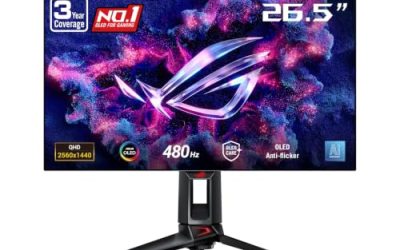
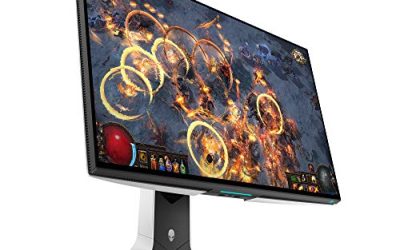
The best 4K 120Hz gaming monitor is a 27-inch IPS panel with HDMI 2.1 and DisplayPort 1.4, because that pairing shows full 4K at 120Hz from both a PC and a PS5. Seven current picks follow, split by size, panel type and budget tier, with a plain answer on PS4 use: a PS4 or PS4 Pro cannot send 4K at 120Hz, so it needs a different monitor choice.
4K at 120 frames per second asks a lot of both the monitor and the source. The screen needs enough cable bandwidth, the graphics card needs to render four times the pixels of 1080p, and the game has to offer a high frame rate mode. This guide starts with those limits, then lists monitors worth shortlisting, then explains the settings that decide whether you see 120Hz at all.
Our Top Picks


Top 3 picks at a glance
Quick Answers Before You Shop
- PC with a recent graphics card: use DisplayPort 1.4 or HDMI 2.1 for 4K at 120Hz and above.
- PS5: needs an HDMI 2.1 port on the monitor and an Ultra High Speed cable. It starts at 4K 60Hz and switches to 4K 120Hz when a game with a 120 frames per second mode is running.
- Xbox Series X: also uses HDMI 2.1 for 4K 120Hz.
- PS4 or PS4 Pro: no 120Hz output at any resolution; the PS4 Pro tops out at 4K 60Hz. See the PS4 section below.
Picks at a Glance
| Monitor | Size and panel | Refresh | Key ports | Budget tier |
|---|---|---|---|---|
| CRUA 27″ 4K 120Hz | 27″, IPS | 120Hz | HDMI 2.1, DP 1.4 | Entry to mid |
| Z-Edge S274K | 27″, IPS | 120Hz | HDMI (version: check maker) | Entry to mid |
| Dell S2725QS | 27″, IPS | 120Hz | Check Dell | Mid |
| Acer Nitro VG270K V4 | 27″, IPS | 160Hz, dual mode 320Hz | 2x HDMI 2.1, DisplayPort | Mid |
| ASUS TUF VG27UQ1A | 27″ | 160Hz | Check ASUS | Mid to upper |
| Gawfolk 4K Curved 32″ | 32″, VA, 1500R | 120Hz | Check maker | Mid |
| Dell S3225QS | 32″, VA | 120Hz | Check Dell | Mid |
The Seven Picks
1. CRUA 27 Inch 4K 120Hz: Best Entry Point With HDMI 2.1
As an Amazon Associate we earn from qualifying purchases at no extra cost to you.

The CRUA 27″ 4K 120Hz Gaming Monitor is an IPS white-finish screen with built-in speakers. The listing mentions 120% sRGB, FreeSync, HDMI 2.1, DisplayPort 1.4 and 178-degree viewing angles. The combination of HDMI 2.1 and a 4K 120Hz IPS panel at a lower budget tier is why it leads the list for a console owner who also plays on PC.
- Panel: 27-inch IPS, 4K
- Refresh rate: 120Hz
- Ports: HDMI 2.1, DisplayPort 1.4
- Sync: FreeSync; extras: built-in speakers
Best for: PS5 or PC players who want 4K 120Hz without a premium brand budget. Skip if: you want a long, proven support record from a major maker.
Pros: HDMI 2.1 and DisplayPort 1.4; IPS; built-in speakers; white finish suits light desks. Cons: less-known brand; HDR performance not stated; speaker quality is basic.
2. Z-Edge S274K: Simple 27 Inch 4K 120Hz IPS

The Z-Edge 27-inch 4K Gaming Monitor is a 120Hz UHD (3840×2160) IPS PC monitor with a 1ms MPRT response figure and 16.7 million colours. As with every MPRT number, the figure describes motion blur reduction, not raw pixel speed. The listing is short, so check the maker for the HDMI version before using it with a console.
- Panel: 27-inch IPS, 3840 x 2160
- Refresh rate: 120Hz
- Response: 1ms MPRT
- HDMI version: not listed here
Best for: PC gamers on a tighter budget tier. Skip if: you need confirmed HDMI 2.1 for a PS5 and the page does not state it.
Pros: 4K 120Hz IPS at a low budget tier; compact 27-inch size. Cons: few listed details; console support must be verified.
3. Dell S2725QS: Best Brand Support at 4K 120Hz
The Dell 27 Monitor S2725QS is a 4K UHD IPS display at 120Hz with a 5ms response time and FreeSync Premium. The listing adds 350 cd/m2 brightness, 1,500:1 contrast and 99% sRGB. Dell’s strength is support and consistent quality control; its response figure is slower than gaming-first brands, so it suits a mix of work and play.
- Panel: 27-inch IPS, 4K
- Refresh rate: 120Hz, 5ms
- Brightness and contrast: 350 cd/m2, 1,500:1
- Colour: 99% sRGB; Sync: FreeSync Premium
Best for: people who work and game on one monitor. Skip if: you want the quickest response time for shooters.
Pros: brand support; strong sRGB coverage; FreeSync Premium; good for text. Cons: 5ms rating; port details are not in the summary, so check Dell’s spec page before you plan a console connection.
4. Acer Nitro VG270K V4: Best for Flexible Resolution Modes

The Acer Nitro 27in 4K (3840×2160) IPS monitor lists a 160Hz refresh rate and a DFR mode up to 320Hz, a 0.5ms figure, AMD FreeSync Premium and two HDMI 2.1 ports plus DisplayPort. A dual-frame-rate style mode lowers the resolution to reach a higher refresh rate, which helps competitive players who want a fast 1080p mode and a sharp 4K mode in one screen.
- Panel: 27-inch IPS, 4K
- Refresh rate: 160Hz; up to 320Hz in DFR mode
- Ports: 2x HDMI 2.1, DisplayPort
- Sync: AMD FreeSync Premium
Best for: players who want both 4K and an esports-speed mode. Skip if: you only want 4K and would rather not manage mode switching.
Pros: 160Hz at 4K; two HDMI 2.1 inputs (PC plus console); DFR mode. Cons: the 320Hz mode needs a lower resolution; your GPU must be strong to use the 4K 160Hz mode.
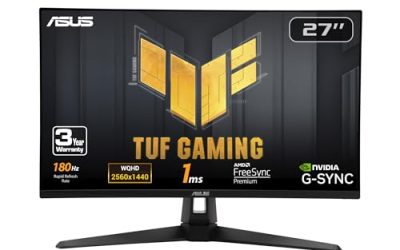
5. ASUS TUF Gaming VG27UQ1A: Best for G-SYNC and ELMB Sync

The ASUS TUF Gaming VG27UQ1A is a 27-inch 4K 160Hz G-SYNC gaming monitor with ELMB Sync, a 1ms figure, 95% DCI-P3 and FreeSync Premium on the listing. Pairing ELMB Sync (motion blur reduction that works with variable refresh) with a wide-gamut 4K panel is the draw here.
- Panel: 27-inch, 4K
- Refresh rate: 160Hz
- Colour: 95% DCI-P3
- Sync: G-SYNC, FreeSync Premium, ELMB Sync
Best for: NVIDIA GPU owners who want a premium-tier TUF monitor. Skip if: you need to stay in the lower budget tier.
Pros: 4K 160Hz; wide colour gamut; ELMB Sync; both sync systems named. Cons: higher budget tier; confirm HDMI version on ASUS’s page for console use.
6. Gawfolk 32 Inch 4K Curved VA: Best Big Curved Screen
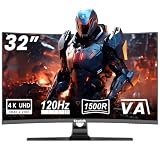
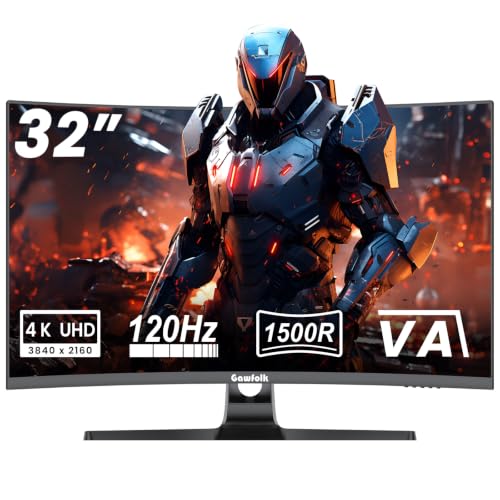
The Gawfolk 4K Curved Monitor 32 Inch is a VA panel with 1500R curvature, 120Hz, a 1ms figure and G-Sync and FreeSync labelled on the listing. VA gives high contrast, and a 32-inch size keeps 4K text comfortable at arm’s length. Compared with IPS, VA monitors tend to show more smearing in dark scenes, so it fits slower, cinematic games.
- Panel: 32-inch VA, 4K, 1500R curve
- Refresh rate: 120Hz
- Sync: G-Sync and FreeSync labelled
- Mount: VESA
Best for: large-screen, immersive single-player gaming. Skip if: you play fast shooters where dark-scene smear is a problem.
Pros: 32-inch canvas; curved; VA contrast; 120Hz. Cons: VA smearing; unfamiliar brand; port versions not stated.
7. Dell S3225QS: Best 32 Inch Flat Option From a Major Brand

The Dell 32 Monitor S3225QS is a 31.5-inch 4K UHD VA monitor at 120Hz with FreeSync Premium, 3,000:1 contrast and 300 cd/m2 brightness, according to the listing, plus an Eye Comfort feature. It is aimed at people who want a large, quiet-looking 4K screen for work, films and relaxed gaming.
- Panel: 31.5-inch VA, 3840 x 2160
- Refresh rate: 120Hz; Sync: FreeSync Premium
- Contrast and brightness: 3,000:1, 300 cd/m2
Best for: large flat 4K screen with brand support. Skip if: you want the sharpest pixel density; a 27-inch 4K screen is crisper.
Pros: large size; strong contrast; brand support; FreeSync Premium. Cons: VA motion characteristics; lower pixel density than 27 inches; port details not in the summary.
Also Consider
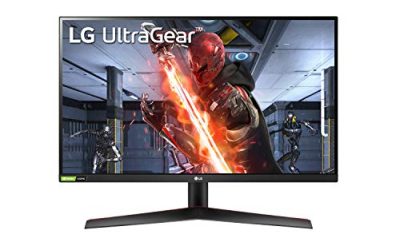
LG 27G810A-B (dual mode)

The LG 27G810A-B UltraGear is a 27-inch 4K UHD IPS monitor with a Dual Mode that runs UHD at up to 180Hz or FHD at up to 360Hz, with a 1ms figure and NVIDIA G-Sync support on the listing. It is a strong alternative if you want an esports mode and a 4K mode on one screen, at a higher budget tier.
ZZA 27 Inch 4K 144Hz

The ZZA 27 Inch 4K Gaming Monitor is a UHD flat 144Hz screen with Adaptive Sync, HDMI 2.1 and DP 1.4, with tilt adjustment on the stand. It is a lower-tier way to get more than 120Hz at 4K if your GPU can feed it.
CRUA 32 Inch 4K 160Hz Curved

The CRUA 32″ 4K UHD 160Hz Curved Gaming Monitor uses a 1500R VA panel with FreeSync, 120% sRGB and built-in speakers. Consider it if you like the Gawfolk idea but want a faster refresh rate.
4K 120Hz or 1440p 144Hz and Higher: Which Fits Your Graphics Card?
Resolution is the biggest lever on frame rate. A 4K image has about 8.3 million pixels, 2.25 times a 1440p image and four times a 1080p image. That means a graphics card that comfortably holds 144 frames per second at 1440p may only reach 60 to 80 frames per second at 4K in the same game. Before you pay for a 4K 120Hz monitor, work out what your card actually delivers.
| Your situation | Better fit | Why |
|---|---|---|
| Mid-range card, mostly competitive games | 1440p at 144Hz or higher | Easier to drive, so you reach the refresh rate |
| High-end card, mix of genres | 4K 120Hz to 160Hz | Sharper image with room for high frame rates |
| PS5 or Xbox Series X as main platform | 4K 120Hz with HDMI 2.1 | Consoles are built around 4K and 120 frames per second modes |
| Work and play on one screen | 27-inch 4K IPS | Sharp text for productivity |
If you are unsure, a monitor with a dual mode, such as the Acer Nitro or the LG 27G810A-B, lets you run 4K for single-player games and drop to a lower resolution for fast shooters.
IPS, VA and Dual Mode: What the Differences Look Like in Play
IPS
IPS panels keep colours accurate when you sit off-centre and usually show cleaner motion. Their weakness is contrast: blacks look dark grey in a dim room, and some panels show a faint glow in the corners. Most 27-inch 4K picks above use IPS.
VA
VA panels offer roughly double the contrast of IPS, so dark scenes look deeper and films look more dramatic. The trade-off is slower pixel changes in dark areas, which can leave a smear behind moving objects. Large curved monitors often use VA, as with the Gawfolk and Dell 32-inch picks.
Dual mode
Dual mode monitors switch between a high-resolution mode and a lower-resolution, higher-refresh mode. You trade sharpness for speed, and the switch is usually a menu option or a hotkey. If you only ever play at one setting, you will not need it.
Future-Proofing: What to Buy If You Plan to Upgrade Your GPU or Console
If you plan to upgrade your graphics card within a year or two, pay attention to the monitor’s ceiling, not just its current performance. A 4K screen at 160Hz leaves room for a stronger card, while a 4K 120Hz monitor is already enough for a console generation. Make sure the ports will not hold you back: HDMI 2.1 and DisplayPort 1.4 cover today’s needs, and a monitor with two HDMI 2.1 ports lets you keep a PC and a console connected at once. Avoid paying for features you cannot use yet, such as a 320Hz low-resolution mode on a PC that rarely tops 200 frames per second.
Cables and Accessories
- HDMI cable: look for Ultra High Speed certification when you want HDMI 2.1 modes. Older Premium High Speed cables can work for 4K 60Hz but may fail at higher bandwidth.
- DisplayPort cable: choose a certified DisplayPort 1.4 cable and keep it as short as is practical.
- Monitor arm: a VESA arm frees desk space and sets height. A 32-inch monitor is heavy, so check the arm’s weight limit against the monitor’s listed weight.
- Surge protector: a basic one protects any monitor during storms.
Daily Use Tips for a 4K Monitor
At 4K, Windows may default to 150% or 175% scaling so text stays readable on a 27-inch or 32-inch screen. Try 125% to 150% on a 27-inch monitor if you want more workspace, and keep 100% only if you sit close and have good eyesight. Update your graphics driver before you set up the monitor, because many 4K 120Hz and variable refresh issues are fixed in driver updates. If you notice burn-in-like image retention, which is rare on LCD panels, change the screen’s content and turn on the screen saver. Clean the screen with a soft, dry microfibre cloth and avoid sprays, which can seep into the bezel.
How We Chose
This is a research-based guide, and we did not use the products. We searched the monitors listed in the store for 4K resolution and 120Hz or higher, read the specifications on the listings, and cross-checked console behaviour with published guidance on HDMI 2.1 and PS5 output. We limited each brand to two picks, left out refurbished and unavailable items, and marked any detail we could not find as “not listed”. We do not claim benchmark results or response-time measurements.
120 Hz 4K Gaming Monitor: What You Need for a Working Connection
Bandwidth and cables
4K at 120Hz needs more bandwidth than HDMI 2.0 provides. HDMI 2.0 tops out at 4K 60Hz (with reduced colour sampling for some modes), so a monitor must have HDMI 2.1 or DisplayPort 1.4 to show 4K at 120Hz. Use the cable included with the monitor, or buy an Ultra High Speed HDMI cable for HDMI 2.1 and a certified DisplayPort 1.4 cable for PC.
Graphics card power
Rendering 4K at 120 frames per second is demanding. Many modern games only reach that rate with upscaling or reduced settings. A monitor that supports 4K 120Hz and a graphics card that can use it are separate purchases; if your card gives you around 70 frames per second at 4K in your games, a 4K 120Hz screen will still help through adaptive sync, but you will not see 120Hz.
Panel type and size
IPS panels give better viewing angles and cleaner motion. VA panels give higher contrast but can smear. At 4K, 27 inches gives a dense, sharp image (about 163 pixels per inch), while 32 inches is more immersive but a little less sharp (about 140 pixels per inch).
HDR
Most monitors in this tier list HDR labels with moderate brightness. Treat HDR as a bonus unless the monitor lists a real brightness figure and local dimming; check the maker.
Best Monitor for PS4: Why 4K 120Hz Is Not the Target
The PS4 and PS4 Pro do not output 120Hz at any resolution. The standard PS4 outputs up to 1080p at 60Hz, and the PS4 Pro can output native or checkerboard 4K at up to 60Hz over HDMI. So if you are asking about the best monitor for PS4, you do not need a 4K 120Hz screen. A 4K 60Hz or a 1080p or 1440p monitor with a low input lag setting will do the job, and a PS4 on a 4K 120Hz monitor is simply capped at its own output. If you plan to move to a PS5 later, a monitor with HDMI 2.1 (such as the CRUA, Acer or ZZA options above) will work now and keep up with the new console.
Settings That Decide Whether You Actually Get 4K 120Hz
On PC
- Connect with DisplayPort 1.4 first. It is the simplest route to 4K at 120Hz or higher.
- In Windows, open Display settings, choose Advanced display and select the highest refresh rate. Many monitors start at 60Hz.
- Enable adaptive sync in both the monitor menu and the GPU control panel.
- If the picture shows sparkles or black screens, swap the cable; long or low-grade cables are the usual cause at these data rates.
On PS5
- Plug the console into the monitor’s HDMI 2.1 port, not an HDMI 2.0 port.
- Use the Ultra High Speed cable from the console box if it is long enough.
- In PS5 settings, open Screen and Video, then Video Output, and set 120Hz Output to Automatic.
- Start a game with a performance or 120 frames per second mode. Many games lower the resolution in that mode, so you may not see true 4K.
- If you see video problems, turn 120Hz Output off and compare.
On Xbox Series X
Use the HDMI 2.1 port, enable 120Hz in the video settings, and check the game’s own settings for a high frame rate mode.
Buying Checklist for a 4K 120Hz Monitor
- Ports: HDMI 2.1 for consoles, DisplayPort 1.4 for PC. If the page does not name HDMI 2.1, treat it as unconfirmed.
- Panel: IPS for fast games; VA for contrast and large curved screens.
- Size: 27 inches for sharpness and competitive play; 32 inches for immersion.
- Refresh rate: 120Hz is the target for consoles; 144Hz to 160Hz gives a PC more headroom.
- Stand: look for height adjustment or a VESA mount at this size.
- Brand support: a major brand helps if you need to return or repair a monitor, while smaller brands can offer more ports for a lower budget tier.
FAQ
What is the best 4K 120Hz gaming monitor for PS5?
Choose a 27-inch IPS monitor with HDMI 2.1, such as the CRUA 27 inch or Acer Nitro VG270K V4. HDMI 2.1 is needed for 4K at 120Hz on PS5.
Does 4K 120Hz need HDMI 2.1?
Yes for consoles. On PC, DisplayPort 1.4 can also carry 4K at 120Hz, sometimes with compression. HDMI 2.0 cannot do 4K at 120Hz.
Can a PS4 use a 4K 120Hz monitor?
Yes, it will connect, but the PS4 Pro stays limited to 4K at 60Hz and a base PS4 to 1080p at 60Hz. The 120Hz mode will not be used.
Is 4K 120Hz worth it over 1440p 144Hz?
If you want sharper images and have a strong graphics card, yes. If you prefer higher frame rates at lower hardware cost, 1440p at 144Hz or more is easier to drive.
27 inch or 32 inch for 4K gaming?
27 inches is sharper at desk distance and suits competitive play. 32 inches is more immersive and better for large desks and cinematic games.
Do I need G-Sync for 4K 120Hz?
No. FreeSync and G-Sync Compatible monitors both work with modern graphics cards. Pick the one that your GPU supports and that the monitor lists.
Will my PS5 show 120Hz in every game?
No. Only games with a 120 frames per second mode use it, and many lower the resolution in that mode. Check the PS5 video output settings for 120Hz Output on Automatic.
Which One Should You Buy?
- PS5 plus PC on a tight budget tier: CRUA 27 inch 4K 120Hz.
- Work and play on one screen: Dell S2725QS.
- Esports speed plus 4K: Acer Nitro VG270K V4 or LG 27G810A-B.
- NVIDIA GPU with premium features: ASUS TUF VG27UQ1A.
- Big screen for story games: Gawfolk 32 inch curved or Dell S3225QS.
Before you buy, confirm the HDMI version and cable details on the maker’s page, because short listings often leave them out.
Sources
- FlatpanelsHD guide to PlayStation 5 4K 120Hz and HDMI 2.1 setup
- PlayStation support pages on PS5 resolution
- Acer, ASUS, Dell and LG monitor maker pages
- HDMI Licensing Administrator HDMI 2.1 specification overview
Last updated: November 2026
Related guides
More from Amazon
Programs that pair well with the guide above. Offers and eligibility are set by Amazon and may change.
Free shipping on eligible items, Prime Video and more. Eligible new members can start with a free trial.
Start a Prime free trialAd-free music streaming. Eligible new subscribers can start with a free trial.
Try Music Unlimited freeA Prime membership for ages 18-24 with a trial period. Eligibility is set by Amazon.
See Prime for Young AdultsAudiobooks and podcasts to listen to on the go. Eligible new members can start with a free trial.
Try Audible freeAs an Amazon Associate we earn from qualifying purchases.