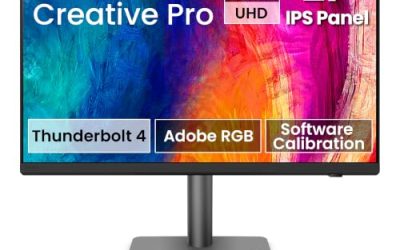
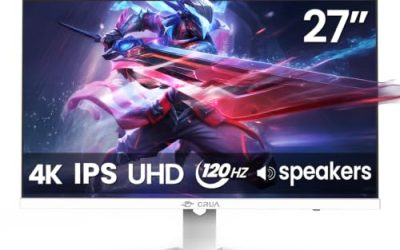
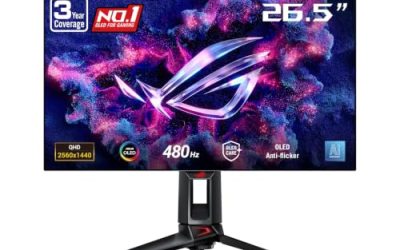
The ASUS ROG Swift PG279QM review verdict: it is a 27-inch 1440p Fast IPS gaming monitor running at 240Hz with a native G-SYNC module and a built-in NVIDIA Reflex Latency Analyzer, which makes it one of the most complete 1440p esports screens in the ROG Swift line. The trade-offs are a mid-level HDR badge (DisplayHDR 400) and no HDMI 2.1.
The PG279QM is the 27-inch 1440p model many shoppers compare against the older PG279Q and against newer 1440p monitors from ASUS, Alienware and LG. This guide collects the maker specifications and editorial review findings, explains what each feature means for play, and shows who should buy it and who should look elsewhere. It is research-based: we did not use the monitor ourselves, and anything we could not confirm is marked “check the maker”.
Our Top Picks
Pros & cons
- USB-C hub lets one cable handle video, data, and power
- ELMB Sync combines low blur with variable refresh rate
- Includes a 3-month Adobe Creative Cloud subscription
- At 14.6 pounds, it needs a stable desk or mount
- HDR support is basic rather than a premium HDR tier


Top 3 picks at a glance
Quick Verdict
- Best for: NVIDIA GPU owners who want a fast 27-inch 1440p screen with the smoothest variable refresh rate and latency tools.
- Strong points: 240Hz Fast IPS, native G-SYNC module, Reflex Latency Analyzer, fan-free heatsink cooling, height-adjustable stand, USB hub.
- Weak points: DisplayHDR 400 only, HDMI ports are not HDMI 2.1 so consoles do not get 120Hz at 4K, and the G-SYNC module adds cost.
- Skip if: you use an AMD card or console and do not need the module, or you want a 4K screen.
ASUS ROG Swift PG279QM Specs at a Glance
| Spec | What ASUS and reviewers list |
|---|---|
| Screen size | 27 inches |
| Resolution | 2560 x 1440 (QHD) |
| Panel type | Fast IPS |
| Refresh rate | 240Hz |
| Response time | 1ms (GTG) as listed by ASUS; Tom’s Hardware lists 2ms |
| Sync | Native G-SYNC with hardware module; adaptive sync over DisplayPort for AMD cards |
| Latency tool | NVIDIA Reflex Latency Analyzer built in |
| HDR | DisplayHDR 400 |
| Brightness | 350 cd/m2 typical, 400 cd/m2 peak in HDR as cited by reviewers |
| Contrast | 1000:1 |
| Viewing angles | 178 degrees |
| Inputs | 1x DisplayPort 1.4 and 3x HDMI (HDMI 2.0 class) |
| USB | USB 3.0 hub, one upstream and two downstream |
Color-gamut figures differ between sources, so check the maker for the official gamut and factory calibration details.
Is the ASUS ROG Swift PG279QM Good for Gaming?
Yes, it is a very capable gaming monitor for 1440p. The 240Hz refresh rate, fast IPS response and native G-SYNC combine for smooth, clear motion, and 1440p is a resolution that current mid-range and high-end graphics cards can drive at high frame rates.
Reviews from sources such as Tom’s Hardware, RTINGS and DisplayNinja describe it as a strong choice for competitive play, with the main complaint being cost relative to similar screens without a G-SYNC module. If you play fast shooters or racing games and own an NVIDIA graphics card, you are the target buyer.
ASUS ROG Swift 27 1440p: Why Resolution and Refresh Rate Matter
A 27-inch 1440p screen has about 109 pixels per inch, which is sharp enough for gaming and general desktop use without the heavy performance cost of 4K. At 240Hz, the screen refreshes every 4.2 milliseconds, so fast movement looks smoother and input feels more immediate.
How many frames per second do I need?
To benefit from 240Hz you need frame rates near that figure. In competitive games with light graphics, many current cards can get there. In heavy modern titles you will see 100 to 160 frames per second at high settings; the monitor’s variable refresh rate keeps motion smooth at those values.
Is 1440p better than 4K for gaming?
For high refresh rates, yes, because 1440p is easier for a graphics card to render. 4K is sharper but needs far more power for the same frame rate.
Native G-SYNC: What the Module Adds
The PG279QM uses NVIDIA’s hardware G-SYNC module rather than relying only on adaptive sync. The module offers variable refresh rate across the full range, variable overdrive that adjusts pixel response as the frame rate changes, and tight integration with NVIDIA features. The module also explains two limits: no HDMI 2.1 and a slightly higher cost.
Does it work with AMD graphics cards?
Reviews say the monitor also supports adaptive sync over DisplayPort, so an AMD card can use variable refresh rate. You still pay for the module even if you do not use its extras, so AMD owners should compare cheaper 1440p 240Hz screens.
What is the Reflex Latency Analyzer?
It is an NVIDIA feature in the monitor that measures the delay from a mouse click to the change on screen, when paired with a supported mouse and an NVIDIA card. It is useful for competitive players who want to tune settings and compare hardware.
Does the G-SYNC module need a fan?
No, reviewers note it uses a heatsink instead of a fan, so the monitor stays quiet.
Image Quality
Color and calibration
The Fast IPS panel provides wide viewing angles and solid color for games and general work. Sources quote factory calibration around a delta E below 2; individual units vary, so a hardware calibrator is the safe route for color-critical work.
Brightness and HDR
The monitor is certified DisplayHDR 400, with reviews citing around 350 cd/m2 typical and 400 cd/m2 HDR peak. That is the entry level of HDR certification: it brings a modest lift in highlights but not the contrast or local dimming of a mini-LED or OLED screen. In a bright room it looks clean; in a dark room blacks look like standard IPS.
Motion clarity
The listed 1ms response, 240Hz refresh and variable overdrive give clean motion. Whether you see overshoot depends on the overdrive setting you choose; keep the default or the middle setting first and adjust only if you notice trails.
Connectivity
The PG279QM has one DisplayPort 1.4 and three HDMI ports. The G-SYNC module means HDMI is in the 2.0 class, and reviewers note the HDMI inputs run at lower refresh rates than DisplayPort, so use DisplayPort for 240Hz on a PC. A USB 3.0 hub with one upstream and two downstream ports is included, plus a height-adjustable stand and cables in the box.
Can a PS5 or Xbox use it?
It will display a console image through HDMI, but without HDMI 2.1 you will not get 4K at 120Hz, and 1440p support depends on the console. Console-first buyers should compare an HDMI 2.1 monitor.
Who Should Buy It
- NVIDIA GPU owners focused on esports: the module and Reflex Latency Analyzer make the most of the card.
- Players who want a quiet, durable 27-inch screen: heatsink cooling and a stable stand.
- Desktop users who want 1440p sharpness without 4K cost: a good balance for work and play.
Who Should Skip It
- Console-first players: no HDMI 2.1.
- HDR-focused players: DisplayHDR 400 is a basic level.
- Budget shoppers: several 1440p 240Hz screens without a G-SYNC module cost less.
ASUS ROG Swift PG279QM Alternatives
The PG279QM itself is not in our store listings, so these cards are comparable 27-inch 1440p screens from the real listings.
ASUS ROG Strix XG27AQMR: 300Hz Fast IPS
As an Amazon Associate we earn from qualifying purchases at no extra cost to you.

The ROG Strix XG27AQMR is a 27-inch 1440p Fast IPS monitor. The listing describes 300Hz, 1ms, G-SYNC Compatible, FreeSync Premium Pro, ELMB Sync and DisplayHDR 600. It trades the native G-SYNC module for a higher refresh rate and a stronger HDR badge, so it is the pick for players who want more hertz and are fine with G-SYNC Compatible mode.
Alienware AW2723DF: 240Hz With G-Sync

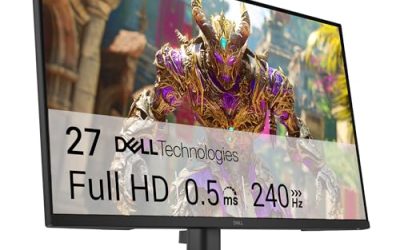
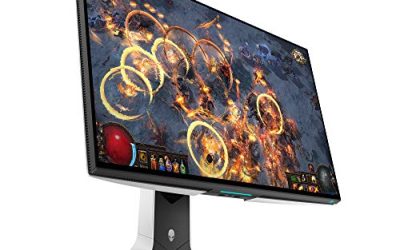
The Alienware AW2723DF is a 27-inch 2560 x 1440 monitor at 240Hz. The listing mentions DisplayPort 1.4, 1ms response, NVIDIA G-Sync, preset display modes and a height, tilt, swivel and pivot stand. It is a direct rival to the PG279QM for players who prefer the Alienware design.
LG UltraGear 27GR83Q-B: HDMI 2.1 at 240Hz

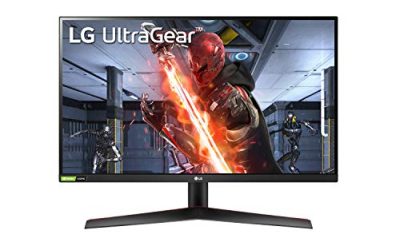
The LG 27GR83Q-B is a 27-inch QHD IPS monitor with 240Hz, 1ms, DisplayHDR 400, G-Sync and FreeSync Premium, plus HDMI 2.1 and DisplayPort. It suits players who want a 240Hz screen that also works with consoles.
ASUS ROG XG27ACS: 180Hz With USB-C

The ROG XG27ACS is a 27-inch 1440p Fast IPS monitor at 180Hz with USB-C, DisplayHDR 400, 1ms (GTG), ELMB Sync and FreeSync. The listing says it suits PS5 and Xbox. It is the lower-tier option in the ROG range if 180Hz is enough.
PG279QM vs the Alternatives at a Glance
| Model | Size and panel | Refresh | Sync | Best for |
|---|---|---|---|---|
| ROG Swift PG279QM | 27″, Fast IPS | 240Hz | Native G-SYNC | NVIDIA esports players |
| ROG Strix XG27AQMR | 27″, Fast IPS | 300Hz | G-SYNC Compatible | Highest refresh at 1440p |
| Alienware AW2723DF | 27″, 1440p | 240Hz | G-Sync | Alienware desks |
| LG 27GR83Q-B | 27″, IPS | 240Hz | G-Sync, FreeSync | PC plus console |
| ROG XG27ACS | 27″, Fast IPS | 180Hz | G-SYNC, FreeSync | Value and USB-C |
PG279QM vs PG279Q
The older PG279Q is a 27-inch 1440p IPS monitor at 165Hz, and the PG279QM raises the refresh rate to 240Hz, switches to Fast IPS and adds the Reflex Latency Analyzer. If you see a PG279Q listing, check the model letters carefully; they are different products.
Setup Tips
- Connect with DisplayPort for 240Hz and set the refresh rate in the operating system.
- Enable G-SYNC in the NVIDIA control panel and, if you play windowed, enable it for both full-screen and windowed modes.
- Keep the frame rate a few frames below the refresh rate to avoid the sync range limit.
- Use the default overdrive setting first, then adjust if you see trails.
- Connect a Reflex-compatible mouse to the monitor’s USB hub if you plan to use the latency analyzer.
- Try HDR modes per game; DisplayHDR 400 can look flat in some titles.
Performance by Use
Competitive shooters
This is the monitor’s home turf. High frame rates, low input delay and a clear picture help in games where a few milliseconds matter. The Reflex Latency Analyzer lets you see the end-to-end delay for your own setup, which is more useful than a spec sheet number.
Racing and sports games
Fast motion benefits from the high refresh rate and variable overdrive. Variable overdrive means pixel response tracks the frame rate, so motion stays clean even when frames dip.
Single-player and story games
At 27 inches and 1440p the image is sharp and colorful, though the IPS black level and DisplayHDR 400 mean you will not get a cinematic dark-room look. If this is your main use, a 1440p OLED or a mini-LED screen may suit you better.
Work and desktop use
1440p at 27 inches gives plenty of workspace with comfortable text at 100% scaling. The USB hub and height-adjustable stand help in a mixed work and play setup.
Which Graphics Card Pairs Well With 1440p 240Hz?
Pairing matters more than the monitor in this case. For esports titles, a mid-range card from recent generations can approach 240 frames per second at 1440p with tuned settings. For demanding single-player games, expect 80 to 160 frames per second with a high-end card, and let variable refresh rate handle the variation. Because the PG279QM has a native G-SYNC module, NVIDIA cards are the natural match; AMD cards can use adaptive sync over DisplayPort.
Do not buy the monitor for 240Hz alone. If your card only reaches 90 frames per second in your favorite game, a 144Hz or 165Hz screen costs less and looks the same. Buy the 240Hz screen when your games can use it, or when you plan to upgrade the card.
G-SYNC Module vs G-SYNC Compatible
| Feature | Native G-SYNC module (PG279QM) | G-SYNC Compatible (adaptive sync) |
|---|---|---|
| Variable refresh range | Wide, down to very low frame rates | Depends on the monitor’s range |
| Variable overdrive | Yes, handled by the module | Varies; often fixed overdrive modes |
| Latency analyzer | Built in on this model | Not included on most monitors |
| HDMI 2.1 | Not supported by this model | Common |
| Cost | Higher | Lower |
In day-to-day play the difference is subtle for many people. Adaptive sync monitors have improved a lot, so the module is a bonus rather than a must-have. The PG279QM makes sense when you want the module’s behavior and the latency tool together.
Settings That Make the Most of It
Start with the factory picture mode and change one thing at a time. Set brightness to match your room, since the monitor is bright enough that a dim room benefits from a lower value. Keep the refresh rate at the maximum and pick a frame limiter just under it. If you use the crosshair or frame-rate overlay from the on-screen menu, check that it is allowed by the games you play online. When you move to a new game, check its video settings for a full-screen mode, because windowed modes sometimes disable variable refresh rate.
Design and Ergonomics
The stand is height adjustable, and the package includes DisplayPort, HDMI and USB cables per the retail listing. The panel has a matte finish typical of ASUS gaming screens, which keeps reflections in check. Check the maker for pivot, swivel, tilt range and VESA support if you plan to use an arm. With a heatsink instead of a fan the monitor is quiet.
Buying Checklist for the PG279QM
- Check the model code carefully. PG279Q and PG279QM are different monitors with different panels and refresh rates.
- Confirm your graphics card. An NVIDIA card gets the full feature set; with AMD you can use adaptive sync only.
- Plan for DisplayPort. Use DisplayPort for 240Hz on PC, and make sure your card has a free port.
- Decide if you need HDMI 2.1. If you play on a modern console, a different monitor fits better.
- Compare listings. Prices vary by seller and date, and 1440p 240Hz screens without a module can be less expensive.
- Review the warranty of the seller, since panel uniformity and backlight bleed can vary between units.
Common Issues and Fixes
The screen is stuck at 144Hz
That usually means you are using an HDMI port. Switch to DisplayPort and set 240Hz in the display settings.
G-SYNC does not turn on
Open the NVIDIA control panel, set up G-SYNC, choose the monitor and enable it. Make sure the monitor’s on-screen menu has G-SYNC enabled.
Flicker in menus or loading screens
Variable refresh rate can cause brief brightness changes when frame rates swing. Limiting the frame rate a few frames below the maximum usually helps.
Trails behind moving objects
Change the overdrive setting from the default, one step at a time, and compare in a fast-motion scene.
Is It Still a Good Buy Next to Newer Monitors?
The PG279QM remains a strong 1440p screen. Newer monitors may offer higher refresh rates, HDMI 2.1 or OLED panels, so compare them against your needs. If you want the native G-SYNC experience on an IPS panel and a built-in latency analyzer, the PG279QM is still one of the few that offers both. If you want the highest refresh rate or the best HDR, look at the alternatives above and at the OLED models in the ROG range.
How We Reviewed It
This article is research-based. We compared ASUS specifications with editorial reviews from several sources and judged the monitor for each use above. We did not use the monitor ourselves; figures such as brightness and response time are the ones cited by the sources listed below, and where they disagree we say so.
PG279QM FAQ
What is the ASUS ROG Swift PG279QM?
It is a 27-inch 1440p Fast IPS gaming monitor with 240Hz refresh, native G-SYNC and a built-in NVIDIA Reflex Latency Analyzer.
Does the PG279QM have HDMI 2.1?
No, reviews describe HDMI 2.0-class ports, and the HDMI inputs run at lower refresh rates than DisplayPort, so PC players should use DisplayPort.
Is the PG279QM good for competitive gaming?
Yes, 240Hz, fast IPS response and G-SYNC suit competitive play, and the latency analyzer helps tune a setup.
Is the PG279QM HDR?
It is certified DisplayHDR 400, which adds a modest highlight boost but not strong HDR contrast.
What is the ASUS ROG Swift PG279QM price?
Prices vary by seller and date, so compare current listings before you decide; we do not quote a figure here.
Does the PG279QM work with AMD cards?
Reviews say it supports adaptive sync over DisplayPort, so AMD cards can use variable refresh rate, though you pay for a module they do not fully use.
Which One Should You Buy?
Buy the PG279QM if you own an NVIDIA graphics card, play competitive games at high frame rates and want the native G-SYNC experience with the latency analyzer. Choose the XG27AQMR if you want a higher refresh rate and a better HDR badge, the LG 27GR83Q-B if you also play on consoles, and the XG27ACS if you want a lower-tier ROG with USB-C.
Sources
- ASUS ROG product page for the ROG Swift PG279QM
- Tom’s Hardware, ASUS ROG Swift PG279QM review
- RTINGS, ASUS ROG Swift PG279QM review
- DisplayNinja, ASUS PG279QM review
- TFTCentral, ASUS ROG Swift PG279QM announcement
Last updated: November 2026
Related guides
More from Amazon
Programs that pair well with the guide above. Offers and eligibility are set by Amazon and may change.
Free shipping on eligible items, Prime Video and more. Eligible new members can start with a free trial.
Start a Prime free trialAd-free music streaming. Eligible new subscribers can start with a free trial.
Try Music Unlimited freeA Prime membership for ages 18-24 with a trial period. Eligibility is set by Amazon.
See Prime for Young AdultsAudiobooks and podcasts to listen to on the go. Eligible new members can start with a free trial.
Try Audible freeAs an Amazon Associate we earn from qualifying purchases.