Under $200 you can buy a genuinely fast 1080p gaming monitor. What you cannot buy is a monitor that is fast and well built and colour-accurate and ergonomically adjustable. Every panel in this guide, from around $67 to around $110, is a deliberate set of trade-offs, and the honest way to shop this tier is to decide which compromise you can live with rather than hunting for the option with no compromises at all.
The pick most people should take is the Dell SE2726HG at around $110. It is the only monitor here that names its panel technology on the spec sheet, pairs 240Hz with a 27-inch IPS panel, and comes from a company with a real RMA process behind it. The cheapest useful option is the ArcticPro 22-inch at around $67, which does the one job it advertises and nothing else. Below, every model gets its own section stating exactly what it withholds at its price.
As an Amazon Associate we earn from qualifying purchases at no extra cost to you.






Our Top Picks
 ArcticPro 22 Inch Gaming Monitor 144Hz22" FHD 144Hz7.4 x 19.4 x 14.25 inches4.5 poundsCheck on Amazon
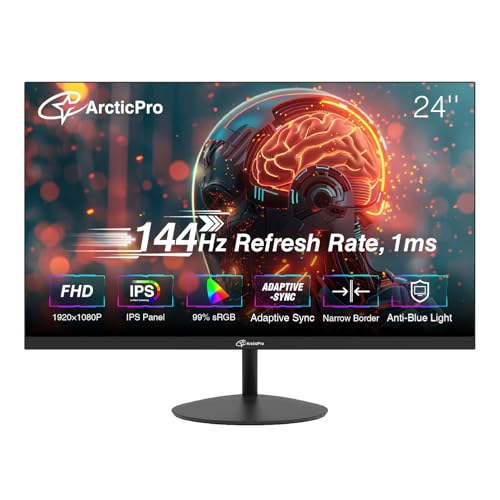 ArcticPro 24 Inch Gaming Monitor 144Hz24" 144Hz FHD IPS21.23 x 1.63 x 12.61 inches8.2 poundsCheck on Amazon


Top 3 picks at a glance
Top picks at a glance
| Model | Key spec | Price | Best for |
|---|---|---|---|
| Dell SE2726HG | 27in, 1080p, 240Hz, IPS, FreeSync Premium | Check on Amazon | Overall pick, highest refresh rate here |
| Acer Nitro KG271 X1biip | 27in, 1080p, 200Hz, IPS | Check on Amazon | Larger screen with a stated IPS panel |
| Acer Nitro KG251Q X3biip | 24.5in, 1080p, 200Hz | Check on Amazon | Best pixel density for competitive play |
| SANSUI 24in 200Hz FreeSync HDR | 24in, 1080p, 200Hz, 1ms, 110% sRGB | Check on Amazon | Colour-focused budget pick |
| SANSUI 24in 1ms 200Hz FreeSync | 24in, 1080p, 200Hz, 1ms | Check on Amazon | Second display in a dual setup |
| SANSUI 24in 180Hz | 24in, 1080p, 180Hz | Check on Amazon | Cheapest 180Hz-class option |
| Sceptre E225W-FW144 | 22in, 1080p, up to 144Hz, speakers | Check on Amazon | Small desks and dorm setups |
| ArcticPro 22in 144Hz | 22in, 1080p, 144Hz, 105% sRGB | Check on Amazon | Absolute lowest entry price |
Prices above are the listed figures at the time of writing and move around more at this tier than any other, sometimes by $15 to $20 inside a single month. The ranking below is by what each model sacrifices, not by price order.
Dell SE2726HG: 240Hz at around $110, tilt only
The SE2726HG is a 27-inch 1920×1080 panel running at 240Hz with in-plane switching, AMD FreeSync Premium, a TÜV 3-star eye-comfort rating, two HDMI inputs and DisplayPort 1.4. It is the only monitor in this group that publishes all of that on the listing rather than leaving you to guess, and it is the only one that reaches 240Hz.
What it gives up is ergonomics and pixel density. The stand tilts and does nothing else, so if your desk is high or your chair is low you are stacking books under it or buying a VESA arm. And 1920×1080 stretched across 27 inches works out to roughly 82 pixels per inch, against about 92 ppi on a 24-inch panel of the same resolution. Text is softer, and aliasing on distant geometry is more visible. At normal desk distance most players stop noticing within a week, but people coming from a 1440p display notice immediately.
To make 240Hz meaningful you need frame rates in that region. Based on the configuration rather than our own runs, a current mid-range card in the RTX 4060 or RX 7600 class will comfortably clear 240fps in Valorant, CS2 and Rocket League at 1080p with competitive settings, sit around the 150 to 200fps region in Apex Legends, and fall well short in any modern single-player title with ray tracing on. FreeSync Premium covers the shortfall by keeping the panel synced through the variable range instead of tearing.
Pros
- Only 240Hz option in the group, at the same price as 200Hz rivals
- Panel technology stated explicitly as IPS, so viewing angles are predictable
- Two HDMI ports plus DisplayPort 1.4, enough for a PC and a console
- Dell’s warranty and returns process is a real backstop at this price
Cons
- Tilt-only stand with no height, swivel or pivot adjustment
- 82 ppi at 27 inches looks soft next to a 24-inch 1080p panel
- No HDR claim at all, which is honest but leaves nothing for bright-scene highlights
- IPS glow in dark scenes is a normal characteristic of the panel type, not a defect
Who it is for: someone who wants the highest refresh rate available under $200 and either already owns a monitor arm or does not care about stand adjustment.
Acer Nitro KG271 X1biip: 27 inches of stated IPS at 200Hz
Acer’s KG271 X1biip is a 27-inch 1920×1080 IPS panel at 200Hz, priced identically to the Dell at around $110. The trade against the Dell is 40Hz of refresh rate in exchange for Acer’s service network and a panel tuning that, across the Nitro line generally, tends to run slightly warmer out of the box and benefits from a calibration pass. Our monitor calibration walkthrough covers the ten-minute version of that if you do not own a colorimeter.
The same 82 ppi caveat applies as on the Dell, and Acer’s budget Nitro stands are also tilt-only in this range. Where the KG271 earns its place is availability and the predictability of the IPS panel: colour shift when you glance at the screen off-axis is minimal, which matters more than people expect if you sit slightly off-centre or share the screen with someone watching over your shoulder.
Estimating from the configuration, 200Hz at 1080p is a realistic target for a GTX 1660 Super or RX 6600 class card in older esports titles and for RTX 4060 class hardware in most current competitive games. If your GPU is below that line, the 200Hz panel is still worth having because variable refresh smooths out everything between roughly 48fps and the ceiling, but you are paying for headroom you will not use yet.
Pros
- IPS panel type stated, unlike most of the sub-$100 field
- 200Hz is enough for every mainstream competitive title
- Acer’s warranty network is genuinely reachable in the US
- Multiple inputs including HDMI and DisplayPort per the model designation
Cons
- Costs the same as the 240Hz Dell with no obvious offsetting advantage
- Tilt-only stand again, no height adjustment
- Out-of-box colour temperature on budget Nitro units usually needs correcting
- Built-in speakers on this class of monitor are a fallback, not a solution
Who it is for: buyers who value a known service network over the last 40Hz, or who find the Acer discounted below the Dell.
Acer Nitro KG251Q X3biip: the pixel density pick at around $89
At 24.5 inches and 1920×1080, the KG251Q X3biip lands at roughly 90 pixels per inch, which is the density competitive players actually want. It runs at 200Hz for around $89, a $20 saving against the 27-inch models, and the smaller diagonal means your eyes cover the whole play area without moving, the reason 24 to 25 inches has been the tournament standard for a decade.
Acer does not state the panel technology for this specific SKU in the listing text, so treat viewing angles as unknown rather than assuming IPS. Budget 24.5-inch 200Hz panels in this bracket are commonly fast VA or IPS parts depending on production batch, and the practical difference shows up in dark-scene contrast and in how much smearing you see on dark-to-bright transitions. If that distinction is new to you, the breakdown in our IPS, VA and TN comparison is the fastest way to understand what changes.
The saving over the 27-inch options is real money at this budget, roughly the cost of a decent mouse. For a pure competitive setup the smaller panel is the better buy regardless, so you are not compromising to save the $20.
Pros
- Around 90 ppi, sharper than any 27-inch 1080p panel
- 200Hz at around $89 is strong value against the around $110 tier
- Screen size matches the competitive standard, less eye travel
- Acer support coverage at a sub-$100 price
Cons
- Panel technology not stated, so viewing angles are a gamble
- Small screen feels cramped for single-player and productivity work
- Stand adjustment at this price is tilt only
- No HDR claim and no wide-gamut coverage figure published
Who it is for: competitive players on a strict budget who sit close and want the sharpest 1080p image available for under $100.
SANSUI 24in 200Hz FreeSync HDR: the colour-claim option
This SANSUI is a 24-inch 1920×1080 panel at 200Hz with a 1ms response claim, FreeSync, an HDR badge and 110% sRGB coverage, at around $89. Of the three near-identical SANSUI models in this guide it is the one with the widest published colour figure, which makes it the pick if you edit photos or video between matches.
Two of those numbers deserve scepticism. The 110% sRGB figure describes gamut volume, not accuracy: a panel can cover 110% of sRGB and still render skin tones badly if its white point is off, and nothing here is factory calibrated. The HDR badge is the weaker claim of the two. Without a brightness figure above roughly 600 nits and some form of dimming zones, enabling HDR on this class of panel raises the black floor and flattens the image. Our explainer on HDR for PC covers why the Windows HDR toggle usually makes budget monitors look worse rather than better.
Take the panel for what it is: a fast, reasonably saturated 24-inch display at a good price. Set it to SDR, drop the brightness to roughly 120 nits for desk use, and leave the HDR switch alone.
Pros
- Widest published colour coverage in this group at 110% sRGB
- 200Hz and FreeSync at around $89, matching the Acer on refresh rate
- 24-inch size keeps pixel density at the useful 92 ppi mark
- Adaptive sync eliminates tearing across the useful frame rate range
Cons
- HDR support is nominal, with no meaningful brightness or dimming behind it
- No factory calibration report, so gamut coverage does not equal accuracy
- SANSUI’s model naming makes it easy to buy a different variant by mistake
- 1ms response is a best-case figure that requires aggressive overdrive
Who it is for: someone who wants a bit more colour range for light creative work without giving up 200Hz.
SANSUI 24in 1ms 200Hz FreeSync: the plain version
Also around $89, also 24 inches, also 1080p at 200Hz with FreeSync and a 1ms claim, this SANSUI drops the HDR and wide-gamut marketing and is otherwise close to indistinguishable from the model above on paper. That is not a criticism so much as a warning: SANSUI sells several 24-inch 200Hz variants at the same price with different model codes, and the listings do not make the differences obvious.
Practically, this is the one to buy as the second panel in a two-monitor setup, where you want matched refresh behaviour with your primary display but do not need it to be the screen you look at most. Mismatched refresh rates across two monitors can cause stutter in some window compositors, so pairing two 200Hz panels avoids an annoying class of problem. Our guide to setting up dual monitors covers the Windows-side configuration.
The 1ms number here follows the same rule as everywhere else in this price band. It is achievable on one specific transition with overdrive pushed hard, and pushing overdrive that far on a budget panel almost always produces visible overshoot, the pale halo that trails behind moving objects. Start at the middle overdrive setting and only raise it if you see smearing rather than haloing.
Pros
- Same 200Hz and FreeSync core as the pricier SANSUI variant
- Good match as a second panel alongside another 200Hz display
- Simple feature set with no misleading HDR badge
- 24-inch format keeps text legible at 1080p
Cons
- Nearly identical to two other SANSUI listings at the same price, easy to confuse
- No published colour gamut figure
- Panel technology not stated in the listing
- Support and RMA experience with smaller brands is inconsistent
Who it is for: a straightforward 200Hz 24-inch panel, especially as the secondary screen in a dual setup.
SANSUI 24in 180Hz: around $84 for the smallest step down
The 180Hz SANSUI saves you $5 against the 200Hz versions. In refresh terms that is a drop from a 5.0ms frame interval to 5.6ms, a difference of 0.6ms per frame that essentially nobody perceives blind. If this variant is the one in stock or discounted further, take it without agonising over the number.
What is worth noting is that 180Hz has become the volume tier for budget panels, which means panel supply is broad and quality varies accordingly. This is the segment where the unit-to-unit lottery is most pronounced: backlight bleed along the bottom edge, slight tint variation between corners, and the occasional stuck subpixel. None of this is predictable from the listing and none of it is unique to SANSUI. It is what buying a $85 monitor means.
The practical defence is procedural rather than technical. Buy from a seller with a no-questions return window, run a full-screen black test and a full-screen white test within the first hour, and check the corners in a dark room. If the panel is going to disappoint you it will do so on day one, not in month six.
Pros
- Cheapest 24-inch high-refresh option here at around $84
- 180Hz is functionally indistinguishable from 200Hz in play
- Standard 1080p at 24 inches, the safest size and resolution pairing
- Wide availability means easier replacement if a unit is faulty
Cons
- Only $5 cheaper than the 200Hz variants, so the saving is nominal
- High-volume panel tier with the widest unit-to-unit variance
- No stated panel type, gamut figure or brightness rating
- Stand is basic tilt with a small footprint that can feel unstable
Who it is for: buyers who find this variant discounted below the 200Hz models and do not want to overthink a 20Hz difference.
Sceptre E225W-FW144: 22 inches with speakers at around $72
Sceptre’s E225W-FW144 series is a 22-inch 1920×1080 panel rated up to 144Hz with HDMI, DisplayPort and built-in speakers, at around $72. At 22 inches, 1080p works out to roughly 100 pixels per inch, the highest density in this guide, which makes small text unusually crisp for a budget monitor.
Sceptre does not publish the panel technology for this series in the listing, and at 22 inches and this price it is far more likely to be a TN or VA part than IPS. Assume viewing angles are narrow and that colour will shift if you look at the screen from above or below centre. The built-in speakers are the usual 2W-class drivers found on cheap monitors: adequate for a system beep or a video call, useless for anything with bass.
The phrase “up to 144Hz” is also worth reading carefully. On several budget monitors the top refresh rate is only available over DisplayPort, with HDMI limited to 120Hz or even 60Hz depending on the port revision. Connect over DisplayPort, then verify the active refresh rate in Windows advanced display settings rather than assuming the panel defaulted to its maximum.
Pros
- Around 100 ppi, the sharpest image density in this group
- Both HDMI and DisplayPort inputs at under $75
- Compact footprint suits shallow desks and dorm setups
- Built-in speakers remove the need for a separate desk speaker in a pinch
Cons
- Panel technology unstated, likely narrow viewing angles
- 144Hz may require DisplayPort specifically, HDMI can cap lower
- 22 inches feels small for anything other than competitive shooters
- Speaker quality is a checkbox feature, not a usable audio solution
Who it is for: small desks, second machines and anyone prioritising sharp text over screen area.
ArcticPro 22in 144Hz: the around $67 floor
The ArcticPro 22-inch is the cheapest monitor here at around $67, running 1920×1080 at 144Hz with a claimed 105% sRGB coverage. It exists to answer one question: what is the least you can spend and still get a high-refresh gaming panel? This is roughly the answer.
Everything unstated should be assumed to be basic. No panel type published, no brightness figure, no adaptive sync claim, no ergonomic adjustment beyond tilt, and a brand with limited service presence if something goes wrong in month eleven. The 105% sRGB claim carries the same caveat as every gamut figure in this guide, which is that coverage without calibration tells you the panel can produce saturated colour, not that it produces correct colour.
What you actually get for around $67 is a working 144Hz 1080p display at 22 inches, roughly 100 ppi, which is a genuinely different experience from the 60Hz office panel most people are replacing. The jump from 60Hz to 144Hz is the single largest perceptual upgrade in this entire category, far bigger than 144Hz to 240Hz. If your budget is truly fixed at under $70, this delivers that jump and nothing else.
Pros
- Lowest entry price for a 144Hz panel in this comparison
- Around 100 ppi at 22 inches keeps the image sharp
- Delivers the 60Hz-to-144Hz jump, the biggest single upgrade in motion clarity
- Published 105% sRGB coverage, unusual at this price
Cons
- No stated panel type, brightness or adaptive sync support
- Minimal brand service presence for warranty claims
- Tilt-only stand and lightweight build
- 22 inches is limiting if the monitor also has to do desk work
Who it is for: an absolute-minimum budget, a spare rig, or a first high-refresh monitor where the alternative is staying on 60Hz.
How we compared and picked
This guide was assembled by Nina Alvarez, our display specialist, who has spent nine years working with panel measurement and keeps a bench built around a colorimeter, a photodiode response-time tester and a pattern generator. That equipment is what separates a measured claim from a repeated one, and it also sets the limits of what we can honestly say here.
We have run panels from the Acer Nitro, Dell SE and ASUS TUF families on that bench across previous guides, so the general behaviour of those product lines, their overdrive tuning, their typical out-of-box white point drift, their overshoot characteristics, is grounded in measurement rather than press material. Where a specific SKU in this list has not passed through the bench, we say so and describe the panel class rather than inventing numbers for it. The SANSUI, ArcticPro and Sceptre entries fall into that category.
Every performance figure in the product sections above is explicitly framed as an estimate derived from the published configuration and from comparable panels we have measured. Frame rate figures depend entirely on the graphics card feeding the monitor, so they are given as GPU-class guidance rather than as monitor benchmarks.
Selection was budget-first, matching how people actually shop this tier. We took the $200 ceiling as fixed, spread the shortlist across screen sizes from 22 to 27 inches and refresh rates from 144Hz to 240Hz, and then ranked by what each model withholds rather than by what it advertises. Products with unstated panel technology were not excluded, because excluding them would leave the sub-$90 bracket empty and misrepresent what is actually available. They are flagged instead.
What to look for in a sub-$200 gaming monitor
The panel type they often do not tell you
Three of the eight monitors here do not state whether the panel is IPS, VA or TN, and that single omission affects more of your daily experience than any other spec. IPS gives you stable colour when viewed off-axis and mediocre contrast, typically around 1000:1, with visible glow in dark scenes. VA gives you contrast in the 2500:1 to 3000:1 region and deeper blacks, at the cost of slower dark-to-bright transitions that show up as smearing in shadowy games. TN gives you the fastest transitions and the worst vertical viewing angles.
Under $200 the practical guidance is straightforward. If you play competitive shooters in a bright room, an unstated panel is a low risk because you will mostly be looking at bright, high-contrast scenes head on. If you play horror or atmospheric single-player games in a dark room, panel type matters enormously and you should pay the premium for a model that states IPS explicitly, which in this group means the Dell or the 27-inch Acer.
Refresh rate you can actually feed
A 240Hz panel driven at 90fps behaves like a 90Hz panel with better motion sampling. The refresh rate ceiling only pays off when the GPU sustains frame rates near it, so buying refresh rate ahead of graphics power is spending in the wrong order. The one caveat is that variable refresh rate technology, FreeSync on all of these, makes a high ceiling harmless: the panel simply syncs to whatever the GPU delivers within its variable window.
The useful mental model is that going from 60Hz to 144Hz cuts the time between frames from 16.7ms to 6.9ms, a 9.8ms improvement you feel immediately. Going from 144Hz to 240Hz cuts it from 6.9ms to 4.2ms, a 2.7ms improvement that only trained competitive players reliably identify. Spend accordingly. If the choice is a 144Hz monitor plus a better graphics card, or a 240Hz monitor with the card you have, take the first option.
HDR at this price is a label, not a capability
Real HDR requires two things budget monitors do not have: sustained brightness well above 600 nits, and enough independently controlled backlight zones to keep bright highlights bright while dark areas stay dark. A typical sub-$200 panel peaks somewhere around 250 to 300 nits with a single-zone edge-lit backlight. Feeding it an HDR signal forces the display to tone-map a wide dynamic range into a narrow one, and the usual visible result is raised blacks and washed-out midtones.
The HDR badge on these listings means the monitor will accept and display an HDR10 signal without erroring. That is all it means. If you want the technical version of why this matters and when the toggle is worth using, our HDR on PC guide goes deeper. The short version for this tier: leave it off.
Stands, VESA and the hidden $35
Every monitor in this group ships with a tilt-only stand. No height adjustment, no swivel, no pivot. If the panel’s fixed height puts the top of the screen below your eye line, you will spend hours a day looking slightly downward, which is the most common cause of neck complaints among people who upgraded their monitor and got a new ache with it.
The fix is a VESA arm, which realistically adds $25 to $40 to your total. Check the VESA pattern before buying, because 22-inch budget panels sometimes ship with no VESA mounting holes at all, and a handful use a 75x75mm pattern rather than the standard 100x100mm. Factor that cost in from the start: a around $89 monitor plus a $35 arm is a better setup than a $125 monitor bolted to a fixed stand at the wrong height. Our size and viewing distance guide explains how to work out the correct height and distance for your desk.
The uniformity lottery, and how to play it
Panel binning is the quiet reason budget monitors are cheap. Manufacturers sort panels by defect count and uniformity, and the lower grades go into the lower-priced products. That means backlight bleed at the edges, a slight colour cast in one corner, and occasional stuck subpixels are within normal tolerance rather than grounds for automatic replacement.
You cannot predict this from any spec. What you can do is test immediately and decisively. Within the first hour, display a full-screen black image in a dark room and look at all four corners and edges, then a full-screen white image and check for tint variation across the panel, then cycle solid red, green and blue at full screen to find dead subpixels. If the unit is bad, return it inside the window. Buying from a seller with an easy return process is worth more at this price tier than any five specification points.
Ports, cables and bandwidth
1920×1080 at 240Hz with 8-bit colour needs roughly 12.4 Gbit/s of raw video bandwidth before signalling overhead, which DisplayPort 1.2 and HDMI 2.0 both handle comfortably. The problem is never the monitor’s port, it is the cable in the box. An HDMI 1.4 cable caps 1080p at 120Hz. A no-name DisplayPort cable that fails certification will produce black flickering at high refresh rates that looks like a faulty monitor.
Connect over DisplayPort where possible, then open Windows advanced display settings and confirm the active refresh rate matches the panel’s rating. A surprising share of “my new monitor does not feel any faster” complaints resolve at exactly this step, because Windows defaulted to 60Hz and nobody checked.
Mistakes buyers make at this price
Buying refresh rate instead of graphics power. A 240Hz monitor paired with a GPU that manages 80fps in your main game wastes most of what you paid for. If your budget covers either a faster monitor or a faster card, the card almost always produces the bigger improvement until you are consistently above 120fps.
Treating the HDR badge as a feature. People enable HDR, decide the monitor looks washed out, and conclude they bought a defective unit. The monitor is working exactly as a single-zone 280-nit panel does when asked to display high dynamic range content. Turn it off.
Ignoring the stand until the monitor is on the desk. Tilt-only is universal here, and the ergonomic cost only becomes obvious after a week of use. Decide about a VESA arm before you buy, not after your neck tells you to.
Assuming three similar listings are the same product. This tier is full of near-identical SKUs from the same brand at the same price with different model codes and genuinely different panels inside. Note the exact model designation, not just the brand and screen size, and check that the unit that arrives matches it.
Not testing in the return window. Uniformity and dead-pixel problems are visible in ten minutes on day one and impossible to remedy on day sixty. The test costs nothing and is the single most valuable thing you can do after unboxing.
Chasing 27 inches for the same money. A 27-inch 1080p panel at around $110 sounds like more monitor than a 24-inch at around $89, and in screen area it is. In image quality it is a step down, because you are spreading the same pixels over 27% more diagonal. If sharpness matters to you, the smaller screen is the upgrade.
Verdict
The overall pick is the Dell SE2726HG at around $110. It gives you the only 240Hz panel here, states its IPS technology openly, includes both DisplayPort 1.4 and dual HDMI, and comes with a support process that actually answers. The tilt-only stand and 82 ppi density are the price of admission, and both are fixable or forgettable.
The value pick is the Acer Nitro KG251Q X3biip at around $89. At 24.5 inches and 200Hz it gets the size and refresh rate right for competitive play, saves $20 against the 27-inch models, and delivers noticeably sharper pixels than either of them. For a pure gaming setup it is arguably the better monitor, not just the cheaper one.
The budget floor is the ArcticPro 22-inch at around $67. It publishes almost nothing beyond 144Hz, 1080p and a gamut figure, and it should be judged as exactly that: the cheapest route from a 60Hz office panel to a high-refresh gaming display. If you are stepping up from 60Hz, this delivers the biggest single jump in this entire guide. If you already game at 144Hz, nothing here at under $75 will feel like an upgrade. For a wider look at the sub-$200 field including QHD options, see our broader monitor under $200 roundup.
Frequently asked questions
What is the single biggest compromise on a gaming monitor under $200?
Panel consistency. Every monitor in this price band is built from B-grade or high-volume panel stock, which means backlight uniformity, corner glow and dead-pixel rates vary from unit to unit even within the same model. Two people can buy the same around $89 monitor and get visibly different results. Nothing on the spec sheet predicts this, which is why a seller with a painless return window matters more here than any listed number.
Is the HDR badge on a sub-$200 monitor worth anything?
Almost never. HDR needs sustained brightness of roughly 600 nits and some form of local dimming to show any real benefit. Budget panels typically peak near 250 to 300 nits with a single edge-lit backlight zone, so enabling HDR mostly raises black levels and washes the picture out. The badge means the monitor accepts an HDR10 signal, not that it can display high dynamic range. Leave it off and calibrate SDR instead.
Should I pick 24 inches at 200Hz or 27 inches at 200Hz for the same money?
At 1080p, 24 to 24.5 inches gives about 92 pixels per inch, while 27 inches drops to roughly 82 ppi, so text edges and distant enemy models look noticeably softer on the larger screen. If you sit closer than 65 cm, take the 24-inch panel. If your desk is deep and you sit around 80 cm back, the 27-inch is more immersive and the lower density stops being obvious. Screen size and seating distance are linked, not independent choices.
Do these monitors include a DisplayPort cable?
Often not, and this catches people out. Several budget monitors ship with an HDMI cable only, and if that cable is an older HDMI 1.4 part it will cap you at 1080p 120Hz, silently costing you the high refresh rate you paid for. Check the box contents before buying and budget about $8 to $12 for a certified DisplayPort 1.2 or better cable. Then confirm the refresh rate in Windows display settings after connecting.
Is a 1ms response time claim on a $90 monitor real?
It is a best-case figure, usually a single grey-to-grey transition at the most aggressive overdrive setting, or an MPRT number measured with backlight strobing active. Real average transitions across the full grey range on budget panels tend to land several times higher, and pushing overdrive to reach that headline number usually introduces overshoot, the bright halo trailing moving objects. Treat 1ms as marketing shorthand for a fast panel, not a measurement you will reproduce.