Choosing a gaming monitor starts with one question: what resolution can your graphics card actually push at a frame rate you’ll enjoy? Everything else — refresh rate, panel type, adaptive sync, size — falls into place once that’s settled. A monitor that outpaces your GPU wastes money, and one that underdelivers holds your hardware back for years. This guide walks through the decision in the order that actually matters, not the order marketing copy presents it in.
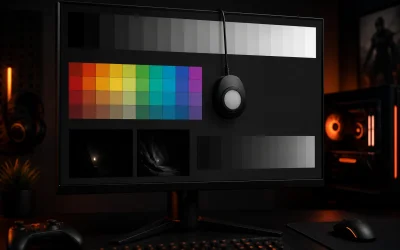
I’m Nina Alvarez, and I’ve spent nine years calibrating displays professionally, first for photo and video studios and now full-time on gaming monitors, using a colorimeter, a photodiode response-time tester, and a pattern generator to verify what manufacturers claim on spec sheets. Most of what follows comes from measuring panels side by side rather than reading marketing pages, so treat the numbers below as a starting framework, not absolute rules — your specific games and viewing habits still matter.
As an Amazon Associate we earn from qualifying purchases at no extra cost to you.






Our Top Picks
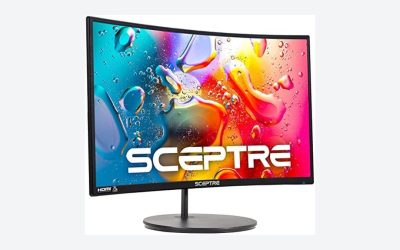
 Sceptre Curved 24-inch Gaming Monitor 1080p R1500 98%24-Inches16.04 x 21.61 x 9.06 inches6 PoundsCheck on Amazon
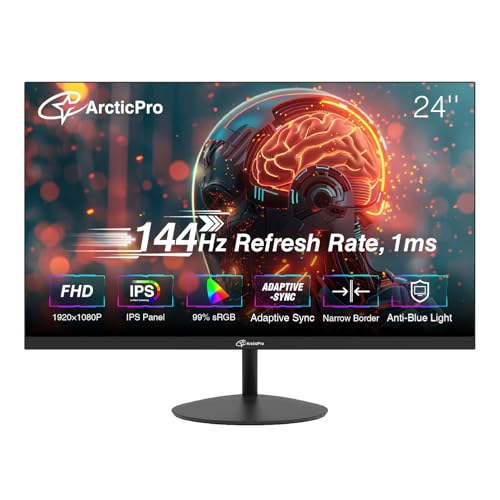 ArcticPro 24 Inch Gaming Monitor 144Hz24" 144Hz FHD IPS21.23 x 1.63 x 12.61 inches8.2 poundsCheck on Amazon


Top 3 picks at a glance
Start with your GPU, not the monitor spec sheet
The biggest mistake buyers make is picking a monitor first and a GPU second, or upgrading a monitor without checking what their card can deliver. An RTX 4060 averages roughly 70-90fps at 1440p in demanding titles like Cyberpunk 2077 at high settings, which pairs well with a 144Hz or 165Hz panel but leaves a 240Hz screen mostly unused outside of lighter esports titles. An RTX 4070 Super or RTX 5070 typically holds 100-140fps at 1440p, which is where a 165Hz-240Hz monitor starts paying off.
At 4K, even an RTX 4080 or RTX 5080 often lands in the 55-75fps range in AAA titles without upscaling, so a 4K 144Hz monitor is frequently running well below its ceiling unless you lean on DLSS or FSR upscaling. If your card can’t consistently clear 100fps, a 4K 240Hz panel is not doing anything a 4K 120Hz or 144Hz screen wouldn’t, and that saved $150-$250 could go toward a better panel type instead.
Write down your GPU’s average fps in the two or three games you play most, using a site like TechPowerUp’s GPU database or your own in-game overlay from the past week. That number, more than any spec on a monitor’s box, tells you which resolution and refresh rate tier actually fits your system today.
Budget for the monitor to outlast one GPU upgrade cycle, typically two to three years, since panels are replaced far less often than graphics cards. Buying slightly ahead of your current GPU — say, a 1440p 165Hz screen when you’re on a card that averages 110fps — gives headroom for your next upgrade without forcing a second monitor purchase.
If you’re building or buying a new system rather than upgrading a display for an existing one, our 1440p gaming monitor options guide over on our sister site breaks down GPU tiers by resolution target, which is a useful cross-check before you commit to a monitor.
Match resolution to screen size and viewing distance
Resolution and screen size only make sense together, because pixel density (PPI) determines whether text and UI elements look sharp or soft at your desk. A 24-inch 1080p monitor sits at roughly 92 PPI, a 27-inch 1440p monitor sits at about 109 PPI, and a 27-inch 4K monitor jumps to around 163 PPI — each step up looks noticeably sharper at typical 24-28 inch desk viewing distances.
Stretching 1080p onto a 27-inch or larger panel drops PPI to around 82, which most people notice as slightly soft text and visible pixel structure, especially in UI menus and small in-game text. That’s why 1080p monitors are best kept at 24-25 inches, 1440p works well from 27 to 32 inches, and 4K comfortably scales up to 32 inches or beyond without looking soft.
Viewing distance matters as much as size. At a typical 24-inch desk distance, a 32-inch 1440p monitor puts individual pixels close to the edge of visibility, while the same panel at 4K resolution removes that issue entirely. If your desk setup keeps you closer than 24 inches from the screen, lean toward higher resolution at a given size rather than a larger panel at lower resolution.
For console gaming specifically, distance usually isn’t the constraint — output resolution is. PS5 and Xbox Series X target 4K at 30-60fps in most titles, or 1440p/1080p at higher frame rates in performance modes, so matching monitor resolution to which mode you actually use avoids paying for pixels the console never sends.
We cover size-specific picks in more depth in our 27 inch gaming monitor and 32 inch gaming monitor roundups, and console-specific considerations in our monitor for PS5 guide, if you want model-level recommendations after settling on a size.
Understand refresh rate before you chase a bigger number
Refresh rate measures how many times per second the panel redraws the image, and higher numbers reduce motion blur and make fast camera movement look smoother, which matters most in competitive shooters and racing games. The jump from 60Hz to 144Hz is dramatic and immediately visible to almost everyone. The jump from 144Hz to 240Hz is real but subtler, and the jump from 240Hz to 360Hz is mostly relevant to sub-professional esports players chasing single-digit millisecond advantages.
Refresh rate only helps if your GPU can feed it enough frames — a 240Hz monitor displaying a 90fps game still only shows 90 unique frames per second, so the extra refresh cycles just repeat frames rather than adding new information. This is the same GPU-matching principle from the section above, applied specifically to the Hz number on the box.
Response time is a separate but related spec that’s frequently confused with refresh rate; a monitor can have a high refresh rate and still show ghosting if its pixel response is slow. We break refresh rate and response time apart in detail, including why the gray-to-gray numbers on spec sheets are often optimistic, in our dedicated refresh rate and response time explained guide.
For most single-player and story-driven gaming, 100-144Hz is enough to feel smooth, and the money saved versus a 240Hz+ panel is better spent on panel type or resolution. For ranked competitive shooters like Valorant or Counter-Strike, players who can consistently hit 200+ fps on low settings do benefit from 240Hz or higher, since every added frame reduces input-to-photon latency slightly.
If competitive play is your priority, our monitor for competitive FPS and 240Hz gaming monitor guides narrow the field to panels tested specifically for input lag and motion clarity rather than just headline Hz numbers.
Pick a panel type based on what you actually play
Panel technology — TN, VA, or IPS — determines color accuracy, viewing angles, and contrast far more than refresh rate does, yet it’s the spec most buyers skip entirely. IPS panels now dominate the gaming market because response times have improved enough to compete with TN while keeping better color and wider viewing angles, typically 178 degrees compared to TN’s 150-160 degrees before noticeable color shift.
VA panels trade some response time for significantly higher native contrast, often 3,000:1 to 6,000:1 compared to IPS’s typical 1,000:1, which makes dark scenes in horror or atmospheric games look noticeably deeper without HDR. The tradeoff is a phenomenon called black smearing, where fast-moving dark objects leave a faint trailing shadow, most visible in high-contrast night scenes.
TN panels are increasingly rare outside of budget 1080p 144Hz monitors under $150, where their fast native response time is still useful for competitive play on a tight budget, but color accuracy is noticeably worse — expect visible color shift if you’re not looking dead-on at the screen.
Your game library should decide this more than any other single factor: story-driven and open-world games benefit from IPS or VA’s color and contrast, fast competitive shooters can tolerate TN’s weaker image quality in exchange for lower cost, and VA is a strong middle ground if you play a mix and value contrast in dark scenes.
We compared contrast ratio, viewing angle shift, and black smearing across all three panel types side by side using the same test bench, with the full breakdown and specific model recommendations in our IPS vs VA vs TN panels compared guide.
Decide whether adaptive sync changes your buying decision
Adaptive sync — G-Sync from Nvidia or FreeSync from AMD — matches the monitor’s refresh rate to your GPU’s frame output in real time, eliminating screen tearing without the input lag penalty of traditional V-Sync. It matters most in games where your frame rate fluctuates below the monitor’s max refresh rate, which is most demanding single-player titles.
Most modern monitors support FreeSync, and the majority of those are also certified “G-Sync Compatible,” meaning they work with Nvidia GPUs through the FreeSync protocol rather than requiring a dedicated G-Sync hardware module. True G-Sync Ultimate monitors with the hardware module are rarer and typically add $150-$300 to the price for marginal real-world benefit over G-Sync Compatible screens.
If you run an AMD GPU, look for FreeSync Premium or Premium Pro certification rather than base FreeSync, since the higher tiers guarantee a wider variable refresh range and low-framerate compensation, which prevents stutter when frame rates drop below the sync range’s floor.
Check your GPU brand before buying, but don’t assume incompatibility across brands — the vast majority of FreeSync monitors sold today work fine with Nvidia cards through G-Sync Compatible mode, and this cross-compatibility has made the choice far less restrictive than it was five years ago.
The differences between the two ecosystems, including variable refresh range and how each handles frame rates outside that range, are covered in full in our G-Sync vs FreeSync compared guide.
Consider HDR only if the panel meets a real brightness threshold
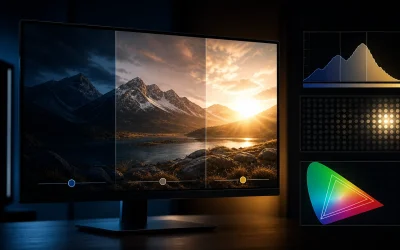
HDR (high dynamic range) widens the range between a display’s darkest and brightest points, making highlights like explosions, sunlight, and reflections look more realistic in supported games. The catch is that the “HDR400” certification found on many budget monitors only requires 400 nits peak brightness, which is barely brighter than a good SDR monitor and rarely produces a visible HDR effect.
A genuine HDR experience generally starts around 600 nits peak brightness with some form of local dimming, whether edge-lit with a modest number of zones or full-array with dozens to hundreds of zones. Full-array local dimming monitors in the $400-$700 range and OLED panels, which achieve near-infinite contrast per pixel, deliver the most convincing HDR gaming experience currently available.
Measuring peak brightness with a colorimeter across a range of monitors, I’ve found sustained brightness in real HDR game content often falls 15-25% below the advertised peak figure, since that peak is usually measured on a small test window rather than a full-screen bright scene, so treat manufacturer numbers as a ceiling rather than a guarantee.
If you don’t game with HDR enabled in your OS or game settings, or your GPU struggles to hit high frame rates already, HDR support is a lower priority than resolution, refresh rate, and panel type — it’s the feature to add once the fundamentals are covered, not the one to lead with.
Our HDR gaming monitor and OLED gaming monitor guides list specific panels verified to exceed the 600-nit threshold with meaningful local dimming or per-pixel contrast.
Factor in ports, stand adjustability, and desk space
Connectivity is easy to overlook until you’re stuck: a monitor rated for 165Hz at 1440p over DisplayPort may only support 100Hz or 120Hz over HDMI 2.0, which matters if you’re connecting a console or an older GPU without a spare DisplayPort output. Check for at least one DisplayPort 1.4 input for full-refresh PC gaming and HDMI 2.1 if you plan to connect a current-gen console at 4K 120Hz.
Stand adjustability affects both comfort and eye strain over long sessions. Look for height adjustment of at least 100-130mm, tilt, and ideally swivel and pivot, since a fixed-height stand often forces an awkward neck angle that a $20 monitor arm would otherwise solve. VESA mount compatibility (usually 100x100mm) is worth confirming if you plan to use an arm now or later.
Desk depth matters more with curved and ultrawide monitors than flat 16:9 screens — a 34-inch curved ultrawide typically needs at least 26-28 inches of desk depth to sit at a comfortable viewing distance without craning forward, so measure your desk before ordering.
Built-in speakers, USB hubs, and headphone pass-through are convenience features rather than necessities, but a monitor with a USB-C input that also delivers 65-90W of power delivery can double as a laptop dock, which is worth checking if you split time between a desktop and a laptop.
If your monitor arm situation needs solving separately from the panel itself, our monitor arm guide covers weight capacity and VESA compatibility for the panel sizes discussed here.
Set a budget by use case, not by chasing every spec at once
No monitor at any price hits the best possible number in every category, so the practical approach is to rank resolution, refresh rate, panel type, and HDR by importance for your games, then spend accordingly. The table below reflects typical street pricing I’ve tracked across major retailers for each tier.
| Budget | Typical spec | Best for |
|---|---|---|
| $120-$180 | 24-inch 1080p, 144Hz-165Hz, TN or entry IPS | Budget esports, secondary monitor |
| $180-$260 | 27-inch 1080p or 1440p, 144Hz, IPS, FreeSync Premium | Balanced mid-range GPU pairing |
| $260-$400 | 27-inch 1440p, 165Hz-180Hz, IPS, G-Sync Compatible | Most RTX 4060 Ti-4070 builds |
| $400-$650 | 27-32 inch 4K or ultrawide 1440p, 144Hz+, HDR600 | High-end builds, RTX 4080-class GPUs |
| $650-$1000+ | OLED 1440p/4K, 240Hz, VESA HDR True Black | Flagship builds, image quality priority |
If you’re outfitting a fresh build rather than upgrading an existing setup, it’s worth checking our budget gaming monitor and monitor under $300 roundups, which apply these same tiers to specific tested models.
Mistakes to avoid when picking your first or next gaming monitor
Buying a 240Hz or 360Hz monitor for a GPU that averages 80-100fps is the most common mistake I see, and it wastes $80-$200 that would have gone further toward panel quality or resolution. Check your realistic fps ceiling before shopping for refresh rate.
Ignoring viewing angle needs is another frequent error — buyers pick VA for the contrast without accounting for its narrower sweet spot, which becomes frustrating if you sit off-center or share the screen with someone during co-op play.
Skipping the return window check costs people money too. Most panels have some amount of manufacturing variance, including backlight bleed or dead pixels, and retailers with generous return windows (Amazon, Best Buy) let you swap a defective unit at no cost, while some third-party sellers do not.
Underestimating desk depth for curved and ultrawide monitors leads to returns as often as any spec mismatch — measure your desk before ordering rather than assuming a 34-inch panel fits the same footprint as a 27-inch one.
Finally, chasing HDR certification without checking actual peak brightness leaves people disappointed after paying a premium for “HDR400” that looks nearly identical to SDR. Read the nits number, not just the badge.
Overlooking cable requirements rounds out the common mistakes — a 1440p 165Hz signal needs at least DisplayPort 1.2 or HDMI 2.1, and using an old HDMI 1.4 cable pulled from a drawer can silently cap your refresh rate without any error message.
What to do if you’re stuck deciding between two monitors
When two monitors seem equally good on paper, go back to the GPU-matching step first — whichever panel’s refresh rate and resolution combination better matches your card’s real fps ceiling is usually the right pick, even if the other has a flashier spec sheet.
If both match your GPU equally well, prioritize based on your dominant game genre: competitive shooter players should lean toward the faster response time and higher refresh rate, while single-player and open-world players should lean toward the better panel type and contrast.
When specs are essentially tied, check independent response time and input lag measurements rather than manufacturer claims, since gray-to-gray numbers on spec sheets are measured under ideal conditions that don’t reflect real gameplay, particularly for fast color transitions.
If you still can’t decide, buy from a retailer with a 30-day return window and test both in your actual setup for a week — subjective comfort, desk fit, and how the colors look in your typical lighting matter more than any spec sheet number once you’re this close.
Frequently asked questions
What is the single most important spec when choosing a gaming monitor?
Match resolution to your GPU’s real output first. A 4K panel is wasted if your card only pushes 75-90fps at 1440p, and a 1080p panel caps a powerful GPU’s frame rate long before the refresh rate does, so pick resolution based on what your graphics card can actually render, then choose refresh rate and panel type around that number.
Is a 240Hz monitor worth it over 144Hz for most players?
Only if you play competitive shooters and your GPU can sustain 200fps or higher consistently, otherwise the jump from 144Hz to 240Hz is hard to notice in single-player or story-driven games, and the extra $80-$150 is better spent on panel quality, size, or an adaptive sync feature you will use every session.
How much should I budget for a solid 1440p 144Hz monitor?
Expect to pay between $220 and $320 for a 27-inch 1440p IPS panel at 144Hz to 165Hz with G-Sync Compatible or FreeSync Premium support, which covers the sweet spot for most mid-range gaming PCs built around an RTX 4060 Ti or RTX 5060 class card.
Do I need HDR support on a gaming monitor?
Only if the panel hits at least 600 nits peak brightness with local dimming, since entry-level “HDR400” monitors rarely look different from SDR in games and mainly add marketing value, while a true VESA HDR600 or better display noticeably improves highlights in supported titles.
Should I buy a curved or flat gaming monitor?
Curved is worth it on ultrawide monitors 34 inches and up where the curve keeps edges within your peripheral vision, but on a standard 16:9 27-inch screen the curve is mostly cosmetic and a flat panel is easier to use for spreadsheets, browsing, and video alongside games.