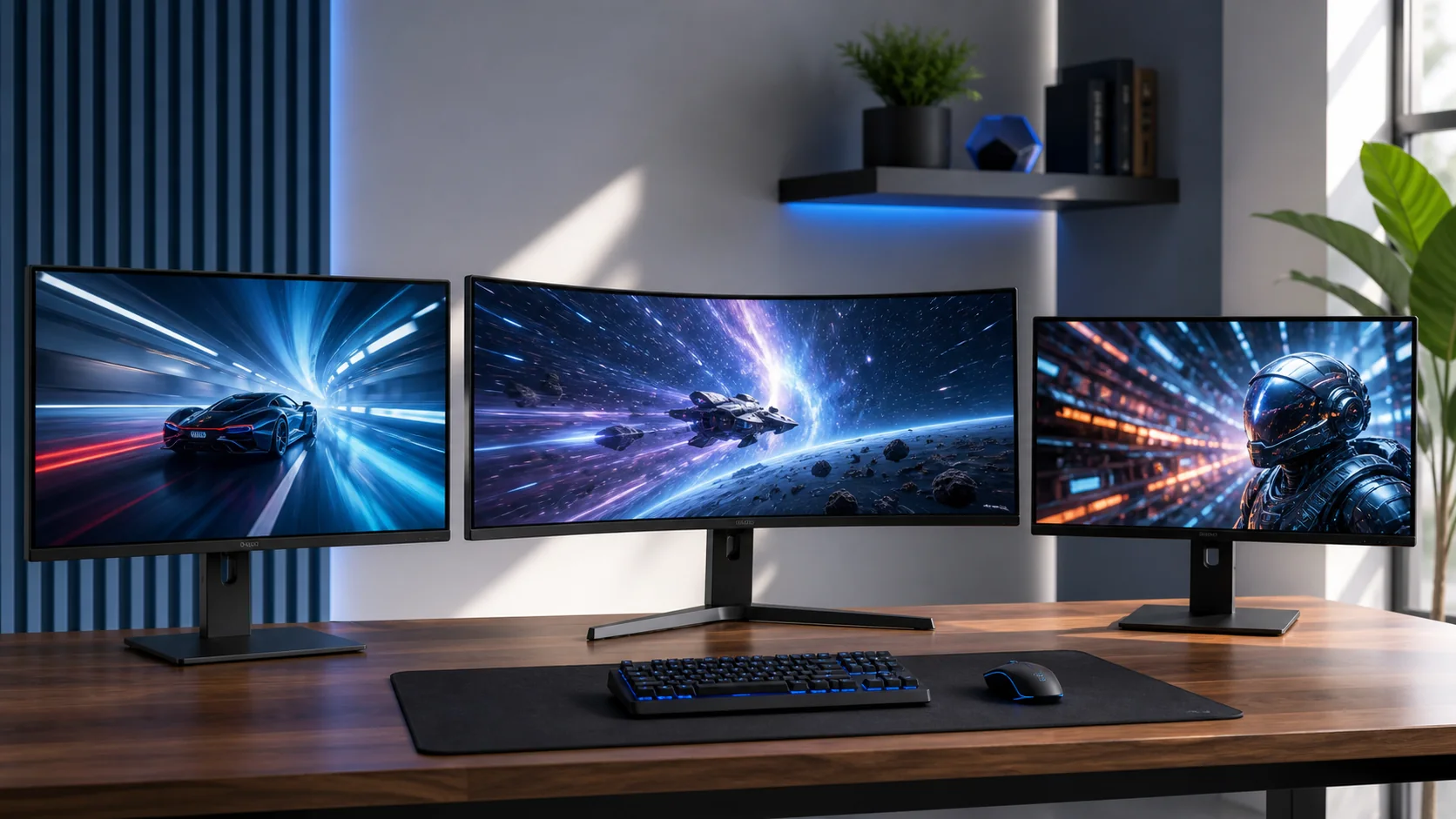
Setting up dual monitors for gaming means connecting a second display to a free GPU output, letting Windows detect it, then arranging position, resolution and refresh rate in Display settings so the two screens behave as one extended desktop rather than a duplicated mirror. The process itself takes under ten minutes for most setups, but getting refresh rates, cable bandwidth and window placement right so games actually behave correctly across two screens is where most of the troubleshooting time goes. A second monitor is worth the setup time for chat, Discord, guides, or stock and stream monitoring running alongside a game without alt-tabbing.
This guide covers the full setup from choosing the right cable and port through to fixing the specific problems that come up most often, whether that’s a game launching on the wrong screen, mismatched refresh rates causing stutter, or a second monitor that won’t wake from sleep. Display specialist Nina Alvarez, who tests monitor connectivity and signal integrity using a colorimeter, photodiode response-time tester and pattern generator, verified the cable and bandwidth guidance below against actual dropped-frame behavior rather than spec-sheet claims alone.
As an Amazon Associate we earn from qualifying purchases at no extra cost to you.


Our Top Picks
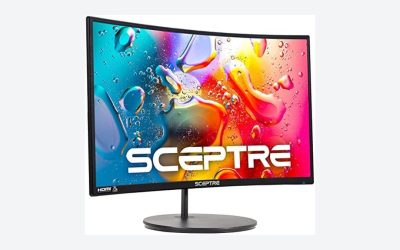
 Kado Dual Monitor 2-Pack 27" Curved 1500R 1920x108027" Curved 2-Pack2.83 x 24.46 x 14.56 inches11 PoundsCheck on Amazon
 ViewSonic VA2256-MHD_H2 22 Inch IPS Dual Monitor 222-Inch FHD11.7 x 1.9 x 19.3 inches5.8 PoundsCheck on Amazon


Top 3 picks at a glance
Checking Your GPU’s Output Ports And Limits
Before buying a second monitor or cable, check your GPU’s exact port configuration, since this determines what’s physically possible. Most current GPUs from NVIDIA’s RTX 40-series and AMD’s RX 7000-series ship with three DisplayPort 1.4a outputs and one HDMI 2.1 output, supporting up to four simultaneous displays, though actual maximum resolution and refresh rate per port depends on the GPU’s total display engine bandwidth, not just the port count. Older or budget GPUs, particularly entry-level cards, sometimes ship with only two outputs total (commonly one HDMI and one DisplayPort), which caps you at two monitors regardless of how many you’d like to connect.
DisplayPort 1.4 supports up to 4K at 120Hz or 1440p at 240Hz using Display Stream Compression, while HDMI 2.1 supports similar bandwidth on newer GPUs, but older HDMI 2.0 ports (common on GPUs from before 2020) cap out around 4K at 60Hz or 1440p at 144Hz. Mixing a high-refresh 1440p main monitor on DisplayPort with a lower-refresh secondary monitor on HDMI is the most common and trouble-free dual-monitor configuration, since each port runs independently and doesn’t share bandwidth in a way that affects the other display’s performance.
Laptops with dedicated GPUs add a wrinkle: many laptop HDMI and DisplayPort-over-USB-C outputs are wired directly to the integrated GPU rather than the discrete one, meaning a game running on the discrete GPU has to copy frames through the integrated GPU to reach an external monitor, adding a small amount of latency and reducing achievable frame rate slightly compared to a desktop setup. This isn’t usually a dealbreaker for a secondary monitor used for chat or browsers, but it matters if you intend to actively game on the external display.
Choosing The Right Cable For Each Monitor
Cable choice determines whether a monitor actually reaches its rated resolution and refresh rate, and this is the single most common cause of “my second monitor won’t do 144Hz” support requests. DisplayPort cables are rated by version (1.2, 1.4, 2.1) and by certification tier; an uncertified generic cable, even a physically compatible one, can bottleneck bandwidth at longer lengths or higher resolutions even when the port and monitor both support the target spec. Buying a cable explicitly rated for your target resolution and refresh rate, ideally VESA-certified, avoids this entirely for a cost difference usually under $10-15.
HDMI cables have a similar versioning issue: HDMI 2.1 cables (sometimes labeled “Ultra High Speed”) are required to hit 4K120 or similar high-bandwidth targets, while older HDMI 2.0 or “High Speed” rated cables cap out around 4K60 or 1440p144 even when both the port and monitor support higher. A cable that shipped in the box with a monitor several years ago may not meet the bandwidth needs of a newer monitor you’ve since paired with it, so don’t assume a cable that “worked before” is still adequate for a different display.
Cable length matters more than most buyers expect: DisplayPort and HDMI signal integrity degrades with length, and cables longer than roughly 6-10 feet at high resolutions and refresh rates are more prone to intermittent dropouts or refresh rate downgrades unless they’re actively shielded or use fiber-optic construction, which costs more but maintains full bandwidth over much longer runs. Table 1 gives a quick reference for matching cable type to common dual-monitor resolution and refresh combinations.
| Target Resolution/Refresh | Minimum Cable Spec | Recommended Cable Length |
|---|---|---|
| 1080p 60-144Hz | HDMI 2.0 or DisplayPort 1.2 | Under 10 ft standard cable |
| 1440p 144-165Hz | DisplayPort 1.4 or HDMI 2.1 | Under 6 ft standard, or active cable beyond |
| 4K 60Hz | HDMI 2.0b or DisplayPort 1.4 | Under 10 ft standard cable |
| 4K 120-144Hz | DisplayPort 1.4 (DSC) or HDMI 2.1 | Under 6 ft, certified cable required |
Physically Connecting And Detecting The Second Monitor
Connect the second monitor to any free output on the GPU itself, not the motherboard’s video output, since motherboard video ports route through integrated graphics and will either fail to work with a discrete GPU installed or force the display through a much weaker rendering path. Power on both monitors before or during PC boot when possible, since Windows detects displays more reliably during startup than through a hot-plug event on some GPU and monitor combinations, though hot-plugging generally works fine on modern hardware.
Once connected, Windows should auto-detect the second display within a few seconds; if it doesn’t appear, open Settings > System > Display and click “Detect” near the bottom of the display arrangement diagram, which forces Windows to re-scan all connected ports. If the monitor still isn’t detected, check the monitor’s own input source setting, since many monitors require manually selecting the correct HDMI or DisplayPort input rather than auto-switching, especially if multiple devices have been connected to that monitor previously.
GPU driver issues are the next most common cause of detection failure: an outdated or corrupted driver can fail to properly enumerate a newly connected display, so updating to the latest driver from NVIDIA, AMD or Intel’s website (rather than relying solely on Windows Update) resolves a meaningful share of detection problems. A clean driver reinstall using the manufacturer’s official uninstall utility, followed by a fresh driver install, is worth doing if a standard update doesn’t fix persistent detection issues.
Arranging Monitor Position And Setting Resolution
Windows’ Display settings shows a visual diagram of both monitors as numbered rectangles; drag them to match your physical desk layout (left monitor represented on the left, right monitor on the right, or stacked if one sits above the other) so mouse movement between screens feels natural rather than requiring the cursor to jump unexpectedly. Getting this arrangement wrong is the most common source of “my mouse goes to the wrong place” complaints after a fresh dual-monitor setup.
Set each monitor’s resolution independently to its native resolution (the panel’s actual physical pixel count, found in the monitor’s spec sheet or automatically detected by Windows in most cases) rather than a lower resolution, since running below native resolution on an LCD panel requires the display to interpolate the image, producing a visibly softer picture. Mismatched physical monitor heights, common when pairing monitors of different sizes, can be compensated for using monitor stands or arms rather than accepting a misaligned cursor transition between screens; our best monitor arm guide covers adjustable mounts that solve height mismatches cleanly.
Windows’ display scaling setting (also under Settings > System > Display) can be set independently per monitor, which matters when pairing monitors of significantly different sizes or resolutions, such as a 27-inch 1440p main display with a 24-inch 1080p secondary; setting appropriate scaling on each prevents text and UI elements from appearing dramatically different sizes when moving windows between them.
Matching Or Managing Different Refresh Rates
Each monitor’s refresh rate is set independently in Windows Display settings under the “Advanced display settings” or per-monitor display properties, and there’s no requirement that both monitors match; a 165Hz primary gaming monitor and a 60Hz secondary monitor for chat and browsers work together without conflict, since each display simply runs at its own configured rate. The one place this matters practically is full-screen video or games: content only benefits from a monitor’s high refresh rate when it’s actively displayed and focused on that specific monitor.
A known Windows quirk worth planning around: some games and video players, when a lower-refresh-rate secondary monitor is connected, can cause brief stutter or frame pacing issues on the primary monitor during window focus changes or when a notification pops up on the secondary display, particularly in exclusive fullscreen mode. Running your primary gaming monitor in borderless windowed mode rather than exclusive fullscreen avoids most of this cross-monitor stutter, at the cost of a very small amount of input latency that’s imperceptible in the vast majority of games.
If you’re specifically pairing monitors to maximize consistency, such as a competitive setup wanting to bench-test on either screen, matching refresh rates avoids any question of which display is “correct” for a given session; our best 144Hz monitor and best 240Hz gaming monitor guides can help match a second monitor’s refresh rate to an existing primary display.
Configuring Which Monitor Games Launch On
Windows designates one monitor as “primary” in Display settings (indicated by a checkbox under the monitor diagram), and most games, along with the Windows taskbar and desktop icons, default to this primary display; setting your main gaming monitor as primary avoids the common frustration of a game launching full-screen on the wrong secondary monitor. This is usually a one-time setting that persists across reboots unless a monitor is disconnected and reconnected, which can occasionally reset which display Windows treats as primary.
Individual games often have their own separate display selection setting within their in-game video or display options menu, independent of the Windows primary designation, so a game that persistently launches on the wrong monitor even after setting Windows primary correctly likely has its own saved display preference that needs updating from within the game itself. Some games save this preference in a configuration file that can be edited manually if the in-game menu is inaccessible due to the display issue itself, a workaround worth searching for on a per-game basis when it happens.
GPU control panel settings (NVIDIA Control Panel, AMD Software) also include display management options, including the ability to set a preferred display for specific applications, which can override both Windows and in-game settings for troublesome titles. This per-application override is particularly useful for older games that don’t respect Windows’ primary monitor setting reliably.
Using A Second Monitor While Gaming: Practical Window Management
Windows’ native Snap Layouts (accessible by hovering the maximize button or pressing Windows+Z) make arranging a browser, Discord, or a guide alongside a windowed or borderless game straightforward without third-party software, letting you drag windows to screen edges for automatic half or quarter-screen snapping. This works across both monitors, so a game can occupy the full primary monitor while Discord and a browser split the secondary monitor.
For games that must run in exclusive fullscreen mode (some older titles, or games with anti-cheat systems that restrict windowed mode), the secondary monitor remains fully usable independently while the primary monitor is locked to the game, since exclusive fullscreen only claims the specific monitor it’s running on, not the entire system’s display output. This makes exclusive fullscreen less disruptive to secondary-monitor multitasking than many assume, provided the game is actually launched on the intended monitor per the previous section’s guidance.
Third-party utilities like DisplayFusion or the free PowerToys FancyZones (from Microsoft) add more granular window management, including custom zone layouts spanning both monitors and hotkey-based window movement between screens, which is worth exploring if Windows’ native Snap Layouts feel limiting for a specific multitasking workflow, such as streaming software requiring precise window positioning for capture regions.
Common Dual Monitor Problems And Fixes
A secondary monitor that goes black or loses signal intermittently while the primary continues working normally usually points to a cable or port issue rather than a software problem; swap the cable first (a damaged or under-specified cable is the most frequent cause), then try a different GPU port, and confirm the monitor’s firmware is current if the manufacturer provides updates. This intermittent-signal-loss pattern is also sometimes caused by a power-saving setting on the GPU or monitor that’s too aggressive about dropping an “idle” signal; disabling any adaptive power-saving display features in the GPU control panel is worth testing if cable swaps don’t resolve it.
Windows occasionally “forgets” a saved dual-monitor arrangement after a driver update, reverting to default extended desktop positioning or duplicating displays instead of extending them; reopening Settings > System > Display and manually re-dragging monitor positions and confirming “Extend these displays” is selected (not “Duplicate”) resolves this in under a minute when it happens.
Color or brightness mismatches between two different monitor models are normal and expected, since different panels, even from the same manufacturer, rarely ship with identical factory calibration; this is a cosmetic difference rather than a malfunction, and can be minimized by following the brightness and color temperature targets in our how to calibrate a gaming monitor guide on each display independently, since matching both to the same accuracy standard narrows the visible gap between them considerably.
Frequently asked questions
Can any GPU run two monitors at the same time?
Nearly every discrete GPU released in the last decade supports at least two simultaneous displays, and most modern cards support three to four, but the number of physical outputs and their type (HDMI, DisplayPort) varies by model, so check your specific GPU’s port count before assuming a particular combination will work.
Do both monitors need to be the same refresh rate?
No, Windows and your GPU driver handle mixed refresh rates fine, each monitor runs at its own maximum supported rate independently, but games and full-screen video will only run smoothly up to the refresh rate of whichever monitor is set as the active display for that content.
Why does my second monitor keep disconnecting or flickering?
This is most commonly a cable or port issue rather than a software problem; try a different DisplayPort or HDMI cable rated for your resolution and refresh rate, test a different port on the GPU, and update your GPU driver, since a damaged cable or a cable rated below your target bandwidth is the most frequent cause.
Should I game on my main monitor or does it matter which one is set as primary?
Games generally default to launching on whichever monitor is set as the Windows primary display, so set your higher-refresh-rate, primary gaming monitor as the Windows primary display in Settings to avoid games launching on the wrong screen or in the wrong resolution.
Can I use different resolutions on each monitor?
Yes, Windows supports independent resolutions per monitor without issue for desktop use, though moving a game window between monitors of different resolutions can cause temporary scaling artifacts until the game re-detects the new display, which is normal and resolves once the game window settles.