There’s no single best color profile for every game; sRGB mode delivers the most accurate, consistent picture matching how most game content was actually authored, while your monitor’s factory “vivid” or “gaming” mode trades accuracy for punchier, more saturated color that some players prefer for visual clarity in fast-paced titles. For most people, starting with sRGB mode (or a properly calibrated custom profile) and adjusting only if a specific game genuinely benefits from more saturation is the more defensible default.
Our Top Picks
 Casaottima LED TV Stand for 40/50/55 Inch TVs71 Inch11.81 x 70.87 x 43.31 inches39.37 PoundsCheck on Amazon


Top 3 picks at a glance
Quick answer
If your monitor has a dedicated sRGB picture mode, use it as your default for accurate, consistent color across games. For competitive shooters where enemy visibility matters more than color accuracy, some players prefer a more saturated custom or vivid mode, adjusted by eye rather than assumed to be objectively better. For anyone who wants the most accurate possible baseline, a colorimeter-generated profile through DisplayCAL beats any preset mode.
As an Amazon Associate we earn from qualifying purchases at no extra cost to you.





| Mode | Best for | Trade-off |
|---|---|---|
| sRGB picture mode | Accurate color, most game genres | Can look less punchy than vivid |
| Vivid / gaming mode (factory) | Some competitive shooters | Oversaturated, less accurate |
| Colorimeter-calibrated custom profile | Best possible accuracy | Requires hardware and setup time |
Why “color profile” means different things at different levels
There are actually three separate layers where color can be adjusted: your monitor’s own hardware picture modes selected through its OSD (sRGB, vivid, standard, and similar presets), Windows’ ICC color management system which applies a profile globally to how the operating system renders color for supported applications, and individual in-game settings some titles include for brightness, gamma, or saturation. These layers stack rather than replace each other, which is part of why “best color profile” doesn’t have a single universal answer without specifying which layer you’re asking about.
For gaming specifically, the monitor’s own OSD picture mode has the most consistent, universal effect, since it applies at the hardware level regardless of what’s running, while Windows’ ICC profile management has historically had inconsistent support across different games, with many full-screen exclusive games bypassing Windows’ color management pipeline entirely and rendering directly to the display without it. This is why calibration profiles, covered in our monitor calibration guide, matter more consistently for desktop and windowed applications than for full-screen games specifically.
Understanding this layering explains a common point of confusion: someone calibrates their monitor carefully through Windows’ color management, then finds a full-screen game looks identical to before calibration, which isn’t a sign calibration failed, it’s that the specific game’s rendering path doesn’t apply the Windows-level ICC profile at all in full-screen exclusive mode.
sRGB mode: what it actually does
Most gaming monitors, particularly those with wide color gamut panels capable of displaying colors beyond the standard sRGB space, include a dedicated sRGB emulation mode in their OSD that constrains the panel’s output to more closely match the sRGB color space, the standard most games, movies, and general web content are still mastered and authored for. Enabling this mode when available generally produces more accurate, more consistent color specifically because it matches the color space the content was created in.
Without sRGB mode enabled, a wide gamut panel running in its default or vivid mode displays sRGB-authored content (which is still the vast majority of games) at colors beyond what the content creator intended, producing an oversaturated look that can seem more vivid and appealing at first glance but doesn’t represent the game’s actual intended color grading. Whether this matters to you is genuinely a matter of personal preference for most casual gaming, though for any color-sensitive content, accuracy is the more defensible choice.
Some monitors lock certain OSD adjustments, including brightness and RGB gain controls, while in sRGB mode specifically, which is a reasonable design choice intended to preserve the mode’s accuracy but can be frustrating if you want a brighter sRGB-accurate image than the locked default allows; checking whether your specific monitor has this limitation, and whether it offers a workaround through a separate custom mode instead, is worth doing if you run into this.
Why vivid mode persists as a competitive preference
Despite being less accurate, vivid or gaming picture modes remain genuinely popular among some competitive players, particularly in shooters, because increased saturation and contrast can make enemy character models, muzzle flashes, or other gameplay-relevant visual cues stand out more sharply against backgrounds compared to a more neutral, accurate picture. This is a legitimate practical trade-off rather than simply a case of players not knowing better.
The effect varies significantly by specific game art direction; a game with a naturally high-contrast, saturated art style may see little additional benefit from vivid mode since there’s not much accuracy being sacrificed to begin with, while a more muted, realistic art style could show a more noticeable visibility difference when pushed toward higher saturation and contrast through vivid mode.
If you’re specifically optimizing for competitive visibility rather than color accuracy, building a custom OSD profile with moderately increased saturation and contrast, rather than using the monitor’s most extreme factory vivid preset, often strikes a better balance, since factory vivid modes are sometimes tuned more for retail shelf appeal than for genuinely optimized gameplay visibility.
Windows ICC profiles and where they apply
Windows applies whatever ICC profile is set as default for a display (through Settings, or the legacy Color Management control panel) to applications and rendering paths that respect Windows’ color management system, which includes most windowed and borderless windowed applications, but historically has inconsistent support in full-screen exclusive mode across different game engines. Some modern games handle this better than others, and there’s no universal rule for which specific titles will or won’t respect a system-level profile in full-screen mode.
For anyone primarily playing in borderless windowed mode, which has become increasingly common and is sometimes even the default for newer titles, a properly calibrated Windows ICC profile, covered in our monitor calibration guide, will generally apply consistently and meaningfully improve color accuracy compared to relying only on a monitor OSD mode.
If you’re unsure whether a specific game is respecting your ICC profile, a practical test is comparing how a known reference image or color test pattern looks in the browser (which does respect Windows color management) versus how similar colors appear in the game itself; a noticeable difference suggests the game isn’t applying the system profile in its current display mode.
HDR and its relationship to color profiles
HDR (High Dynamic Range) is a related but distinct topic from SDR color profile selection, involving a wider luminance range and typically a wider color gamut than standard SDR content, with its own separate calibration considerations covered in detail in our HDR on PC explained guide. Windows’ own HDR Calibration app helps tune HDR-specific brightness and color response, but this is a separate workflow from selecting an SDR picture mode or ICC profile.
Games with HDR support generally include their own in-game HDR calibration screen, walking through setting peak brightness and paper-white levels specifically for that game’s HDR implementation, and these game-specific HDR settings matter more for how HDR content actually looks in that title than any Windows-level SDR color profile would, since HDR content uses a fundamentally different color and brightness pipeline than SDR.
Streaming and content creation color considerations
For streamers and content creators, the color profile question extends beyond how a game looks to you locally, since viewers watching a stream see whatever the capture and encoding pipeline passes through, which may or may not reflect any local color profile or calibration you’ve applied. Broadcasting software like OBS Studio generally captures the game’s rendered output directly, meaning viewers see the game’s native color output rather than being affected by your Windows ICC profile, though your monitor’s OSD-level picture mode does affect the game’s actual rendered colors and would carry through to a capture.
This is worth keeping in mind if color accuracy specifically for viewers matters to your content, since it means the OSD-level hardware settings discussed throughout this guide have more direct relevance to what your audience actually sees than a Windows-level ICC profile does, which is primarily useful for your own local viewing experience of windowed applications rather than what gets captured and streamed.
Building a custom profile with DisplayCAL
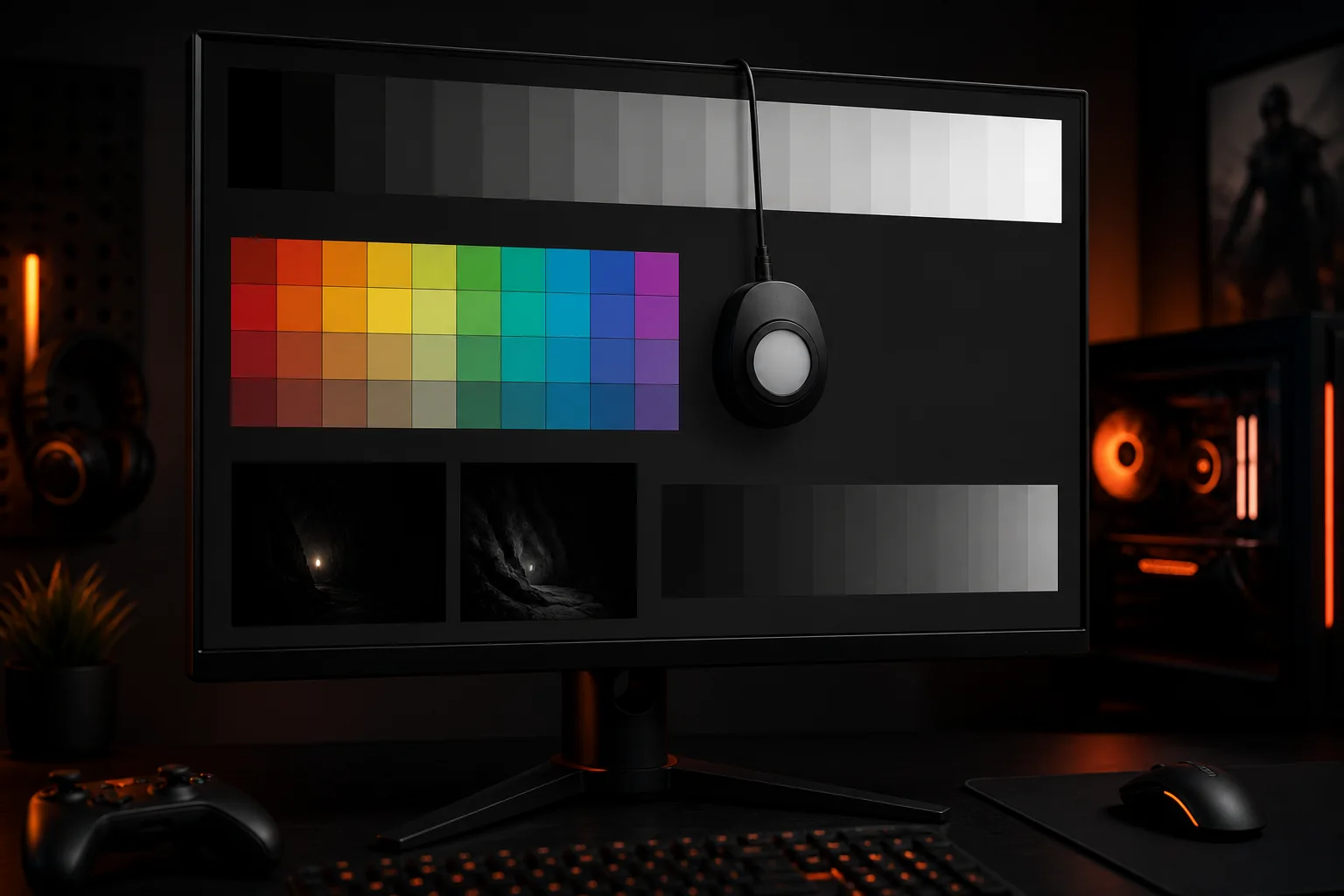
For the most accurate possible result rather than choosing between preset picture modes, generating a custom ICC profile using a colorimeter and DisplayCAL, covered step by step in our monitor calibration guide, produces a profile specifically measured against your individual panel’s actual characteristics rather than a generic preset designed to work reasonably across many different units of the same model.
This approach is most valuable for windowed and desktop use, streaming setups where accurate on-screen color matters for content creation, or any full-screen game confirmed to respect Windows color management; for full-screen games that don’t respect it, the monitor’s own OSD picture mode remains the more directly effective lever regardless of how good your Windows-level custom profile is.
A reasonable combined approach many people land on: set the monitor’s OSD to sRGB or a well-tuned custom mode as the hardware-level baseline, then layer a colorimeter-generated Windows ICC profile on top for desktop and compatible application use, getting reasonably accurate results across both layers rather than relying entirely on one or the other.
Genre-specific considerations
Fast-paced competitive shooters benefit most from the visibility-focused considerations discussed earlier, where a moderate saturation and contrast boost can genuinely help spot details quickly, though this should be balanced against not pushing so far into oversaturation that skin tones or environmental details become distractingly unnatural, which can paradoxically make some visual cues harder to parse rather than easier.
Narrative-driven, visually stylized, or cinematic games generally look better and more as intended in an accurate sRGB or calibrated mode, since these titles are typically color-graded carefully by their development studios and vivid mode’s aggressive saturation can genuinely distort the intended visual mood and artistic direction more noticeably than in a fast-action shooter where players have less time to appreciate subtle color grading anyway.
Open-world and simulation games sit somewhere in between, generally benefiting from accurate color for immersion and realism, though individual preference varies enough here that trying both modes for a specific title you play often and noting your own preference is more useful than a blanket recommendation.
When color profile choice won’t fix a visibility or clarity problem
If enemy visibility or overall clarity issues persist regardless of color profile adjustments, the underlying issue may be elsewhere: insufficient brightness for your room’s ambient lighting, a panel type with inherently lower contrast (some VA panels handle dark scene detail differently than IPS panels, covered in our panel type comparison), or in-game settings like motion blur, depth of field, or bloom effects that reduce clarity independent of any color profile setting.
Response time and refresh rate related motion clarity issues, covered in our refresh rate and response time guide, are also a completely separate consideration from color profile and won’t be resolved by any picture mode adjustment, since they’re about how sharply moving content renders rather than color accuracy.
Troubleshooting color profile issues
If colors look noticeably different or oddly tinted after switching between OSD picture modes and a Windows ICC profile, confirm which one is actually taking precedence for your current use case; for full-screen games not respecting Windows color management, only the OSD mode matters, and an active Windows ICC profile calibrated around a different OSD mode setting can create a mismatch if you switch OSD modes without recalibrating.
A sudden, unexpected color shift after a Windows update or graphics driver update can indicate the active ICC profile setting was reset to a generic default; recheck Windows’ color management settings (search “color management” in the Start menu) to confirm your intended profile is still set as default after any major system update.
If sRGB mode appears locked at a brightness level that feels too dim for your room, and your specific monitor doesn’t allow brightness adjustment within that mode, check whether a custom picture mode with manually matched color temperature and gamma settings, even without the formal sRGB mode’s lock-in, gets you closer to both accuracy and comfortable brightness simultaneously.
Colors appearing washed out or unusually flat specifically in full-screen games, but looking normal on the desktop, often traces back to the game running with an sRGB-targeted ICC profile that isn’t actually being applied correctly in that specific full-screen rendering path, effectively displaying raw wide-gamut panel output without any color space correction; switching the monitor’s own OSD to its sRGB hardware mode as a fallback, rather than relying on the software profile, resolves this for full-screen titles.
Frequently asked questions
Should I use sRGB mode or my monitor’s default vivid mode for gaming?
It depends on the game and your priority; sRGB mode gives more accurate, consistent color that matches how most game content was authored, while vivid mode’s oversaturation can make certain visual cues, like enemy outlines in some games, stand out more, so competitive shooter players sometimes prefer vivid while narrative or visually-focused games often look better in sRGB.
Does Windows have a built-in game-specific color profile system?
Not directly per-game, but Windows’ color management system applies whatever ICC profile is set as default for your display globally, and some games include their own in-game color, gamma, or saturation sliders that layer on top of whatever system-level profile is active.
Will a wide color gamut monitor automatically make games look better?
Not automatically; most games are still authored and mastered for the standard sRGB color space, so a wide gamut panel running without an sRGB emulation mode can actually oversaturate colors beyond how the content was intended to look, making accurate sRGB emulation more valuable than raw gamut coverage for most current games.
Can I create a custom color profile without a colorimeter?
Yes, Windows’ built-in display color calibration tool (accessible by searching “calibrate display color” in the Start menu) walks through basic gamma, brightness, and contrast adjustment by eye, producing a simple profile, though it’s meaningfully less accurate than one generated with a colorimeter.
Does using a color profile affect frame rate or input lag?
No, a color profile is applied through the display pipeline’s color management, not through anything that affects rendering performance or adds processing latency in any way that would be noticeable during gameplay.
Nina Alvarez, Display Specialist, compares sRGB, vivid, and calibrated modes side by side on the pattern generator for every monitor reviewed, and the pattern that holds consistently is that the “best” mode really is genre-dependent rather than a single universal answer, which is why this guide focuses on trade-offs rather than a single prescribed setting. For monitors with well-implemented sRGB modes worth building a profile around, see our guides to the best gaming monitors and best OLED gaming monitors.