
The Short Answer
Yes, a dual monitor setup is absolutely worth it for a gaming streamer, provided you stream from a single PC and prioritize real-time viewer interaction. If your budget is under $100, or if you stream casually from a console and use a tablet to read chat, you can skip it for now. However, for anyone serious about growing an audience on Twitch, YouTube, or Kick, the ability to monitor your broadcast health, manage audio, and read chat without constantly alt-tabbing out of your game makes a second screen an indispensable quality-of-life upgrade.
What You Actually Get
When evaluating whether a dual monitor setup is worth it for gaming streamer channels, it helps to look at the practical reality of your desktop workspace. A standard 27-inch gaming monitor measures roughly 24 inches in width. Placing two of these side-by-side requires at least 48 inches of horizontal desk space, which can crowd out your studio speakers, PC tower, and microphone arm on a standard 55-inch desk.
As an Amazon Associate we earn from qualifying purchases at no extra cost to you. Product prices and availability are accurate as of the date shown and are subject to change.

This physical footprint is where specialized hardware becomes necessary. Instead of using two bulky plastic factory stands that eat up your desktop surface, many streamers opt for dedicated mounting solutions. For instance, the HUANUO Vertical Dual Monitor Mount (priced around $39.99) allows you to stack two monitors vertically rather than side-by-side. This heavy-duty steel mount clamps to desks up to 3.5 inches thick, supports two screens from 17 to 32 inches, and holds up to 17.6 pounds per arm. By stacking your screens, you keep your primary gaming monitor at eye level while keeping your stream dashboard directly above it, saving precious desktop real estate.
Beyond physical space, a second monitor changes how your computer handles resources. Running a secondary 1080p or 1440p display at 60Hz alongside a high-refresh-rate (144Hz or 240Hz) main gaming monitor uses minimal graphics card power—usually just 5 to 15 watts of extra GPU board draw. However, it completely eliminates the software instability caused by pressing Alt-Tab. When you minimize a fullscreen game to check an alert, your CPU and GPU experience sudden rendering shifts that can crash sensitive games or cause OBS (Open Broadcaster Software) to drop frames, ruining the viewing experience for your audience.
Pros
- Flawless Chat Interaction: You can read and respond to viewer messages instantly without delaying your gameplay, which is the single most important factor for viewer retention.
- Real-Time Stream Diagnostics: Keep OBS Studio, Streamlabs, or your streaming dashboard visible on the second screen. This allows you to monitor your dropped frames, CPU usage (ideally kept under 70%), and audio levels in real time.
- Seamless Audio Control: You can easily manage Discord calls, Spotify playlists, or digital soundboards on your secondary screen without interrupting your live gameplay.
- Off-Stream Productivity: When you are not broadcasting, a second monitor dramatically speeds up video editing, graphic design, and everyday multitasking by letting you keep your video timeline or references on one screen while editing on the other.
Cons
- High Desktop Footprint: Side-by-side configurations require a wide, sturdy desk (at least 55 to 60 inches) and can create visual clutter if cables are not properly managed.
- Increased Cost: Adding a secondary monitor means spending an extra $100 to $250 for a decent display, plus the potential cost of an aftermarket mount.
- Slight Power and Thermal Increase: Running an additional display increases your electricity consumption by 20 to 45 watts depending on the screen panel type and brightness level.
- Windows Configuration Quirks: Occasionally, games may lose focus, causing your mouse cursor to slide off the edge of the game screen onto the secondary monitor during intense gameplay.
Who Should Buy It
You should invest in a dual monitor setup if you are a dedicated PC streamer who broadcasts variety games, interactive multiplayer titles, or highly social chat streams. If your stream growth strategy relies heavily on engaging with your community the second they type a message, having a dedicated monitor for your chat is non-negotiable. As we look ahead to the streaming landscape of 2026, audience expectations for high-production value and immediate interaction will only continue to rise. Additionally, if you edit your own stream highlights for YouTube or TikTok, the workflow efficiency of a dual-screen workspace will save you hours of editing time every week.
Who Should Skip It
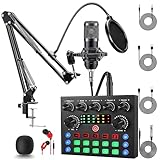
You should skip a dual monitor setup if you are on an extremely tight budget. If you only have $150 to spend on your entire setup, spending $100 of that on a second monitor is a mistake. Your viewers will tolerate a streamer who reads chat from a smartphone, but they will immediately click away from terrible audio. In this scenario, you should prioritize your audio gear first. Budget-friendly options like the ALSO GO Podcast Equipment Bundle (which includes the V8s Sound Card and BM-800 Microphone for around $35.99) will do far more to improve your stream quality than a second screen ever could. You should also skip a dual setup if you stream casually directly from a PlayStation 5 or Xbox Series X, as these consoles do not natively support outputting to two screens simultaneously.
Cheaper Alternatives
If you aren’t ready to commit to the cost or space of a second monitor, there are several budget-friendly workarounds that can help you manage your stream dashboard and chat.
| Option | Cost | Trade-off |
|---|---|---|
| Old Tablet or Smartphone | $0 (if owned) or $30 – $70 (used) | Small screen size makes fast-moving chat hard to read; cannot display detailed OBS performance stats. |
| Transparent Chat Overlay Software | Free | Displays chat over your actual game screen, which can block game HUD elements and distract you during competitive play. |
| Single Ultrawide Monitor (21:9 aspect ratio) | $200 – $450 | Allows you to play games in 16:9 while keeping chat on the side, but requires complex software setup and can lead to accidental screen-sharing privacy leaks. |
FAQ
Does a second monitor decrease gaming performance or FPS?
For most modern graphics cards, running a static secondary screen (like your Twitch chat or OBS dashboard) has a negligible impact on gaming performance, usually resulting in a loss of less than 1 to 2 frames per second (FPS). However, if you run hardware-accelerated tasks on the second screen, such as watching a 4K video stream or running Discord with video calls active, you may see a slight drop of 5% to 8% in your game’s maximum frame rate.
Can I use two different sized monitors with different refresh rates?
Yes, you can easily mix and match monitors. For example, it is very common to use a 27-inch, 144Hz monitor for your main gameplay and a cheaper 24-inch, 60Hz monitor for your stream chat. Windows handles these different refresh rates automatically, though you may occasionally experience minor stuttering on your main screen if a video or animation is actively playing on the 60Hz screen.
Do I need a dual monitor mount, or can I use the stock stands?
While you can certainly use the stock stands that come in the box, they often have wide, triangular footprints that consume massive amounts of desk space. Using an adjustable arm or a vertical stacking mount keeps your desk clean, improves ergonomics by letting you position the screens at perfect eye level, and leaves room underneath the screens for your keyboard, mousepad, and audio mixer.
Is a vertical or horizontal dual monitor layout better for streaming?
A horizontal layout is the most natural for multitasking and video editing, but it requires a very wide desk. A vertical (stacked) layout is highly favored by streamers with limited desk space or those who play competitive first-person shooters, as it allows you to look up slightly to read chat without having to turn your head completely away from your crosshairs.
