Setting up a streamlined home office or a dedicated gaming desk is one of the most satisfying workspace upgrades you can undertake. Many professionals and gamers pair a premium 27-inch or 32-inch high-refresh-rate monitor (such as 144Hz or 240Hz) with a standard 24-inch 60Hz secondary display for multitasking. However, without proper configuration, this mixed-frequency setup often triggers a frustrating visual bottleneck.
If handled poorly, your high-end display will stutter, drop frames, or lock itself to the lower 60Hz refresh rate of your secondary screen whenever an animation, video, or hardware-accelerated app runs on the slower monitor. This completely negates the value of your expensive high-refresh hardware, causes noticeable eye strain during long working hours, and disrupts the smooth aesthetic of your curated desktop environment. Learning how to fix dual monitor refresh rate mismatch issue is essential to reclaiming your system’s full visual performance and ensuring a fluid, headache-free workspace.
What You Need
Before diving into the software configurations, ensure you have the correct physical tools and hardware specifications to support a high-performance dual-monitor layout. High-quality connections prevent signal degradation and bandwidth bottlenecks.
| Item | Why | Optional? |
|---|---|---|
| High-Bandwidth DisplayPort 1.4 Cable ($12–$22) | Provides up to 32.4 Gbps bandwidth, crucial for running high resolutions (like 1440p or 4K) at 144Hz+ without signal drops. | No (Highly recommended for the primary high-refresh monitor) |
| HDMI 2.0 or 2.1 Cable ($10–$18) | Connects the secondary 60Hz monitor; HDMI 2.1 supports up to 48 Gbps for modern displays. | Yes (Can use DisplayPort instead if ports are available) |
| Dedicated Graphics Card (GPU) Control Software | NVIDIA Control Panel or AMD Radeon Software allows deep synchronization and override settings. | No |
| Updated Graphics Drivers | Ensures the operating system and GPU communicate correctly regarding mixed timing protocols. | No |
| Ergonomic Dual Monitor Mount ($35–$85) | Clears desk space and aligns mismatched monitor heights for a cohesive visual flow. | Yes |
Step-by-Step
Follow these structured steps to resolve the mismatch issue. We will start with physical connection verification and progress to advanced operating system and driver adjustments.
Step 1: Verify and Correct Physical Connections (Time: 5 minutes)
The foundation of a stable dual-monitor setup lies in how your displays connect to your computer. A common mistake is plugging one monitor into the motherboard and the other into your dedicated graphics card.
- Turn off your computer and examine the back of your desktop PC tower.
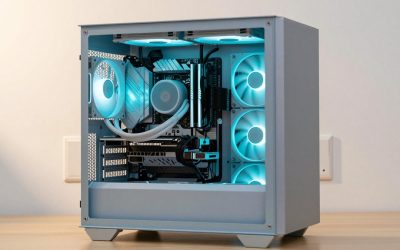
- Locate your dedicated graphics card (GPU) ports, which are positioned horizontally lower down the chassis, separate from the motherboard’s vertical ports near the top.
- Ensure both monitors are plugged directly into the dedicated GPU. Mixing integrated motherboard graphics and dedicated GPU outputs forces your system to route video signals inefficiently, causing severe frame rendering lag.
- Use the DisplayPort 1.4 cable for your primary high-refresh-rate monitor and the HDMI cable for your secondary 60Hz display.
Step 2: Configure Windows Display Settings (Time: 5 minutes)
Sometimes Windows defaults your high-refresh monitor to a lower standard frequency to match your secondary screen. You must manually unlock the correct rates in the operating system.
- Right-click on an empty space on your desktop and select Display settings.
- Scroll down and click on Advanced display.
- In the dropdown menu at the top, select your primary high-refresh-rate monitor (e.g., Monitor 1).
- Look for the setting labeled Choose a refresh rate. Select the highest available frequency (e.g., 144Hz, 165Hz, or 240Hz).
- Go back to the dropdown menu, select your secondary monitor (e.g., Monitor 2), and confirm it is set to its native rate, typically 60Hz.
- Click Apply and keep the changes if the screen renders correctly.
Step 3: Adjust GPU Control Panel Settings (Time: 10 minutes)
Graphics card drivers have dedicated control panels that override Windows display configurations. Aligning these settings prevents the graphics card from throttling the faster display.
- For NVIDIA Users: Right-click your desktop, open the NVIDIA Control Panel, and navigate to Display > Change resolution. Confirm that the refresh rates match what you configured in Windows. Next, go to Manage 3D Settings, scroll down to Monitor Technology, and select G-Sync Compatible (if supported). Set Preferred refresh rate to “Highest available.”
- For AMD Users: Right-click the desktop, open AMD Software: Adrenalin Edition, go to Gaming > Display. Ensure AMD FreeSync is enabled on your primary gaming monitor and disabled or configured correctly on the secondary unit to prevent syncing conflicts.
Step 4: Enable Hardware-Accelerated GPU Scheduling (Time: 5 minutes)
Hardware-Accelerated GPU Scheduling (HAGS) allows your graphics card to manage its own memory and scheduling, which greatly reduces stuttering when running mixed-refresh-rate screens.
- Open the Windows Settings menu (Windows Key + I).
- Navigate to System > Display > Graphics.
- Click on Default graphics settings or Change default graphics settings.
- Toggle the switch for Hardware-accelerated GPU scheduling to On.
- Restart your computer for the changes to take effect.
Step 5: Disable Browser and App Hardware Acceleration (Time: 5 minutes)
If your primary screen still stutters when playing a video or stream on the secondary screen, background application hardware acceleration is likely the culprit.
- Open your web browser (e.g., Google Chrome or Microsoft Edge).
- Go to Settings > System and performance (or search “hardware acceleration” in the search bar).
- Toggle off Use graphics acceleration when available (or “Use hardware acceleration when available”).
- Relaunch the browser. Repeat this process for chat applications like Discord or streaming apps that run constantly on your secondary screen.
Mistakes to Avoid
- Using cheap, unrated display cables: Budget cables lack the copper shielding and bandwidth capacity required for high-frequency signals, leading to flickering, black screens, or forced lower refresh rates.
- Forcing mismatched ratios without G-Sync/FreeSync: Running a 144Hz monitor alongside a 60Hz monitor can confuse the Windows Desktop Window Manager (DWM). If possible, setting your primary monitor to a clean multiple of the secondary monitor (such as 120Hz and 60Hz) can resolve persistent micro-stutters.
- Plugging into motherboard video ports: This forces the CPU’s weak integrated graphics chip to handle one of the displays, creating rendering lag and software conflicts with your main 250W GPU.
- Ignoring background apps: Leaving GPU-heavy animations active on the 60Hz monitor while gaming on the 144Hz monitor will drag your overall system rendering performance down.
How Often
You do not need to adjust these configurations daily. However, you should audit your display settings after major system events. Major Windows operating system updates, clean graphics driver installations, and hardware additions (like swapping a cable or adding a third monitor) often revert your refresh rates back to system defaults. Make it a habit to check your display properties every few months or whenever you notice a sudden drop in visual smoothness.
When to Call a Pro or Replace
If you have updated your drivers, replaced your cables with certified DisplayPort 1.4 options, and configured your system settings, yet you still experience severe screen flickering, artifacting, or forced 60Hz limits, your hardware may be reaching its physical end of life. Older, budget graphics cards with low video memory (under 4GB VRAM) or low power limits (under 75W) struggle to output high-resolution, mixed-refresh-rate signals simultaneously.
If you find yourself constantly troubleshooting, it might be time to replace your secondary monitor. Upgrading to a matching pair of monitors—such as two 27-inch 144Hz displays (ranging from $180 to $350 each)—completely eliminates the mismatch issue at the hardware level, creating a flawless, symmetrical aesthetic for your home office desk.
FAQ
Why does my 144Hz monitor drop to 60Hz when I open a video on the second screen?
This occurs because the Windows Desktop Window Manager (DWM) tries to synchronize the rendering budget of both displays. When hardware-accelerated content (like a YouTube video or Twitch stream) plays on the 60Hz screen, Windows occasionally forces the entire system to render at 60Hz to prevent screen tearing, dragging down your 144Hz monitor.
Can I use an HDMI cable for one monitor and a DisplayPort cable for the other?
Yes. Mixing connection types is perfectly fine and often necessary due to port limitations on your graphics card. Just ensure that the high-refresh-rate gaming monitor is connected via DisplayPort (or HDMI 2.1) to guarantee it has enough bandwidth to run at its maximum rated frequency.
Does a refresh rate mismatch damage my graphics card?
No, running monitors with different refresh rates will not damage your GPU hardware. It simply increases the idle workload of your graphics card slightly, as it has to manage two different timing controllers simultaneously. It is entirely safe for long-term daily use.
Does Windows 11 handle dual monitor refresh rates better than older systems?
Yes. As we head into 2026, modern operating systems like Windows 11 have integrated much better multi-monitor refresh rate handling. Windows 11 features improved independent display plane indexing, which allows the graphics card to drive mismatched displays with significantly less desktop stuttering compared to older operating system architectures.