
A standing desk is a fantastic investment for your health and productivity, but it introduces unique structural challenges to your workstation. When you elevate your desk to standing height—typically between 40 and 48 inches—the center of gravity shifts upward. This heightens the impact of every keystroke, mouse movement, and footstep. If your monitor arm is not perfectly secured, this energy travels straight up the desk frame, resulting in an annoying, eye-straining screen shake.
Ignoring this issue or executing a sloppy, rushed fix can lead to serious consequences. Over-tightening a clamp on a fragile fiberboard or hollow-core desktop can crush the wood, permanently ruining your desk. Conversely, leaving a loose clamp unattended can cause the entire mount to slip off the edge of the desk. This puts an expensive 10-to-20-pound monitor at risk of crashing down, shattering the panel, pulling out power cables, and damaging the delicate ports on your computer. Learning how to fix wobbly monitor arm on standing desk setups properly protects your expensive equipment and restores your focus.
As an Amazon Associate we earn from qualifying purchases at no extra cost to you. Product prices and availability are accurate as of the date shown and are subject to change.

What You Need
Before you begin adjusting your setup, gather the necessary tools. Having the correct hardware on hand prevents stripped screws and avoids damaging your desktop surface.
| Item | Why | Optional? |
|---|---|---|
| Allen Keys (Hex Wrenches) | Used to tighten the structural joints and adjust the internal tension of gas-spring arms (typically 4mm or 5mm sizes). | No |
| Phillips-head Screwdriver | Secures the VESA plate screws to the back of your monitor and tightens bracket collars. | No |
| Desk Reinforcement Plate | A steel plate ($15 to $25) that distributes the clamping force over a wider surface area to protect thin or fragile desks. | Yes (Recommended for MDF or glass desks) |
| Microfiber Cloth | Cleans dust, oil, and debris from the desk surface to improve clamp traction. | Yes |
| Level | Ensures that the monitor arm and the desk surface are completely horizontal before final tightening. | Yes |
Step-by-Step
Follow these structured steps to diagnose, reinforce, and stabilize your screen setup.
Step 1: Isolate the Source of the Wobble (Time: 5 minutes)
Do not start tightening random screws immediately. First, determine where the instability originates. Gently wiggle your monitor with your hands and look closely at the different components of your desk. Is the standing desk itself shaking at its legs? Is the base clamp shifting against the wood? Or are the joints of the arm flexing? If the desk legs are the issue, ensure the leveling glides on the bottom of the feet are flat against the floor. If the movement is localized to the arm, proceed to the next steps to tighten the hardware.
Step 2: Clean and Secure the Base Clamp or Grommet Mount (Time: 10 minutes)
The base is the foundation of your entire monitor mount. If the base is loose, nothing else will keep the screen steady. If you are using a clamp-style mount, such as the HUANUO FlowLift™ Single Monitor Mount ($35.99), which is designed for 13 to 32-inch monitors weighing between 4.4 and 19.8 lbs, check the underside of the desk. Loosen the clamp slightly, wipe down the top and bottom desk surfaces with a microfiber cloth to remove slippery dust, and reposition the base. Ensure the clamp sits completely flush against the edge of the desk. Hand-tighten the bottom knob or use the provided Allen key to secure it firmly, ensuring there is no side-to-side play.
Step 3: Adjust the Joint Tension (Time: 8 minutes)
Most high-quality monitor arms use a series of articulating joints controlled by tension screws. Over time, these joints can loosen, causing the arm to sag or sway. Locate the hex bolts at each articulation point—usually at the base swivel, the elbow joint, and the tilt mechanism right behind the VESA plate. Using your Allen key, turn the bolts clockwise to tighten them. If you have a gas-spring arm, you must adjust the internal spring tension to match the exact weight of your monitor. Turn the tension screw toward the plus (+) sign until the monitor can hold its position without drifting up or down when you release it.
Step 4: Reinforce or Upgrade Your Desk Surface (Time: 10 minutes)
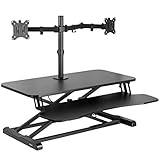
If your standing desk is constructed from particleboard, hollow-core wood, or thin MDF, the clamping force of a heavy monitor can compress the wood fibers over time, creating a permanent tilt. To fix this, install a heavy-duty steel desk reinforcement plate between the clamp and the desktop. This sandwich design distributes the downward pressure across a wide surface area. If your desktop is simply too thin (under 0.75 inches) or lacks structural integrity, you might want to bypass the desk edge entirely. Upgrading to a standing desk converter, such as the VIVO Black 32 in Standing Desk Converter with Monitor Stand (DESK-V000K-M2, $169.99), provides a heavy, stable steel base that sits directly on top of your desk, eliminating clamp-related instability altogether.
Step 5: Route and Balance Cables (Time: 7 minutes)
Stiff, tightly pulled cables can act like guitar strings, transmitting vibrations from your PC tower or floor directly to your monitor arm when the desk rises. Route your power and display cables through the built-in cable management channels on your monitor arm. Make sure to leave a generous loop of slack at the base of the arm. This ensures that when the standing desk transitions to its maximum height, the cables do not pull tight and tug on the monitor, which introduces wobble and risks damaging the input ports.
Mistakes to Avoid
- Over-tightening the clamp: Using excessive force when tightening the base clamp can crack natural wood, shatter glass desks, or crush hollow-core composites. Tighten until the base is firm and immovable, but do not force the wrench beyond natural resistance.
- Ignoring the manufacturer’s weight capacity: Every monitor arm has a strict weight limit. If your monitor weighs 22 lbs and your arm is rated for a maximum of 19.8 lbs, the internal spring or mechanical joint will fail, leading to constant drooping and shaking.
- Using the wrong size Allen keys: Using an imperial hex key on a metric bolt (or vice versa) will strip the screw heads. Once stripped, it is incredibly difficult to adjust the tension of your arm in the future.
- Forgetting to level the desk feet: Often, what looks like a wobbly monitor arm is actually an uneven desk. If your floor is slightly sloped, the leveling glides on the bottom of your standing desk feet must be adjusted to keep the entire frame solid.
How Often
A standing desk is dynamic furniture. Because you raise and lower the desk multiple times a day, the constant movement, motor vibrations, and physical transitions naturally loosen screws and clamps over time. Perform a quick safety check every 3 to 6 months. Gently wiggle the monitor to feel for play, and spend two minutes tightening the base clamp and joint bolts. Consistent preventative maintenance ensures your workstation remains solid and wobble-free through 2026 and well into the future.
When to Call a Pro or Replace
While most monitor arm wobbles can be resolved with simple adjustments, some issues require replacing your gear. If you notice structural cracks in your wooden desktop where the clamp attaches, or if the metal of your monitor arm’s clamp base is bent or warped, stop using it immediately to prevent a costly drop.
Similarly, if you tighten the gas-spring tension screw completely and the arm still cannot hold your monitor up, the internal cylinder has likely leaked its pressurized gas. Because these cylinders are sealed factory units, they cannot be repaired safely at home. Replacement monitor arms generally range from $30 to $150, which is a small price to pay to safeguard a premium display worth hundreds of dollars.
FAQ
Why does my monitor arm wobble when I type on my standing desk?
When a standing desk is raised, its center of gravity is high, making it more sensitive to movement. The energy from your typing travels up the desk legs, through the desktop, and is amplified by the length of the monitor arm. Tightening your clamp, reinforcing your desktop, and using a desk pad to absorb typing impact will significantly minimize this effect.
Can I use a monitor arm on a glass or hollow-core desk?
Yes, but you must use a desk reinforcement plate. Glass can easily shatter under concentrated clamping pressure, and hollow-core desks (like those filled with paper honeycomb structures) will collapse under the weight. A steel reinforcement plate spreads the force safely across a wider surface area to prevent damage.
How do I know if my monitor arm tension is set correctly?
Your tension is set correctly when you can move the monitor to any height with light hand pressure, and it stays exactly where you leave it. If the monitor immediately springs upward, the tension is too high; if it slowly drifts downward, the tension is too low.
Do dual monitor arms wobble more than single monitor arms?
Yes. Dual monitor arms support twice the weight and distribute that load across a wider span, which naturally increases the leverage on the base clamp. If you are using a dual monitor setup, a heavy-duty base clamp and a sturdy, solid-wood desktop are highly recommended to prevent shaking.
