Windows’ built-in display settings, taskbar per-monitor options, and Snap Layouts handle the core of a multi-monitor setup adequately for most people without needing any third-party software at all. For more advanced needs, like true per-monitor wallpaper on some configurations, saved window layout profiles, or granular taskbar customization, DisplayFusion is the most established third-party option worth considering.
Our Top Picks
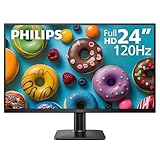
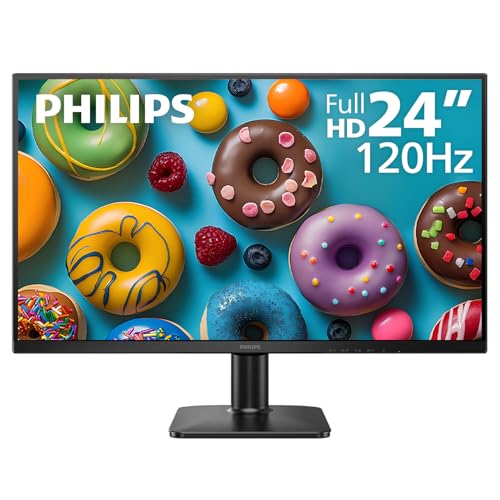 Philips 24 Inch Computer Monitor FHD 120Hz IPS24 inch 120Hz1.3 x 12.56 x 21.41 inches9.3 PoundsCheck on Amazon



Top 3 picks at a glance
Quick answer
Start with Windows’ native tools: Settings > System > Display for arrangement and per-monitor resolution/refresh rate, right-click taskbar settings for per-monitor taskbar behavior, and Snap Layouts (hover the maximize button, or Win+Z) for window organization across screens. Only look at third-party software like DisplayFusion if you find yourself specifically wanting per-monitor wallpaper control or saved multi-window layout profiles that Windows doesn’t natively offer.
As an Amazon Associate we earn from qualifying purchases at no extra cost to you.

![MixPad Free Multitrack Recording Studio and Music Mixing Software [Download]](https://m.media-amazon.com/images/I/71ltIxIuz1L._SL160_.jpg)

![MixPad Multitrack Recording Software for Sound Mixing and Music Production Free [Mac Download]](https://m.media-amazon.com/images/I/51kaO82jYOL._SL160_.jpg)

| Need | Tool | Cost |
|---|---|---|
| Basic arrangement, resolution, refresh rate | Windows Settings (native) | Free, built-in |
| Window snapping across monitors | Windows Snap Layouts (native) | Free, built-in |
| Per-monitor wallpaper, saved layouts | DisplayFusion | Paid, free trial |
Setting up display arrangement in Windows
Open Settings, navigate to System, then Display, where each connected monitor appears as a numbered rectangle you can drag to match its physical position relative to your other displays; this arrangement determines how your mouse cursor moves between screens, so it’s worth taking a moment to match the on-screen layout to your actual desk setup rather than leaving default positions that don’t reflect reality.
Each display can be independently configured for resolution, refresh rate, and scaling within this same settings page, accessed by clicking on the specific monitor’s rectangle and scrolling to its individual settings below the arrangement diagram. Running genuinely different refresh rates across monitors, for example a 144Hz gaming monitor alongside a 60Hz secondary display, is fully supported, though Windows historically has had occasional minor stutter when dragging windows across displays with significantly mismatched refresh rates, a known limitation rather than a sign of misconfiguration.
The “Multiple displays” dropdown further down the same settings page controls whether displays extend your desktop (the standard setup for actual multi-monitor use), duplicate the same image, or show on only one specific display; “Extend these displays” is what most multi-monitor gaming setups want, letting each screen show independent content.
Per-monitor taskbar settings
Windows includes built-in options for how the taskbar behaves across multiple monitors, accessed by right-clicking the taskbar and selecting Taskbar settings, then finding the multi-monitor section. Options here include whether the taskbar shows on all displays or only your primary one, and how taskbar buttons for open windows are grouped or shown when they’re not on all displays.
A common preference for gaming setups is showing the taskbar only on the primary display where games actually run, keeping secondary monitors (often used for chat apps, streams, or reference material) free of a redundant taskbar; this is directly configurable through the same native settings without needing any third-party tool.
Snap Layouts for window management
Windows 11’s Snap Layouts feature, accessed by hovering over a window’s maximize button or pressing Win+Z, offers a selection of predefined window arrangement patterns (side by side, quarters, and other combinations) that work across the full extended desktop, including snapping windows to specific positions on secondary monitors, not just the primary display.
Snapped window groups can be saved as a “Snap Group” that Windows remembers, letting you quickly restore a specific multi-window arrangement by hovering over one of the group’s windows in the taskbar, useful for a consistent setup you return to repeatedly, like a game on one monitor with a browser and Discord snapped into a specific arrangement on a second monitor.
This built-in functionality covers a meaningful portion of what people historically needed third-party window management tools for, and is worth exploring fully before assuming a paid tool is necessary, since Microsoft has steadily expanded Snap Layouts’ capabilities across recent Windows 11 updates.
DisplayFusion and what it adds beyond native tools
DisplayFusion is the most established third-party multi-monitor utility, and its main value additions over native Windows tools center on wallpaper management (including true independent wallpaper per monitor with more granular control than Windows’ own multi-monitor wallpaper support, along with slideshow and scheduling features) and window management (saved, triggerable window layout profiles that can be restored with a hotkey, more flexible than Windows’ Snap Groups in some scenarios).
It also includes additional taskbar customization options, per-monitor function key shortcuts for quickly moving windows between specific displays, and a title bar button addition for one-click window movement between monitors, features aimed at people who spend significant time managing complex multi-window, multi-monitor workflows rather than a simpler two-monitor gaming and browsing setup.
DisplayFusion offers a free trial before requiring purchase, which is a reasonable way to determine whether its specific additional features are worth it for your particular workflow before committing; for many gaming-focused multi-monitor setups, the native Windows tools covered above are genuinely sufficient, and DisplayFusion’s value becomes clearer specifically for more complex, multi-application workflows.
Mouse and keyboard sharing across monitors driven by separate PCs
A distinct scenario from a single PC driving multiple monitors is sharing one mouse and keyboard across two separate computers, each with its own monitor, which is a different problem that dedicated multi-monitor software like DisplayFusion doesn’t address, since it’s designed for multiple displays on one system rather than input sharing between separate machines. Software solutions built specifically for this, distinct from a physical KVM switch, exist and work by streaming input over a local network connection rather than switching a physical connection.
This is worth distinguishing clearly since the terminology can blur together in casual conversation: a KVM switch (covered in our KVM switch guide) physically switches one set of peripherals between multiple computers, while multi-monitor software like the tools covered in this guide manages multiple displays connected to a single computer; they solve related but distinctly different problems.
Games and multi-monitor behavior
Most games are designed to run full-screen on a single selected display, with that display chosen through the game’s own graphics or display settings menu rather than automatically inheriting Windows’ primary monitor designation; if a game launches on the wrong screen in a multi-monitor setup, checking its in-game display selection dropdown, rather than adjusting Windows settings, is usually the direct fix.
A smaller number of games support genuine multi-monitor spanning, rendering a single wide view across all connected displays rather than confining gameplay to one screen; this is a specific feature that varies by game engine and title, generally more common in racing and flight simulation genres than in typical action or strategy games, and isn’t something enabled through Windows or third-party desktop software, it depends entirely on that specific game’s own rendering support.
Borderless windowed mode, increasingly common as either a default or option in modern games, tends to handle multi-monitor setups more gracefully than full-screen exclusive mode for tasks like alt-tabbing to a secondary monitor mid-game, since it keeps the game running as a regular (if maximized) window rather than fully taking exclusive control of the display output.
Wallpaper and personalization across monitors
Windows’ native personalization settings support both a single wallpaper spanning across all connected displays and independent wallpaper per monitor, accessible by right-clicking a specific desktop background image in Settings > Personalization > Background and choosing which monitor it applies to; this native support has improved across Windows 10 and 11 updates, closing much of the gap that used to make third-party wallpaper tools more necessary.
Where native support still falls short for some users is wallpaper slideshows synced or offset intentionally across monitors, or wallpaper that spans as a single continuous image across three or more unevenly sized or positioned displays; DisplayFusion’s wallpaper engine handles both of these more gracefully, accounting for actual monitor bezel width and physical arrangement when calculating how a spanning image should be cropped and positioned across each screen.
For most two-monitor gaming setups with reasonably similar-sized displays, the native Windows wallpaper options are enough; the gap becomes more noticeable specifically with three or more monitors of different sizes or resolutions, where getting a spanning image to look correctly proportioned without cropping oddly at the bezels benefits more from DisplayFusion’s more precise handling.
Cable, port, and connection considerations
Running multiple high refresh rate or high resolution monitors simultaneously requires confirming your GPU has sufficient available display outputs of the right type and your motherboard or GPU’s total bandwidth supports your combined resolution and refresh rate needs across all displays at once; this is a hardware capability question separate from any software configuration, worth checking against your specific GPU’s port specifications before assuming a software fix exists for a monitor that won’t run at its full rated specs when connected alongside others.
KVM switches, docking stations, or USB-C hubs used to simplify cabling in a multi-monitor setup can introduce their own bandwidth or feature limitations, sometimes capping resolution, refresh rate, or blocking variable refresh rate pass-through even when the GPU and monitors themselves would otherwise support it; our KVM switch for dual monitors guide covers what specifications to check before this becomes a bottleneck.
Streaming and content creation multi-monitor setups
Streamers and content creators often run a specific three-part multi-monitor arrangement: the game on a primary high refresh rate display, chat and stream overlay software like OBS Studio or Streamlabs on a second monitor, and reference material, a browser, or Discord on a third; Windows’ native taskbar-per-monitor and Snap Layouts settings covered above handle arranging this reasonably well without needing dedicated software specifically for the streaming use case itself.
OBS Studio and Streamlabs both include their own display capture source options that let you select which specific monitor’s output to capture or show as part of a stream layout, configured within each respective program rather than through Windows or a third-party multi-monitor tool; this is worth knowing since it’s a separate configuration step from simply arranging your monitors in Windows Display settings.
For remote play or streaming gameplay to a second device rather than a second physical monitor, tools like Parsec, Moonlight, or Sunshine serve a different purpose entirely, streaming a game’s video output over a network connection rather than managing a locally connected multi-monitor desktop; these aren’t multi-monitor management software but are sometimes confused with it since they can create a similar practical effect of “gaming on one screen, everything else on another.”
When software alone can’t solve a multi-monitor issue
If windows or the desktop cursor behave unpredictably when moving between monitors, particularly with noticeable stutter or a brief freeze, and this happens specifically when running mismatched refresh rates across displays, this is a known Windows desktop composition behavior rather than something third-party window management software can fully resolve; running matched refresh rates where practical, or accepting the minor stutter as a trade-off for a mismatched but otherwise desirable multi-monitor configuration, are the realistic options.
Persistent flickering or signal dropout on one specific monitor in a multi-monitor setup, while others remain stable, points toward a cable, port, or GPU output hardware issue rather than a software or arrangement setting problem; testing that specific monitor on a different port or with a different cable isolates whether the issue follows the monitor or the specific connection.
Troubleshooting common multi-monitor problems
If Windows fails to detect a connected monitor at all, confirm the cable is fully seated at both ends, try a different port on the GPU if available, and check that the monitor’s input source setting (in its own OSD) is set to match the actual cable type connected, since a monitor set to expect one input while a different cable is physically connected won’t display anything regardless of Windows’ own detection.
Taskbar or window position settings that reset unexpectedly, particularly after disconnecting and reconnecting a monitor (common with laptops docking and undocking, or desktop setups where a monitor gets powered off and on), is a known Windows behavior where window positions saved for a specific monitor configuration don’t always restore cleanly when that exact configuration returns; this is more of a persistent minor annoyance than something with a definitive fix, though some third-party tools including DisplayFusion offer more reliable window position memory across monitor reconnection events than native Windows behavior provides.
If Snap Layouts don’t appear when hovering over the maximize button, confirm this feature is enabled in Windows Settings under System > Multitasking, since it can be toggled off, and confirm you’re running a sufficiently current Windows 11 version, since Snap Layouts’ specific behavior and expanded features have rolled out progressively across updates rather than all being present from Windows 11’s initial release.
A game consistently launching on the wrong monitor despite changing its in-game display selection can sometimes be resolved by changing which monitor is set as “primary” in Windows Display settings instead, since a small number of games default to Windows’ primary display regardless of their own in-game selection dropdown, an inconsistency between different game engines rather than a universal standard.
Frequently asked questions
Do I need third-party software for a basic multi-monitor setup?
No, Windows’ built-in display settings, taskbar options, and Snap Layouts handle basic multi-monitor arrangement, extending, and window management reasonably well on their own; third-party tools become worth considering mainly for specific gaps like per-monitor wallpaper on older Windows versions or more advanced window layout automation.
Can I run different refresh rates on each monitor in a multi-monitor setup?
Yes, Windows allows setting a different resolution and refresh rate independently for each connected display through Settings, though running mismatched refresh rates can occasionally introduce minor stutter when dragging windows between displays, which is a known Windows behavior rather than a hardware fault.
Why does my game only detect one monitor in a multi-monitor setup?
Most games are designed to run full-screen on a single selected display by default, with the specific display often chosen in that game’s own graphics settings menu rather than automatically matching whichever monitor is set as primary in Windows, so check the game’s display selection dropdown if it’s launching on the wrong screen.
Does a KVM switch work well for gaming across multiple monitors?
It depends on the specific KVM switch’s specifications; budget KVM switches sometimes limit resolution, refresh rate, or variable refresh rate pass-through, so checking a switch’s stated support for your exact resolution, refresh rate, and G-Sync/FreeSync needs before buying avoids a mismatch discovered only after setup.
Is DisplayFusion worth paying for over free alternatives?
For most casual multi-monitor users, free built-in Windows tools cover the basics adequately; DisplayFusion becomes worth its cost mainly for people who want granular per-monitor wallpaper control, advanced window layout profiles, or extensive taskbar customization beyond what Windows natively offers.
If you’re building out a multi-monitor gaming setup, our guides to dual monitor gaming setups and monitor arms cover the hardware side of getting there.