For a 360Hz esports monitor, raw refresh rate alone does not win you fights. What matters is delivering a stable, low-latency frame pipeline that keeps the panel fed at or near 360 frames per second without introducing stutter, overshoot, or sync-induced delay. That means correctly configuring the operating system, GPU driver, monitor overdrive, adaptive sync, and in-game caps as a single chain. If any link is mismatched, you either lose the smoothness you paid for or add input lag that cancels the advantage of 360Hz. As of early 2026, most competitive titles can drive 360Hz on modern hardware, but only when the settings below are applied in the right order and verified after every driver update.
Our Top Picks
 Alienware AW2725DF OLED Gaming Monitor27.0 OLED9.59 x 23.98 x 15.99 inches13.89 poundsCheck on Amazon
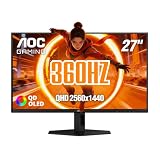
 AOC 27" Gaming Monitor QHD 360Hz QD OLED27" 360Hz AOC Gaming28.74 x 18.9 x 7.4 InchesCheck on Amazon
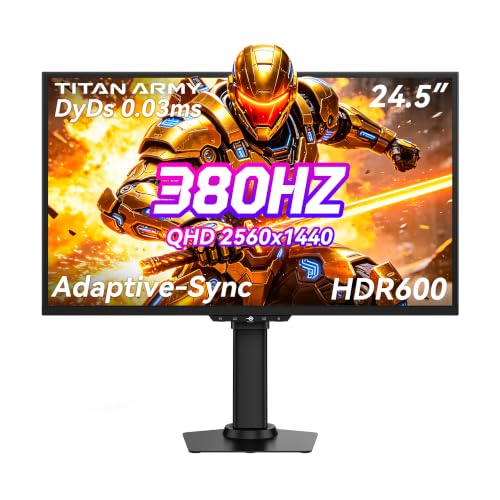 TITAN ARMY 24 Inch Gaming Monitor 380Hz 360Hz24.5"9.1 x 22.17 x 20.55 Inches13.9 PoundsCheck on Amazon
 ASUS ROG Strix 26.5” 1440P QD-OLED Gaming Monitor6.408.6 x 24 x 20.3 inches16.4 PoundsCheck on Amazon


Top 3 picks at a glance
Quick Recommended Settings
| Setting | Recommended value | Why |
|---|---|---|
| Windows Refresh Rate | 360Hz | Ensures desktop and games actually output 360Hz, not 60Hz default |
| Connection | DisplayPort 1.4 | Required for 360Hz at 1080p with full color; HDMI 2.0 is limited |
| Monitor Overdrive / Response Time | Normal or Medium | Fastest setting without inverse ghosting; Extreme adds coronas |
| Adaptive Sync | G-SYNC Compatible / FreeSync On + V-Sync On in driver | Eliminates tearing with minimal lag when paired with a frame cap |
| In-Game V-Sync | Off | Prevents double V-Sync stacking and added input lag |
| Frame Rate Cap | 352 to 355 FPS | Keeps frames inside the adaptive sync window, avoids V-Sync engagement |
| Low Latency Mode | NVIDIA Reflex On + Boost if available; otherwise Ultra Low Latency On | Reduces render queue depth and system latency |
| Resolution | 1920×1080 native, Scaling by Display | Lowest render cost and optimal panel sharpness |
| Color Mode | sRGB or Custom, Brightness 35-55, Contrast 50-70, Black Equalizer 8-10 / 12 | Visibility for enemies without washing out image |
Setting-by-Setting
Refresh Rate: 360Hz in Windows and GPU Driver
What causes it: Windows defaults to 60Hz after driver installs, cable swaps, or monitor resets, so the monitor runs at 360Hz hardware but receives only 60Hz signal. Using HDMI 2.0 or an older DisplayPort cable can also silently cap you to 240Hz or 144Hz.
As an Amazon Associate we earn from qualifying purchases at no extra cost to you.



How to check: Right-click desktop > Display settings > Advanced display > Choose your 360Hz monitor > Refresh rate dropdown. Press Windows + R, type dxdiag, go to Display tab and confirm Current Display Mode shows 1920 x 1080 (32 bit) (360Hz). On the monitor itself, press joystick > Information or System > Current resolution and refresh.
What to do: Set Windows to 1920×1080, 360Hz. In NVIDIA Control Panel > Change resolution > Select your monitor > PC section > 1920×1080 > 360Hz > Use NVIDIA color settings > Output color depth 8 bpc > Output color format RGB > Apply. For AMD: AMD Software: Adrenalin Edition > Display > Display Specs > Override pixel format to RGB 4:4:4 PC Standard. Use the DisplayPort cable included with the monitor, plugged directly into the GPU, not the motherboard.
How to undo: Return to Display settings > Advanced display and select 240Hz or 144Hz, or in NVIDIA Control Panel set Refresh rate back to 240Hz. No file edits needed.
Overdrive / Response Time: Normal or Medium
What causes it: Overdrive pushes liquid crystal transitions faster. At 360Hz, the Extreme or Fastest preset often overshoots, creating bright trailing coronas around moving enemies. Off or Slow leaves smearing.
How to check: Open monitor OSD with joystick: Menu > Gaming > Response Time or Overdrive > note current value. Test with TestUFO at www.testufo.com/ghosting on Chrome or Edge, or pan quickly in a game and look for inverse ghosting (light halo) versus dark smear.
What to do: Set Response Time to Normal, Middle, or Level 2 depending on brand (ASUS: Trace Free 60, Alienware: Fast, BenQ Zowie: AMA 2, ViewSonic: Standard). If your monitor has Adaptive Overdrive or Variable Overdrive, leave it On so it adjusts automatically when frame rate drops. Verify after setting adaptive sync, as some monitors lock overdrive when G-SYNC is enabled.
How to undo: In OSD > Gaming > Response Time, set back to Off or Extreme. Changes revert instantly.
Adaptive Sync: G-SYNC Compatible or FreeSync On
What causes it: Tearing occurs when GPU frame delivery is out of sync with the scanout. Fixed refresh without sync tears, while V-Sync alone queues frames and adds lag.
How to check: NVIDIA: NVIDIA Control Panel > Display > Set up G-SYNC > see if Enable G-SYNC, G-SYNC Compatible is checked and your monitor is listed. AMD: AMD Software > Gaming > Display > AMD FreeSync > Enabled. In monitor OSD > Gaming > Adaptive-Sync or FreeSync Premium should show On.
What to do: Enable in OSD first, then in driver. NVIDIA > Set up G-SYNC > Check Enable G-SYNC for windowed and full screen mode > Enable settings for the selected display model > Apply. Then Manage 3D settings > Global Settings > Monitor Technology > G-SYNC Compatible > Vertical sync > On. AMD > Enable FreeSync and set Wait for Vertical Refresh to Off, unless using Enhanced Sync. This driver-level V-Sync only engages at the sync ceiling and does not add lag when capped below it.
How to undo: Uncheck Enable G-SYNC in NVIDIA Control Panel or set AMD FreeSync to Disabled, and set Vertical sync back to Use the 3D application setting. Also disable in monitor OSD.
Vertical Sync: Off In-Game, On in Driver
What causes it: In-game V-Sync forces the game engine to hold frames until the next scan, increasing input delay and often overriding driver sync handling. Leaving both off with uncapped frames causes tearing even with adaptive sync.
How to check: In game > Settings > Graphics / Video > V-Sync toggle. Also check config files: for Valorant, C:\Users\%USERNAME%\AppData\Local\VALORANT\Saved\Config\WindowsClient\GameUserSettings.ini line bUseVSync; for Apex Legends, C:\Users\%USERNAME%\Saved Games\Respawn\Apex\local\settings.cfg line vsync_enabled.
What to do: Set V-Sync to Off inside every competitive game. Keep Vertical sync On in NVIDIA Control Panel > Manage 3D settings as described above, so the driver handles sync at the top of the range without the engine-level penalty. If you strictly prefer lowest latency over tear-free visuals, set driver Vertical sync to Off and rely solely on the frame cap below.
How to undo: Set Vertical sync in driver back to Off or Use the 3D application setting, and toggle V-Sync back to On in-game.
Frame Rate Cap: 352 to 355 FPS
What causes it: When frames exceed 360, adaptive sync disengages and the driver V-Sync engages, adding queuing. No cap also lets the GPU run at full utilization, increasing render latency.
How to check: Enable in-game FPS counter (e.g., Steam > Settings > In-Game > In-game FPS counter, or GeForce Experience overlay Alt + Z > Performance overlay Alt + R). Observe if FPS frequently hits 360 and fluctuates above/below.
What to do: Cap 3 to 8 FPS below refresh. Best place is the game limiter if it is stable: Valorant > Video > General > Limit FPS Always > 355; Overwatch 2 > Options > Video > Frame Rate Cap > Custom 355; Apex Legends > launch option +fps_max 355 in Steam > Properties > Launch Options or EA App > Manage > View Properties. Alternative driver cap: NVIDIA Control Panel > Manage 3D settings > Program Settings > Max Frame Rate > 355 FPS > Apply. For AMD, AMD Software > Gaming > Graphics > Frame Rate Target Control > 355.
How to undo: Set game limiter to Off / 360+ or set Max Frame Rate to Off in driver. Delete added launch option.
Latency Reduction: NVIDIA Reflex or AMD Anti-Lag
What causes it: The CPU prepares frames ahead of the GPU, filling a render queue that adds system latency. High GPU utilization worsens it.
How to check: In NVIDIA games, Options > Video > NVIDIA Reflex Low Latency field. In AMD Software > Gaming > Graphics > Anti-Lag status. Use NVIDIA Reflex Analyzer if monitor supports it (plug mouse into monitor, OSD > Analyzer > On) or enable Latency Stats in game.
What to do: If Reflex is present: Settings > Video > NVIDIA Reflex Low Latency > On + Boost. Boost keeps GPU clocks high when CPU bound, at cost of slightly higher power and heat. If no Reflex: NVIDIA Control Panel > Manage 3D settings > Low Latency Mode > Ultra. AMD users: AMD Software > Gaming > Graphics > AMD Anti-Lag > Enabled, and Anti-Lag+ where supported per game. Keep in-game cap active so the limiter and Reflex can work together.
How to undo: Set Reflex to Off, or Low Latency Mode back to Off, or Anti-Lag to Disabled. No restart required beyond applying.
Resolution, Scaling, and Display Mode
What causes it: Non-native resolution with GPU scaling and borderless window modes can add a compositor layer and blur, plus inconsistent refresh behavior.
How to check: Windows > Settings > System > Display > Scale should be 100% for the gaming monitor. In NVIDIA Control Panel > Adjust desktop size and position > Scaling tab > see if scaling is set to GPU or Display. In game, check Display Mode: Fullscreen versus Borderless Window.
What to do: Use 1920×1080 native. In NVIDIA Control Panel > Adjust desktop size and position > Select your monitor > Scaling > No scaling > Perform scaling on: Display > Override the scaling mode set by games and programs unchecked > Apply. In game, select Fullscreen or Fullscreen Exclusive where offered (Valorant, CS2, Overwatch 2). If you use lower resolution for performance, set it in game and let Display handle scaling to keep sharpness.
How to undo: Set scaling back to Aspect ratio, Perform scaling on GPU, and set Display Mode back to Borderless Windowed.
Color, Brightness, and Visibility
What causes it: Factory Vivid or FPS modes often crush blacks or oversaturate, hiding enemies in shadows while causing eye fatigue at high brightness.
How to check: OSD > Picture > Picture Mode, Brightness, Contrast, Black Equalizer / Dark Stabilizer / Shadow Control. In Windows > Settings > System > Display > HDR should be Off for SDR esports titles unless the game has calibrated HDR.
What to do: Set Picture Mode to Standard, Custom, or sRGB. Brightness 35 to 55, Contrast 50 to 70 depending on room light. Black Equalizer or Dark Stabilizer 8 to 10 out of 12 stops (BenQ 8-10, ASUS Shadow Boost Level 2). Color Temp User Mode R 97-100 G 97-100 B 100 or 6500K. Disable Dynamic Contrast, HDR, and Auto Brightness. In Windows Color Management, leave ICC profile default unless you have a calibrated profile for content work.
How to undo: In OSD > Picture > Reset All, or switch Picture Mode back to FPS1 / Vivid. Toggle HDR back to Auto if needed for other games.
By Hardware Tier
Low-End PC: Prioritize Stable Frames Over Max Fidelity
Entry gaming PCs often cannot hold 360 FPS at high settings, which creates frame time spikes that feel worse than a lower but steady rate. Reduce load first, then tune sync. In game, set Model Detail and Texture to Low, Shadows Off, Effects Low, Anti-Aliasing Off or FXAA, Post Processing Low. Set Render Scale to 100% and do not use upscaling blur filters. Disable motion blur, depth of field, and ambient occlusion. In Windows > Settings > Gaming > Game Mode > On, and close background recorders like Xbox Game Bar background recording: Settings > Gaming > Captures > Record in background Off. In driver, set Power management mode to Prefer maximum performance and Texture filtering Quality to High performance. Use driver frame cap at 200 to 240 if you cannot sustain above 280; a locked 240 with clean pacing feels better than bouncing 250 to 360. Keep adaptive sync On and monitor overdrive at Normal.
Mid-Range PC: Lock Near 360 With Balanced Quality
Most mid-range builds can average near 360 FPS in Valorant, CS2, and Overwatch 2 but dip in heavy fights. Aim for headroom. Set textures Medium to High, Shadows Low, Effects Low to Medium, Anti-Aliasing MSAA 2x or Off, NVIDIA Reflex On + Boost. In NVIDIA Control Panel > Manage 3D settings > Program Settings, set Max Frame Rate 355 and Vertical sync On as above. Enable Resizable BAR if supported: BIOS > Above 4G Decoding Enabled and ReBAR Enabled, then verify in NVIDIA Control Panel > System Information or GPU-Z > Resizable BAR Yes. Use DisplayPort 1.4 DSC off if monitor auto selects it; check OSD > Information. This tier benefits most from in-game caps rather than driver caps for steadier frame times. Keep scaling on Display and brightness moderate to avoid thermal throttling from max brightness on some panels.
High-End PC: Minimize Latency at Full 360
High-end GPUs can exceed 360 FPS easily; the risk is latency from unconstrained frame rates and high GPU occupancy. Cap at 352 to 355, enable Reflex On + Boost, and keep GPU utilization under about 90% in fights by raising settings slightly if needed (Texture High, Shadows Low). In Windows > Settings > System > Display > Graphics > Change default graphics settings > Hardware-accelerated GPU scheduling > On, then restart. Enable Ultra Low Latency where Reflex is absent. For competitive shooters, set mouse polling to 1000Hz or 4000Hz only if CPU headroom exists; verify with mouse software that polling does not spike CPU usage above comfortable levels. Use Fullscreen Exclusive, disable overlays you do not need (Discord overlay: User Settings > Game Overlay > Enable in-game overlay Off), and verify refresh remains at 360Hz after each NVIDIA driver update via Advanced display settings.
Common Mistakes
Running HDMI 2.0 or motherboard video out: Limits you to 240Hz or less on many 360Hz panels and can force chroma subsampling. Always use DisplayPort from the discrete GPU.
Leaving Windows at 60Hz: The monitor OSD may say 360Hz capable, but Windows Advanced display still shows 60Hz until changed. Check both OSD and Windows.
Stacking two V-Syncs: In-game V-Sync On plus driver V-Sync On adds noticeable delay. Keep in-game Off, driver On when using adaptive sync.
Capping at exactly 360 FPS: The cap must be below the ceiling. At 360 on a 360Hz display, the system intermittently hits the V-Sync limit and queues a frame.
Using Extreme overdrive: It looks faster on the menu but creates overshoot that makes tracking harder. Normal or Medium wins on clarity.
Borderless window with G-SYNC windowed off: If G-SYNC is set to fullscreen only, borderless games tear. Enable windowed and fullscreen support or use true Fullscreen.
FAQ
Do I need G-SYNC or FreeSync on for 360Hz esports?
What causes it: Without sync, tearing appears even at 360Hz when frame delivery drifts, while some players fear adaptive sync adds lag.
How to check: Look for horizontal tear lines during fast strafes. Toggle adaptive sync On versus Off and observe.
What to do: Leave adaptive sync On, driver V-Sync On, and cap at 352 to 355. This combination removes tearing without the lag of uncapped V-Sync because frames never hit the ceiling where V-Sync would queue. If you absolutely want minimum latency and do not mind occasional tearing, turn adaptive sync Off and run no sync but still cap to reduce queue depth.
How to undo: Disable G-SYNC/FreeSync in driver and OSD, set Vertical sync to Off.
What cable do I actually need for 360Hz?
What causes it: Bandwidth limits by cable and port version determine max refresh at 1080p RGB.
How to check: Check monitor manual > Specifications > Ports: HDMI version and DisplayPort version. In NVIDIA Control Panel > Change resolution > see which refresh rates are selectable per connector.
What to do: Use DisplayPort 1.4. It supports 1920×1080 360Hz 8-bit RGB without compression on all current esports panels. HDMI 2.1 also works if both monitor and GPU have it, but many 360Hz panels use HDMI 2.0 limited to 240Hz. Avoid adapters and run the cable directly GPU to monitor.
How to undo: Reconnect HDMI 2.0 if needed for a console and reset refresh to 120Hz or 60Hz.
Should I use in-game limiter, driver limiter, or neither?
What causes it: Different limiters have different pacing stability and interaction with Reflex and adaptive sync.
How to check: Compare frame time graph: enable in-game graph (e.g., CS2: net_graph 1, or RTSS OSD) and watch variance.
What to do: Prefer the in-game limiter when it is known to be stable (Valorant, Overwatch 2, Fortnite). Set 352 to 355 there and leave driver Max Frame Rate Off. If the game limiter causes stutter, set in-game to Off and use driver Max Frame Rate 355 instead. Do not use both at once. Pair the cap with Reflex On + Boost when available.
How to undo: Set limiter back to Off or Unlimited and set driver Max Frame Rate to Off.
Why does 360Hz look blurry or ghosty after I set it up?
What causes it: Wrong overdrive, added motion blur settings, or scaling blur makes high refresh look smeary even though frame rate is high.
How to check: OSD > Gaming > Overdrive level; in-game Settings > Motion Blur, Depth of Field, Film Grain; NVIDIA Control Panel > Image Scaling or DLSS/FSR sharpness.
What to do: Set monitor overdrive to Normal or Medium, disable in-game motion blur, depth of field, and film grain outright, set Sharpness in OSD to 60 to 70 out of 100, not max, and set scaling to Display with No scaling. If using DLSS or FSR for performance, set it to Quality and add sharpening 0.15 to 0.30 only if the game offers it, otherwise leave off to keep enemy edges clean.
How to undo: Restore overdrive to previous value and re-enable motion blur or scaling as preferred.