For photo editing, the goal is not a vivid image but a predictable one. You need your monitor to show colors the same way every time, match standard color spaces, and hold detail in shadows and highlights so your edits translate accurately to print and web. That means prioritizing accuracy over punch: correct white point, controlled luminance, proper gamma, and a calibrated color profile. Most monitors ship in a bright, oversaturated store mode that looks impressive but hides clipping and casts. Tuning a handful of settings in the right order gives you a neutral, stable baseline you can then profile with hardware for true accuracy. As of 2026, even midrange IPS panels can cover nearly all of sRGB and most of Adobe RGB when set up correctly, but only if you disable dynamic enhancements and lock in manual values.
Our Top Picks
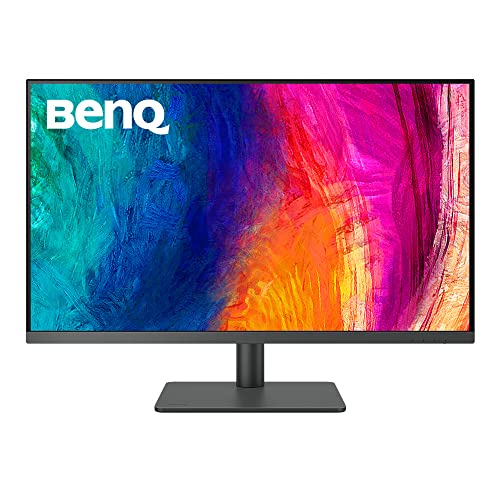
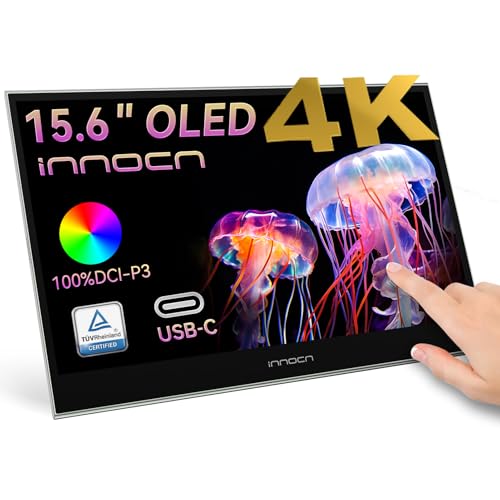 INNOCN 15.6" Portable Monitor OLED Touch Second Screen15.6''0.26 x 14.1 x 9.17 inchesCheck on Amazon


Top 3 picks at a glance
Quick Recommended Settings
| Setting | Recommended value | Why |
|---|---|---|
| Preset / Picture Mode | Custom / User / sRGB | Unlocks manual white point and gamma controls without dynamic processing |
| Brightness | 80 to 120 cd/m2 (OSD 30-50 on most panels) | Matches print viewing conditions and prevents eye fatigue in dim rooms |
| Contrast | 70 to 75 (default native) | Retains full gradation without crushing whites or blacks |
| Color Temperature / White Point | Custom: 6500K (R 100, G 96-99, B 95-98) | D65 is the standard for photo editing and web delivery |
| Gamma | 2.2 for Windows / Mac | Ensures midtones display with correct luminance curve |
| Color Space / Gamut Clamp | sRGB mode for web work; Native/Adobe RGB only with correct ICC profile | Prevents oversaturation when no color management is active |
| Black Level / HDMI Range | Low / Limited for video range; Full / 0-255 for PC via DisplayPort | Avoids washed out or crushed shadows |
| Sharpness / Overdrive | Sharpness 50 / 0, Overdrive Off or Normal | Eliminates halos and inverse ghosting that mask detail |
| Uniformity / Local Dimming / HDR | Off for SDR editing | Guarantees consistent brightness and disables tone-mapping |
Setting-by-Setting
Picture Preset: Custom or sRGB Mode
What causes it: Standard, Vivid, and Dynamic modes lock out color controls and enable contrast enhancers, dynamic contrast, and motion smoothing that constantly shift the image.
As an Amazon Associate we earn from qualifying purchases at no extra cost to you.




How to check: Open the monitor OSD with the joystick/button under the bezel. Navigate to Menu > Picture > Picture Mode or Menu > Color > Preset. If you see locked-out grayed options for RGB Gain or Gamma, you are in a factory locked preset.
What to do: Select Custom, User, or Custom Color. On Dell: Menu > Color > Preset Modes > Custom Color. On LG: Menu > Picture > Picture Mode > Custom. On BenQ: Menu > Color Mode > User. On ASUS ProArt: Menu > Color > Color Temp > User Mode. If you only edit for web and will not calibrate with hardware, sRGB mode is an acceptable second choice because it clamps the gamut correctly, but it will lock brightness on some models.
How to undo: Return to Menu > Picture > Picture Mode > Standard and select Factory Reset in Menu > Menu > Reset.
Trade-off: Custom gives full control but requires manual tuning. sRGB is accurate out of the box but limits luminance and gamut flexibility for print-oriented Adobe RGB work.
Brightness: 80 to 120 cd/m2
What causes it: Factory brightness of 250-350 cd/m2 is designed for bright showrooms. At that level, you will edit images too dark, and prints will appear muddy because your eyes adapt to an overly bright backlight.
How to check: Display a full white image and check OSD > Picture > Brightness. Without a calibrator, use the visual check: in a dim room at night, a white document should not feel like a light source. With a calibrator, measure luminance in DisplayCAL or Calibrite Profiler.
What to do: Lower OSD Brightness to 30 to 50 as a starting point. Target 80 cd/m2 for a dark, color-controlled room, 100 to 120 cd/m2 for a room with moderate ambient light. On Windows, do not compensate with Settings > System > Display > Brightness slider or Night light; keep Night light Off at Settings > System > Display > Night light. On macOS, disable Auto-Brightness at System Settings > Displays > uncheck Automatically adjust brightness.
How to undo: Raise OSD Brightness back to 75 to 100 or select Factory Reset in the OSD.
Trade-off: Lower brightness improves black depth and viewing comfort but can make the screen appear dim in a bright daylight office. Adjust to your consistent ambient light rather than chasing maximum punch.
Contrast: 70 to 75
What causes it: Raising contrast beyond the panel’s native point clips near-white and near-black detail because the signal is stretched beyond the display’s range.
How to check: Open a grayscale gradient test image in Photoshop or your browser. Look for distinct steps from 0 to 255. If the last few light grays blend to pure white or dark grays crush to black, contrast is too high. Check OSD > Picture > Contrast.
What to do: Set Contrast to 70 to 75 on most IPS monitors, or 50 on monitors where 50 is the default neutral point like many Dell and BenQ models. Do not touch the Contrast slider in your GPU control panel: NVIDIA Control Panel > Display > Adjust desktop color settings > leave Contrast at 50% and use Use NVIDIA settings unchecked. For Intel Graphics: Intel Graphics Command Center > Display > Color > leave at defaults.
How to undo: Restore OSD Contrast to Factory Default, typically 75, and in NVIDIA Control Panel click Restore defaults.
Trade-off: Leaving contrast at default preserves gradation but the image looks less punchy than the boosted store mode. Accuracy requires accepting a slightly flatter but more detailed image.
White Point / Color Temperature: 6500K (D65)
What causes it: Default 7500K to 9300K settings look blue-white and cause skin tones and warm colors to be corrected incorrectly during editing.
How to check: In OSD go to Menu > Color > Color Temperature. If it shows Cool or 9300K, your white point is too blue. Compare a neutral gray patch on screen to a known D65 reference or check RGB Gains in Custom mode.
What to do: Select Custom or User. Set Color Temp to 6500K or Manual. Start with Gains: R 100, G 97, B 96. Fine-tune by 1 to 2 points at a time while viewing a neutral gray. Path: Dell: Menu > Color > Custom Color > Gain. LG: Menu > Picture > Color Temp > User. BenQ: Menu > Color > Color Temperature > User Define. Keep values between 95 and 100 to avoid clipping a channel. Disable any Eye Care or Low Blue Light mode while editing.
How to undo: Set Color Temperature back to Custom default 6500K or choose Preset > Standard > 6500K, and reset RGB Gains to 100/100/100.
Trade-off: D65 looks warmer and slightly more yellow than Cool at first, but it is the correct standard for sRGB, Adobe RGB, and Rec.709. Cool makes images appear cleaner but produces edits that look too warm on other calibrated devices.
Gamma: 2.2
What causes it: Incorrect gamma shifts midtones. Gamma 1.8 makes images look washed out, Gamma 2.4 makes them look too dark and contrasty in shadows, causing you to over-brighten edits.
How to check: In OSD look for Menu > Picture > Gamma or Menu > Color > Gamma. View a gamma test chart with alternating gray squares. If middle grays blend incorrectly, gamma is off.
What to do: Set Gamma to 2.2 for Windows and modern macOS photo workflows. Paths: Dell: Menu > Color > Gamma > 2.2. LG: Menu > Picture > Gamma > Mode 2. BenQ: Menu > Picture > Gamma > 2.2. ASUS ProArt: Menu > Color > Gamma > 2.2. Leave operating system gamma at default and do not adjust gamma in NVIDIA Control Panel or System Settings > Displays > Color.
How to undo: Reselect Gamma > 2.2 or Auto, and click Calibrate reset in Windows Settings > System > Display > Advanced display > Display adapter properties.
Trade-off: 2.2 is correct for sRGB and most editing, but if you deliver video for broadcast Rec.1886 you may need 2.4 in a dark grading suite. Stick to 2.2 for hybrid photo work.
Color Space and Gamut Clamping
What causes it: Wide-gamut monitors in Native mode oversaturate sRGB content because they stretch every color to fill Adobe RGB or DCI-P3, making sRGB images look neon.
How to check: Open an sRGB reference image in a color-managed app like Photoshop with Edit > Color Settings > Working Space sRGB IEC61966-2.1 and compare to the same image in a non-managed viewer. If colors look drastically more saturated in Native mode, clamping is needed. Check OSD > Color > Color Gamut.
What to do: For web, social, and general photo editing without a hardware profile, set OSD > Color Gamut > sRGB or Rec.709 / sRGB clamp to On. For Adobe RGB print work with proper calibration, use Native or Adobe RGB mode and assign the measured ICC profile at Windows Settings > System > Display > Advanced display > Display adapter properties > Color Management > Advanced > Device profile, or on macOS at System Settings > Displays > Color profile. Profile file location on Windows is C:\Windows\System32\spool\drivers\color and on macOS /Library/ColorSync/Profiles.
How to undo: Switch OSD Gamut back to Native and in Color Management remove the custom ICC profile and select sRGB IEC61966-2.1.
Trade-off: sRGB clamp guarantees accurate web colors without profiling but throws away the wide gamut you paid for. Native plus a correct ICC profile keeps the wider gamut for print but requires a colorimeter and color-managed software.
Black Level, Sharpness, and Uniformity Aids
What causes it: HDMI Black Level mismatches, added sharpness filters, and dynamic local dimming each create artificial processing that hides shadow detail or adds edge halos.
How to check: For black level, view a black-to-dark-gray gradient over DisplayPort vs HDMI. If blacks look gray or crush, the range is mismatched. For sharpness, view 1-pixel text; halos indicate oversharpening. Check OSD > Picture > Black Level and OSD > Display > Sharpness and OSD > Picture > Local Dimming / HDR.
What to do: Set HDMI Black Level to Low when using Limited range, or to High/Full when GPU is set to Full Range 0-255. On DisplayPort, use Full. Set NVIDIA Control Panel > Display > Change resolution > Output dynamic range > Full. Set Sharpness to 50 or 0 depending on brand where 50 is neutral, and disable Super Resolution. Set Overdrive to Off or Normal via OSD > Picture > Response Time. Turn Off Uniformity Compensation, Dynamic Contrast, and HDR for SDR editing at OSD > Picture > Smart HDR > Off.
How to undo: Set Black Level back to Auto, Sharpness to 50, Overdrive to Normal, and re-enable HDR at Windows Settings > System > Display > HDR > Off to On.
Trade-off: Disabling these enhancements makes the image slightly softer and less dynamic but removes processing that falsifies texture and noise, which is critical for retouching.
By Hardware Tier
Entry Tier: 1080p sRGB IPS, No Hardware Calibration
Most 24 to 27 inch budget IPS panels cover 99 percent sRGB but only 75 to 80 percent Adobe RGB. Use the limitations to your advantage. Set Picture Mode to sRGB if Custom locks brightness, set Brightness 35 to 45 for about 100 cd/m2, Contrast 75, Color Temp Custom 6500K, Gamma 2.2, Sharpness 50, and disable all Eco and Dynamic modes. Keep gamut in sRGB and do not attempt Adobe RGB emulation, it will be inaccurate without a 14-bit lookup table. Load the manufacturer ICC profile from the support page into Windows Color Management at C:\Windows\System32\spool\drivers\color and set it as default, then in Photoshop use View > Proof Setup > Monitor RGB to sanity-check saturation. This tier is ideal for learning color management and for web delivery.
Mid Tier: 27 inch 1440p Wide-Gamut IPS with Factory Calibration Report
These monitors often include a factory-calibrated sRGB and Adobe RGB mode with a Delta E report. Start with Custom for editing. Set Brightness 40 to 55 targeting 120 cd/m2, Contrast 70 to 75, Gamma 2.2, Black Level Full via DisplayPort, Overdrive Normal, Local Dimming Off. Use OSD > Color > Gamut > sRGB for web batches and switch to Adobe RGB only when you have loaded the measured ICC and are working in Photoshop with Edit > Color Settings > Working Space Adobe RGB 1998. Schedule a monthly check with a colorimeter like Calibrite ColorChecker Display at 6500K, 120 cd/m2, Gamma 2.2. Store the profile with a clear name such as Dell_U2723QE_6500K_120cdm2_2026.icc in C:\Windows\System32\spool\drivers\color or /Library/ColorSync/Profiles. This tier balances accurate color and resolution for serious photo work without enterprise cost.
High Tier: 27 to 32 inch 4K with Hardware LUT and Hood
Hardware-calibration models from BenQ SW, EIZO ColorEdge, and ASUS ProArt let you write calibration directly into the monitor’s internal lookup table. Use the vendor software: BenQ Palette Master Element, EIZO ColorNavigator, or ASUS ProArt Calibration at Software > Calibration > Hardware Calibration. Create two hardware presets: Preset 1: sRGB, D65, 2.2, 100 cd/m2 for web and Preset 2: Adobe RGB or Display P3, D65, 2.2, 120 cd/m2 for print. Set OSD Brightness and RGB Gains to be controlled by software during calibration, then lock the OSD. Enable Uniformity to On if the model offers it, as high tier panels can correct it without large luminance loss. Keep HDR Off for SDR editing and switch to HDR PQ only via the dedicated HDR preset. Validate with the software’s validation report and keep the validation PDF with your profiles.
Common Mistakes
Leaving Night Light, True Tone, or f.lux on while editing. These shift white point to 4500K to 5000K. What causes it is automatic blue-light reduction. How to check: On Windows look at Settings > System > Display > Night light and check if Strength is above 0 between sunset and sunrise. On macOS check System Settings > Displays > True Tone and Night Shift. What to do: Turn both Off and quit f.lux via system tray > Right-click > Exit before editing sessions. How to undo: Turn Night light back to Scheduled and re-enable True Tone.
Editing in HDR or with Dynamic Contrast on. What causes it is tone-mapping that continuously changes brightness per scene. How to check: Look for OSD > Picture > HDR > Auto or Dynamic Contrast > On, or Windows Settings > System > Display > HDR > On. What to do: Set HDR to Off in both Windows and OSD, and set Dynamic Contrast to Off. How to undo: Toggle HDR back to On for gaming or video playback.
Using the GPU color controls to fix a monitor cast. What causes it is double correction that clips channels. How to check: Open NVIDIA Control Panel > Display > Adjust desktop color settings or AMD Software > Display > Color. If Brightness, Contrast, or Digital Vibrance are not at defaults, you are compensating in the wrong place. What to do: Click Restore defaults and make all white point changes in the monitor OSD Custom Gains. How to undo: Reapply previous NVIDIA values from memory or reset via Restore defaults again.
Not assigning the ICC profile after calibration. What causes it is Windows or macOS falling back to generic sRGB. How to check: Go to Windows Color Management > Devices > your monitor > check if your measured .icc appears under Profiles, or macOS System Settings > Displays > Color profile. What to do: Click Add > Browse to C:\Windows\System32\spool\drivers\color > select your profile > Set as Default Profile and check Use my settings for this device. In Photoshop, ensure Edit > Color Settings > Color Management Policies is set to Preserve Embedded Profiles. How to undo: Select sRGB IEC61966-2.1 and click Set as Default.
FAQ
What brightness should I use for photo editing in a dark room?
Use 80 to 100 cd/m2 for a dark or dimly lit room. That typically corresponds to OSD Brightness 25 to 40 on most 27 inch IPS monitors. Set it once and keep ambient light consistent. If you edit at night with no bias light, target the lower end. If you have a 6500K bias light behind the monitor, you can sit closer to 100 to 120 cd/m2 without eye strain. Do not use 200 cd/m2+ for editing, it will make you darken images excessively and prints will look darker than expected.
Should I set my monitor to sRGB or Adobe RGB?
Choose based on delivery and whether you are color managed. If you deliver for web, social, or clients who view on standard screens, use sRGB clamp in the OSD, especially if you have no calibrator. The image will look correct everywhere without a profile. If you print on wide-gamut inkjets or edit in 16-bit Adobe RGB and use Photoshop or Lightroom color management with a hardware-measured ICC profile, use Native or Adobe RGB mode and let the profile handle the mapping. Do not use Adobe RGB mode without a profile, as non-managed apps will appear oversaturated.
Do I need a hardware calibrator, or is visual tuning enough?
Visual tuning with the settings above gets you about 80 percent of the way and is far better than Vivid mode. You can set white point, gamma, and brightness by eye and load the factory ICC. For paid work, prints, or matching multiple monitors, a hardware calibrator is required. It measures actual output and builds a precise ICC profile at System Settings > Displays > Color profile or Windows Color Management. Calibrate to D65, Gamma 2.2, and your target luminance, then validate. Recalibrate every 4 to 6 weeks as the backlight ages.
Why do my photos look different on my phone than on my calibrated monitor?
Phones often apply vivid processing and wide P3 color with auto-brightness, while your monitor is set to accurate sRGB at 100 cd/m2. The difference is expected. What causes it is mismatched tone curves and gamuts. How to check: Export an sRGB JPEG with embedded profile via Photoshop File > Export > Export As > Convert to sRGB checked, then view it on the phone with True Tone or Vivid display mode toggled. What to do: Keep your monitor at 6500K and 2.2 and export with Embed Color Profile enabled so color-managed apps on the phone display correctly. For client proofing, send sRGB and advise viewing with auto-enhance and Night Shift off. How to undo: Nothing to undo on the monitor; revert the phone display setting to Vivid if you prefer punch over accuracy for casual viewing.