Not all HDR is created equal, and mini LED makes that difference obvious. Unlike edge-lit panels that raise the entire backlight at once, a mini LED monitor uses hundreds to thousands of independent dimming zones to control brightness locally. That means you can get true highlight punch and deep blacks in the same scene, but only if your software and monitor settings are aligned. Get it wrong and you get washed-out colors, glowing halos around bright objects, or crushed shadow detail.
When tuning the best hdr settings for mini led monitor setups, prioritize three things in order: accuracy, zone control, and peak brightness management. Accuracy comes first because Windows and games will fight your monitor if the color pipeline is misconfigured. Zone control comes second because local dimming behavior determines blooming and contrast. Peak brightness comes last because you want headroom for specular highlights without clipping detail. In 2026, with Windows 11 HDR calibration and Auto HDR now mature, the right workflow is to calibrate at the OS level, lock the monitor into its true HDR mode, and then fine-tune per game.
As an Amazon Associate we earn from qualifying purchases at no extra cost to you.


Our Top Picks
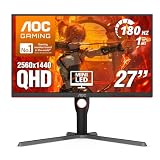
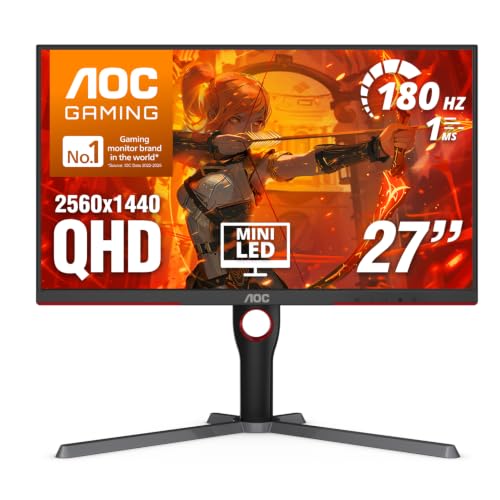 AOC 27 Inch Gaming Monitor QHD 180Hz Mini-LED27" 180Hz Mini-LED10.19 x 23.82 x 20.94 Inches15.6 poundsCheck on Amazon
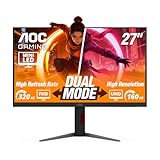
 AOC 27" Gaming Monitor 4K Mini-LED Dual Mode27" 4K 160Hz Mini-LED9.45 x 24.17 x 20.34 inchesCheck on Amazon
 AOC 27 Inch Gaming Monitor QHD 320Hz Mini-LED27" 320Hz Mini-LED White28.74 x 18.9 x 7.4 inchesCheck on Amazon


Top 3 picks at a glance
Quick Recommended Settings
| Setting | Recommended value | Why |
|---|---|---|
| Windows HDR Toggle | On: Settings > System > Display > HDR > Use HDR | Enables 10-bit signal and HDR metadata pass-through |
| Windows HDR Calibration App | Run Windows HDR Calibration from Microsoft Store, set max luminance to monitor spec | Creates custom color profile at C:\Windows\System32\spool\drivers\color\ |
| Monitor OSD HDR Mode | HDR Auto or DisplayHDR 1000 / HDR 1400, not HDR Vivid | Uses true PQ EOTF curve instead of oversaturated emulation |
| Local Dimming | High or Ultimate / Advanced on, response set to Fast | Enables full zone count; reduces halo and lag behind moving highlights |
| Brightness / Backlight in HDR | 100 in OSD, control with Windows SDR Content Brightness slider (35-45) | In HDR, backlight should be uncapped; SDR brightness is handled by Windows slider |
| Contrast | 50 (default) or 48-52 | Prevents clipping of bright highlights above 1000 nits |
| Color Gamut / Color Space | Auto or DCI-P3, Gamma 2.2 | Matches Windows HDR output without double-mapping colors |
| Response Time / Overdrive | Normal or Fast, not Fastest / Extreme | Avoids inverse ghosting that is exaggerated by local dimming |
| Variable Refresh Rate | On: Settings > System > Display > Graphics > Default graphics settings > Variable refresh rate | Prevents brightness flicker with dimming zones during frame rate drops |
| SDR Content Brightness | Slider 35-45 in Settings > System > Display > HDR | Balances desktop brightness so SDR apps are not blinding in HDR mode |
Setting-by-Setting
Windows HDR and Calibration Profile
Exact value: Enabled, with a calibration profile created via the Windows HDR Calibration app.
Go to Settings > System > Display > HDR and toggle Use HDR to On. Then open the Windows HDR Calibration app downloaded from the Microsoft Store. It will walk you through setting Black Level, Max Luminance, and Color Saturation screens. For max luminance, set it to your monitor’s rated peak (for example, 1000 for DisplayHDR 1000, 1152 for many 1152-zone models). This writes an ICC profile to C:\Windows\System32\spool\drivers\color\ and also updates the registry at Computer\HKEY_CURRENT_USER\Software\Microsoft\Windows\CurrentVersion\VideoSettings.
Trade-off: Running without a calibration profile forces Windows to guess your panel’s EOTF, which causes washed-out midtones and raised blacks. A calibrated profile locks accuracy but you must re-run it if you change your monitor’s HDR mode or update GPU drivers. Use key combo Win + Alt + B to quickly toggle HDR for comparison while calibrating.
Monitor OSD HDR Mode Selection
Exact value: OSD > Picture > HDR Setting > HDR Auto or DisplayHDR. Avoid modes labeled HDR Vivid, HDR Effect, or HDR Gaming Vivid.
Most mini LED monitors bury this under Menu > Picture > Smart HDR or Gaming > HDR. You want the mode that says Auto or follows the VESA DisplayHDR spec. This engages the native PQ (ST.2084) curve and allows the scaler to control dimming zones per frame.
Trade-off: Vivid modes look punchier in store demos because they push color to 120% and crush gamma, but they clip highlight detail and oversaturate skin tones. Auto is slightly dimmer on the desktop but preserves detail in clouds, explosions, and specular reflections in games.
Local Dimming Control
Exact value: OSD > Picture > Local Dimming > High / Ultimate / On. If available, set Local Dimming Speed to Fast.
Path varies: On Samsung models it is Menu > Picture > Local Dimming > Auto / High; on Cooler Master/Innocn/TCL it is Picture > Mini LED Dimming Zones > On. This is the single most important toggle for contrast. Off limits peak brightness to around 400-500 nits and disables zones.
Trade-off: High local dimming maximizes contrast and blacks but can introduce slight blooming around small white text on black backgrounds and a faint delay when a bright object moves quickly. Setting it to Low reduces blooming but raises black level and flattens the image. For desktop work with HDR on, consider switching dimming to Low or Off to reduce halo around the mouse cursor, then back to High for gaming and movies.
Brightness and SDR Content Brightness Slider
Exact value: Monitor OSD Brightness = 100 when HDR is active. Windows SDR Content Brightness = 35 to 45.
In HDR mode, the OSD brightness slider no longer controls backlight directly; the signal does. Locking it at 100 gives the panel full headroom. Then go to Settings > System > Display > HDR and drag the SDR Content Brightness slider. This controls how bright SDR apps and the desktop appear while HDR is on. Value range is 0-100, usable range is 30-50 for a dim room, 45-60 for a bright room.
Trade-off: Setting OSD brightness below 100 in HDR caps your peak highlights and defeats the purpose of mini LED. Setting the Windows slider too high makes SDR content look blown out and forces your eyes to adapt, making HDR highlights less impactful. Adjust the Windows slider, not the OSD, for comfort.
Contrast and Black Stabilizer
Exact value: OSD Contrast = 50, Black Equalizer / Black Stabilizer / Shadow Control = 0 or Off, Dynamic Contrast = Off.
Find this at OSD > Picture > Contrast and OSD > Gaming > Black Equalizer. Dynamic Contrast and Black Stabilizer manipulate the gamma curve to lift shadows, which interferes with the HDR tone mapping already handled by Windows and the game.
Trade-off: Raising contrast above 55 will make the image pop but hard-clips detail above 900-1000 nits, so bright skies become flat white. Raising Black Equalizer lifts shadow detail in SDR shooters but in HDR it washes out the deep blacks that mini LED is prized for. Leave them at default for HDR, use them only for SDR competitive modes.
Color Space, Gamma, and Color Temperature
Exact value: Color Space = Auto or Native, Color Temperature = Custom 6500K (R 100, G 100, B 100), Gamma = 2.2 or Mode 1.
Path: OSD > Color > Color Gamut and OSD > Color > Color Temp. Set to Auto so the monitor switches between sRGB for SDR and DCI-P3/BT.2020 for HDR automatically. Manually forcing DCI-P3 in SDR oversaturates everything. Keep gamma at 2.2; modes like Gamma 2.4 or BT.1886 will darken midtones excessively when HDR is active.
Trade-off: Native gamut gives the widest color but without Auto switching, SDR content will look neon. 6500K is the reference standard; warmer presets like 5000K will make HDR look yellow and cooler presets like 9300K will make it look icy blue.
In-Game HDR Calibration
Exact value: Use the in-game HDR Peak Brightness and Paper White sliders per title. Typical range: Peak Brightness = monitor rating (1000 / 1152 / 1400), Paper White = 180-220, UI Brightness = 80-100.
Location varies by game but usually under Options > Display > Graphics > HDR Calibration or Brightness. Games like Cyberpunk 2077, Call of Duty, and Horizon Forbidden West have a test pattern with a logo that should be just visible. Set Peak Brightness to match your monitor, then adjust Paper White until the white paper test box looks like actual paper, not a light source.
Trade-off: Setting peak brightness higher than your panel’s capability causes tone mapping to compress highlights, losing cloud and flame detail. Setting Paper White too high makes SDR-like areas eye-searing and reduces perceived HDR contrast.
By Hardware Tier
Low Tier: Entry Mini LED (300-600 zones, DisplayHDR 600-1000, RTX 4060 / RX 7600 class)
Your panel has fewer, larger zones, so blooming control is priority. Set Local Dimming to High, but set Response Time to Normal to hide zone transition lag. Keep Windows SDR Content Brightness at 30-35 to hide halo on the desktop. In games, enable HDR in Windows first, then in-game, and cap frame rate to your refresh rate with V-Sync or via NVIDIA Control Panel > Manage 3D settings > Max Frame Rate or AMD Software > Gaming > Chill, to prevent brightness pumping when frame rate swings. Use 8-bit with dithering if 10-bit at 144Hz is not stable over DisplayPort 1.4. File location for manual color profile fallback: Settings > System > Display > Advanced display > Display adapter properties > Color Management > Advanced > Calibrate display.
Mid Tier: Mainstream Mini LED (1000-1152 zones, DisplayHDR 1000, RTX 4070 Super / RX 7800 XT class)
This is the sweet spot where you can run native settings. Set Local Dimming to Ultimate/Advanced, Overdrive to Fast, and enable 10-bit color at 144-165Hz via DisplayPort 1.4 with DSC or HDMI 2.1. Run Windows HDR Calibration and set peak to 1000. In NVIDIA Control Panel > Change resolution > Use NVIDIA color settings > Output color depth 10 bpc, Output dynamic range Full, you should see 10-bit available. Keep Contrast at 50 and enable Auto HDR for SDR games at Settings > System > Display > Graphics > Auto HDR if you want SDR titles to use zones. For competitive shooters, create a separate OSD profile with Local Dimming Low to reduce input latency variance and save it to OSD > Profile > Save to Custom 1, switch with the joystick shortcut.
High Tier: Enthusiast Mini LED (2000+ zones, DisplayHDR 1400, RTX 4080 / 4090 / RX 7900 XTX class)
You have headroom to prioritize accuracy over blooming suppression. Set Local Dimming to High/Ultimate, Local Dimming Speed to Fastest if available, and enable G-Sync Compatible / FreeSync Premium Pro in OSD > Gaming > Adaptive Sync > On. Run full calibration: Windows HDR Calibration for OS, then per-game calibration at 1400 nits peak and Paper White 200-220. Use HDMI 2.1 or DisplayPort 1.4 DSC to maintain 10-bit 144Hz+ without chroma subsampling. Verify with key combo Win + Ctrl + Shift + B if the HDR signal drops, and check Windows > Advanced display > Bit depth shows 10-bit. Store two profiles: one for HDR Cinema (Brightness 100, Color Temp 6500K, Gamma 2.2) and one for HDR Gaming (same but Overdrive Fast, Black Equalizer Off). High zone counts handle blooming well, so you can keep SDR Content Brightness at 40-45 without visible halo.
Common Mistakes
Mistake 1: Leaving Local Dimming Off in HDR
What causes it: Some monitors ship with Local Dimming Off by default to avoid blooming complaints, or the setting resets after firmware updates. How to check: Open OSD > Picture > Local Dimming and see if it reads Off or Low, or display a black screen with a small white window and look for uniform gray instead of deep black. What to do: Set OSD > Picture > Local Dimming > High and confirm blooming control is active by dragging a bright window over a black background. How to undo: Return to OSD > Picture > Local Dimming > Off if desktop halo bothers you during work, then re-enable for games.
Mistake 2: Adjusting Monitor Brightness Instead of the Windows Slider
What causes it: Habit from SDR where brightness equals comfort. In HDR the OSD brightness is a ceiling, not a comfort control. How to check: If desktop is painfully bright in HDR but games look dim, you are controlling the wrong slider. Check Settings > System > Display > HDR > SDR Content Brightness; if it is at 70-100, it is too high. What to do: Lock OSD Brightness to 100 and lower the SDR Content Brightness slider to 35-45. How to undo: Drag the Windows slider back to previous value; OSD brightness changes do not need to be reverted since 100 is correct for HDR.
Mistake 3: Using HDR Vivid and Dynamic Contrast Together
What causes it: Vivid modes and Dynamic Contrast both boost saturation and contrast via post-processing, which double-processes the HDR PQ curve. How to check: Look in OSD > Picture > HDR Mode if it says Vivid, or OSD > Picture > Dynamic Contrast > On. Image will have neon colors and crushed whites. What to do: Set HDR Mode to Auto / DisplayHDR and Dynamic Contrast to Off, then re-run Windows HDR Calibration. How to undo: Re-select Vivid in OSD if you prefer the punchy look for SDR video, but keep a calibrated profile saved for games.
Mistake 4: Enabling HDR in Game Without Enabling it in Windows
What causes it: Launching a game and toggling its HDR switch while Windows HDR is Off creates a mismatch; some games will show HDR On grayed out or will render in washed-out SDR. How to check: Press Win + Alt + B to see if Windows HDR is off, or go to Settings > System > Display and verify Use HDR status. In game, check Options > Display > HDR shows No or Not Supported. What to do: Enable Use HDR in Windows first, then launch the game, then toggle the in-game HDR to On and calibrate peak brightness. How to undo: Disable HDR in-game first, then turn off Use HDR in Windows to return to SDR desktop.
FAQ
Should I use DisplayPort or HDMI for mini LED HDR?
Use DisplayPort 1.4 with DSC or HDMI 2.1; both can carry 4K 144Hz 10-bit HDR with full RGB. On most mini LED monitors, DisplayPort is more reliable for 10-bit Full range at high refresh without chroma subsampling. Go to NVIDIA Control Panel > Change resolution or AMD Software > Display > Overrides to verify Output color format is RGB, Depth 10 bpc, Dynamic Range Full. If you only have HDMI 2.0, you will be limited to 4K 60Hz 10-bit or 4K 120Hz 8-bit with 4:2:0, which reduces HDR color gradation.
Why does my desktop look washed out after turning on HDR?
SDR content is mapped into the HDR container with a default brightness that is often too high. Lower the SDR Content Brightness slider at Settings > System > Display > HDR to 35-45. Also verify your ICC profile is correct at Settings > System > Display > Advanced display > Display adapter properties > Color Management, and that your monitor is not in an sRGB clamp mode. If the issue persists, toggle HDR with Win + Alt + B and re-run Windows HDR Calibration to reset the tone curve.
Do I need Auto HDR for games that already have native HDR?
No. Leave native HDR on in the game and let Windows Auto HDR handle only SDR titles. Auto HDR is at Settings > System > Display > Graphics > Auto HDR. When a game has its own Options > Display > HDR toggle, turn that on and turn Auto HDR off for that specific game under Custom settings for applications. Running both causes double tone mapping, which raises black levels and dulls highlights.
How do I fix blooming around text and the mouse cursor?
Blooming is light spilling from bright zones into adjacent dark zones. Reduce its visibility by setting Local Dimming to Low for desktop use, lowering SDR Content Brightness to 30-35, using Dark Mode in Windows at Settings > Personalization > Colors > Choose your mode > Dark, and enabling a medium gray wallpaper instead of pure black. For gaming and movies, return Local Dimming to High, since moving images hide blooming far better than static text. If blooming is severe in one corner only, check for firmware updates via the manufacturer’s support page for your model and install via USB at OSD > System > Firmware Update.