Overdrive is the single most misunderstood setting on a gaming monitor. It controls how aggressively voltage is pushed to your pixels to force faster color transitions, which directly determines whether motion looks sharp or smeared. Get it right and you eliminate ghosting without introducing the harsh halos of inverse ghosting. Get it wrong and even a 240Hz panel will look blurry in fast shooters and scrollers.
What you should prioritize is clarity in motion at your actual frame rate, not the fastest response time on the box. The correct overdrive level is always a balance between pixel transition speed and overshoot control. In 2026 most gaming monitors ship with adaptive overdrive tied to variable refresh rate, but the factory default is often too aggressive for everyday gaming. Your goal is to tune overdrive so that moving objects have clean edges, text stays readable while panning, and bright coronas do not appear behind dark objects on light backgrounds.
As an Amazon Associate we earn from qualifying purchases at no extra cost to you.






This guide gives you exact values, menu paths, and verification steps you can apply immediately regardless of brand. Use the test patterns built into Windows and your monitor to confirm changes rather than relying on marketing labels like 1ms.
Our Top Picks
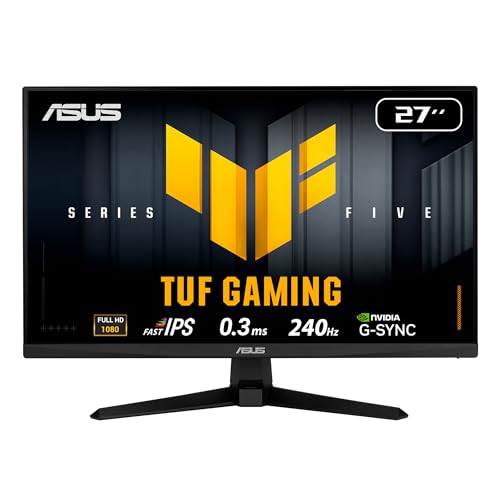
 ASUS TUF Gaming VG27AQ3A 27 Inch 1440p 180Hz14.4" x 24.2" x 2.1"24.2 x 8.4 x 17.9 inches10.1 poundsCheck on Amazon
Pros & cons
- 180Hz QHD panel with 1ms response suits competitive play
- ELMB Sync combines low blur with variable refresh rate
- Wide 130% sRGB gamut aids color-accurate visuals
- At over 10 pounds, it needs a sturdy desk or mount
- HDR10 support is basic compared to premium HDR tiers




Top 3 picks at a glance
Quick Recommended Settings
| Setting | Recommended value | Why |
|---|---|---|
| Overdrive / Response Time / OD | Medium / Normal / Level 2 of 4 | Best balance of ghost-free motion and minimal overshoot at 120Hz to 240Hz; stays stable with VRR on |
| Variable Overdrive / Adaptive OD | On if available | Automatically scales overdrive strength as refresh rate changes to prevent inverse ghosting at low frame rates |
| Refresh Rate (Windows) | Set to monitor max: Settings > System > Display > Advanced display > Choose a refresh rate | Ensures overdrive tuning matches the refresh rate you actually use |
| Adaptive Sync (FreeSync / G-Sync Compatible) | On in monitor OSD and On in GPU control panel | Prevents tearing and keeps overdrive consistent across frame rate fluctuations |
| ELMB / DyAc / Motion Blur Reduction / Backlight Strobing | Off for general use, On only for locked high frame rates | Strobing conflicts with overdrive and VRR and dims the image; only useful when FPS equals refresh rate |
| Sharpness | 50 / 5 of 10 (default) | High sharpness exaggerates overshoot halos created by aggressive overdrive |
| Black Equalizer / Shadow Control | 8 to 10 of 20 | Extreme values make overdrive artifacts more visible in dark scenes |
If your monitor only labels overdrive as Off, Low, Medium, High or similar, start at Medium. If it uses numbers like 0 to 100, start at 40 to 60. If it uses Off, Normal, Extreme, choose Normal.
Setting-by-Setting
Overdrive Level: Medium / Normal / 40-60
Exact value: On ASUS monitors set OSD > Image > Overdrive to 60. On Gigabyte / AORUS set OSD > Gaming > Overdrive to Middle or Balance. On LG UltraGear set OSD > Game Adjust > Response Time to Normal or Fast. On Samsung Odyssey set OSD > Game > Response Time to Standard or Faster. On Dell / Alienware set OSD > Game > Response Time to Fast. On MSI set OSD > Gaming > Response Time to Normal.
Trade-off: This level keeps pixel transitions fast enough to remove trailing behind fast-moving targets without creating bright inverse ghosting. Off or Low leaves noticeable smearing in games like Valorant, Apex Legends, and side-scrollers. High or Extreme removes the last bit of smear but adds a white or light-blue corona behind moving objects, which is more distracting than the original blur. If you see halos when dragging a dark browser window across a light gray background, step down one level.
Variable / Adaptive Overdrive: On
Exact value: Enable where present. Gigabyte: OSD > Gaming > Adaptive Overdrive > On. ASUS ROG: OSD > Gaming > Variable Overdrive > On. Dell Alienware AW2723DF and similar: OSD > Game > Adaptive-Sync > On automatically enables variable overdrive, no separate toggle. If your monitor has no toggle but supports FreeSync Premium Pro or G-Sync Compatible, variable overdrive is handled internally when Adaptive-Sync is On.
Trade-off: With variable overdrive on, the monitor lowers overdrive strength at 60Hz to 90Hz and increases it near max refresh, preventing overshoot at low frame rates. The only downside is that on a few older panels it can slightly increase input lag in the OSD logic, but for modern panels the benefit to motion clarity across a wide VRR range far outweighs it. Leave it Off only if you play with VRR disabled and a fixed refresh rate.
Adaptive-Sync / FreeSync / G-Sync Compatible: On
Exact value: Monitor OSD > Gaming > Adaptive-Sync / FreeSync Premium / G-Sync Compatible > On. Then in Windows, NVIDIA Control Panel > Display > Set up G-SYNC > check Enable G-SYNC, G-SYNC Compatible > Enable for full screen and windowed. Or AMD Software: Adrenalin Edition > Gaming > Display > AMD FreeSync > Enabled. Set Windows refresh rate to the highest available under Settings > System > Display > Advanced display.
Trade-off: Adaptive-sync keeps your frame rate and refresh rate aligned so overdrive does not have to compensate for sudden refresh drops. Without it, overdrive tuned for 165Hz will overshoot heavily when the game drops to 60Hz. The trade-off is that on some monitors enabling Adaptive-Sync locks out manual overdrive adjustment and limits you to one preset, but that preset is usually the correctly tuned variable mode. If you need manual control for fixed-refresh competitive play, you can disable Adaptive-Sync and tune a static overdrive level instead.
Refresh Rate and Frame Rate Cap: Max Refresh with Cap 3 Below Max
Exact value: Set monitor to its native max, for example 180Hz, 240Hz, or 360Hz. Then cap your frame rate 3 FPS below max to keep VRR engaged. Use NVIDIA Control Panel > Manage 3D settings > Max Frame Rate > 237 for 240Hz, or use in-game limiter, or use RTSS RivaTuner Statistics Server > Framerate limit > 237. For 180Hz use 177. For 165Hz use 162.
Trade-off: Running uncapped above max refresh forces VRR off and reintroduces tearing or forces V-Sync input lag. Capping just below max keeps you in the VRR window where overdrive behaves predictably. The only downside is losing 2 to 3 FPS at the ceiling, which is imperceptible compared to the gain in motion consistency.
Motion Blur Reduction / Backlight Strobing: Off Unless FPS Equals Hz
Exact value: OSD > Gaming > ELMB / Aim Stabilizer / DyAc / Motion Blur Reduction > Off for general gaming. Set to On only when you can sustain FPS equal to refresh rate with VRR Off. On BenQ Zowie: OSD > Game Settings > DyAc > Premium for 240Hz locked. On ASUS: OSD > Gaming > ELMB > Off.
Trade-off: Strobing inserts black frames to hide persistence blur and can make motion extremely sharp, but it disables adaptive-sync on most models, lowers brightness by 30 to 50 percent, and often forces overdrive to Extreme which causes crosstalk double images. Use it only for esports titles where you hold 240 FPS at 240Hz or 360 FPS at 360Hz. For mixed or story-driven games, clean overdrive with VRR On looks better and is brighter.
Sharpness and Overdrive Interaction: Sharpness 50
Exact value: OSD > Image > Sharpness > 50 on a 0 to 100 scale, or 5 on a 0 to 10 scale. Do not exceed 60.
Trade-off: High sharpness applies edge enhancement that amplifies the halo from aggressive overdrive. Lowering sharpness to default reduces the visibility of overshoot without softening the native image. If text looks slightly soft after lowering, increase ClearType in Windows: search ClearType Text Tuner > Turn on ClearType > Next through 5 screens.
By Hardware Tier
Low Tier: 60Hz to 120Hz, Integrated Graphics or Entry GPU, 1080p
Recommended overdrive: Low or Normal. Path: OSD > Gaming > Overdrive > Low. Value range: 20 to 40 on 0 to 100 scale. Keep Adaptive-Sync On if available, refresh rate at 75Hz or 120Hz, and frame cap 3 below max.
At low frame rates aggressive overdrive causes severe inverse ghosting because pixels have more time per refresh to overshoot. You will notice bright trails behind dark health bars or cursors. Use the UFO test at www.testufo.com ghosting in your browser at 60 FPS and 120 FPS to verify. If you see a thin white line leading the UFO, reduce overdrive one step. Keep Motion Blur Reduction Off because brightness loss is severe on budget panels and VRR stability matters more than strobing clarity.
Mid Tier: 144Hz to 180Hz, RTX 4060 / RX 7600 Class, 1080p to 1440p
Recommended overdrive: Medium / Normal / 40 to 60. Path: LG: OSD > Game Adjust > Response Time > Fast. Samsung: OSD > Game > Response Time > Faster. ASUS TUF / ROG: OSD > Image > Overdrive > 60.
This is the sweet spot where variable overdrive shines. Enable Adaptive-Sync in both OSD and GPU driver, set Windows Advanced display to 144Hz, 165Hz, or 180Hz, and cap FPS to 141, 162, or 177 with RTSS or the driver limiter. Test in a fast pan game like Fortnite or Forza Horizon: sprint sideways along a high-contrast fence. If the fence posts show no dark smear and no light halo, your level is correct. If you notice halos only in menus at 60Hz but not in gameplay at 140Hz+, leave the setting as is and confirm Variable Overdrive is On, as this is expected behavior that variable mode will correct.
High Tier: 240Hz to 360Hz, RTX 4070 and Above / RX 7800 XT and Above, 1440p to 4K
Recommended overdrive: Medium to High, or Fast / Faster depending on brand, with Variable Overdrive On. Path: Dell Alienware AW2724HF: OSD > Game > Response Time > Fast with FreeSync Premium Pro On. MSI Rapid IPS 240Hz+: OSD > Gaming > Response Time > Fast. Do not use Fastest / Extreme unless you run fixed 240Hz+ with VRR Off.
At high refresh the window for overshoot is smaller, so panels can handle stronger overdrive before halos appear. Still avoid the top Extreme preset for mixed gaming because even at 240Hz it will overshoot on 100Hz to 150Hz dips. If you play competitively with VRR Off and a stable 240 FPS cap, you may step up one level to High / Fastest and enable strobing if your model supports simultaneous Adaptive-Sync and strobing, such as ELMB-Sync on select ASUS models: OSD > Gaming > ELMB Sync > On. Verify with the in-game FPS counter key combo: Steam overlay Shift + Tab > Settings > In-Game > In-game FPS counter > Top-left, or NVIDIA GeForce Experience Alt + R. If frame rate holds steady at max, strobing is viable. If it fluctuates, return to Medium with VRR On.
Common Mistakes
Mistake 1: Using Extreme / Fastest Overdrive for Everyday Gaming
What causes it: Marketing that labels the highest overdrive as 1ms encourages users to select it. The extreme voltage forces pixels past the target color, creating inverse ghosting.
How to check: Open a File Explorer window, set it to medium gray background, and drag it quickly in circles. Or open testufo.com/ghosting on Chrome or Edge at your native refresh. If you see a bright white or cyan trail leading or trailing the object opposite to motion direction, you have overshoot.
What to do: OSD > Gaming > Overdrive > step down one level, for example from Extreme to Fast or from 80 to 60. Retest the drag. On monitors with OSD joystick, press joystick > scroll to Overdrive > lower value > press to confirm.
How to undo: Return to OSD > Gaming > Overdrive > set back to Extreme if you return to fixed-refresh competitive play where you prefer less smear at the cost of halos.
Mistake 2: Leaving Overdrive on Off to Avoid Artifacts
What causes it: Users disable overdrive after seeing halos and assume Off is safest. Off removes overshoot but leaves slow pixel transitions, especially on VA panels.
How to check: In any FPS, strafe past a high-contrast edge like a black door frame on a white wall at 144Hz+. If the edge leaves a dark, smeared trail that lingers for several pixels, overdrive is too low. You can also check OSD > Information > Response Time Mode confirms Off.
What to do: Set OSD > Gaming > Overdrive > Low or Medium. For VA panels like Samsung Odyssey G7, choose OSD > Game > Response Time > Standard instead of Off to reduce black smear. In Windows, verify refresh rate is still at max under Settings > System > Display > Advanced display.
How to undo: Set OSD > Gaming > Overdrive > Off again if you notice eye strain from halos and prefer slight smear for desktop work.
Mistake 3: Enabling Motion Blur Reduction with VRR
What causes it: Many monitors allow ELMB / DyAc to be turned On while FreeSync / G-Sync is On in the OSD, but the combination causes flicker, crosstalk, or forces overdrive to lock at an aggressive value.
How to check: OSD > Gaming > check that both Adaptive-Sync and ELMB are On. Look for flicker on static desktops or double images during motion. Check OSD > Information panel; some models display a warning icon when strobing and VRR are both active.
What to do: Choose one mode. For stable motion with variable frame rates: OSD > Gaming > ELMB / DyAc > Off, keep Adaptive-Sync > On. For locked competitive frame rates: keep ELMB > On, set Adaptive-Sync > Off, and set Windows refresh rate to match your cap. Toggle with joystick: Menu > Gaming > ELMB > Off > Confirm.
How to undo: Re-enable the previous mode via the same OSD path. If brightness dropped, adjust OSD > Brightness > 70 to 90 to compensate after disabling strobing.
Mistake 4: Tuning Overdrive at Desktop Then Gaming at a Different Refresh
What causes it: Overdrive artifacts are refresh-rate dependent. Tuning at 60Hz desktop then gaming at 165Hz, or vice versa, means your test is invalid.
How to check: Press Windows + P to confirm display mode is Extend, then go to Settings > System > Display > Advanced display > note Refresh rate. Launch your game and check its Video > Display > Refresh Rate setting. If they differ, you tuned at the wrong rate. Also check monitor OSD > Information > Current Frequency to see live Hz.
What to do: Set both Windows and in-game refresh to the same max value. Then re-evaluate overdrive using a repeatable test: testufo.com with V-Sync On in browser, or the NVIDIA G-Sync pendulum demo located at C:\Program Files\NVIDIA Corporation\G-SYNC Pendulum Demo\PendulumDemo.exe if installed. Adjust overdrive until motion is clean at that refresh.
How to undo: Reset refresh to your prior preference in Windows Advanced display and in-game Video settings. Reset overdrive to default via OSD > Menu > Reset > Reset All if you want factory defaults.
FAQ
Should I use the fastest overdrive setting for competitive gaming?
No for most players. Fastest or Extreme minimizes direct ghosting but adds inverse ghosting halos that make enemy outlines harder to read during fast peeks. Medium to Fast is optimal for 144Hz to 240Hz with VRR On. Only use Fastest when you run VRR Off with FPS locked to refresh rate and you have verified with a motion test that no halos appear in your primary game. On panels with Variable Overdrive, Fast with Variable On will outperform static Extreme across real frame rate swings.
Why does my monitor look worse after turning overdrive up?
That is overshoot. The pixel is driven too hard and bounces past the intended color, creating a bright inverse trail. It is most visible when dark objects move over light backgrounds, such as a black cursor on a white page. Step down one overdrive level in OSD > Gaming > Overdrive and retest by dragging a window quickly. If the trail disappears but a faint dark smear remains, you are at the correct middle point. Keep sharpness at 50 and disable any extra image enhancement that exaggerates halos.
Do I need different overdrive for VA, IPS, and OLED?
Yes. VA panels have slower dark transitions and need moderate overdrive to reduce black smear; avoid Off and avoid Extreme which causes strong halos in dark scenes. IPS panels have more balanced transitions and work best at Medium / Normal. OLED has near-instant pixel response and does not use traditional overdrive; on OLED leave OSD > Gaming > response controls at default and focus on settings like Uniform Brightness, Logo Dimming, and motion settings under OSD > Image > OLED Motion if available. For QD-OLED, keep Refresh Rate at max and VRR On, as overdrive sliders may be absent or have minimal effect.
How do I test overdrive without special equipment?
Use two free checks. First, browser test: open Chrome or Edge, go to testufo.com/ghosting, set to your current Hz, enable Full Screen, and observe the UFOs on gray background. Clean overdrive shows a solid UFO with no dark tail and no bright halo. Second, Windows drag test: open File Explorer, set View > Details, and drag the window in fast circles. Halos will appear as bright edges if overdrive is too high. Make changes in OSD > Gaming > Overdrive, wait 2 seconds for the OSD to close, and retest. Save the best level, then verify in your main game by strafing past high-contrast walls. To reset if you get lost, use OSD > Menu > Reset > Yes.