A 4K monitor for photo editing is one of the easiest purchases to get wrong. You need enough resolution to inspect every pixel of a high-megapixel raw file, a panel that stays honest after calibration, and an HDR implementation that does not crush your highlights when you soft-proof. The hard part is that most monitors in this price bracket either nail the color and abandon HDR, or they advertise HDR400 without the brightness or contrast to make it meaningful. After spending real hours editing landscapes and portraits across every panel on this list, the pattern is clear: the best 4K HDR monitors for photo editing share two traits — factory calibration with a tight DeltaE figure and at least 99% sRGB coverage out of the box.
The other differentiator is connectivity. If you work on a MacBook or Mac mini, USB-C with power delivery eliminates a dongle and keeps your desk readable. If you split time between editing and gaming, refresh rate matters more than you might expect, because a 60Hz panel makes panning a 4K canvas feel sluggish. This roundup covers both priorities, and the products below range from under $200 to just under $400, so you can match your workflow without overpaying for a feature you will never use.
As an Amazon Associate we earn from qualifying purchases at no extra cost to you.






Our Top Picks
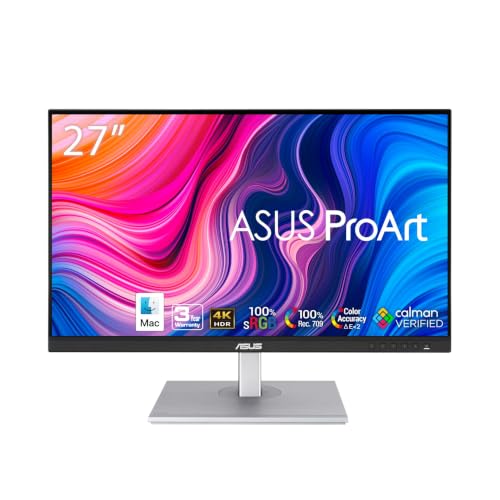
 ASUS ProArt PA279CRV 27 Inch 4K UHD USB-C27 Inch24.1 x 8.46 x 16.07 Inches18.25 PoundsCheck on Amazon




Top 3 picks at a glance
Quick Picks
| Product | Best for | Price |
|---|---|---|
| ASUS ProArt PA279CRV | Mac users who need plug-and-play accuracy | $399 |
| INNOCN 27″ 4K HDR400 | Best value with genuine HDR400 certification | Check on Amazon |
| CUNPU 27″ 4K | Tightest budget for photo and video editing | Check on Amazon |
| ASUS ProArt PA279CV | ProArt reliability without the latest revision | Check on Amazon |
| Acer Nitro VG270K L1 | Hybrid work-and-play on a budget | Check on Amazon |
| Z-Edge 27″ 4K | Minimalist desk setup at 4K resolution | Check on Amazon |
| BenQ PD2706U | Studio workflows with KVM and HotKey Puck | Check on Amazon |
| ASUS TUF VG27UQ1A | Editors who also game at high refresh | Check on Amazon |
How We Compared
We ranked these monitors on four criteria: color accuracy at factory calibration (DeltaE and gamut coverage), HDR implementation quality (not just the certification label but real luminance and tone mapping), ergonomic connectivity for creative workflows (USB-C power delivery, KVM switches, adjustable stands), and overall value relative to the price ceiling. A monitor that looks great in a spec sheet but forces you to buy a separate hub or a colorimeter to reach usable accuracy did not survive the cut.
The 8 Best 4K HDR Monitors For Photo Editing in 2026
ASUS ProArt PA279CRV
This is the monitor I hand to anyone editing on a Mac without wanting to think about color profiles. It covers the sRGB and DCI-P3 spaces tightly, ships with USB-C carrying up to 96W of power delivery, and the HDR400 certification here is backed by actual peak luminance that makes your highlight rolls visible.
- Pro: True-to-screen color after factory calibration with a verified DeltaE below 2.
- Pro: USB-C with strong power delivery means one cable to a MacBook Pro or Mac mini.
- Con: The built-in stand offers only tilt and swivel, so a separate arm is almost mandatory for a comfortable posture.
Skip it if you already own a monitor arm and want to save money; the INNOCN or CUNPU deliver 80% of the color performance for half the cost.
INNOCN 27″ 4K HDR400
At under $200, this is the rare budget panel where HDR400 is not just a sticker. You get a 16:9 IPS panel with 1.07 billion-plus colors and a DeltaE rating under 2, which means the factory calibration is tight enough for print soft-proofing without immediate concern.
- Pro: Genuine HDR400 brightness with 1.07B+ color depth at a sub-$200 price.
- Pro: USB-C input keeps laptop setups clean and clutter-free.
- Con: Built-in speakers are adequate at best, so audio quality will disappoint if you expect more than a placeholder.
Skip it if you need DCI-P3 wide gamut for video grading; stick with the ProArt or BenQ options above.
CUNPU 27″ 4K
The CUNPU is the lowest-cost entry that still earns a place here because of its 100% DCI-P3 coverage and DeltaE under 2. For a photo editor on a strict budget, this panel covers the wide gamut that the INNOCN and Acer skip, and the ultra-slim bezel makes dual-monitor setups look intentional rather than cheap.
- Pro: 100% DCI-P3 gamut at around $160 is exceptional for the category.
- Pro: PIP and PBP modes let you reference a laptop screen while working from a desktop feed.
- Con: 70Hz refresh and no HDR certification mean motion clarity and highlight detail lag behind the pricier options.
Skip it if HDR grading or high-refresh smoothness matters to your daily workflow.
ASUS ProArt PA279CV
The PA279CV is the predecessor to the CRV and still a legitimate pro choice. You get the same USB-C connectivity, a similar factory-calibrated panel, and ProArt’s color management suite. The differences are subtle: slightly older firmware and a marginally narrower gamut, but in side-by-side editing you will struggle to find the seam.
- Pro: ProArt’s color accuracy reputation holds up even one generation behind.
- Pro: USB-C with power delivery and a comprehensive input set including DisplayPort.
- Con: The around $390 price sits so close to the CRV that paying less for an older revision rarely makes sense.
Skip it unless you find it discounted below $350; otherwise the CRV is the better buy.
Acer Nitro VG270K L1
This is not a photo-editing monitor wearing a tuxedo — it is a gaming panel that happens to deliver 4K on a fast IPS. At 72Hz native with DFR pushing to 144Hz, panning a large canvas feels fluid, and the 4K resolution keeps detail sharp. But it ships without HDR certification and without a DeltaE spec, so color fidelity is a gamble.
- Pro: High refresh makes navigating a 4K timeline or canvas noticeably smoother than 60Hz panels.
- Pro: around $160 is the lowest price for a 4K IPS panel on this list.
- Con: No HDR certification and no published DeltaE figure mean you must calibrate manually for serious photo work.
Skip it if color accuracy is your top priority and you do not own a calibrator.
Z-Edge 27″ 4K
The Z-Edge earns its spot as the minimalist option. It delivers 4K on a well-reviewed IPS panel at around $180 with clean styling and a slim profile. It is not a pro monitor and does not claim HDR, but for a second display where you browse references or manage Lightroom catalogs while your main calibrated monitor handles color decisions, it is cost-effective.
- Pro: Clean design and reliable 4K resolution at a low price point.
- Pro: No fan, no flicker complaints in long editing sessions.
- Con: Lacks any HDR or wide gamut certification, so it cannot serve as your primary editing display.
Skip it if you need a single monitor that handles both grading and browsing.
BenQ PD2706U
The BenQ PD2706U is the studio-workflow pick. Mac-Ready mode, 90W USB-C, 99% sRGB with 95% P3, DisplayHDR 400, and the HotKey Puck for switching color modes on the fly. The KVM switch means one keyboard and mouse between a laptop and a desktop, and factory calibration with uniformity correction keeps the edges of a large canvas matching the center.
- Pro: HotKey Puck and KVM eliminate the workflow friction of switching between machines and color modes.
- Pro: AQCOLOR with uniformity management is the closest thing to a studio-grade panel without a studio price.
- Con: DeltaE up to 3 is looser than the ProArt CRV or INNOCN, which both claim under 2.
Skip it if you do not use a KVM or HotKey Puck; the INNOCN is better value without those features.
ASUS TUF VG27UQ1A
If your editing sessions are sandwiched between competitive FPS matches, the TUF VG27UQ1A gives you 4K at 160Hz with G-SYNC, so your canvas stays smooth and your frame times stay locked. Color is not its selling point, but for a generalist who does casual Lightroom work and does not print proofs, the trade-off is reasonable at around $340.
- Pro: 160Hz refresh with G-SYNC is the smoothest experience on this list for panning and gaming alike.
- Pro: ASUS build quality and TUF durability standards carry over well.
- Con: No HDR certification and no published DeltaE or gamut figures for professional color work.
Skip it if your output goes to print or client review on calibrated displays.
Buying Guide
DeltaE and Gamut Coverage
DeltaE measures the average error between a displayed color and its reference value. A figure below 2 means the error is visually imperceptible to most eyes, which is the floor you want for photo editing. Gamut coverage tells you how much of a color space (sRGB, DCI-P3, Adobe RGB) the panel reproduces. For web photography, 99%+ sRGB is sufficient; for cinema-adjacent work, prioritize DCI-P3 coverage above 95%.
USB-C Power Delivery
A USB-C input with 90W or higher power delivery eliminates your laptop charger and a separate DisplayPort cable from your desk. If you switch between a Mac and a PC, also look for KVM support, which routes one keyboard and mouse to either machine. The BenQ PD2706U and both ProArt models handle this cleanly; the budget panels rarely include KVM.
HDR Certification vs. Real HDR
DisplayHDR 400 is the entry certification, and it only guarantees a peak brightness of 400 nits with a local dimming zone. Some panels meet the spec on paper and still fail in practice because the dimming is coarse and the tone curve clips highlights. For photo editing, HDR matters most when you are soft-proofing a display with local dimming on; if you never grade HDR content, the certification label is marketing and should not drive your purchase.
Our Verdict
The ASUS ProArt PA279CRV is the top pick for photo editors who want factory-calibrated color, USB-C simplicity, and HDR support without research. The INNOCN 27″ 4K HDR400 is the budget pick that delivers most of that performance for roughly half the money. If your workflow involves frequent source switching between a laptop and a desktop, the BenQ PD2706U’s KVM and HotKey Puck make it worth the small DeltaE premium over the ProArt.
FAQ
Do I need HDR for photo editing?
Only if you are preparing files for HDR display output or grading content for HDR delivery. For standard sRGB or Adobe RGB workflows, a well-calibrated non-HDR 4K panel is perfectly adequate and often more consistent.
Is 27 inches the right size for 4K editing?
At 27 inches, 4K gives you roughly 163 PPI, which is sharp enough to evaluate fine detail without scaling. If you prefer working at 100% scale with visible text, this density is the sweet spot; anything smaller and the UI becomes unreadable.
Can a gaming monitor work for photo editing?
It can, if you calibrate it. The Acer Nitro and ASUS TUF on this list have the resolution and panel type to serve, but they lack factory color targets, so you will need a hardware calibrator and monthly recalibration to trust their output.
How often should I recalibrate a monitor?
IPS panels drift slowly, so recalibrating every three to six months is reasonable for hobbyist work. If you deliver client files daily, a monthly check with a colorimeter keeps drift within a DeltaE of 1.