
As an Amazon Associate we earn from qualifying purchases at no extra cost to you.



Buying a monitor for video editing is where most people waste money in one of two directions: they either overspend on factory-calibrated color accuracy they don’t actually need for YouTube and social work, or they buy a cheap 4K panel that looks sharp but shifts color so badly between scenes that their footage looks different on every other screen. The mistakes are predictable. People chase refresh rate (irrelevant for editing, matters for gaming), buy 240Hz “pro” monitors with no color coverage data, or grab an ultrawide that their editing software can’t use properly. Others ignore panel type entirely and end up with a VA panel that smears dark gradients — the exact gradients you’re trying to grade.
This guide cuts through the marketing. Here’s what actually determines whether a monitor is good for video editing, with the numbers you need at each price point.
Our Top Picks
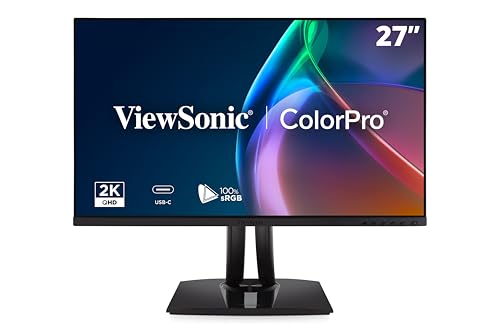 ViewSonic VP2756A-2K 27 Inch 1440p Monitor27 Inches8.46 x 24.15 x 21.27 inches16 poundsCheck on Amazon


Top 3 picks at a glance
Decide These 3 Things First
Before comparing any specs, answer these:
1. What are you editing, and where is it going? If you’re cutting 1080p footage for YouTube, TikTok, and client social clips, you don’t need 4K. A 1440p monitor with honest sRGB coverage will serve you better than a cheap 4K panel. If you’re delivering HDR or doing client color work for broadcast, you need 4K, wide gamut (95%+ DCI-P3), and calibration support — and your budget should start around $500, not $200.
2. What computer are you plugging in? If it’s a MacBook or USB-C laptop, prioritize a monitor with 60W+ Power Delivery over USB-C so one cable carries video, data, and charging. If it’s a desktop with a dedicated GPU, HDMI 2.0 or DisplayPort 1.4 is fine and you can ignore USB-C entirely.
3. What’s your real budget? Honest tiers in 2026: $150–250 gets you a usable budget panel, $280–350 gets you a solid mid-range with USB-C and better color, and $500–700 buys genuine factory-calibrated wide-gamut displays. Below $150, don’t bother — you’ll be grading blind.
Panel Type and Color Accuracy: The Specs That Actually Matter
This is the single most important section, so read it carefully.
Panel type: IPS only. IPS panels hold color accuracy at wide viewing angles and render gradients cleanly. VA panels have better contrast on paper (3000:1 vs 1000:1) but smear dark tones and shift color when you lean to the side — fatal when you’re scrubbing through shadows. TN panels are out entirely.
Color coverage — the numbers to look for:
– 100% sRGB: minimum for anything. Every monitor below claims this; verify it’s stated as coverage, not just “sRGB support.”
– 95%+ DCI-P3: needed if you deliver HDR or cinematic content. The BenQ PV3200U specifies 95% DCI-P3 alongside 100% Rec.709 and sRGB — that’s the target spec for serious work.
– Delta E ≤ 2: this measures how far colors drift from accurate. Delta E under 2 is imperceptible to most eyes. Factory calibration with a Delta E report included is worth real money at the premium tier.
Resolution vs. screen size: For 27 inches, 1440p is fine for 1080p workflows and keeps text sharp. For 32 inches and up, you want 4K (3840×2160) — a 32″ 1440p panel looks soft. If you grade 4K footage on a 4K display, you see every fourth pixel at 100% zoom on a 27″ screen and half on a 32″, which makes detail checking much faster.
Refresh rate: 60Hz is completely fine for editing. 70–100Hz is a nice-to-have for smooth timeline scrubbing. Ignore anything above that; it’s gaming money. The CUNPU’s 70Hz and the Philips’ 100Hz are adequate; the ViewSonic’s 120Hz is a bonus, not a reason to buy.
Brightness: 300 nits handles a dim room; 350–400 nits handles a bright office. True HDR work needs 600+ nits with local dimming, which starts around $800 and is out of scope for most editors.
Size and Resolution: Get the Pairing Right
– 24–25″: only if desk space is critically tight. Too small for a full Premiere or DaVinci layout.
– 27″: the sweet spot for most editors. Pair with 1440p ($200–350) or 4K ($350–550). A 27″ 4K at ~163 PPI gives crisp text and pixel-level detail checking.
– 32″: better for 4K timelines and LUT-heavy grading, at 4K resolution only. Expect $450–700 for a panel with wide gamut and calibration.
– 34″ ultrawide (21:9, 3440×1440): genuinely useful — timeline on one side, preview on the other, no second monitor needed. The Philips 34E1C5600HE at around $310 is a representative mid-range option. Caveat: a 3440×1440 ultrawide is not ideal if you deliver vertical or 16:9 client work and want a fullscreen preview at native resolution.
Desk depth check: a 27″ panel needs roughly 24–30 inches of viewing distance; a 32″ or 34″ wants 30–36 inches or you’ll be turning your head.
Ports, USB-C Power Delivery, and Connectivity
This is where budget and mid-range monitors differ most, and where people get burned.
– USB-C with 60–90W Power Delivery: mandatory for laptop editors. The ViewSonic VP2756A-2K delivers 90W — enough to charge a 16″ MacBook Pro under load. The BenQ PV3200U offers 65W, fine for 13–14″ laptops. Anything under 60W won’t charge larger laptops reliably.
– HDMI 2.0 minimum (supports 4K at 60Hz). HDMI 1.4 caps 4K at 30Hz, which makes timeline scrubbing feel laggy even though editing isn’t gaming.
– DisplayPort 1.4 for desktop users.
– Built-in USB hub (3.0, 2–4 ports): convenient for card readers and external SSDs.
– Extras worth knowing about: the Philips 34E1C5600HE includes a Windows Hello webcam and noise-canceling mic — genuinely useful if you review cuts over Zoom with clients, redundant if you don’t. The BenQ’s 2.1-channel speakers won’t replace monitors for audio mixing, but they beat the tinny 2W speakers on most panels.
Ergonomics, Stand, and Workspace Fit
Video editing means hours in the chair, and neck strain from a fixed-height monitor is real. Check:
– Height adjustment: at least 100–130mm of travel. The screen center should land at or slightly below eye level.
– Tilt, swivel, pivot: tilt ±5° forward to ±20° back minimum. Pivot (90° rotation) is handy for vertical/social deliverables.
– VESA mount (100×100mm): non-negotiable if you use a monitor arm. Confirm it — some slim-bezel budget panels ship without it.
– Footprint: a 27″ monitor’s stand typically needs 8–10 inches of depth; a 34″ ultrawide can need 10–12. Measure your desk.
– Weight: 27″ panels run 10–15 lbs with stand; 32–34″ models hit 17–25 lbs. Check arm ratings if mounting — most arms support up to 19.8 lbs.
Calibration, Factory Reports, and When You Actually Need Them
Factory calibration means the manufacturer measured the panel, set it, and includes a printed report with Delta E values. It matters if:
– You deliver to clients who will view on calibrated displays
– You grade in Rec.709 or DCI-P3 and need the monitor to honor those spaces
– You’re billing for color work
It’s overkill if you’re editing vlogs, tutorials, and social content — a decent IPS panel at 100% sRGB is honestly close enough, especially if you also check your exports on a phone.
Premium panels like the BenQ PV3200U (around $550) add hardware/software calibration — the ability to adjust the monitor’s internal lookup table with a colorimeter (Calman and Light Illusion support) rather than degrading the GPU signal. That means recalibration holds accuracy for years instead of drifting. Budget panels (the around $150 CUNPU class) have no calibration support at all; what you get out of the box is what you live with.
One honest note: factory calibration numbers are per-unit averages from the factory, not independent lab results for the specific unit you’ll receive. Serious colorists still own a colorimeter ($150–250 for a Spyder or Calibrite) and calibrate themselves.
Price Tiers: What Each Dollar Buys You
– $150–250 (Budget): 27″ 4K IPS like the CUNPU at around $150. You get resolution and panel type right, but expect modest factory color accuracy, 60–70Hz, basic stands (often tilt-only), and no USB-C PD or limited wattage. Best for hobbyist and social-media editors.
– $280–350 (Mid-range): exemplified by the ViewSonic VP2756A-2K (around $280, 1440p, 120Hz, 90W USB-C) and the Philips 34E1C5600HE (around $310, 34″ ultrawide, USB-C docking). This is the value sweet spot: proper ergonomics, real connectivity, usable color. Choose this tier if you edit daily but deliver to web.
– $500–700 (Premium): the BenQ PV3200U at around $550 — 32″ 4K, 95% DCI-P3, 100% Rec.709/sRGB, factory calibration, software calibration, 65W USB-C. This tier is for paid color work and HDR-adjacent delivery. Skip it if your invoices don’t justify it.
Spec Checklist
| Spec | Budget ($150–250) | Mid-Range ($280–350) | Premium ($500–700) |
|---|---|---|---|
| Panel | IPS, 60–70Hz | IPS, 100–120Hz | IPS, 60Hz fine |
| Resolution | 4K @ 27″ or 1440p | 1440p 27″ or 3440×1440 34″ | 4K @ 32″ |
| Color coverage | 100% sRGB (claimed) | 100% sRGB, ~90% P3 | 95%+ DCI-P3, 100% Rec.709 |
| Calibration | None | Factory presets | Factory report + software calibration |
| USB-C PD | None or 15–65W | 65–90W | 65–90W |
| Ergonomics | Tilt only, check VESA | Height/tilt/swivel/pivot | Full ergonomic stand |
| Extras | None | USB hub, speakers, webcam (ultrawide) | Speakers, shading hood option, Mac compatibility |
| Typical examples | CUNPU 27″ 4K (around $150) | ViewSonic VP2756A-2K (around $280); Philips 34E1C5600HE (around $310) | BenQ PV3200U (around $550) |
Red Flags
– “HDR400” or “HDR10 support” with no brightness figure — HDR400 means 400 nits, which is not real HDR. Ignore HDR claims under 600 nits.
– Color coverage listed without percentages, or “supports sRGB” instead of “100% sRGB coverage.”
– No panel type listed. If the listing doesn’t say IPS, assume it’s VA and walk away.
– HDMI 1.4 only on a 4K monitor — caps you at 30Hz and makes scrubbing stutter.
– USB-C listed without wattage. It may be video-only with no charging.
– Contrast ratios above 5000:1 on IPS — a spec error or dynamic contrast marketing. Real IPS static contrast is ~1000:1.
– Manufacturers’ response times of “1ms MPRT” — marketing math, irrelevant for editing anyway.
FAQ
Is 4K necessary for video editing?
Not necessarily. For 1080p and social deliverables, a 1440p IPS panel with accurate color is a better buy than a cheap 4K. 4K matters when you edit 4K footage and need to check detail, or when you’re on a 32″+ screen where 1440p looks soft.
Do I need a factory-calibrated monitor?
If clients pay you for color accuracy, yes — look for a Delta E report and software calibration support. If you’re editing for YouTube and checking exports on your phone, a good sRGB IPS panel at the budget or mid-range tier is honestly sufficient.
Is 60Hz enough for editing, or do I need 120Hz+?
60Hz is completely adequate for editing. 100–120Hz makes timeline scrubbing feel marginally smoother, but refresh rate should never be the deciding factor — color coverage, panel type, and connectivity should be.
Can one monitor handle both video editing and gaming?
Yes, with compromises. A 27″ 1440p IPS with 100–144Hz, 100% sRGB, and decent coverage covers both reasonably. You’ll sacrifice the factory calibration and DCI-P3 depth of a dedicated editing panel, but for casual color work it’s a fine middle ground.









