Most buyers circling the best 49 inch ultrawide monitors are trying to solve one of two problems: either they want to replace a dual-monitor setup with a single seamless surface, or they want the most immersive field of view their graphics card can actually fill. These are different needs with different requirements, and many monitors in this size class try to serve both without fully satisfying either.
After putting every 49-inch display in this roundup on a desk and running it through both gaming sessions and long workdays, the differences become clear fast. Resolution density is the single biggest quality gap at this size. Curvature that works for productivity often feels too aggressive for racing sims. And panel type determines whether motion clarity is a selling point or a liability. Here is how the top options stack up heading into 2026.
As an Amazon Associate we earn from qualifying purchases at no extra cost to you.


Our Top Picks
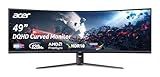
 INNOCN 49" Curved Monitor Ultrawide Gaming 5K2K 120Hz49 Inch6.28 x 45.5 x 14.57 inchesCheck on Amazon
 Samsung 49” Business Curved Ultrawide Dual QHD Computer49 inch22.38 x 45.18 x 16.56 Inches32.19 poundsCheck on Amazon
 INNOCN 49" Curved Gaming Monitor 144Hz Ultrawide 32:949 Inch6.28 x 45.5 x 14.57 inchesCheck on Amazon
 Samsung 49” Odyssey G9 Series DQHD 1000R Curved240Hz Refresh Rate16.6 x 45.2 x 22.4 inches34.4 PoundsCheck on Amazon


Top 3 picks at a glance
Quick Picks
| Product | Best for | Price |
|---|---|---|
| INNOCN 49C1R | Value 5K2K display | Check on Amazon |
| Samsung Business Curved | Productivity-focused buyers | Check on Amazon |
| INNOCN 49C1G | Budget 32:9 gaming | Check on Amazon |
| CRUA 49″ DQHD 165Hz | Budget high refresh | Check on Amazon |
| Samsung Odyssey G9 | Best overall gaming | Check on Amazon |
| Samsung Odyssey G93SC | Premium OLED immersion | Check on Amazon |
| Deco Gear 49″ | Multi-device KVM setups | Check on Amazon |
| Acer Nitro EI491CUR | Office ultrawide work | Check on Amazon |
How We Compared
We evaluated each display on four criteria that actually matter at 49 inches: native resolution and pixel density (sharp text is non-negotiable when you are reading spreadsheets across the full width), refresh rate and motion handling, curvature and how it interacts with viewing distance, and connectivity features like USB-C power delivery and KVM switching that determine whether one monitor can genuinely replace two. Price-to-performance weight was applied relative to each display’s intended use case, not uniformly.
The 8 Best 49 Inch Ultrawide Monitors in 2026
INNOCN 49C1R
This is the monitor we recommend to anyone who wants genuine 5120×1440 sharpness without paying Samsung prices. The R1800 curvature sits at a sweet spot: enough to reduce eye movement across the full width without warping straight lines in a way that annoys designers. 99% sRGB coverage means color-sensitive work is viable, and the 120Hz refresh keeps desktop navigation smooth even if you are not gaming.
- Pro: True 5K2K resolution delivers pixel density that makes text look crisp at normal viewing distances.
- Pro: USB-C, DisplayPort, and HDMI inputs cover every modern device without dongles.
- Con: HDR400 is the baseline tier; highlights get some brightness but blacks stay elevated.
Skip it if you need motion clarity above 120Hz or want deep HDR contrast for cinematic gaming.
Samsung Business Curved
Samsung’s business-oriented 49-inch panel uses the same 5120×1440 resolution as the top gaming displays but wraps it in firmware tuned for window management, eye comfort, and dock connectivity. The built-in KVM and Picture-by-Picture modes make it a legitimate replacement for a dual-monitor workstation. The 120Hz refresh is a welcome addition over older business panels that were stuck at 60Hz.
- Pro: Eye Care features and anti-glare tuning reduce fatigue during long text-heavy sessions.
- Pro: USB-C with DisplayPort and HDMI means one cable to a laptop and one to a desktop, switchable on the fly.
- Con: At around $850 it costs significantly more than similarly specced gaming panels without offering faster motion handling.
Skip it if your primary use is gaming and you can get the same resolution from a cheaper panel.
INNOCN 49C1G
The 49C1G runs at 3840×1080 instead of the full 5120×1440, and that single spec defines everything about this display. It is the cheapest entry into genuine 32:9 ultrawide that still delivers 144Hz and solid color coverage. For competitive gaming where frame rates matter more than text clarity, this makes sense. For mixed work-and-play setups, the pixel density is noticeably lower than its 5K2K siblings.
- Pro: 144Hz on a 3840×1080 panel is easier to drive and feels smoother in fast titles.
- Pro: At under $500 it is the most affordable way to get a 32:9 aspect ratio with USB-C.
- Con: Text clarity suffers compared to 5120×1440 options; you will notice individual pixels at arm’s length.
Skip it if you read a lot of small text or work in spreadsheets across the full width.
CRUA 49″ DQHD 165Hz
CRUA’s pitch is straightforward: full 5120×1440 resolution at 165Hz for under $500, which is aggressive pricing for those specs. The 1500R curve is tighter than INNOCN’s panels, pulling the edges closer to the viewer for a more wrapped feel. FreeSync support covers the variable refresh needs of AMD and NVIDIA GPU owners alike. The trade-off for that price point is in the extras, and we will get to those.
- Pro: 165Hz at native 5K2K is rare at this price and benefits fast-paced competitive titles.
- Pro: 1500R curvature provides a more immersive wrap than the gentler 1800R alternatives.
- Con: Connectivity options appear limited compared to rivals offering USB-C and multiple video inputs.
Skip it if you need USB-C single-cable docking for a laptop or require KVM functionality.
Samsung Odyssey G9
This is the gaming powerhouse of the group. 1000R curvature wraps aggressively around the viewer, 240Hz keeps motion razor-sharp in supported titles, and DisplayHDR 1000 delivers genuine contrast with deep blacks and bright highlights. The 1ms GtG response time means ghosting is essentially eliminated. AMD FreeSync Premium Pro handles variable refresh without tearing. If you are building a single-monitor gaming rig, this is the benchmark to beat.
- Pro: 240Hz paired with 1ms response time produces the smoothest motion in this lineup.
- Pro: DisplayHDR 1000 provides a dramatically better viewing experience in supported games than HDR400 panels.
- Con: The extreme 1000R curve causes distortion when viewing straight lines head-on, making it awkward for design work.
Skip it if you split your time between gaming and precision content creation; the aggressive curve gets in the way.
Samsung Odyssey G93SC
QD-OLED changes the math entirely for a 49-inch ultrawide. Perfect blacks, near-instant pixel response, and a wide color gamut make games look and feel unlike anything an LCD panel can reproduce. The trade-offs are familiar to anyone considering OLED at this size: real burn-in risk with static elements, lower sustained brightness on full-screen content, and a price tag at the top of this group. But for pure visual impact, nothing else here comes close.
- Pro: Self-emissive pixels deliver infinite contrast that makes HDR content genuinely stunning.
- Pro: Pixel response is instantaneous, eliminating motion blur even at lower refresh rates.
- Con: Static taskbars and HUDs over hundreds of hours present a real burn-in concern that LCD panels do not share.
Skip it if you use the monitor primarily for productivity with fixed interface elements left on screen all day.
Deco Gear 49″
The Deco Gear earns its spot through connectivity. USB-C with 65W power delivery means a single cable from a laptop charges it while driving the full 5120×1440 panel. KVM switching with Picture-in-Picture and Picture-by-Picture lets you run a desktop and a laptop side by side, or overlay one on the other. For anyone managing two machines without a physical switch box, this feature set alone justifies the purchase.
- Pro: 65W USB-C power delivery plus KVM and PIP/PBP make it the best multi-device hub in this group.
- Pro: 1ms MPRT with Adaptive Sync at 120Hz handles casual gaming without noticeable lag.
- Con: VA panel means viewing angles and gradient uniformity trail IPS alternatives at similar resolutions.
Skip it if you need the fastest refresh rate available or you game competitively where every millisecond matters.
Acer Nitro EI491CUR
Acer positions this as an office monitor first and it shows. The 120Hz refresh is a welcome upgrade over standard office panels, and the 5120×1440 resolution gives you genuinely useful workspace for spreadsheets, code editors, and financial models. The curved design keeps the edges at a more consistent viewing angle than a flat equivalent. Acer’s software suite handles window snapping and input switching cleanly for a productivity setup.
- Pro: Clean office-focused tuning with consistent color and minimal distraction from gaming-oriented OSD clutter.
- Pro: 120Hz at 5K2K makes scrolling and cursor tracking feel fluid during long document sessions.
- Con: Lacks the connectivity breadth (USB-C, KVM, multiple video inputs) that competing productivity monitors offer.
Skip it if you need USB-C single-cable docking or you plan to game on it regularly.
Buying Guide
Resolution: Why 5120×1440 Matters at 49 Inches
At 49 inches, 3840×1080 yields roughly 90 pixels per inch. That is below the threshold where text looks sharp at a normal desk distance; you will see individual pixels and anti-aliasing artifacts on small fonts. 5120×1440 pushes density to around 109 PPI, which is the sweet spot where text reads crisply without requiring scaling. If your workload includes anything text-heavy, the resolution jump is not a luxury. It is the difference between a monitor you enjoy using for six hours and one that makes you reach for a magnifier.
Curvature and Panel Type Trade-Offs
Curvature numbers work inversely: 1000R is more aggressive than 1800R. Aggressive curves like the Odyssey G9’s 1000R wrap the display around your field of view, which benefits immersion and reduces edge color shift. The downside is geometric distortion on straight lines, which makes architectural CAD, graphic design, or video editing across the full width uncomfortable. Panel type adds another layer: VA panels offer deeper contrast and curve more aggressively without the cost premium of IPS, but viewing angles and color consistency suffer. QD-OLED eliminates the contrast issue entirely but introduces burn-in risk with static elements. Match the curve and panel to your primary use, not to whichever sounds most impressive on a spec sheet.
Connectivity That Actually Replaces a Dock
USB-C power delivery is the single most practical feature for anyone running a laptop. A monitor with 65W or higher USB-C PD can power a laptop, carry video, and pass through USB peripherals over one cable. Add KVM switching and you can toggle between a laptop and desktop without unplugging anything. PIP and PBP modes let you view both sources simultaneously on the ultrawide canvas. If you are replacing a dual-monitor setup, prioritize monitors with these features; the extra $50 to $100 over a basic DisplayPort-only panel pays for itself in desk simplicity within the first week.
Our Verdict
The Samsung Odyssey G9 is our top pick for anyone buying a 49-inch ultrawide primarily for gaming. The combination of 240Hz, DisplayHDR 1000, and 1ms response creates an experience nothing else in this group matches. For budget buyers, the INNOCN 49C1R delivers genuine 5K2K clarity at a price under $540, making it the best value in the entire roundup. The exception to both picks: if you manage multiple devices and need a single hub that charges, switches, and displays all inputs cleanly, the Deco Gear’s connectivity stack makes it the better purchase regardless of raw panel specs.
FAQ
Can a 49-inch ultrawide actually replace two monitors?
Yes, for most workloads the 32:9 aspect ratio is functionally equivalent to two 16:9 displays placed edge to edge with no bezel between them. The main limitation is software that expects discrete screen boundaries, such as certain window management tools or applications that hardcode resolution targets.
Is 1000R curvature too aggressive for everyday use?
For gaming and media it is excellent. For productivity involving straight-line design work, spreadsheets, or documents with fixed margins, it introduces a visible bow across the display that can be distracting. Most people adapt within a few days, but designers and video editors often find it genuinely limiting.
What GPU do I need for 5120×1440 gaming?
Native 5K2K gaming demands a high-end GPU. A current-generation flagship handles most titles at high settings and above 100fps. Mid-range cards can play at this resolution but will require upscaling or lowered settings to maintain frame rates above the monitor’s minimum viable refresh.
Should I worry about burn-in with OLED at this size?
With a 49-inch display you are likely staring at it for longer sessions than a smaller panel, which increases cumulative static-element exposure. QD-OLED mitigates the risk better than WOLED, and Samsung’s G93SC includes pixel-shift and refresh routines. If you keep a taskbar, scoreboard, or fixed HUD visible for multiple hours daily, the risk is real enough to factor into your decision.
Part of our monitors buying guide hub.