
Our Top Picks
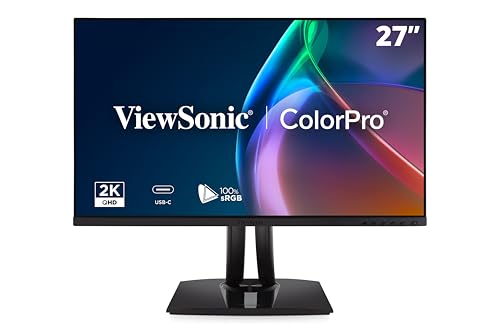 ViewSonic VP2756A-2K 27 Inch 1440p Monitor27 Inches8.46 x 24.15 x 21.27 inches16 poundsCheck on Amazon

The Short Answer
It depends on whether anyone else will see your photos accurately. If you only edit for yourself and post casually to Instagram, you do not need a color accurate monitor. If you print your work, sell it, do client work, or want what you see on screen to match what your camera captured, then yes, you need one. The one condition is this: you need a color accurate monitor if color fidelity matters to your final output.
For most hobbyists in 2026, a factory-calibrated 27-inch IPS monitor covering 99% to 100% sRGB is the sweet spot. You do not need the most expensive reference display, but you do need something that holds color consistently across brightness levels and does not shift when you move your head.
As an Amazon Associate we earn from qualifying purchases at no extra cost to you.

What You Actually Get
A color accurate monitor is not just a sharper screen. It is a display designed to reproduce color standards reliably out of the box and to stay that way over time.
Here is what you are actually paying for compared to a standard office or gaming monitor in the $150 to $220 range:
Factory calibration and tighter tolerances. Designer and photo monitors like the BenQ PD2706U and ViewSonic VP2756A-2K ship with a factory calibration report and a guaranteed Delta E average of ≤3 or better. Standard monitors may claim 99% sRGB but without a calibration report, and often with a Delta E of 4 to 6 out of the box.
Wider and more accurate gamut coverage. A true photo editing monitor will cover 99% to 100% sRGB at minimum, and often 95% DCI-P3 or 99% Adobe RGB for higher-end models. That matters if you shoot in Adobe RGB or edit RAW files that contain colors outside the basic sRGB range. A general-purpose monitor might list 95% sRGB and 75% Adobe RGB, which clips saturated greens and cyans common in landscape work.
Panel uniformity and viewing stability. IPS panels in this category use uniformity compensation to keep brightness and color temperature consistent from center to edge. On a 27-inch panel, which measures about 23.5 inches wide and 13.2 inches tall, cheaper displays can show a 10% to 15% brightness falloff at the corners. A photo monitor is tuned to keep that variance much lower, so a gray background looks gray everywhere.
Bit depth and tonal control. Most color accurate monitors use an 8-bit panel with Frame Rate Control to simulate 10-bit color, or a native 10-bit panel, allowing 1.07 billion colors versus 16.7 million on a standard 8-bit panel. You will see smoother gradients in skies and skin tones and less banding when working with 14-bit RAW files.
Ergonomics and connectivity for creators. Expect height adjustment of 4 to 5 inches, tilt, swivel, and pivot to portrait, plus a weighted stand around 12 to 15 pounds total with stand. You also get USB-C with 65W to 90W power delivery, so a single cable can drive a 4K signal at 60Hz, transfer data via a built-in USB hub, and charge a MacBook Air or MacBook Pro while you edit.
Two common examples show the current range. The ViewSonic VP2756A-2K at around $280 offers a 27-inch 2560 x 1440 IPS panel at 120Hz with 90W USB-C, designed for designers who want accurate sRGB without paying for 4K. The BenQ PD2706U at around $400 steps up to 27-inch 4K UHD (3840 x 2160) with 99% sRGB, 95% DCI-P3, Delta E ≤3, DisplayHDR 400, and the HotKey Puck for quick input and color mode switching. Both illustrate what you get at the $280 to $400 entry point for true color accuracy.
Pros
- What you edit is what you get. Skin tones stay natural, product colors stay true, and prints from labs like MPix or WhiteWall match your screen far more closely when your monitor is calibrated and profiled.
- Less re-editing and second-guessing. You stop compensating for a display that is too cool, too warm, or too saturated. Edits made on a calibrated sRGB or P3 mode translate correctly to phones, laptops, and client displays.
- Confidence with RAW files. When your monitor can actually display the extended colors you captured, you make better decisions about saturation, luminance, and hue, especially for landscapes, fashion, and food photography.
- Factory calibration saves time and money. You can start editing immediately without buying a $170 to $300 hardware calibrator, though adding one later extends accuracy as the panel ages.
- Better workflow features. KVM switches, USB hubs with 2 to 4 downstream ports, 90W USB-C charging, and dedicated sRGB, Adobe RGB, and Rec. 709 modes let you switch between photo, video, and web work without digging through menus.
- More comfortable long sessions. Height, pivot, and tilt adjustments plus flicker-free backlights and low blue light modes reduce eye and neck strain during 2 to 4 hour editing sessions.
Cons
- Higher upfront cost. A decent color accurate monitor costs $280 to $550 for 27-inch 1440p to 4K, versus $150 to $220 for a basic 27-inch office display. That is a 40% to 80% premium.
- Not automatically perfect. Factory calibration drifts. Panels shift 100 to 200K in color temperature over 12 to 24 months of use. For critical work you still need to recalibrate every 200 to 400 hours with a colorimeter.
- Resolution trade-offs. At 27 inches, 4K gives you 163 pixels per inch and excellent detail for cropping, but it demands more GPU power and scaling at 150%. 1440p at 109 ppi is easier to drive and still sharp for most Lightroom and Photoshop work.
- Slower response for gaming. Many photo monitors are 60Hz to 75Hz with 5ms response times. The ViewSonic VP2756A-2K is an exception at 120Hz, but most prioritize color over motion clarity.
- Requires controlled lighting. To actually see the benefit, you need to edit in consistent, dim to moderate ambient light around 35 to 65 lux. A bright window behind the screen or warm overhead bulbs will undermine even the best panel.
- Overkill for casual sharing. If your final output is compressed for social media, viewed on uncalibrated phones, and never printed, the difference between a good office IPS monitor and a photo monitor will be invisible to most viewers.
Who Should Buy It
You should buy a color accurate monitor if any of these describe you:
Portrait, wedding, or product photographers who charge clients or deliver files where skin tones, brand colors, or white balance must be exact. If a client will hold a print next to a product, accuracy pays for itself.
Landscape and fine art photographers who print. If you sell prints at sizes from 12 x 18 inches to 24 x 36 inches, or use a home photo printer that uses pigment inks, a wide-gamut, calibrated display prevents costly reprints at $15 to $60 per large print.
Hybrid photo and video creators. If you grade video in Rec. 709 or edit photos in Adobe RGB and then export for web in sRGB, a monitor with dedicated, switchable color modes keeps you from editing in the wrong gamut.
Anyone who has been burned by mismatched output. If you have edited a photo that looked perfect on your laptop, then looked orange or magenta on your phone or in print, a $280 to $400 monitor will solve the most common cause, which is an uncalibrated, undersaturated display.
Who Should Skip It
You can skip a dedicated color accurate monitor if:
You shoot and share casually. If you edit JPEGs on a recent MacBook, iPad, or phone and share only to social media, your device already covers close to 100% sRGB and P3 well enough. Save the money for lenses or storage.
You are on a tight budget and need other gear first. A $200 monitor plus a $180 1TB external SSD and a backup drive will serve a beginner better than a $400 monitor alone. Accuracy matters less if you lose files.
You only edit occasionally. If you edit a few hours per month and never print, use your current IPS monitor in its sRGB mode, lower brightness to 80 to 120 nits, and warm the color temperature to 6500K. That gets you 70% of the benefit for free.
Cheaper Alternatives
| Option | Cost | Trade-off |
|---|---|---|
| Keep current IPS monitor + hardware calibrator | $170 – $300 for calibrator like Calibrite ColorChecker Display | Improves accuracy on any decent IPS panel to Delta E 2-3, but cannot fix low gamut coverage (under 95% sRGB) or poor uniformity |
| 27-inch 1440p office IPS monitor in sRGB mode | $150 – $220 | Covers 95-99% sRGB well enough for web work, but no factory report, weaker uniformity, and limited Adobe RGB/P3 for print |
| Calibrate and profile your laptop display | $0 – $30 for software profile, $170+ if adding calibrator | Good short-term fix for MacBook Air/Pro or premium Windows laptops which already have wide P3 displays, but small screen and no height adjustment hurt long edits |
| Entry creator monitor like ViewSonic VP2756A-2K | Check on Amazon | Full factory calibration and 90W USB-C at lower 1440p resolution, so you give up 4K detail to save $100+ versus 4K creator models |
FAQ
Do I need a hardware calibrator if my monitor is factory calibrated?
Not immediately, but plan for it. Factory calibration is accurate for the first 6 to 12 months. After that, backlight aging causes drift. For hobby work, factory calibration is enough for 1 to 2 years. For client work or printing, recalibrate every 200 to 400 hours or every 2 to 3 months with a colorimeter to hold that factory Delta E ≤3 performance.
Is 4K necessary for photo editing or is 1440p enough?
1440p on a 27-inch screen is enough for most Lightroom and Photoshop work and is easier on your computer. 4K on 27 inches gives you 4 times the pixels of 1080p and lets you view a 24-megapixel image at nearly 50% to 60% size without scrolling, which helps with sharpness and noise checks. If you crop heavily or work on 45-megapixel files, choose 4K. If your laptop is older or you prefer larger interface text, save money with 1440p.
What specs actually matter for photo editing?
Prioritize 99% to 100% sRGB coverage minimum, IPS panel type for wide viewing angles, Delta E ≤3 factory calibrated, and ergonomic adjustments. For print, look for 95%+ DCI-P3 or 99% Adobe RGB. Weight around 12 to 16 pounds with a stable stand and connectivity including DisplayPort 1.4, HDMI 2.0, and USB-C with at least 65W power delivery matter more than refresh rate or HDR600+ certifications.
Can I just use my MacBook or iPad Pro display instead?
Yes for light editing. Recent MacBook Pro and iPad Pro displays are factory calibrated, cover 100% P3, and are excellent for mobile editing. The limitation is size, usually 14 to 16 inches versus 27 inches, lack of height and pivot adjustment, and risk of uneven viewing angles when hunched over. Many photographers edit on the laptop, then do final color checks on a larger calibrated external monitor before export or print.









