
Walk into any home office conversation in 2026 and you’ll hear the same debate: one big, razor-sharp screen, or two medium ones side by side. It sounds like a simple question about screen count, but what a buyer is really deciding is how they work, how much desk they’re willing to give up, and how much hassle they want to live with day to day. A single 4k monitor treats your workspace as one uninterrupted canvas — great for writing, photo editing, and full-screen focus. A dual 1440p setup treats it as two separate zones — perfect for juggling a spreadsheet on one side and a video call on the other. Neither is objectively better; the right answer depends on your tasks, your desk, and your budget. This guide breaks down the trade-offs with real numbers so you can pick with confidence.
Our Top Picks
 Kado 2-Pack Dual 27" Curved 1500R 1920x1080 75Hz27" Curved 2-Pack2.83 x 24.46 x 14.56 inches11 PoundsCheck on Amazon
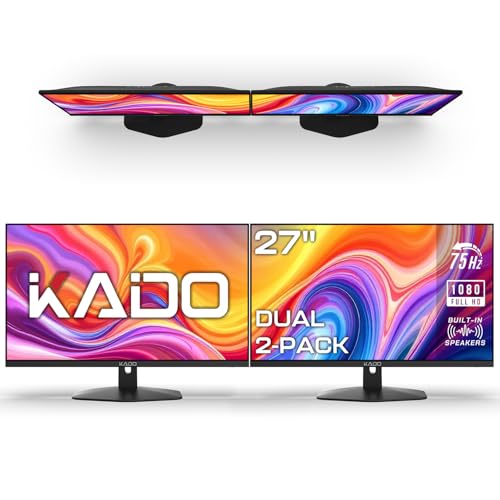 Kado 2-Pack Dual 27" Flat Screen 1920x1080 75Hz27" Flat 2-Pack2.74 x 24.37 x 14.51 inches9.37 poundsCheck on Amazon


Top 3 picks at a glance
Quick Verdict
Choose a single 4k monitor (typically 27–32 inches, 3840×2160) if you value visual clarity, a clean one-screen workflow, and minimal cabling. Choose a dual 1440p setup (two 27-inch, 2560×1440 panels) if you multitask heavily across separate apps, want more total screen area for less money, and don’t mind a thicker cable situation. For most people doing mixed productivity work, dual 1440p delivers more usable pixels per dollar; for creatives and minimalists, single 4k is worth the premium.
As an Amazon Associate we earn from qualifying purchases at no extra cost to you.



Side by Side
| Factor | Single 4k Monitor | Dual 1440p Monitors |
|---|---|---|
| Comfort | One natural focal point; less head turning | Requires neck rotation between screens; bezel gap can be distracting |
| Total pixels | ~8.3 million (3840×2160) | ~7.4 million (2 x 2560×1440) |
| Price range | $250–$600 for a quality 27–32″ panel | $200–$450 for two 27″ 1440p panels |
| Space needed | One stand, roughly 24–28″ of desk width | Two stands or one dual mount; 44–50″ of desk width ideal |
| Cables and maintenance | Single video cable; simple | Two video cables, two power bricks; more cable management |
| Look | Clean, minimal, single focal point | Command-center aesthetic; symmetric but busier |
| Failure risk | One panel — if it dies, you’re offline | Built-in redundancy; one dying leaves you a working screen |
| Resale | Smaller market but 4k panels hold value well | Easier to sell individually; 1440p is a popular mainstream size |
| Best for | Writers, editors, photographers, minimalists | Traders, developers, analysts, streamers |
Where Single 4k Wins
Text clarity. At 27 inches, a 4k panel packs roughly 163 pixels per inch versus about 109 on a 1440p screen of the same size. Text looks noticeably crisper, which matters if you spend hours reading and writing.
One seamless workspace. There’s no bezel splitting your view. Full-screen documents, photo editing timelines, and large spreadsheets flow edge to edge. You can snap two windows side by side and still get effectively more resolution per window than one 1440p panel offers.
Simplicity. One power brick, one video cable, one stand footprint. A single USB-C connection to a hub like the Baseus Docking Station Dual Monitor 10-in-1 USB C Hub (around $60) handles video, charging, and peripherals in one plug — and leaves the second HDMI output free if you later add a screen for guests.
Desk aesthetics. A single slim-bezel monitor on an arm looks intentional and uncluttered, which matters in a home office that doubles as a bedroom or living space.
Where Dual 1440p Monitor Setup Wins
True multitasking. Full-screen video call on one panel, live notes on the other. No window management gymnastics. Apps stay where you put them, and the mental separation between “reference screen” and “work screen” genuinely speeds up many workflows.
Cost per pixel. Two 27-inch 1440p monitors routinely cost less than one comparable 4k panel. Budget-conscious buyers can even step down to a 2-pack like the Kado Dual 27″ Flat Screen FHD monitors (around $140) or the Kado Dual 27″ Curved 1500R pair (around $200) to test whether a two-screen workflow suits them before investing in 1440p panels.
Redundancy. If one panel fails — or you just want to unplug your work laptop — the second screen keeps going. Households sharing a desk between two computers can add a KVM switch like the 4K@60Hz 2-port HDMI KVM Switch (around $16) to share one keyboard and mouse between machines without constantly swapping cables.
Gaming and streaming. A dedicated secondary screen for chat, OBS, or Discord means your main display stays untouched at full frame rate.
Cost Over 5 Years
Assume a five-year ownership window, typical for a quality monitor.
- Single 4k: $350–$500 for the panel, plus $0–$60 for a hub or mount. Power draw is modest — a 32-inch 4k monitor uses roughly 30–50 watts, or about $25–$50 in electricity over five years at average US rates. Realistic total: $375–$610.
- Dual 1440p: $300–$450 for two panels, plus $30–$80 for a dual monitor arm (strongly recommended). Combined power draw runs roughly 50–80 watts, or $40–$70 over five years. Realistic total: $370–$600.
Surprisingly, the totals land in nearly the same range. The difference is really about what you buy first: dual 1440p can be staged (buy one screen now, add the second later), while a 4k purchase is all upfront. Neither setup has meaningful consumable costs beyond an occasional replacement cable ($10–$20).
Which One for Your Home
Small Apartment
Go single 4k. A 27–28 inch panel on a clamp-on arm frees your entire desk surface and keeps the footprint under 28 inches of width. One cable, one stand, one visual anchor — ideal when your office is also your dining table. If budget is tight, a single 27-inch 1440p screen now, with room to add a second later, is a smarter compromise than two cramped panels.
Family with Kids or Pets
Dual monitors on a raised dual arm win here — not for productivity, but for resilience. Two smaller panels on an arm sit high and out of reach of small hands and wagging tails, and if one gets damaged, you’re not fully out of commission. Choose VESA-mountable panels with anti-glare coatings, and route cables through a tray so nothing dangles temptingly.
Rental
Either works, but favor setups that need no wall drilling. Both configurations work fine on freestanding stands or desk-clamp arms that leave no marks. A single 4k monitor is slightly easier to move at the next lease — one box versus two. If you work from home in a rental and can’t dedicate a full room, the compact single-screen footprint is usually the better tenant.
Long-Term Home
If you own and have a dedicated office, this is where dual 1440p shines long-term. Mount both panels on a quality dual arm, build the cable management once, and enjoy years of a workflow built around two zones. Pair with a KVM switch if two computers share the desk, and a docking station if laptops come and go. The investment pays off in daily comfort, and individual panels can be upgraded one at a time as technology moves.
FAQ
Is one 4k monitor the same as two 1440p monitors?
Almost, but not quite. A 32-inch 4k screen has slightly more total pixels than two 27-inch 1440p screens (8.3 million vs 7.4 million), but the layouts behave differently. The 4k screen is one continuous canvas; the dual setup is two independent windows with a bezel between them. Productivity depends more on how you work than on the raw pixel count.
Can my laptop run a dual 1440p setup?
Most laptops from the last several years can drive two 1440p displays at 60Hz via a USB-C docking station with dual HDMI outputs or a DisplayPort MST hub. Check your laptop’s specs for multi-display support over USB-C, and note that some machines reduce refresh rates when driving two external screens.
Do I need a special desk for two monitors?
You’ll want at least 48 inches of desk width and about 24 inches of depth for a comfortable dual setup, especially if the screens sit on stands rather than an arm. A clamp-on dual monitor arm needs a desk edge thick enough to clamp to — most require 0.8 to 3 inches — and a desk weighing enough to handle the clamping force without damage.
Which setup is better for eye strain?
Comfort research generally favors whichever setup minimizes head movement and lets you keep text at a comfortable size. A single large screen with properly scaled text (150% scaling on a 27-inch 4k is a common sweet spot) reduces neck rotation, while a dual setup reduces window switching. Whichever you choose, position the top of the screen at or slightly below eye level, about an arm’s length away, and match brightness to your room lighting.









