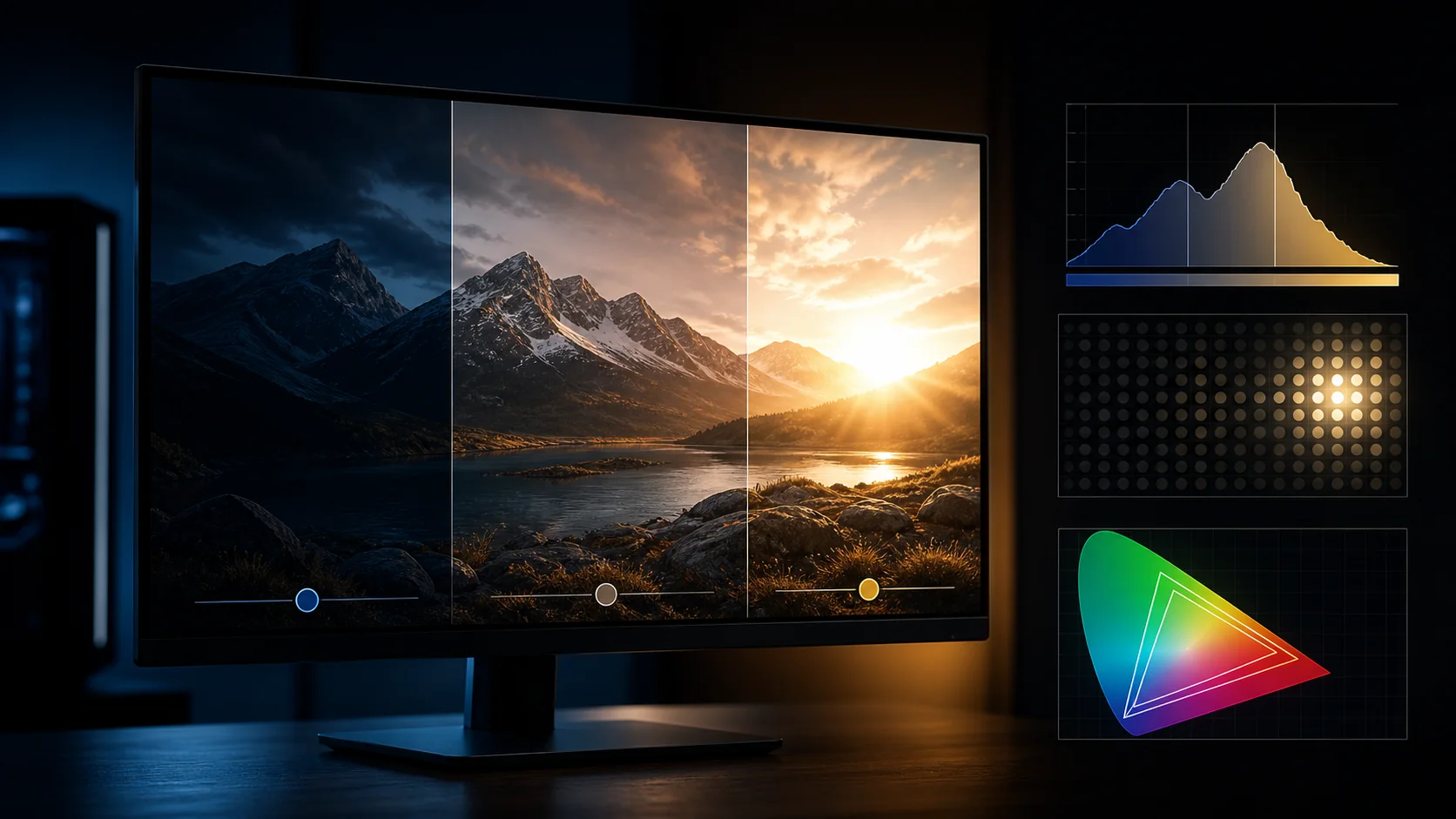
HDR on PC, short for High Dynamic Range, is a signal and display standard that carries a wider range of brightness and color information than standard SDR content, letting compatible monitors show brighter highlights, deeper blacks and more color detail simultaneously in the same scene. On paper this sounds like a straightforward upgrade, but HDR is also the single most inconsistently implemented feature in PC gaming, where a monitor’s certification tier, local dimming hardware, and per-game calibration all have to line up correctly before HDR actually looks better than well-calibrated SDR, and on a meaningful share of budget monitors it doesn’t.
This guide explains what the DisplayHDR certification tiers actually mean in hardware terms, why HDR frequently looks washed out or worse than SDR on certain monitors, and the Windows and in-game settings that fix the most common HDR problems. Display specialist Nina Alvarez, who measures peak brightness, local dimming behavior and contrast using a colorimeter, photodiode response-time tester and pattern generator, tested HDR output across multiple certification tiers to confirm which specs on a spec sheet actually translate into a visibly better HDR image versus which are largely marketing.
As an Amazon Associate we earn from qualifying purchases at no extra cost to you.


Our Top Picks
 2026 American Mahjong Learning Aid for Beginners11.8 x 8.9 inches12 x 8.5 x 0.05 Inches0.35 PoundsCheck on Amazon


Top 3 picks at a glance
What HDR Actually Changes Compared To SDR
Standard dynamic range (SDR) content is mastered to a maximum of roughly 100 nits reference brightness with an 8-bit color depth, meaning highlights, shadows and colors are all compressed into a relatively narrow, standardized range that every SDR display, regardless of its actual capability, is expected to reproduce similarly. HDR content is mastered at a much higher peak brightness target, commonly 1000-4000 nits for mastering references, with 10-bit or higher color depth, preserving far more detail in both very bright highlights (sun glare, muzzle flashes, explosions) and very dark shadows simultaneously within the same frame.
The practical result, when displayed correctly, is a scene where a bright window and a dark room visible through it can both show detail at once, rather than SDR’s compromise where the display maker or game developer has to choose whether to preserve highlight or shadow detail since both can’t fit in the narrower range. This is fundamentally a contrast and brightness capability question, not a resolution or color-count question in the way most buyers initially assume, which is why a 1080p monitor with genuinely strong HDR hardware can look more impressive in bright, high-contrast scenes than a 4K monitor with weak HDR hardware.
The catch is that “displayed correctly” requires a monitor capable of actually hitting a meaningfully higher peak brightness than SDR, ideally with localized control over which parts of the screen get that extra brightness (local dimming), and without both of those, the display has to compress the wider HDR range back down to fit its actual limited capability, a process called tone mapping, which is exactly where HDR starts looking worse than a properly calibrated SDR image on the same hardware.
DisplayHDR Certification Tiers Explained
VESA’s DisplayHDR certification program exists specifically because “HDR compatible” on a spec sheet says nothing about whether a monitor can actually display HDR content well; the certification tiers (400, 500, 600, 1000, 1400, and OLED-specific tiers like True Black 400/500/600) set minimum peak brightness, color gamut and, at higher tiers, local dimming requirements. DisplayHDR 400, the entry tier and the most common on budget monitors, requires only 400 nits peak brightness and does not require any local dimming at all, meaning a DisplayHDR 400 monitor can accept and technically display an HDR signal while having essentially no additional capability over a good SDR panel to actually render the extra dynamic range.
DisplayHDR 600 raises the peak brightness requirement to 600 nits and, critically, requires some form of local dimming, meaning the backlight can selectively brighten or dim different zones of the screen rather than the entire panel moving together; this is the tier where HDR starts producing a genuinely different, more impactful image than SDR on the same panel, though the number of dimming zones on a DisplayHDR 600 monitor is often still low enough (a few dozen zones) to produce visible “blooming,” a halo of brightness around small bright objects against dark backgrounds.
DisplayHDR 1000 and higher tiers require significantly higher peak brightness and more capable local dimming, generally hundreds of zones on mini-LED panels, delivering the highlight punch and contrast HDR marketing images promise with meaningfully less blooming. OLED monitors use a separate True Black certification tier, since OLED’s per-pixel emission means every individual pixel can go fully dark next to a bright pixel with zero blooming, effectively giving OLED “infinite” local dimming zones even at lower peak brightness numbers than mini-LED tiers require, which is why a 400-nit True Black OLED can still look excellent in HDR despite a lower peak-brightness number than a 600-nit LCD tier. Table 1 summarizes the practical differences.
| Certification Tier | Min Peak Brightness | Local Dimming Required | Real-World HDR Quality |
|---|---|---|---|
| DisplayHDR 400 | 400 nits | No | Minimal improvement over SDR, often looks worse |
| DisplayHDR 600 | 600 nits | Yes, basic zones | Noticeable improvement, some blooming |
| DisplayHDR 1000 | 1000 nits | Yes, many zones (mini-LED) | Strong HDR, minor blooming |
| OLED True Black 400/500/600 | 400-600 nits | Per-pixel (self-emissive) | Excellent contrast, no blooming, lower peak brightness |
Why HDR Sometimes Looks Worse Than SDR
The most common cause is a DisplayHDR 400 or uncertified “HDR-compatible” monitor without local dimming: when this type of panel receives an HDR signal, it has to tone-map the entire wider dynamic range down onto a panel with essentially the same brightness and contrast capability as SDR, and because the tone-mapping curve is generally optimized for a display that does have more headroom, the result is frequently a flatter, dimmer, less contrasty image than the same content displayed in SDR mode, where the game or Windows tone-maps specifically for that panel’s actual limited range instead.
A second common cause is incorrect or skipped in-game HDR calibration; nearly every HDR-capable game includes its own calibration screen (typically a series of brightness patches you adjust to just barely become visible) that sets the game’s peak brightness and “paper white” reference point specifically for your monitor’s measured capability, and skipping this step leaves the game using default assumptions that frequently don’t match your actual panel, producing either a washed-out or overly dark, crushed result depending on the mismatch direction.
A third cause is Windows’ own auto-HDR tone-mapping interacting poorly with certain monitors’ factory HDR modes; some monitors apply their own internal tone-mapping on top of what Windows sends, effectively double-processing the signal, which can be corrected by using the free Windows HDR Calibration app from the Microsoft Store to generate a calibration profile matched to your specific panel, or by testing whether disabling any monitor-side “HDR effect” or “HDR enhance” OSD feature (as opposed to the necessary tone-mapping) improves accuracy.
Windows HDR Settings And The HDR Calibration App
Windows HDR toggles on globally under Settings > System > Display > HDR, and enabling it changes how the entire desktop, not just HDR-capable content, is processed and displayed, since Windows needs a single consistent output mode for the connected monitor. This is why some users report the desktop and non-HDR apps looking slightly washed out or overly bright immediately after enabling HDR; the “SDR content brightness” slider that appears once HDR is enabled exists specifically to compensate for this, letting you raise or lower how bright non-HDR content appears while HDR mode is active.
The free Windows HDR Calibration app, downloadable from the Microsoft Store, walks through a short series of brightness and color patches that measure your specific monitor’s actual peak brightness, black level and color capability, then generates a calibration profile Windows applies automatically to correctly tone-map HDR content for your exact panel rather than relying on generic assumptions. Running this tool once after enabling HDR, and again after any major GPU driver update (which occasionally resets HDR-related settings), meaningfully improves accuracy on most monitors, particularly mid-range mini-LED panels where the generic tone-mapping curve is furthest from ideal.
Auto HDR, a separate Windows 11 feature, uses machine learning to add HDR-like tone mapping to games that were never designed with native HDR support; this works reasonably well in many titles but is a different, less precise process than a game’s native HDR implementation, and results vary significantly by game, so it’s worth comparing Auto HDR on versus off for any specific title rather than assuming it’s always an improvement over SDR.
In-Game HDR Calibration And Why It Matters Per Title
Nearly every AAA game with native HDR support includes its own calibration screen, typically accessed from the display or graphics settings menu, showing test patches for peak brightness, black level, and sometimes a mid-gray or “paper white” reference point; running this calibration correctly for each new HDR game you play is not optional if you want consistent results, since different games use different default assumptions about your display’s capability and the in-game calibration is what corrects for your actual panel.
The reason HDR brightness can feel wildly inconsistent between games even on the same monitor traces directly back to this per-game calibration step; a game calibrated correctly for your monitor’s actual 750-nit peak brightness will show punchy, accurate highlights, while a different game left at default settings, assuming a generic 1000-nit target your monitor can’t actually reach, will either clip highlights or apply an incorrect tone-mapping curve that looks flat by comparison.
Some games also include a separate “paper white” or “UI brightness” slider distinct from the peak brightness calibration, controlling how bright standard white UI elements and menus appear relative to the HDR peak; setting this too high makes UI elements uncomfortably bright against darker HDR game scenes, while setting it too low makes menus hard to read, and it generally needs independent adjustment from the peak brightness patches for the best balance in a specific title.
Local Dimming: The Feature That Determines Real HDR Quality
Local dimming is the backlight’s ability to independently control brightness across different zones of the screen rather than the entire backlight moving together as one unit, and it is arguably the single most important hardware factor in whether HDR looks genuinely different from SDR rather than just “brighter but flatter.” A monitor with zero or minimal local dimming zones can raise overall peak brightness for HDR content but can’t simultaneously keep a dark corner of the screen dark while a bright highlight elsewhere stays bright, which is the core visual signature that makes HDR content look dramatic in marketing demos.
Zone count varies enormously between monitors marketed as HDR-capable: budget edge-lit models might have a handful of zones or none at all, mid-range mini-LED monitors commonly ship with 100-500+ zones, and premium mini-LED panels can exceed 1000-2000 zones, with more zones generally producing less visible “blooming” (a soft halo of light bleeding around small bright objects against dark backgrounds, most noticeable with things like a bright moon in a dark sky or a scoreboard UI element over a dark scene).
OLED sidesteps the zone-count question entirely because every pixel emits its own light independently, effectively providing per-pixel dimming with zero blooming, which is why OLED panels frequently deliver more convincing HDR than LCD panels with a higher peak-brightness spec but far fewer dimming zones; our best OLED gaming monitor guide covers this tradeoff in more detail for buyers specifically prioritizing HDR contrast quality.
Cables, Ports And Bandwidth Requirements For HDR
HDR signals carry more data than SDR due to higher bit depth (10-bit versus 8-bit) and, at higher refresh rates, this can push total bandwidth requirements up enough that an older port version or under-specified cable silently caps refresh rate or disables HDR entirely rather than displaying an error message explaining why. DisplayPort 1.4 and HDMI 2.0b are generally the practical minimum for 1440p HDR at 144Hz or higher, while HDMI 2.1 and DisplayPort 1.4 with Display Stream Compression handle 4K HDR at 120Hz+ more comfortably.
A cable that worked fine for SDR gaming at a given resolution and refresh rate isn’t automatically adequate once HDR’s higher bit depth is added to the same signal; if enabling HDR causes your monitor to silently drop refresh rate (commonly from 144Hz down to 60 or 100Hz) or causes flickering, testing a certified cable rated explicitly for your target resolution, refresh rate and HDR combined is the first troubleshooting step, following the same cable guidance covered in our how to set up dual monitors guide.
GPU-side bandwidth also matters: older or budget GPUs with HDMI 2.0 rather than 2.1 outputs, or DisplayPort 1.2 rather than 1.4, may simply lack the bandwidth to run your monitor’s full HDR-plus-high-refresh-rate combination regardless of cable quality, which is worth checking against your specific GPU’s port specifications before assuming a cable swap alone will resolve a refresh-rate drop when HDR is enabled.
Troubleshooting: Fixing Common HDR Problems
If HDR looks washed out or flatter than SDR on your desktop, first check your monitor’s DisplayHDR certification tier or confirm whether it has any local dimming at all; on a DisplayHDR 400 or non-certified panel, this is often expected behavior rather than a misconfiguration, and the practical fix is to leave HDR off for desktop use and enable it only in specific games where the in-game tone mapping is calibrated to compensate, rather than relying on Windows’ global HDR toggle.
If HDR brightness or contrast looks inconsistent between games, run each game’s own in-game HDR calibration screen individually rather than assuming a calibration done in one title carries over, and separately run the Windows HDR Calibration app from the Microsoft Store at the system level if you haven’t already, since both layers of calibration need to be correct for consistent results.
If HDR causes a refresh rate drop, flickering, or intermittent signal loss, test a certified high-bandwidth DisplayPort or HDMI cable rated for your exact resolution, refresh rate and HDR combination, confirm you’re connected to a GPU output (not a motherboard port), and update your GPU driver, since HDR-related bandwidth and handshake issues are disproportionately likely to be cable or driver related rather than a fundamental incompatibility between your GPU and monitor.
Related guides
- Refresh Rate And Response Time Explained
- Monitor Size And Viewing Distance Guide
- Monitor Resolution Guide For Gaming
Frequently asked questions
Why does HDR look worse than SDR on my monitor?
This almost always happens on monitors with DisplayHDR 400 certification or no local dimming, since these panels can accept an HDR signal but lack the peak brightness and contrast hardware to actually render it correctly, producing a washed-out, lower-contrast image than well-calibrated SDR on the same panel.
What DisplayHDR rating do I actually need for good HDR gaming?
DisplayHDR 600 with local dimming is a reasonable practical minimum for HDR that looks meaningfully better than SDR, while DisplayHDR 1000 or higher, paired with mini-LED or OLED, delivers the highlight punch and contrast that HDR marketing images actually show.
Should I leave Windows HDR toggled on all the time?
Only if your monitor has enough local dimming zones or is OLED to handle SDR desktop content well under the HDR tone-mapping curve; on cheaper edge-lit or DisplayHDR 400 monitors, leaving HDR on full-time often makes everyday desktop use look worse, so many users toggle it on only when launching HDR-capable games.
Does HDR require a specific cable or port?
HDR needs enough bandwidth to carry the higher bit-depth signal, which means DisplayPort 1.4 or HDMI 2.0b and newer at minimum for most resolutions and refresh rates, and a cable rated for that bandwidth; an outdated cable or port can silently disable HDR or force a lower refresh rate when HDR is enabled.
Why does HDR brightness look different in every game?
Because most HDR games include their own in-game HDR calibration screen that sets peak brightness and paper-white level specifically for that title’s content, and skipping this step, or running a calibration done for one game in a different game, is the most common reason HDR brightness feels inconsistent across a library.