Our Top Picks
 CPU Solutions Express 4K Video Editing PC8.07 x 18.11 x 13.78 inches18.11 x 8.07 x 13.78 inches45 poundsCheck on Amazon

Best CPU for Photo Editing: Start with Your Software and Workload
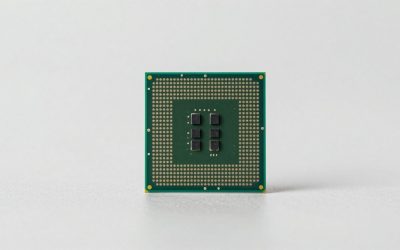
The best CPU for photo editing is a fast, modern processor with at least 8 cores for most photographers; move to 12–16 cores if you regularly batch-process large files, use CPU-heavy noise reduction, or edit while other demanding apps are open. For a light Lightroom or Photoshop workflow, a strong 6-core CPU can be the better buy if it leaves room in your budget for more RAM, a capable GPU, and a fast SSD.
There is no single winner for every editing setup. Some tasks respond more to clock speed and responsiveness; others scale across many cores. The right choice depends on which parts of your workflow keep you waiting—and the total cost of the platform, not just the processor.
As an Amazon Associate we earn from qualifying purchases at no extra cost to you.


Match the CPU to the Work You Actually Do
| Editing workload | CPU class to consider | What matters most |
|---|---|---|
| Occasional edits, modest RAW files, small exports | Recent 6-core desktop CPU | Strong single-core performance and a balanced platform price |
| Regular Lightroom and Photoshop use, large RAW files | 8-core desktop CPU | Responsive editing plus enough cores for exports and background tasks |
| Large batch exports, panoramas, heavy noise reduction | 12–16-core desktop CPU | Multi-core throughput, cooling, and sustained power delivery |
| Editing on the move | Modern 8-core laptop CPU | Performance on battery, cooling, and screen quality—not core count alone |
This is a starting point, not a software guarantee. A processor with more cores can finish a well-parallelized export sooner, but it may not make every brush stroke, slider adjustment, or menu open feel faster. Those interactive tasks often depend more on a fast core, sufficient memory, and an uncluttered system.
How to Compare Cores and Clock Speeds
Cores help with work that can happen in parallel
More cores can help when your software divides a task into many parts. Examples include exporting a large queue of images, building previews, processing multiple files, and running editing software alongside other applications. Gains vary by task and software version, and they eventually flatten: doubling the core count does not reliably halve export time.
For a photographer who exports a few finished images at a time, paying a large premium for a high-core-count CPU may mean spending money on capacity that sits idle. For a wedding or studio workflow with hundreds of RAW files to convert, that extra throughput may save meaningful time every working day.
Clock speed and architecture affect responsiveness
Clock speed is the number of processing cycles a core can perform each second, but it is not a fair comparison on its own. Newer processor designs can do more work per cycle, and advertised boost speeds are not necessarily sustained speeds across all cores. Look for recent-generation desktop CPUs with strong per-core performance, then compare results for the specific applications and tasks you use.
Cooling also matters. A compact computer that cannot keep a CPU cool may reduce its speed during a long export. A desktop with a suitable cooler can sustain heavy work more consistently, though a faster chip may also require a better cooler and motherboard.
Count the Platform Cost, Not Just the CPU Price
A CPU can look like a bargain until you add the motherboard, memory, cooler, and any replacement parts required by a platform change. Check the motherboard’s supported CPU list and BIOS requirements before buying. Memory generation and socket compatibility are especially important: DDR4 and DDR5 are not interchangeable, and a board generally supports only a specific processor socket and memory type.
As a broad U.S. market guide in 2026, mainstream 6–8-core desktop CPUs often fall around $150–$350, while stronger 12–16-core options commonly land around $300–$600. These are approximate ranges, not live quotes; sales, new releases, and whether a platform is being phased out can shift them substantially. A motherboard, cooler, and memory can add several hundred dollars to a new build, so compare complete configurations.
For photo editing, 32 GB of RAM is a sensible target for many desktop systems; 64 GB is worth considering for huge files, complex composites, or several demanding applications at once. If a more expensive CPU forces you to settle for too little memory, the less expensive CPU with more RAM may produce a smoother editing experience.
A Practical Way to Choose
- List your slowest recurring tasks. Note whether the wait happens while adjusting an image, applying a filter, generating previews, or exporting a batch.
- Decide whether the task is interactive or batch work. Prioritize strong per-core performance for frequent interactive edits; consider more cores if long exports and batch processing dominate your day.
- Set a complete-system budget. Include the CPU, compatible motherboard, RAM, cooler, and storage. Avoid judging two processors by their sticker prices alone.
- Check application-specific results. Compare benchmarks for your editing software and, where possible, the same operation you care about. A general CPU score may not predict performance in your particular workflow.
- Leave room for balance. Allocate enough for at least 32 GB of RAM, a fast SSD for active projects, and a suitable graphics card if your software uses GPU acceleration.
Worked Example: Is a 12-Core CPU Worth the Extra Cost?
Suppose a batch of 600 images takes 30 minutes on a 6-core system. A 12-core CPU will not automatically finish in 15 minutes: some parts of the job may not scale with cores, and the two processors may differ in per-core speed and power limits. Instead, use a measured or credible benchmark for the same export task. If the 12-core option cuts the batch to 22 minutes, it saves 8 minutes per run. At five runs per week, that is about 40 minutes weekly.
Now compare that time saving with the full platform premium. If the upgrade costs an additional $300, it may be worthwhile for a working photographer who repeatedly runs large batches. If you export only a small set of images every few days, that money may be better spent on RAM, backup storage, or a higher-quality display. This calculation is more useful than treating core count as a performance multiplier.
Common Buying Mistakes
- Choosing the highest core count by default: Extra cores help only when the workload can use them and the cost is justified.
- Comparing boost clocks as if they were equal: Architecture, cooling, and sustained power affect real performance.
- Ignoring memory capacity: Large RAW files, layered documents, and multitasking can make insufficient RAM a bigger bottleneck than the CPU.
- Buying a platform without checking its upgrade path: Confirm socket, memory type, BIOS support, and motherboard CPU support before ordering.
- Assuming every editing feature is CPU-bound: Some operations benefit from GPU acceleration, while others depend more on RAM or storage. Identify the specific delay before upgrading.
Bottom Line
For most desktop photographers, an 8-core CPU is a strong balance of responsiveness, export speed, and cost. Choose a recent 6-core model for lighter work when the savings support a better-rounded system. Step up to 12–16 cores if large, frequent batches or other parallel workloads are a substantial part of your day—and verify that your software benefits before paying for them. The best CPU for photo editing is the one that speeds up your real bottlenecks without compromising the rest of the editing setup.