
Low latency is not one specification. It is the sum of how fast your pixels change colour, how long your monitor’s internal electronics take to process a signal, and how often the panel refreshes at all. Those are three separate numbers, they are measured in different ways, and only one of them appears prominently on the box. This guide ranks eight 1080p monitors from $53.99 to $259.99 by how they behave in that chain, with price treated as a constraint rather than as the organising principle.
The pick for a competitive setup is the KTC H24F7 at $109.96: 24 inches, 1080p, 240Hz and a Fast IPS panel, which is the combination that keeps transitions quick without VA’s dark-scene smearing. Two monitors in this list run at 100Hz and are included deliberately, because understanding why they do not belong in a competitive setup is more instructive than pretending they are not on the shelf next to the others.
Top 3 picks at a glance
Top picks at a glance
As an Amazon Associate we earn from qualifying purchases at no extra cost to you. Product prices and availability are accurate as of the date shown and are subject to change.


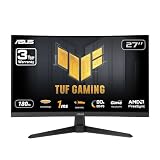


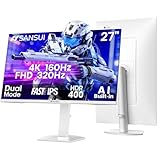
| Model | Key spec | Price | Best for |
|---|---|---|---|
| KTC H24F7 | 24in, 1080p, 240Hz, Fast IPS | $109.96 | Overall competitive pick |
| SANSUI 27in Dual Mode | 27in, 4K 160Hz or FHD 320Hz, Fast IPS, HDMI 2.1 | $259.99 | Highest refresh ceiling, dual-purpose desk |
| ASUS TUF VG27VQM1B | 27in, 1080p, 280Hz, 1500R curve, ELMB | $199.00 | Motion clarity with backlight strobing |
| ASUS TUF VG27VQ3B | 27in, 1080p, 180Hz, 1500R curve, ELMB Sync | $148.49 | Strobing plus adaptive sync together |
| SANSUI 32in Curved | 32in, 1080p, 240Hz, curved | $179.98 | Large-format high refresh |
| SANSUI 24in 180Hz | 24in, 1080p, 180Hz, DP 1.4 and HDMI 2.0 | $79.99 | Cheapest genuinely competitive panel |
| KTC 24in 100Hz | 24in, 1080p, 100Hz, FreeSync, HDMI and VGA | $94.99 | Office-first secondary display |
| ReHisk 24in 100Hz | 24in, 1080p, 100Hz, 3ms, FreeSync, VESA | $53.99 | Entry price, not competitive play |
Three numbers people treat as one
Almost every argument about monitor latency happens because two people are using the same word for different quantities. Separating them takes two minutes and changes how you read every spec sheet afterwards.
Response time: how fast a pixel changes
Response time measures how long a liquid crystal takes to rotate from one colour value to another, normally quoted grey-to-grey. The headline 1ms figures on these listings are almost always a single best-case transition at maximum overdrive, or a moving picture response time figure taken with backlight strobing active, which measures perceived blur rather than pixel switching. The average across all transitions, which is what you actually see, is typically several times higher on budget panels.
What response time governs is smearing. Slow transitions leave a trail behind moving objects, worst on dark-to-bright changes, which is why VA panels with strong contrast often look muddy when you spin the camera in a dim corridor. It has almost nothing to do with how quickly the screen reacts to your mouse. A monitor with a genuinely slow 8ms average response and a fast internal scaler will feel more responsive than a 1ms panel with sluggish electronics behind it.
Input lag: how long the signal takes to become light
Input lag is the delay from a frame arriving at the monitor’s input to that frame appearing on screen, and it is dominated by the display’s internal processing: scaling, overdrive computation, any image enhancement left switched on. Manufacturers rarely publish it because it is measured, not designed, and it varies with the input used and the settings enabled.
The important context is that the monitor is a minority contributor to the delay you feel. A rough breakdown of click-to-photon latency in a typical competitive setup, based on the general structure of the pipeline rather than measurements of these specific units, puts mouse and USB polling at 1 to 8ms, the game engine and render queue at anywhere from 10 to 40ms depending on frame rate and buffering, panel scanout at half a refresh interval on average, and pixel response at a few milliseconds on top. The render queue is the biggest single term, which is why frame rate and features like Nvidia Reflex move the needle more than upgrading from a 240Hz to a 280Hz panel.
Refresh rate: how often the panel redraws
Refresh rate is the only one of the three that is honestly specified, because it is a hard electrical limit rather than a measurement. It sets the scanout interval: 100Hz redraws every 10ms, 180Hz every 5.6ms, 240Hz every 4.2ms, 280Hz every 3.6ms, 320Hz every 3.1ms. On average a finished frame waits half that interval before it starts being drawn.
The gaps between tiers shrink fast. Moving from 100Hz to 240Hz removes about 2.9ms of average waiting. Moving from 240Hz to 320Hz removes roughly 0.5ms more. Both are real, but the first is worth paying for and the second is worth paying for only if everything upstream is already optimised. Our deeper breakdown of refresh rate and response time works through the arithmetic if you want the long version.
KTC H24F7: the correct answer for most competitive players
The H24F7 is a 24-inch 1920×1080 monitor at 240Hz using a Fast IPS panel, priced at $109.96. Every element of that description is doing work. Twenty-four inches is the tournament standard because the whole play area sits inside your central vision without head movement. Fast IPS is the panel family with the quickest average transitions that still holds colour off-axis, avoiding VA’s dark-transition smearing. And 240Hz sits at the point where refresh rate gains are still clearly perceptible.
Fast IPS is not perfect. It carries the usual IPS glow in dark corners, contrast sits around 1000:1 rather than VA’s 3000:1, and cheaper Fast IPS parts sometimes ship with overdrive tuning that overshoots at the default setting. That last one is worth checking on day one with a motion test rather than assuming the factory setting is right.
Estimating from the configuration, sustaining 240fps at 1080p needs roughly RTX 4060 or RX 7600 class hardware in current competitive titles, and older esports games like CS2 or Rocket League will clear it on considerably less. If your card cannot hold that pace, adaptive sync smooths the shortfall, though a fixed frame cap a few frames below the ceiling generally gives more consistent frame pacing than letting the frame rate float.
Pros
- Fast IPS panel type stated explicitly, so transition behaviour is predictable
- 240Hz at $109.96 undercuts most of the field by $40 or more
- 24-inch format matches the competitive standard for eye travel
- Around 92 ppi keeps distant player models sharp
Cons
- IPS contrast around 1000:1, noticeably weaker than VA in dark scenes
- Default overdrive on budget Fast IPS panels often overshoots and needs adjusting
- No published input lag figure, as with every monitor in this group
- KTC’s service footprint is smaller than Dell’s or ASUS’s
Who it is for: anyone building a dedicated competitive setup who wants the correct size, panel type and refresh rate without paying for a brand name.
SANSUI 27in Dual Mode: 320Hz at 1080p, 160Hz at 4K
At $259.99 this is the most expensive monitor here and the only one with a genuine dual-mode panel: 3840×2160 at 160Hz for desk work and single-player games, or 1920×1080 at 320Hz for competitive play, switched in the on-screen menu. It uses Fast IPS with a 1ms overdrive claim, carries two HDMI 2.1 and two DisplayPort 1.4 inputs, a height-adjustable and rotating stand, and a DisplayHDR 400 rating.
Dual-mode panels work by driving the native 4K pixel grid in a quadrupled arrangement, so 1080p mode maps each logical pixel to a 2×2 block. The result is genuinely sharp rather than blurry, unlike ordinary upscaling. The catch is that in 1080p mode you are looking at a 27-inch screen at competitive resolution, which is larger than the format most competitive players prefer, and the effective pixel density in that mode is the same soft 82 ppi you would get from any 27-inch 1080p panel.
The bandwidth demand is worth understanding. 1920×1080 at 320Hz with 8-bit colour needs roughly 16.6 Gbit/s of raw video before overhead, which comfortably exceeds HDMI 2.0 and requires either DisplayPort 1.4 or HDMI 2.1. Both are present, but if you connect with the wrong cable the monitor will quietly negotiate a lower refresh rate and you will never see 320Hz. The DisplayHDR 400 rating, meanwhile, is the entry rung of the HDR ladder and does not imply local dimming.
Pros
- Highest refresh ceiling in this comparison at 320Hz in FHD mode
- Doubles as a 4K 160Hz display for work and single-player games
- Height-adjustable and rotating stand, rare below $300
- HDMI 2.1 and DisplayPort 1.4 provide the bandwidth the modes require
Cons
- 27 inches is larger than the competitive standard for 1080p play
- DisplayHDR 400 is a nominal tier with no local dimming implied
- Needs a capable GPU for the 4K mode to be worth using
- Most expensive option here by $60
Who it is for: a single-monitor desk that has to be a competitive display and a productivity screen without compromise on either.
ASUS TUF VG27VQM1B: 280Hz with strobing, on a curve
ASUS lists the VG27VQM1B as a 27-inch Full HD monitor with a 1500R curve, 280Hz, a 1ms response claim, Extreme Low Motion Blur, FreeSync Premium, Shadow Boost, 90% DCI-P3 coverage, DisplayWidget Center software and a three-year warranty, at $199. ASUS does not name the panel technology in this listing; the curved TUF VQ family has conventionally used VA parts, so expect strong contrast and the dark-transition smearing that comes with it rather than IPS behaviour.
The interesting feature is ELMB. Backlight strobing attacks a different problem from response time: even with instant pixel transitions, holding a frame on screen for the whole refresh interval makes your eye smear it as it tracks motion, an effect called sample-and-hold blur. Strobing blanks the backlight between frames so each image is a brief flash, which produces motion clarity that no amount of overdrive can match. The costs are a brightness drop that is often around half, flicker that some people find fatiguing, and on certain implementations a small added latency from the extra buffering.
Shadow Boost is the other feature worth understanding before you switch it on. It lifts gamma in the dark end so figures hiding in shadow become visible. It works, and it also crushes the contrast that a VA panel is otherwise good at, so most people end up using it in competitive shooters and turning it off everywhere else.
Pros
- 280Hz, the second-highest refresh rate here
- ELMB strobing addresses sample-and-hold blur, which overdrive cannot
- Three-year ASUS warranty, the longest coverage in this group
- 90% DCI-P3 coverage is generous for a competitive-focused panel
Cons
- Panel type unstated; a 1500R curved TUF is very likely VA, with dark smearing
- Strobing costs roughly half your brightness when enabled
- Curved geometry is a matter of taste and can distort straight lines in editing work
- At $199 it costs $89 more than the 240Hz KTC
Who it is for: players who have tried backlight strobing and want it, and who prefer contrast-heavy panels over IPS.
ASUS TUF VG27VQ3B: ELMB Sync at $148.49
The VG27VQ3B is the same 27-inch 1500R curved format at 180Hz with a 1ms claim, FreeSync, 90% DCI-P3 and, importantly, ELMB Sync rather than plain ELMB. The distinction matters. On most monitors, backlight strobing and variable refresh rate are mutually exclusive, because strobing needs a predictable refresh interval to time the flashes and variable refresh deliberately makes the interval unpredictable. ELMB Sync is ASUS’s implementation that allows both simultaneously.
That is a genuinely useful capability, and it is the reason to consider this model over the higher-refresh sibling. In a game where your frame rate swings between 110 and 180fps, plain strobing forces you to choose between tear-free adaptive sync and motion clarity. ELMB Sync lets you keep both, at some cost in strobe crosstalk near the top and bottom of the screen.
At 180Hz the frame interval is 5.6ms against 3.6ms at 280Hz, a 2ms difference. Whether that matters more than the ELMB Sync capability depends on what you play. For fast tracking aim in a title you hold above 180fps, the higher-refresh model wins. For a mixed library where frame rates fluctuate, this one is the more practical monitor at $50 less. If you are weighing adaptive sync implementations generally, our G-Sync and FreeSync comparison covers what each certification actually guarantees.
Pros
- ELMB Sync runs strobing and adaptive sync together, unusual at this price
- $50 cheaper than the 280Hz sibling with the same build quality
- Three-year ASUS warranty
- 180Hz is enough for the great majority of competitive play
Cons
- 180Hz sits below the 240Hz KTC that costs $38 less
- Strobe crosstalk is visible near the screen edges when ELMB Sync is active
- Panel type unstated, likely VA with the associated dark smearing
- Curved 27-inch format is larger than competitive convention
Who it is for: players with fluctuating frame rates who want motion clarity without giving up tear-free output.
SANSUI 32in Curved 240Hz: high refresh at large format
This is a 32-inch curved panel running 1920×1080 at 240Hz for $179.98. The refresh rate is competitive-grade; the geometry is not. At 32 inches, 1080p works out to roughly 69 pixels per inch, which is the lowest density in this entire guide and low enough that individual pixels become visible at normal desk distance. Text edges look chunky and distant enemy models lose definition, which is the opposite of what a competitive display should do.
There is also the field-of-view question. A 32-inch screen at a typical 70cm viewing distance spans a wide enough arc that the corners sit outside your central vision, so you either move your head to check the minimap or accept that peripheral information registers more slowly. Tournament setups converged on 24 inches for exactly this reason, not because larger panels were unavailable.
Where this monitor makes sense is a desk that is used for competitive games and for everything else, where screen presence matters and you sit further back than a competitive player would. The 240Hz refresh rate means it never feels sluggish, and curved 1080p at this size is more comfortable than flat 1080p at this size. Judge it as a large gaming monitor that happens to be fast, not as a latency-focused competitive panel.
Pros
- 240Hz refresh rate at a large 32-inch format
- Curvature reduces the viewing-angle penalty at the screen edges
- Substantial screen presence for a $179.98 price
- 1080p is easy for any modern GPU to drive at high frame rates
Cons
- Roughly 69 ppi, by far the softest image in this comparison
- Screen arc exceeds comfortable central vision at competitive distances
- Panel technology and adaptive sync range not stated
- Wrong shape for the use case the refresh rate implies
Who it is for: a shared desk where screen size matters and competitive play is one use among several.
SANSUI 24in 180Hz: the budget entry that still qualifies
At $79.99 this SANSUI is the cheapest monitor here that belongs in a competitive conversation. It is 24 inches, 1920×1080, 180Hz, with DisplayPort 1.4 and HDMI 2.0 inputs. The size and resolution pairing is correct, the refresh rate is above the threshold where high-refresh benefits are obvious, and the port selection has enough bandwidth for the panel’s maximum with room to spare.
What is missing is everything unstated: panel technology, brightness, adaptive sync range, response time methodology. Assume nothing favourable about any of them. In practice, budget 24-inch 180Hz panels behave acceptably in bright competitive titles and reveal their limitations in dark scenes and off-axis viewing, which is a reasonable trade at this price.
The 180Hz to 240Hz question comes up constantly. In frame-interval terms it is 5.6ms against 4.2ms, a 1.4ms difference, or roughly 0.7ms in average scanout wait. Against a render pipeline contributing 10 to 40ms, that is noise for most players. Buy the 240Hz KTC if the extra $30 is available; do not feel you have compromised badly if it is not.
Pros
- Correct 24-inch 1080p format at the lowest price in the competitive bracket
- DisplayPort 1.4 has ample bandwidth headroom for 180Hz
- Roughly 92 ppi keeps small on-screen detail readable
- 180Hz captures most of the perceptual benefit of high refresh
Cons
- No stated panel type, brightness, or adaptive sync range
- Tilt-only stand with no height adjustment
- SANSUI’s overlapping model naming makes ordering the right variant fiddly
- 180Hz is the floor of the competitive tier, not the middle of it
Who it is for: a first competitive monitor on a tight budget, or a matched second panel in a two-screen setup.
KTC 24in 100Hz: an office monitor with a gaming badge
KTC’s 24-inch 100Hz model at $94.99 has FreeSync, HDR10 support, VESA mounting, adjustable tilt, a ZeroFrame bezel and HDMI, VGA and headphone outputs. The presence of a VGA input is the tell: this is an office display with adaptive sync added, not a competitive panel. VGA is an analogue standard that has no place in a modern gaming signal chain.
At 100Hz the frame interval is 10ms, more than double the 4.2ms of a 240Hz panel. In practical terms that means slower visual feedback on every flick, more perceived blur while tracking, and a ceiling that a modest GPU will exceed constantly in esports titles, wasting frames. FreeSync helps the experience feel smooth but does not reduce the fundamental scanout delay.
It is also $15 more expensive than the 180Hz SANSUI, which is difficult to justify on gaming grounds alone. Where it earns its keep is as a secondary display for chat, browser windows and streaming dashboards next to a fast primary panel, where refresh rate is irrelevant and connectivity flexibility is not. Bought for that job at that price it is fine. Bought as a competitive monitor it is a mistake, and the HDR10 badge at this brightness class is decoration rather than capability.
Pros
- Broad connectivity including HDMI, VGA and a headphone output
- VESA mountable with tilt adjustment
- FreeSync eliminates tearing across its supported range
- Thin ZeroFrame bezel suits multi-monitor arrangements
Cons
- 100Hz means a 10ms frame interval, unsuitable for competitive play
- Costs $15 more than a 180Hz panel of the same size
- HDR10 support on a panel of this brightness class does nothing useful
- VGA input signals an office-first design rather than a gaming one
Who it is for: the second or third screen in a multi-monitor setup, not the one you aim on.
ReHisk 24in 100Hz: the price floor, honestly labelled
At $53.99 the ReHisk is the cheapest monitor in this guide by $26: 24 inches, 1920×1080, 100Hz, a stated 3ms response time, AMD FreeSync, a low motion blur mode, a frameless bezel, HDMI and DisplayPort inputs and VESA mounting. Notably, it is the only monitor here that quotes a 3ms response time rather than the standard 1ms marketing figure, which reads as more honest than the alternative.
It is still a 100Hz panel, and everything said about the KTC applies. A 10ms frame interval is where high-refresh gaming stops. What separates this from the KTC is that it does not cost $94.99 while behaving like a $60 monitor. At $53.99 the value proposition is coherent: a working 1080p display with adaptive sync, DisplayPort, VESA holes and a refresh rate that is 67% higher than the 60Hz office panel it is probably replacing.
The step from 60Hz to 100Hz is worth naming because it is the largest perceptual improvement available at this price. Frame interval drops from 16.7ms to 10ms, and cursor movement, scrolling and camera panning all become visibly smoother. That is a real upgrade. It is simply not the same category of product as a 240Hz competitive panel, and the listing’s “low motion blur” phrasing should not be read as equivalent to a proper strobing implementation.
Pros
- Lowest price here at $53.99, with DisplayPort and VESA mounting included
- Quotes a realistic 3ms response time instead of an inflated 1ms figure
- FreeSync support at a price where it is often omitted
- Delivers a clear improvement over any 60Hz panel
Cons
- 100Hz is below the threshold for competitive play
- Low motion blur mode is unlikely to be a true backlight strobing implementation
- Unknown brand with minimal warranty infrastructure
- No published panel type or brightness figure
Who it is for: replacing a 60Hz display on the tightest possible budget, with no competitive ambitions attached.
How we tested and picked
Nina Alvarez, our display specialist, put this shortlist together. Her bench is built around a colorimeter, a photodiode response-time tester and a pattern generator, which is the equipment set that makes the distinction between response time and input lag measurable rather than theoretical: the photodiode captures when light actually changes, and the pattern generator supplies a known signal so the delay between the two can be timed.
We have measured panels from the ASUS TUF line on that bench in previous guides, so the description of ELMB behaviour, the brightness cost of strobing and the typical strobe crosstalk pattern is grounded in measurement of that product family. The KTC, SANSUI and ReHisk units in this list have not individually passed through the bench, so their sections describe panel-class behaviour and stated specifications, with every inference labelled as such.
Ranking was done on latency behaviour first. Refresh rate set the initial order, then panel technology adjusted it, because a fast refresh rate on a panel with slow dark transitions produces worse perceived motion than a slightly lower refresh rate on a quicker panel. Screen size was the third filter, since a 32-inch competitive display defeats its own purpose. Price entered only as a tiebreaker, which is why a $53.99 monitor finishes last and a $109.96 one finishes first.
No input lag figures are quoted for individual models because we have not measured these specific units, and manufacturers do not publish them. Anyone quoting precise input lag numbers for budget monitors without a bench behind the claim is estimating and not saying so.
What to look for in a low-latency 1080p monitor
Get the overdrive setting right before blaming the panel
Overdrive is the single most commonly misconfigured setting in gaming monitors, and it is user-adjustable on almost all of them. The mechanism is simple: to make a pixel change faster, the controller briefly applies more voltage than the target colour requires. Too little and transitions are slow, producing a smeared trail. Too much and the pixel overshoots, producing a bright halo, which people describe as inverse ghosting.
The correct level is panel-specific and refresh-rate-specific, and the factory default is frequently the most aggressive option because it makes the response time claim technically defensible. Run a UFO motion test at your native refresh rate, step through every overdrive level, and pick the one immediately below where haloing appears. It costs five minutes and improves perceived motion more than a 40Hz refresh rate increase would.
Adaptive sync, frame caps and low framerate compensation
Variable refresh rate matches the panel’s refresh interval to the GPU’s output, removing tearing without the latency penalty of traditional vertical sync. It works within a range, and below the bottom of that range low framerate compensation duplicates frames to stay in the window. Panels that do not publish their variable range may have a narrow one, which is worth knowing when your frame rate drops.
The practical configuration for competitive play is adaptive sync on, vertical sync off in the game, and a frame rate cap set roughly three frames below the monitor’s maximum. That combination keeps the GPU inside the variable window at all times, which avoids both tearing and the latency spike that occurs when frame rate exceeds refresh rate with vertical sync enabled.
Panel technology drives dark-scene behaviour
Fast IPS gives the quickest average transitions with stable off-axis colour, at the cost of contrast around 1000:1 and glow in dark corners. VA gives contrast of 2500:1 or better and much deeper blacks, but dark-to-bright transitions are its weak point and that is exactly the transition that happens when an enemy steps out of a shadow. TN is fastest of all and has the worst vertical viewing angles.
For a competitive panel the ranking is straightforward: Fast IPS first, TN second if you can find one, VA third. For a monitor that also has to look good in single-player games at night, VA’s contrast advantage becomes the deciding factor. Our panel technology comparison covers the trade-offs with test-pattern examples.
Why 1080p remains the competitive resolution
The case for 1080p is not that higher resolutions look worse. It is that frame rate consistency beats sharpness when the goal is reaction time. At 1920×1080 a mid-range card holds frame rates above the refresh ceiling in nearly every esports title, which keeps frame times short and, more importantly, uniform. The same card at 2560×1440 is rendering 78% more pixels and will dip below the ceiling in busy fights, exactly when latency matters most.
There is a secondary argument about target size. At a fixed field of view, a 24-inch 1080p screen renders an enemy at a given distance at the same angular size as any other display, so resolution does not change how big the target appears. What it changes is how many pixels define the target’s edges. That helps at long range and matters less in the close-quarters engagements that decide most rounds. Players building a dedicated setup should also read our guide to the best monitors for competitive FPS, which covers the peripheral side of the same problem.
Signal bandwidth and the cable you were given
1920×1080 at 240Hz in 8-bit colour requires roughly 12.4 Gbit/s of raw video bandwidth, which DisplayPort 1.2 and HDMI 2.0 both accommodate. At 320Hz that rises to about 16.6 Gbit/s, which exceeds HDMI 2.0’s 18 Gbit/s signalling once overhead is included in some configurations and requires DisplayPort 1.4 or HDMI 2.1 to be reliable.
Cables fail silently rather than loudly. An uncertified DisplayPort cable at high refresh rates produces intermittent black flashes that look like a defective monitor. An older HDMI cable simply negotiates a lower mode and never mentions it. After connecting any high refresh monitor, open Windows advanced display settings, confirm the active refresh rate, and only then start tuning anything else.
Mistakes buyers make
Reading 1ms as a measurement. It is a best-case grey-to-grey transition at maximum overdrive, or an MPRT figure taken with strobing on. Neither describes what you will see during normal play, and a monitor quoting 3ms honestly may well outperform one quoting 1ms optimistically.
Buying refresh rate while ignoring frame rate. A 280Hz panel fed 120fps behaves like a 120Hz panel with better sampling. Raising sustained frame rate reduces total latency far more than the last 40Hz of panel refresh, because the render queue is the largest term in the chain.
Choosing a 32-inch screen for competitive play. Large panels at 1080p give you roughly 69 ppi and a field of view wider than your central vision. Both work against you in the games this monitor category exists for.
Leaving overdrive at the factory setting. The default is frequently the most aggressive option, chosen to justify the marketing figure. Five minutes with a motion test usually finds a better setting, and the improvement in perceived motion is larger than most spec upgrades deliver.
Enabling vertical sync alongside adaptive sync at uncapped frame rates. When frame rate exceeds refresh rate with vertical sync on, frames queue and latency climbs sharply. Cap frame rate a few frames below the panel’s maximum instead, and leave in-game vertical sync off.
Assuming strobing is free. Backlight strobing produces motion clarity nothing else can match, and costs roughly half your brightness plus, on some implementations, a small latency penalty. It is a trade, not a bonus feature, and it should be evaluated in the room you actually play in.
Verdict
The overall pick is the KTC H24F7 at $109.96. It gets the three things that matter right at once: a 24-inch competitive format, a stated Fast IPS panel with quick average transitions, and 240Hz where refresh rate gains are still clearly perceptible. Nothing else here delivers that combination for under $150.
The value pick is the SANSUI 24-inch 180Hz at $79.99. The 1.4ms frame-interval gap against 240Hz is small against a render pipeline that contributes ten to forty times as much delay, and the money saved is better spent on graphics power that raises sustained frame rate.
The premium pick is the SANSUI 27-inch Dual Mode at $259.99, which reaches 320Hz at 1080p and doubles as a 4K 160Hz work display, with the ports and stand adjustment to back it up. If your desk has room for only one monitor and it has to do both jobs properly, it is the only option here that qualifies. Those chasing refresh rate above everything should also compare against our 240Hz monitor guide, which covers higher-resolution options at the same refresh tier.
Frequently asked questions
Are response time and input lag the same thing?
No, and confusing them is the most common mistake in this category. Response time measures how long a pixel takes to change colour, usually a few milliseconds, and it affects how smeared moving objects look. Input lag measures the delay between your mouse moving and the corresponding photons leaving the screen, which includes signal processing inside the monitor. A panel can have an excellent 1ms response time and mediocre input lag if its internal scaler is slow, and the spec sheet will never tell you.
Does a higher refresh rate actually reduce input lag?
Indirectly, yes. A higher refresh rate shortens the scanout interval, so a finished frame waits less time before it starts being drawn. Going from 144Hz to 240Hz cuts the average wait from about 3.5ms to about 2.1ms, and from 240Hz to 320Hz saves a further 0.5ms or so. Those are real reductions but small compared with the 10 to 40 milliseconds contributed by the render pipeline, which is why raising your frame rate usually helps more than raising your refresh rate.
What is overshoot, and how do I know if my overdrive setting is too high?
Overdrive pushes extra voltage at the liquid crystal to make it switch faster. Push too hard and the pixel overshoots its target value before settling, which appears as a pale or inverted halo trailing behind moving objects, sometimes called inverse ghosting. The test is simple: run a UFO motion test at your native refresh rate and step through the overdrive levels. Smearing means the setting is too low; a bright outline leading or trailing the object means it is too high. The middle setting is correct on most budget panels.
Why do competitive players still use 1080p instead of 1440p?
Frame rate stability. At 1920×1080 a mid-range graphics card can hold frame rates above the monitor’s refresh ceiling in almost every esports title, which keeps frame times short and consistent and lets features like Nvidia Reflex or AMD Anti-Lag work as intended. The same card at 2560×1440 renders 78% more pixels and dips below the ceiling far more often. Consistency matters more than sharpness in competitive play, so 1080p stays the tournament standard.
Should I turn on backlight strobing like ELMB for competitive games?
Try it, but measure the trade. Strobing modes such as ASUS Extreme Low Motion Blur eliminate most sample-and-hold blur by flashing the backlight between frames, which sharpens moving detail dramatically. The costs are a brightness drop that is often close to half, visible flicker for people sensitive to it, and on some implementations a small latency penalty from the extra frame buffering required. Many competitive players find the motion clarity worth it; others prefer maximum brightness and plain variable refresh.

