G-Sync and FreeSync are enabled through a combination of your monitor’s on-screen display setting (commonly a dedicated menu item, sometimes just labeled “Adaptive-Sync” or “Variable Refresh Rate”) and a corresponding toggle in your graphics driver’s control panel, either NVIDIA’s or AMD’s. Both need to be on for the feature to actually engage, and confirming it’s genuinely active afterward, rather than assuming a single toggle is enough, is worth the extra minute it takes.
Our Top Picks
 ASUS TUF Gaming VG27AQ3A 27 Inch 1440p 180Hz14.4" x 24.2" x 2.1"24.2 x 8.4 x 17.9 Inches10.1 poundsCheck on Amazon
Pros & cons
- 180Hz QHD panel with 1ms response suits competitive play
- ELMB Sync combines low blur with variable refresh rate
- Wide 130% sRGB gamut aids color-accurate visuals
- At over 10 pounds, it needs a sturdy desk or mount
- HDR10 support is basic compared to premium HDR tiers
 Alienware 34 240Hz QD-OLED Curved Gaming Monitor34.2" QD-OLED31.71 x 9.13 x 21.84 Inches20.04 poundsCheck on Amazon


Top 3 picks at a glance


Quick answer
Enable the sync setting in your monitor’s OSD menu (name varies: G-Sync, FreeSync, Adaptive-Sync, or VRR depending on brand and standard), then enable the matching setting in your graphics driver: NVIDIA App’s Display settings for G-Sync, or AMD Software: Adrenalin Edition’s Display settings for FreeSync. Confirm your cable and port support the feature (DisplayPort more reliably than HDMI on older hardware), and verify it’s active using your driver’s on-screen indicator or a test pattern.
As an Amazon Associate we earn from qualifying purchases at no extra cost to you.





| GPU brand | Monitor standard | Compatibility |
|---|---|---|
| NVIDIA | G-Sync (certified modules) | Full support, NVIDIA-tested |
| NVIDIA | FreeSync / G-Sync Compatible | Supported on most, driver-enabled |
| AMD | FreeSync | Full native support |
| AMD | G-Sync (certified module only) | Not supported |
What variable refresh rate actually does
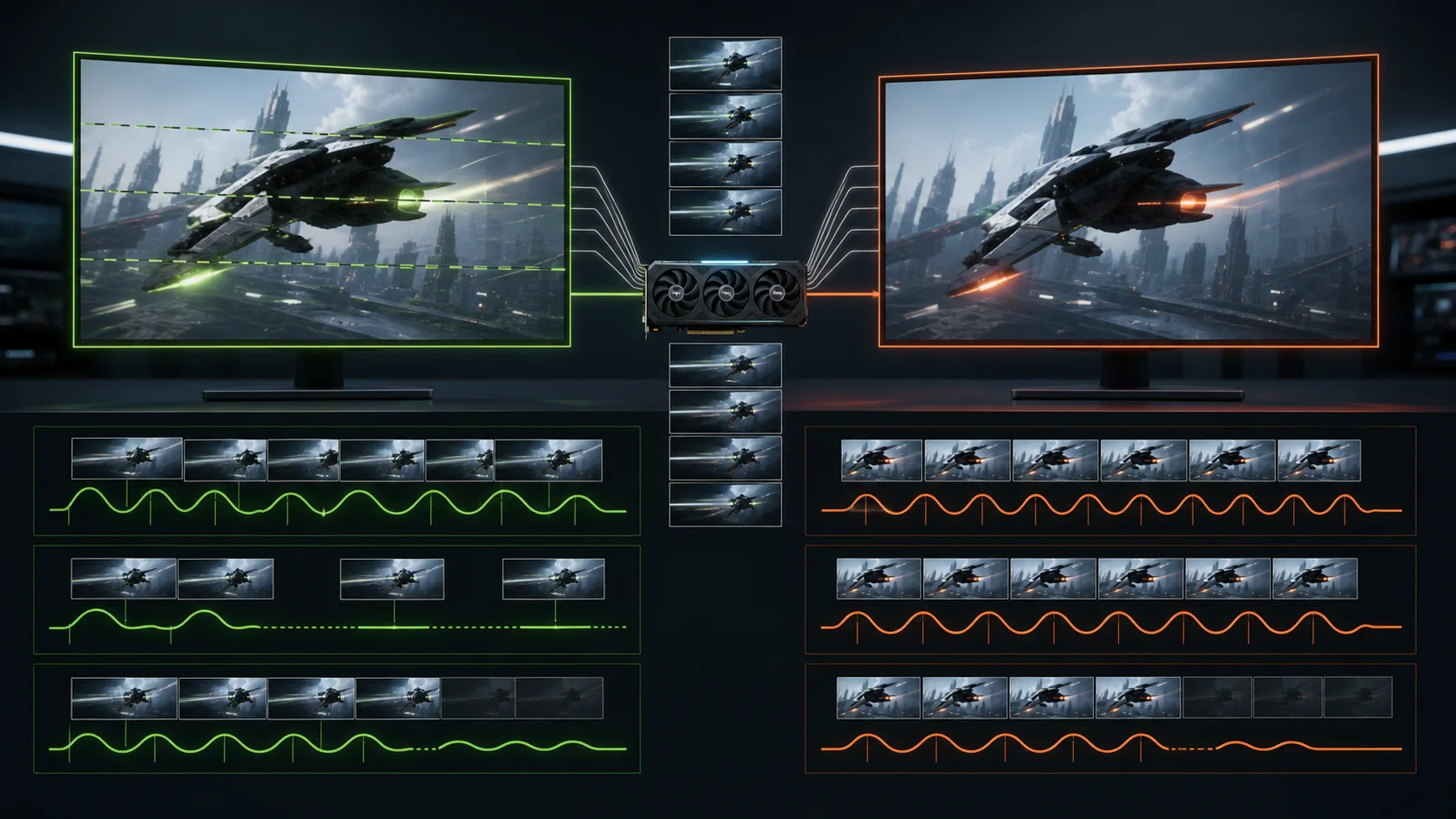
Traditional monitors refresh at a fixed rate regardless of how fast your GPU is producing new frames, which causes screen tearing (when a new frame starts drawing mid-refresh, showing parts of two different frames at once) if frame rate and refresh rate don’t align, or stutter if V-Sync is used to prevent tearing by forcing the GPU to wait for the next refresh cycle. G-Sync and FreeSync solve this differently, by letting the monitor’s refresh rate dynamically match whatever rate the GPU is actually producing frames at, within a supported range.
This distinction matters because it addresses both tearing and the stutter V-Sync can introduce simultaneously, rather than trading one problem for the other, which is why variable refresh rate technology has become close to standard on gaming monitors released in recent years. The underlying goal and result are functionally similar between G-Sync and FreeSync, but they’re implemented through different technical standards, covered in more depth in our G-Sync vs FreeSync comparison.
Enabling this properly requires alignment across three points: the monitor’s own hardware/firmware setting, the GPU driver’s setting, and physical connection support, since each of these three can independently prevent the feature from working even if the other two are correctly configured. This is different from a purely software setting like the refresh rate itself, which usually only needs to be set in one place.
Enabling the setting in your monitor’s OSD
Access your monitor’s on-screen display menu, typically through a physical joystick or button set on the underside or rear of the panel, and look for a setting related to variable refresh rate; naming differs meaningfully by monitor brand and even by specific model generation, appearing as “G-Sync,” “G-Sync Compatible,” “FreeSync,” “FreeSync Premium,” “Adaptive-Sync,” or the more generic industry term “VRR” depending on the monitor. Since there’s no single universal menu path across monitor brands, checking your specific monitor’s manual for the exact setting name and location is more reliable than assuming a fixed OSD structure.
Some monitors group this setting under a general “Gaming” or “Game Settings” submenu within the OSD rather than a dedicated top-level menu item, and a smaller number of monitors enable variable refresh rate automatically without any user-facing toggle at all once a compatible connection is detected. If you can’t locate a specific setting after checking the manual, it’s worth checking whether your model falls into this automatic-detection category rather than assuming a setting is missing entirely.
On monitors offering multiple connection inputs, the variable refresh rate setting sometimes needs to be confirmed per-input rather than globally, since older HDMI ports on some monitors don’t support the feature even while a DisplayPort input on the same physical monitor does; check which physical port you’re actually connected through if the setting doesn’t seem to be taking effect.
Enabling G-Sync in NVIDIA’s driver software
With an NVIDIA graphics card, open the NVIDIA App (which has largely replaced the older NVIDIA Control Panel as the primary settings interface on current driver versions, though Control Panel remains available for some settings) and navigate to its display or G-Sync-related settings section. Enable G-Sync (or G-Sync Compatible, the label used for non-NVIDIA-certified but supported monitors) for either full screen only or full screen and windowed mode, based on your preference; windowed mode support extends the benefit to borderless windowed games, which is common enough among current titles to be worth enabling for most people.
NVIDIA’s interface also includes a monitor compatibility indicator distinguishing between officially “G-Sync Compatible” certified displays (which NVIDIA has specifically tested and validated) and other FreeSync-standard monitors that may still work with the setting enabled but haven’t been through that formal certification process. A monitor not carrying the certified label can still function correctly with G-Sync enabled in many cases; the certification is a quality assurance signal rather than a strict technical requirement in every instance.
NVIDIA’s control panel or app typically also includes a per-game or global option to pair G-Sync with V-Sync, generally recommended to remain enabled alongside G-Sync specifically to handle frame rates that exceed your monitor’s maximum refresh rate, a scenario where G-Sync alone doesn’t prevent tearing and V-Sync’s frame-rate capping behavior becomes useful again.
Enabling FreeSync in AMD’s driver software
With an AMD graphics card, open AMD Software: Adrenalin Edition and navigate to its Display settings tab, where a FreeSync toggle should be present if a supported monitor is currently connected; if the toggle isn’t visible at all, this usually means the driver isn’t detecting a FreeSync-capable connection, worth checking against the OSD and cable considerations covered elsewhere in this guide before assuming a software fault.
AMD’s driver also distinguishes between standard FreeSync and FreeSync Premium or Premium Pro tiers on supporting monitors, which represent progressively higher certification standards (covering factors like low frame rate compensation and HDR support) rather than fundamentally different technology; enabling the base toggle activates the feature regardless of which tier your specific monitor is certified for.
Similar to NVIDIA’s approach, AMD’s software includes settings for whether FreeSync applies in windowed and full screen modes, and a related “Enhanced Sync” feature as an alternative frame pacing option for scenarios outside FreeSync’s supported refresh range; Enhanced Sync serves a different purpose than FreeSync itself and isn’t a required companion setting for typical use.
Cable and connection requirements
DisplayPort has historically offered the most consistent and broadest variable refresh rate support across both G-Sync and FreeSync implementations, and remains the more reliable connection choice if your monitor and graphics card both support it. HDMI support for variable refresh rate improved significantly with HDMI 2.1, which includes native VRR support as part of the specification, but older HDMI versions (2.0 and earlier) have inconsistent or absent support depending on the specific monitor and GPU’s implementation.
If variable refresh rate isn’t engaging over an HDMI connection despite both ends supporting it individually, checking that the physical cable itself is rated for the bandwidth your connection requires is worth doing, since an underspecified cable can silently limit functionality without necessarily showing an obvious error message; a cable rated for the appropriate HDMI or DisplayPort version for your resolution and refresh rate combination avoids this as a variable.
Multi-monitor setups occasionally introduce complications, since variable refresh rate generally only applies to the monitor actively displaying content with a supported connection, and running multiple displays through certain configurations, particularly some docking stations, USB-C hubs, or KVM switches covered in our KVM switch for dual monitors guide, can interfere with the direct connection variable refresh rate technology generally expects.
Laptop-specific enabling steps
Gaming laptops with variable refresh rate support generally enable it through a similar combination of a display setting and a graphics driver toggle, though the exact location can differ from desktop conventions since laptop panels are internally connected rather than through a user-accessible OSD; look for the equivalent setting within the laptop manufacturer’s own control software or within the same NVIDIA App / AMD Software interfaces covered above, since laptop GPUs use the same underlying driver software as their desktop counterparts.
Hybrid graphics laptops, which switch between integrated and discrete GPUs for battery efficiency, sometimes need variable refresh rate specifically enabled or confirmed while running on the discrete GPU, since the integrated GPU alone in some configurations may not have the same direct connection to the panel that variable refresh rate typically depends on; checking your laptop’s specific graphics switching documentation clarifies this if the feature seems unavailable despite an otherwise compatible panel.
Confirming it’s actually working
Both NVIDIA and AMD drivers offer an on-screen indicator option (typically a small overlay icon showing when G-Sync or FreeSync is actively engaged) that can be enabled from within their respective driver software, which is the most direct confirmation the feature is functioning rather than just enabled in settings without actually engaging. Turning this indicator on temporarily while testing is a reasonable diagnostic step even if you don’t want to leave it on permanently during regular play.
The UFO Test tool from Blur Busters, covered in our monitor test tools guide, also includes patterns specifically designed to visually demonstrate whether variable refresh rate is engaging correctly, useful as a second confirmation method beyond the driver’s own indicator.
A practical real-world check: variable refresh rate should visibly reduce or eliminate screen tearing during fast horizontal camera movement in a game, particularly at frame rates that don’t align with standard fixed refresh values; if tearing remains clearly visible during this kind of movement despite the feature reportedly being enabled everywhere, something in the chain (monitor OSD, driver setting, or cable/port) likely isn’t actually engaged correctly.
When one setting doesn’t match the others
A monitor OSD setting enabled without the corresponding driver setting enabled won’t produce a working variable refresh rate connection, since both need to agree; similarly, a driver setting enabled without the monitor’s own OSD setting toggled on will also fail to engage on many monitors, though some newer monitors enable this automatically without a distinct OSD toggle as mentioned earlier. If you’ve checked one location and assumed the rest, going back through each of the three points (monitor OSD, driver setting, and connection type) systematically resolves most non-functioning setups.
Frame rates outside your monitor’s supported variable refresh window (below the minimum, often somewhere around 30-48Hz depending on the specific panel, or above the monitor’s maximum refresh rate) will fall outside the range where G-Sync or FreeSync can operate, falling back to standard sync behavior in that scenario. This is expected and not a malfunction; capping frame rate to stay within the supported range, or accepting standard V-Sync/tearing behavior outside it, are the two realistic options when frame rate regularly falls outside the window.
Troubleshooting common enabling problems
If the G-Sync or FreeSync toggle is entirely missing from your driver software, first confirm your specific monitor model actually supports the feature at all, since not every gaming monitor does despite the technology being common; check the monitor’s specification sheet or product page for explicit G-Sync/FreeSync/Adaptive-Sync support before assuming a driver or setup issue.
Flickering or brightness fluctuation specifically at very low frame rates, near the bottom of the supported refresh range, is a known characteristic on some monitors without robust low framerate compensation (a feature more consistently found on higher FreeSync Premium/Pro or G-Sync certified tiers); if this happens, checking whether frame rate is dropping near your monitor’s minimum supported refresh rate during the flickering, and addressing the underlying frame rate cause covered in our fixing FPS drops guide, is a more effective fix than adjusting sync settings further.
If the on-screen indicator shows the feature as active but tearing is still visible, double-check that in-game V-Sync settings aren’t conflicting; some games have their own internal V-Sync toggle that, left enabled alongside driver-level G-Sync/FreeSync settings, can produce inconsistent behavior depending on how that specific game’s engine handles the interaction, so testing with in-game V-Sync disabled and relying on the driver-level setting instead is a reasonable troubleshooting step.
A setting that reverts to disabled after a driver update, rather than persisting, is a known occasional side effect of major driver version updates for both NVIDIA and AMD; checking and re-enabling display-related settings after any significant driver update is a reasonable habit rather than a sign of a persistent problem.
Frequently asked questions
Can I use FreeSync with an NVIDIA graphics card?
Yes, on most FreeSync monitors NVIDIA’s driver supports it under the “G-Sync Compatible” label, though NVIDIA specifically certifies and tests some models, while others work but haven’t been through that certification process, which doesn’t necessarily mean they won’t function correctly.
Does G-Sync or FreeSync need to be enabled in three separate places?
Typically yes for the fullest experience: the monitor’s own OSD setting, the graphics card driver’s global setting, and confirming your connection type and cable support it, since missing any one of these can leave the feature partially or fully non-functional even if the other two are correctly set.
Why does my frame rate need to stay within a certain range for variable refresh rate to work?
G-Sync and FreeSync both operate within a specific refresh rate window defined by the monitor’s panel, and frame rates outside that window (either dropping below the minimum or exceeding the maximum) fall back to standard V-Sync or no sync behavior until frame rate returns within range.
Should I use G-Sync/FreeSync together with V-Sync?
Many implementations, including NVIDIA’s recommended setup, pair variable refresh rate with V-Sync enabled as a backup specifically for frame rates that exceed the monitor’s maximum refresh rate, preventing tearing in that scenario, while frame rates within the variable range are handled by G-Sync/FreeSync itself rather than traditional V-Sync.
Does enabling G-Sync or FreeSync add input lag?
Properly configured variable refresh rate technology typically adds negligible to no measurable input lag compared to running with sync features off entirely, and generally reduces the stutter and tearing that would otherwise be more noticeable and disruptive than the sync method itself.
For monitors with a strong track record supporting this feature well, see our guides to the best gaming monitors and best 144Hz monitors.