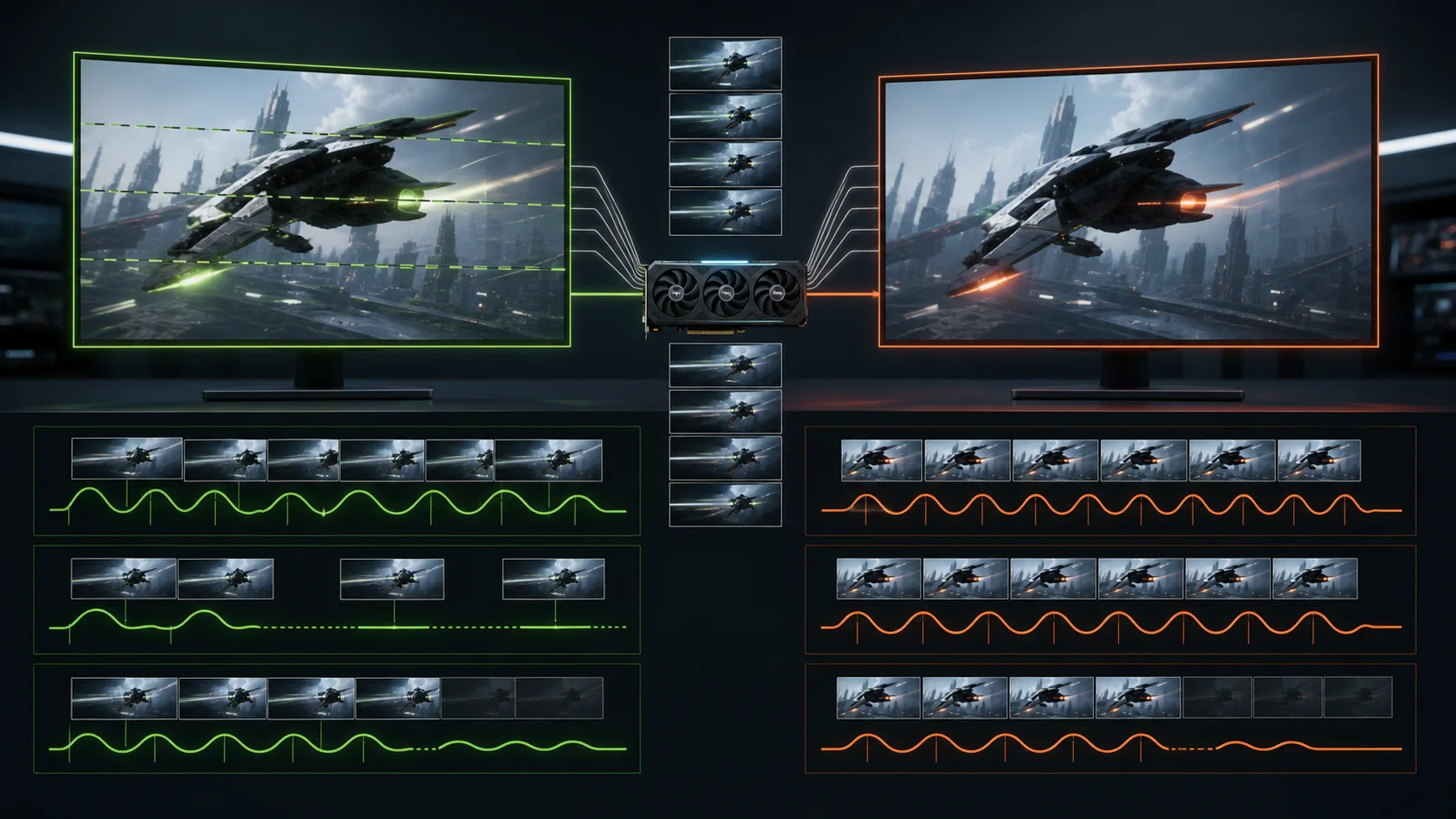
Screen tearing happens when your GPU’s frame rate and your monitor’s refresh rate aren’t synchronized, causing a new frame to start drawing partway through the monitor’s current refresh cycle and creating a visible horizontal split where two different frames are shown at once. The most effective modern fix is enabling G-Sync or FreeSync, which dynamically matches your monitor’s refresh rate to your GPU’s actual frame rate rather than the older approach of using V-Sync to force the GPU to wait.
Our Top Picks


Top 3 picks at a glance
Quick answer
Enable G-Sync (NVIDIA) or FreeSync (AMD) in both your monitor’s OSD and your graphics driver settings, covered in detail in our enabling G-Sync and FreeSync guide. If your monitor doesn’t support either, traditional V-Sync remains a reliable fallback, with the trade-off of potential added input lag or stutter at frame rates that don’t cleanly divide into your refresh rate. Capping your frame rate slightly below your monitor’s max refresh rate further reduces tearing risk in either scenario.
As an Amazon Associate we earn from qualifying purchases at no extra cost to you.


| Fix | Requires | Trade-off |
|---|---|---|
| G-Sync / FreeSync | Compatible monitor + GPU driver setting | Falls back to standard sync outside supported refresh range |
| Traditional V-Sync | Nothing extra, works on any monitor | Can add input lag or stutter |
| Frame rate cap | Driver or in-game FPS limiter | None, generally beneficial alongside either sync method |
Why tearing happens in the first place
Your monitor redraws its entire screen at a fixed interval determined by its refresh rate, for example every 1/144th of a second on a 144Hz display, regardless of what your GPU is doing at that exact moment. If your GPU finishes rendering a new frame partway through the monitor’s current draw cycle and immediately starts sending that new frame to the display buffer, the monitor ends up showing the bottom portion of the old frame and the top portion of the new frame simultaneously, visible as a horizontal seam, sometimes with a visible offset between the two frame portions.
This isn’t a hardware defect or a sign anything is wrong with your GPU or monitor; it’s simply a mathematical consequence of frame rate and refresh rate operating independently of each other without some synchronization mechanism actively coordinating them. It becomes more visually obvious during fast horizontal motion, like panning the camera quickly in a shooter or racing game, since that’s when the misalignment between the two frame halves is most noticeable to the eye.
Tearing can happen with frame rates both above and below your monitor’s refresh rate; a GPU producing 200 frames per second on a 144Hz monitor without any sync enabled will tear because it’s sending more frames than the monitor can display in an organized way, while a GPU struggling to maintain even 100 frames per second on that same 144Hz monitor can also tear, since the frame delivery still isn’t aligned with the monitor’s fixed refresh timing either way.
G-Sync and FreeSync: the modern fix
G-Sync and FreeSync solve tearing at its root cause by making the monitor’s refresh rate dynamically follow the GPU’s actual frame rate, rather than trying to force one side to conform to a fixed schedule the way traditional V-Sync does. Within the monitor’s supported variable refresh range, this eliminates tearing without the frame-pacing compromises that older sync methods can introduce.
Setting this up requires enabling the feature in three places: your monitor’s OSD, your GPU driver, and confirming a compatible cable and connection, all covered step by step in our dedicated G-Sync and FreeSync setup guide. This is genuinely the most effective fix available on modern hardware and should be the first thing checked if tearing is a persistent issue on a monitor you know supports variable refresh rate technology.
It’s worth confirming your specific monitor actually supports one of these standards before assuming it should be an option; not every gaming monitor does, and checking the monitor’s specification sheet or product page for explicit G-Sync, FreeSync, or Adaptive-Sync support clarifies whether this fix is even available to you before troubleshooting a missing setting.
Traditional V-Sync as a fallback
For monitors without G-Sync or FreeSync support, or in specific games or scenarios where variable refresh rate isn’t fully effective, traditional V-Sync remains a functional tearing fix, working by forcing the GPU to hold each completed frame until the monitor’s next refresh cycle begins, ensuring frames are only ever displayed in full, complete cycles rather than mid-draw.
The trade-off with V-Sync is twofold: it can introduce a small amount of additional input lag, since the GPU is intentionally holding rendered frames rather than displaying them the instant they’re ready, and it can cause visible stutter specifically when frame rate drops below the monitor’s refresh rate, since V-Sync then effectively halves the displayed frame rate to the next clean division (for example, dropping from 60fps to 30fps on a 60Hz display rather than showing an intermediate rate) rather than smoothly adapting.
V-Sync is typically enabled either through the graphics driver’s global or per-game settings, or through an in-game display settings menu if the specific title includes its own toggle; enabling it in only one location, rather than both simultaneously with potentially conflicting settings, generally produces more predictable behavior.
Fast Sync (NVIDIA) and Enhanced Sync (AMD) are alternative sync methods some drivers offer specifically designed to reduce V-Sync’s input lag downside at frame rates well above the monitor’s refresh rate, worth exploring if you have a GPU capable of significantly exceeding your monitor’s refresh rate but don’t have access to G-Sync or FreeSync for some reason.
Frame rate capping as a complementary fix
Capping your GPU’s maximum frame rate slightly below your monitor’s refresh rate, commonly by a small margin like 3-5 frames per second below the maximum, helps keep frame rate reliably within your monitor’s variable refresh range when using G-Sync or FreeSync, avoiding the scenario where frame rate briefly exceeds the supported range and tearing returns at the top end.
This cap can be set through your graphics driver (both NVIDIA App and AMD Software: Adrenalin Edition include a frame rate limiter setting), through some games’ own in-game FPS limiter, or through a third-party tool like RivaTuner Statistics Server (the same underlying framework MSI Afterburner uses) for more granular per-game control.
Frame rate capping doesn’t reduce visual quality in any way, since it only limits how many frames the GPU produces rather than affecting resolution, texture detail, or any rendering setting, and it can improve overall frame pacing consistency as a side benefit even beyond just supporting sync technology, since a GPU running well below its maximum capability tends to produce more consistently timed frames than one running flat out at its limit.
Tearing in borderless windowed versus full-screen exclusive mode
How a game handles sync technology can differ meaningfully between its available display modes, and this is a common source of confusion when tearing seems to appear or disappear depending on which mode is selected. Full-screen exclusive mode traditionally gives a game direct control over the display’s refresh timing, which is generally the most reliable mode for G-Sync, FreeSync, and traditional V-Sync alike to function exactly as intended.
Borderless windowed mode, by contrast, runs the game as a maximized window managed by Windows’ own desktop compositor rather than taking exclusive control of the display, which historically produced less consistent sync behavior across different games and driver versions, though this gap has narrowed considerably in recent years as Windows’ compositor and GPU drivers have both improved their handling of borderless windowed sync scenarios.
If tearing appears specifically in one display mode but not the other for the same game with identical sync settings otherwise, switching to whichever mode behaves better for that specific title, rather than trying to force a fix within the mode that’s causing the issue, is often the more practical path, since the underlying compositor behavior differences aren’t something typically adjustable through simple driver settings alone.
Diagnosing tearing without sync technology available
If your monitor genuinely doesn’t support G-Sync or FreeSync and you want to confirm tearing is actually happening rather than assuming based on a subjective impression, the UFO Test tool from Blur Busters, covered in our monitor test tools guide, includes patterns specifically designed to make tearing clearly visible for direct confirmation, useful both for diagnosis and for confirming whether a fix has actually resolved it.
Tearing that appears only during specific games but not others, with sync settings otherwise identical, often points toward a per-game setting difference rather than a system-wide sync configuration issue; check that specific game’s own display or graphics settings for a separate in-game V-Sync toggle, which sometimes needs to be independently enabled or disabled alongside your driver-level settings depending on how that particular game handles sync internally.
When sync settings alone won’t fully solve tearing
Multi-monitor setups can complicate sync technology in ways a single-monitor setup doesn’t encounter, since variable refresh rate generally only functions properly on the actively rendered display, and certain multi-monitor configurations or connection methods, including some docking stations, USB-C hubs, or KVM switches covered in our KVM switch for dual monitors guide, can interfere with the direct GPU-to-display connection variable refresh rate technology typically requires.
Frame rates that regularly and significantly exceed your monitor’s maximum refresh rate, common in less demanding older or competitive titles run on a powerful GPU, will push beyond G-Sync/FreeSync’s supported range even with a frame cap in place if the cap itself is set too high; adjusting the cap to comfortably sit within your monitor’s supported range, rather than right at its edge, gives more reliable tearing-free results.
Extremely low and unstable frame rates, well below your monitor’s minimum supported variable refresh threshold (often somewhere around 30-48Hz depending on the specific panel), fall outside where G-Sync/FreeSync can help at all; in this scenario, the actual fix is addressing why frame rate is that low in the first place, covered in our fixing FPS drops guide, rather than continuing to adjust sync settings that can’t meaningfully help below that threshold.
Laptop and integrated graphics considerations
Gaming laptops with both integrated and discrete GPUs (a common configuration for battery efficiency) can experience tearing tied specifically to which GPU is currently rendering a given application, since some hybrid graphics configurations route display output differently depending on active GPU switching; if tearing appears inconsistently on a laptop despite sync settings seemingly correct, checking which GPU is actively handling the specific game in your laptop’s graphics control panel is worth doing before assuming a display or cable issue.
Variable refresh rate support on laptop displays has become increasingly common on gaming laptops specifically, but isn’t universal even among laptops marketed for gaming, so confirming your specific laptop model’s display panel supports G-Sync or FreeSync, rather than assuming based on the discrete GPU’s own capability, avoids troubleshooting a feature that was never actually available on that particular screen.
Troubleshooting persistent tearing
If tearing persists despite G-Sync or FreeSync reportedly being enabled everywhere it should be, work through the confirmation steps in our G-Sync and FreeSync guide systematically, since a mismatch between any of the three required settings (monitor OSD, driver, and cable/connection type) commonly explains this exact symptom, and it’s easy to have confirmed two out of three without realizing the third was never actually set.
Tearing that appears specifically at the very top or bottom edge of the screen only, rather than a full horizontal tear across the middle, can sometimes be a different visual artifact entirely, related to how a specific game renders its UI overlay separately from the main 3D scene; this is a less common and more game-specific issue than general sync-related tearing and is worth distinguishing from the more common full-screen tear pattern.
If you’ve confirmed tearing occurs even with frame rate comfortably within your monitor’s supported variable refresh range and sync properly enabled, checking for a conflicting in-game V-Sync setting, mentioned earlier, or an outdated graphics driver version are the two most common remaining causes; updating to the current driver release from NVIDIA or AMD’s official site resolves display sync bugs from time to time as part of normal driver maintenance.
Borderless windowed mode handles sync technology less consistently than true full-screen exclusive mode in some games and driver combinations; if tearing appears specifically in borderless windowed mode but not full-screen exclusive mode for the same game, switching display modes within that game’s settings is worth testing as a direct comparison.
Frequently asked questions
What’s the actual difference between V-Sync and G-Sync/FreeSync for fixing tearing?
V-Sync fixes tearing by forcing the GPU to wait for the monitor’s fixed refresh cycle, which can introduce stutter or added input lag when frame rate doesn’t match the refresh rate exactly, while G-Sync/FreeSync fixes tearing by making the monitor’s refresh rate match the GPU’s frame rate instead, generally avoiding that stutter and lag trade-off.
Can screen tearing happen even with G-Sync or FreeSync enabled?
Yes, if frame rate exceeds your monitor’s maximum refresh rate, variable refresh rate technology can’t keep up and tearing can return above that ceiling, which is why capping frame rate slightly below your monitor’s max, or pairing G-Sync/FreeSync with V-Sync as a backup, is commonly recommended.
Is screen tearing a sign of a hardware problem?
No, tearing is a normal, expected consequence of frame rate and refresh rate not being synchronized, not a symptom of failing or defective hardware; it happens on capable, healthy systems whenever sync features are off and frame rate isn’t aligned with refresh rate.
Does tearing happen more in some games than others?
Yes, tearing is generally more visible during fast horizontal camera movement, so games with quick panning or turning, common in shooters and racing games, tend to show it more noticeably than slower-paced or more static games where the same underlying mismatch is happening but is simply less visually obvious.
Will capping my frame rate reduce image quality?
No, a frame rate cap doesn’t affect rendering resolution, texture quality, or any visual setting; it only limits how many frames per second the GPU produces, which can actually improve consistency and reduce tearing or stutter without any visible quality trade-off.
For monitors with well-implemented variable refresh rate support, see our guides to the best gaming monitors and G-Sync vs FreeSync comparison.