The best refresh rate for gaming is 144Hz for the great majority of players. It captures nearly all of the perceptual benefit that high refresh rates offer, mid-range graphics hardware can actually reach it in most games, and the price premium over a 100Hz panel is now small enough to be irrelevant. Everything above 144Hz is a matter of diminishing returns that only makes financial sense under specific conditions.
Those conditions are worth stating up front. Buy 240Hz or higher if you play competitive shooters and your hardware already sustains more than 144fps in them. Buy 120Hz if your display is primarily for a PlayStation 5 or Xbox Series X. Stay at 60Hz only if the budget genuinely does not stretch further, because the jump from 60Hz to 144Hz is the single largest visible improvement available anywhere in monitor specifications.
As an Amazon Associate we earn from qualifying purchases at no extra cost to you.



The rest of this guide explains why, using the arithmetic of frame intervals rather than adjectives, and works through the cases where the general answer is wrong. It draws on the measurement work our display specialist Nina Alvarez does on a bench built around a colorimeter, a photodiode response-time tester and a pattern generator, which is the equipment that turns claims about motion into numbers you can argue with.
Our Top Picks
 SANSUI 32 Inch Curved 240Hz Gaming Monitor High32 inch24.19 x 8.06 x 17.75 Inches9.7 PoundsCheck on Amazon
 New! Sceptre 27-inch Prime Gaming Monitor DisplayPort x227 inches6.7 x 24.2 x 17.4 inches7 PoundsCheck on Amazon
 Alienware AW2725DF OLED Gaming Monitor27.0 OLED9.59 x 23.98 x 15.99 inches13.89 poundsCheck on Amazon


Top 3 picks at a glance
The short answer, by what you play
| Your situation | Refresh rate to buy | Reasoning |
|---|---|---|
| Mixed library, mid-range PC | 144Hz | Reachable, cheap, captures most of the benefit |
| Competitive shooters, high-end PC | 240Hz or higher | You can feed it, and reaction time matters |
| Single-player AAA at high settings | 120Hz to 144Hz | Frame rates rarely exceed this range anyway |
| Strategy, simulation, city builders | 100Hz to 144Hz | Smoothness helps panning; reaction time does not decide outcomes |
| Console-first setup | 120Hz | Current consoles output no more than 120Hz |
| Office work with occasional gaming | 100Hz to 144Hz | Scrolling and cursor motion improve noticeably |
| Budget under $80 | Whatever exceeds 60Hz | Any step above 60Hz is the biggest single gain |
The pattern in that table is that the answer clusters tightly around 144Hz, and the exceptions push in both directions for different reasons: consoles cap the ceiling from above, competitive play pushes it up from below, and budget sets a floor.
Refresh rate only pays off if your frame rate keeps up
A monitor’s refresh rate is a ceiling, not a performance figure. It describes how many times per second the panel can redraw, and it cannot invent frames the graphics card has not produced. A 240Hz display fed 90 frames per second shows 90 distinct images per second, exactly like a 90Hz display would, with the remaining refresh cycles repeating what is already there.
This is the mistake that costs people the most money in this category. Buying a 280Hz panel to pair with a graphics card that manages 110fps at your chosen resolution spends the budget in the wrong order. The card is the limit, and every dollar moved from the monitor to the card raises the frame rate that both components are constrained by.
The exception worth noting is that a high ceiling is never actively harmful. Adaptive sync technologies, FreeSync and G-Sync, let the panel refresh at whatever rate the card supplies within a supported range, so an over-specified monitor simply idles below its maximum rather than causing problems. If a 240Hz panel is on sale for the same money as a 144Hz one, take it. Just do not pay a premium for headroom your system cannot occupy.
There is also a desktop benefit that applies regardless of in-game frame rate. Windows renders the cursor and window compositing at the panel’s full refresh rate, so scrolling a web page and moving a mouse pointer feel smoother on a 144Hz display even when every game you own runs at 60fps. It is a genuine improvement, and it is not the reason to spend $200.
Diminishing returns, measured in milliseconds
The clearest way to understand why the answer is 144Hz rather than 360Hz is to look at what each step actually removes. Refresh rate translates directly into the interval between frames, and the interval shrinks non-linearly as the rate climbs.
| Refresh rate | Frame interval | Saved vs previous tier |
|---|---|---|
| 60Hz | 16.67ms | — |
| 75Hz | 13.33ms | 3.34ms |
| 100Hz | 10.00ms | 3.33ms |
| 120Hz | 8.33ms | 1.67ms |
| 144Hz | 6.94ms | 1.39ms |
| 165Hz | 6.06ms | 0.88ms |
| 180Hz | 5.56ms | 0.50ms |
| 240Hz | 4.17ms | 1.39ms |
| 300Hz | 3.33ms | 0.84ms |
| 360Hz | 2.78ms | 0.55ms |
Read the cumulative figures rather than the individual steps. Moving from 60Hz to 144Hz removes 9.73ms per frame. Moving from 144Hz all the way to 360Hz removes a further 4.16ms, less than half as much, for several times the cost in both monitor price and graphics hardware. That single comparison is the whole argument.
Context matters too. A complete click-to-photon latency chain in a typical setup includes mouse polling at 1 to 8ms, game engine and render queue delay anywhere from 10 to 40ms depending on frame rate and buffering, average scanout wait of half a frame interval, and pixel response of a few milliseconds. The render queue is the largest term by a wide margin, which is why raising sustained frame rate reduces total latency more than raising panel refresh rate does. Our companion explainer on refresh rate and response time takes that chain apart in more detail.
Genre by genre
Competitive first-person shooters are the one category where refresh rate above 144Hz is straightforwardly worth paying for. Tracking a moving target benefits from more samples per second, and the games themselves are built to run at very high frame rates on modest hardware. This is the use case that justifies 240Hz and above, and it is why tournament setups standardised there.
Fighting games are a special case that people get wrong. They typically run locked at 60fps by design, because the game logic is built around 60 frames per second and the frame data that defines every move is counted in those frames. A higher refresh monitor cannot change that. What it can reduce is display latency, which matters for tight input timing, so a fast panel helps even though the frame rate is fixed.
MOBAs and top-down games such as League of Legends or Dota 2 run at very high frame rates on almost any hardware, so a high refresh panel is easy to feed. The benefit is real but smaller, because the camera is fixed and the fast motion happens in small screen regions rather than as full-screen camera sweeps.
Racing and flight simulation benefit substantially from high refresh rates, because these games involve continuous full-screen motion, which is exactly the condition where sample-and-hold blur is most visible. Frame rate is usually the constraint rather than the panel, especially in triple-screen or high-resolution setups.
Single-player action and role-playing games rarely exceed 100 to 144fps at high settings on mainstream hardware, so the panel is almost never the limiting factor. Here, resolution, contrast and colour matter more than the last 60Hz of refresh rate, which is why buyers in this category should read our resolution guide before the refresh rate specification.
Strategy and management games gain the least. Reaction speed does not determine outcomes, and the primary motion is map panning, which looks smoother at 144Hz but does not change how well you play. A 100Hz to 144Hz panel with good text rendering and a large screen serves these games better than a fast small one.
What your hardware can realistically sustain
Refresh rate decisions should follow from frame rate expectations, so it helps to have rough tiers in mind. The figures below are estimates derived from configuration and pixel counts rather than our own benchmark runs, and they vary considerably by title and settings.
At 1920×1080, entry-level current hardware in the RTX 4060 or RX 7600 class typically holds well above 240fps in older esports titles, somewhere around 150 to 200fps in current competitive shooters at reduced settings, and 60 to 100fps in modern single-player games at high settings. That profile matches a 144Hz to 240Hz panel.
At 2560×1440, which is 78% more pixels, the same hardware drops to roughly 100 to 150fps in competitive titles and 45 to 70fps in demanding single-player games. That profile matches a 144Hz to 165Hz panel, and buying 240Hz at this resolution on mid-range hardware means paying for a ceiling you will rarely approach.
At 3840×2160, four times the pixels of 1080p, even high-end cards frequently sit between 60 and 100fps in modern titles without upscaling. This is why 4K monitors cluster at 120Hz to 160Hz rather than 240Hz: the resolution consumes the graphics budget that refresh rate would otherwise use.
The practical rule that follows is to pick the resolution first, estimate the frame rate your card will deliver at that resolution in the games you actually play, and then buy a refresh rate somewhat above that figure so adaptive sync has room to work. Buying a refresh rate far above it is spending on a specification you have already decided not to use.
Refresh rate versus resolution: where the money goes
Almost every monitor purchase involves trading one against the other, because both consume the same graphics budget. A useful way to frame it is that resolution improves how the image looks when it is still, and refresh rate improves how it looks when it moves.
Games where you spend most of your time looking at detail, exploring, reading, admiring scenery, reward resolution. Games where you spend most of your time tracking motion reward refresh rate. Most people play both kinds, which is why 1440p at 144Hz to 180Hz has become the default recommendation: it is the point where neither axis is badly compromised and mid-range hardware can serve both.
The arithmetic behind that compromise is worth stating. 2560×1440 is 3,686,400 pixels against 1920×1080’s 2,073,600, so QHD costs 78% more work per frame. Pushing 240Hz at QHD therefore demands roughly the pixel throughput of 1080p at 427Hz, which is why 1440p high-refresh monitors are so much more demanding than their refresh rate alone suggests.
The failure mode to avoid is buying maximum specifications on both axes with mid-range hardware. A 4K 240Hz panel driven by a card that manages 70fps delivers neither the sharpness benefit at full settings nor the motion benefit at high frame rates, and costs more than either specification alone would.
Adaptive sync, frame caps and why more Hz can feel worse
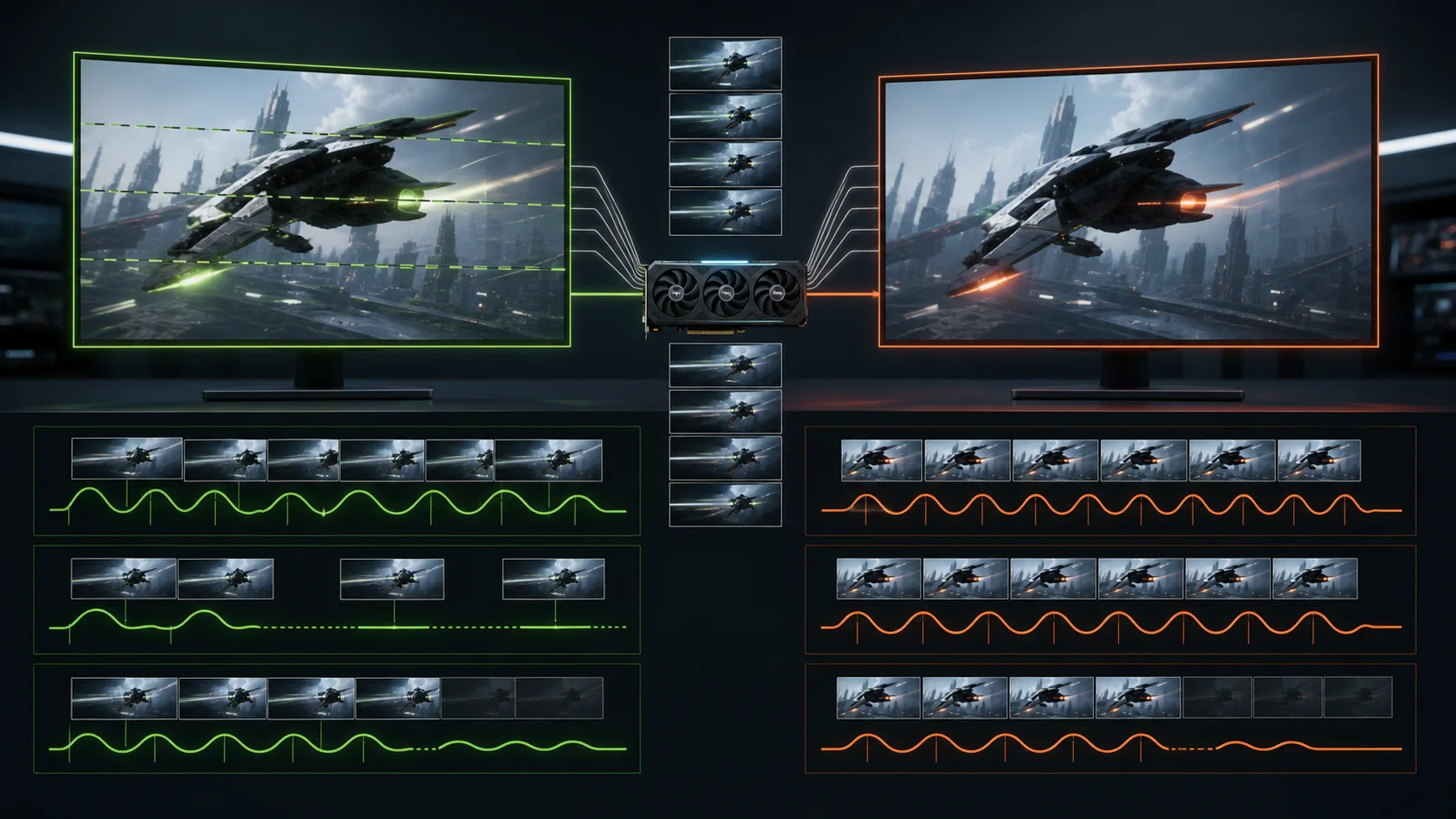
Variable refresh rate matches the panel’s refresh interval to the graphics card’s output, eliminating tearing without the latency penalty that traditional vertical sync imposes. Both FreeSync and G-Sync do this, and every high refresh monitor worth buying supports at least one. Our comparison of the two standards covers what each certification actually guarantees.
Every adaptive sync implementation works within a range, commonly something like 48Hz to the panel maximum. Below the bottom of that range, low framerate compensation duplicates frames to keep the panel inside its window. Monitors that do not publish a variable range may have a narrow one, which matters when your frame rate drops during heavy scenes.
The counterintuitive part is that a higher refresh panel can feel worse if it is configured badly. When frame rate exceeds refresh rate with vertical sync enabled, frames queue up waiting for their turn to be displayed, and latency climbs sharply. This is why a 240Hz monitor with vertical sync on and an uncapped frame rate can feel less responsive than a properly configured 144Hz one.
The correct configuration is consistent across systems: adaptive sync on at the driver level, in-game vertical sync off, and a frame rate cap set roughly three frames below the panel’s maximum. On a 144Hz display cap at 141fps, on a 240Hz display cap at 237fps. That keeps the GPU permanently inside the variable window, avoiding both tearing and queueing. Use one limiter, either the in-game one or the driver one, not both, because stacked limiters can produce uneven frame pacing.
Cables, ports and the bandwidth ceiling
A refresh rate specification is only achievable if the signal path can carry it. This is where a surprising number of high refresh monitors quietly underperform, because the connection negotiates a lower mode without announcing it.
| Signal | Approximate bandwidth needed | Minimum interface |
|---|---|---|
| 1080p at 144Hz | 7.2 Gbit/s | HDMI 2.0 or DisplayPort 1.2 |
| 1080p at 240Hz | 11.9 Gbit/s | HDMI 2.0 or DisplayPort 1.2 |
| 1440p at 144Hz | 12.7 Gbit/s | DisplayPort 1.2 |
| 1440p at 165Hz | 14.6 Gbit/s | DisplayPort 1.4 |
| 1440p at 240Hz | 21.2 Gbit/s | DisplayPort 1.4 |
| 1440p at 300Hz | 26.5 Gbit/s | DisplayPort 1.4 with DSC |
| 4K at 120Hz | 23.9 Gbit/s | HDMI 2.1 or DisplayPort 1.4 |
Figures above are raw video bandwidth at 8-bit colour, before blanking overhead, which adds several percent. For reference, HDMI 2.0 carries about 14.4 Gbit/s of payload, DisplayPort 1.2 about 17.28 Gbit/s, DisplayPort 1.4 about 25.92 Gbit/s and HDMI 2.1 about 42.6 Gbit/s. Display Stream Compression is a visually lossless standard that extends what DisplayPort 1.4 can carry, and it is routine on high refresh QHD and 4K panels.
The practical consequences are specific. An older HDMI 1.4 cable caps 1080p at 120Hz. HDMI 2.0 cannot carry 1440p at 165Hz. Console 4K at 120Hz requires HDMI 2.1 on both ends and a cable rated for it. And an uncertified DisplayPort cable at high refresh rates produces intermittent black flashes that look exactly like a failing monitor.
Consoles and handhelds
Current consoles cap the conversation from above. PlayStation 5 and Xbox Series X output a maximum of 120Hz, and only a subset of titles offer a 120fps performance mode at all, with many settling at 60fps for visual fidelity. A 120Hz display with HDMI 2.1 therefore captures everything a current console can deliver, and any refresh rate above that is unused by console input.
That does not make a higher refresh monitor pointless in a mixed setup, because the PC side still uses the full range. It does mean that a monitor bought primarily for console use should prioritise HDMI 2.1, variable refresh rate support and image quality over a refresh rate number that the source cannot reach. Our console gaming monitor guide covers what to prioritise instead.
Handheld gaming PCs sit at the other end. Their displays typically run at 60Hz to 120Hz, and their power-constrained hardware rarely sustains high frame rates in demanding titles, so refresh rate is seldom the binding limit. On these devices, capping frame rate to a stable value that the hardware can hold, often 40fps or 45fps on a display that supports those rates evenly, produces a smoother experience than letting the rate float towards a higher ceiling.
If your monitor is not running at its rated refresh rate
A significant share of complaints that a new high refresh monitor feels no different come down to configuration rather than hardware. The display defaults to 60Hz on many systems, and nothing prompts you to change it.
Work through the checks in order. Open Windows Settings, then System, then Display, then Advanced display, and read the refresh rate the system reports. If the maximum available is lower than the panel’s rating, the signal path is the cause: confirm you are connected over DisplayPort rather than HDMI where the panel requires it, and swap in a certified cable rated for the standard your monitor needs.
Next, check the graphics driver. Both Nvidia and AMD control panels have their own display configuration pages, and a resolution or refresh rate set there can override the Windows setting. Confirm the driver is reporting the same rate that Windows does. If the panel supports a factory overclock to reach its top rate, that is usually a separate toggle in the monitor’s own on-screen menu and is disabled by default.
Then confirm adaptive sync is actually enabled, both in the monitor’s on-screen menu and in the driver control panel. Many monitors ship with FreeSync switched off, and enabling it in only one of the two places does nothing. Finally, verify in-game: some titles have their own display mode setting and will run at 60Hz in borderless windowed mode on certain configurations even when the desktop is at full rate. Exclusive full screen is the reliable option if in doubt.
Frequently asked questions
What is the best refresh rate for gaming for most people?
144Hz. It captures the overwhelming majority of the benefit available from high refresh rates, it is reachable by mid-range graphics hardware in almost every game, and it costs very little extra over 60Hz or 100Hz panels. Going from 60Hz to 144Hz cuts the interval between frames from 16.7ms to 6.9ms, a 9.8ms improvement that anyone can see instantly. Everything above 144Hz delivers progressively smaller gains for progressively more money and graphics power.
Is 240Hz noticeably better than 144Hz?
It is measurably better and only sometimes noticeably better. The frame interval drops from 6.94ms to 4.17ms, a 2.8ms improvement, and trained competitive players do identify it reliably in blind comparison. Casual players usually cannot, particularly if their frame rate does not consistently exceed 144fps in the first place. The honest rule is that 240Hz is worth buying when you already sustain more than 144fps in your main game and you play something where reaction time decides outcomes.
Does a high refresh rate monitor help if my GPU only manages 60fps?
Partly. Your game will still look like 60fps because the panel can only show frames the card produces, so the motion clarity benefit is largely absent. What you do get is a smoother desktop and mouse cursor, since Windows renders those at the panel’s full rate, plus variable refresh rate keeping the display synced to your uneven frame delivery instead of tearing. It is a real but modest benefit, and the money would go further towards a faster graphics card.
Should I cap my frame rate below my monitor’s refresh rate?
Yes, in most competitive setups. With adaptive sync enabled, capping frame rate roughly three frames below the panel’s maximum keeps the GPU inside the variable refresh window at all times, which avoids both screen tearing and the latency spike that occurs when frame rate exceeds refresh rate with vertical sync active. On a 144Hz panel cap at 141fps; on a 240Hz panel cap at 237fps. Use the in-game limiter or the driver limiter, not both.
Do console games benefit from a 240Hz monitor?
No. PlayStation 5 and Xbox Series X output a maximum of 120Hz, and only a subset of titles offer a 120fps performance mode at all, with many capping at 60fps. A 120Hz display with HDMI 2.1 captures everything a current console can deliver, and refresh rates above that are wasted on console input entirely. If the same monitor also serves a gaming PC, a higher refresh panel still makes sense for the PC side alone.