If your goal is the best gaming monitor for a PS5 with HDMI 2.1, start with the Gawfolk 27-inch 4K, because it is the only mid-range listing whose title names a 4K panel, an HDMI 2.1 input and a refresh rate above 120Hz together, and the PS5’s ceiling is exactly 4K at 120Hz. The CRUA 32-inch 4K is the larger-screen alternative, and the Hikers 27-inch 1440p is the budget route. One listing deserves a warning up front: the ASUS TUF is marketed for the PS5 but its title never mentions HDMI 2.1, so you have to confirm that port before treating it as a match for this search.
Information below comes from listing titles and general knowledge of how consoles and displays work. Where a title is silent, the text says “check the listing” instead of guessing.
Our Top Picks
What the PS5 can use, and what it ignores

Hikers 27 Inch Curved Monitor 170Hz 144Hz, 2K 1440P Computer Gaming Monitor | HDMI 2.1×2 DP 1.4×1, AI CrossHair Fast VA 4000:1 Contrast, for FPS Games and Work (G27H1Q, Includes One HDMI 2.1 Cable)


As an Amazon Associate we earn from qualifying purchases. Product prices and availability are accurate as of the date/time indicated.

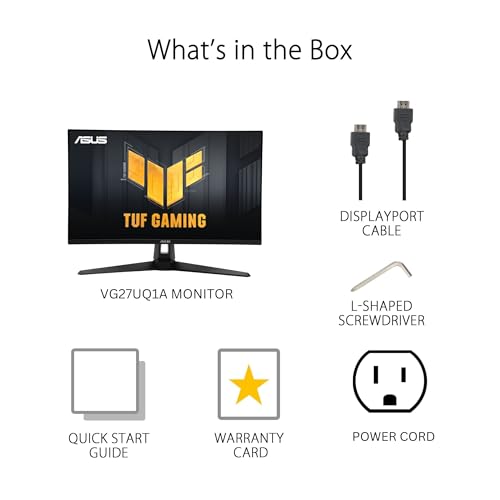
ASUS TUF Gaming VG27UQ1A 27 Inch 4K 160Hz G-SYNC Gaming Monitor | ELMB Sync, 1ms, 95% DCI-P3, FreeSync Premium, DisplayWidget Center, for PS5 and Xbox




As an Amazon Associate we earn from qualifying purchases. Product prices and availability are accurate as of the date/time indicated.

24" QHD 320Hz IPS Gaming Monitor, 0.5ms, FreeSync Premium, HDR, HDMI 2.1 | QHD 320Hz 0.5ms IPS FreeSync HDR600 HDMI 2.1 Gaming Monitor Height Adjustable for Xbox PS5 Switch gaming office


As an Amazon Associate we earn from qualifying purchases. Product prices and availability are accurate as of the date/time indicated.

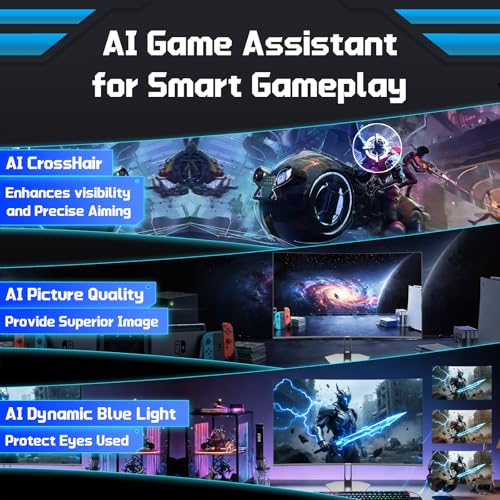
Hikers 27 Inch Curved Gaming Monitor 280Hz 240Hz 1ms 2K Gaming Monitor | 2K WQHD 1440P HDMI 2.1×2 & DP 1.4×1 Fast VA 5000:1 Contrast, 134% sRGB 1500R VESA (G27H1Q Pro Includes One HDMI 2.1 Cable)




As an Amazon Associate we earn from qualifying purchases. Product prices and availability are accurate as of the date/time indicated.

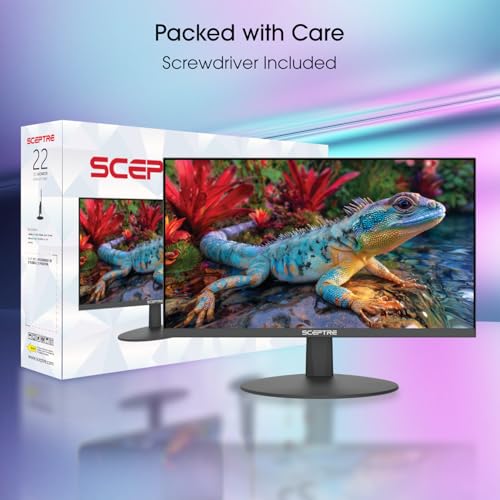
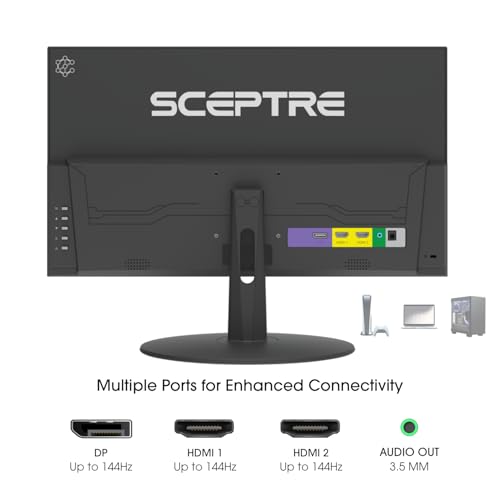
Sceptre New 22-Inch Gaming Monitor, FHD 1080p, Up to 144Hz, HDMI, DisplayPort, Built-in Speakers, Machine Black (E225W-FW144 Series, 2026)



As an Amazon Associate we earn from qualifying purchases. Product prices and availability are accurate as of the date/time indicated.

CRUA 32" 4K UHD 160Hz Curved Gaming Monitor, 1500R, AMD FreeSync, Black | 3840x2160 VA, 120%sRGB, Built-In Speakers, HDMI 2.1/DP 1.4 and 75x75mm Wall Mount for Gaming, Streaming, Editing and Work


As an Amazon Associate we earn from qualifying purchases. Product prices and availability are accurate as of the date/time indicated.
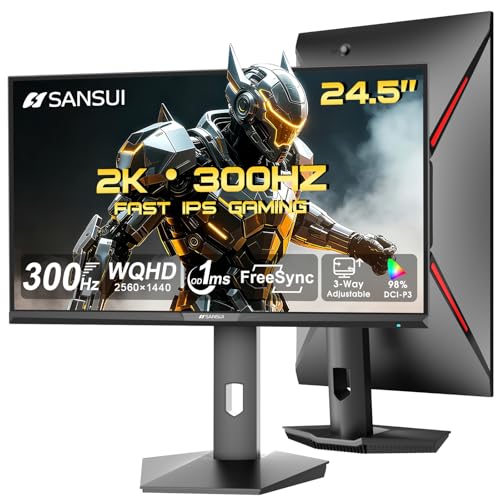
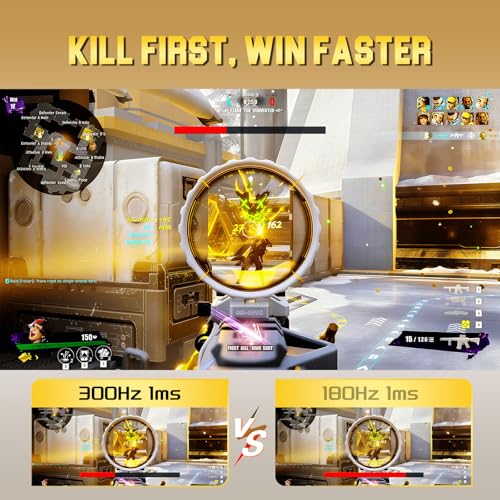
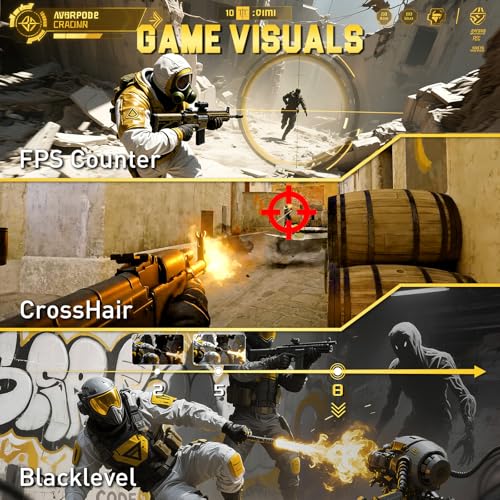
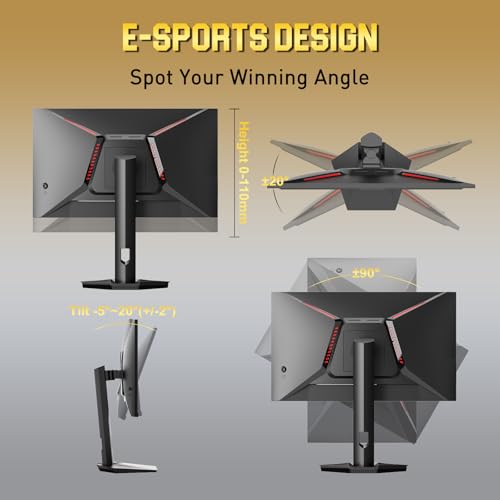
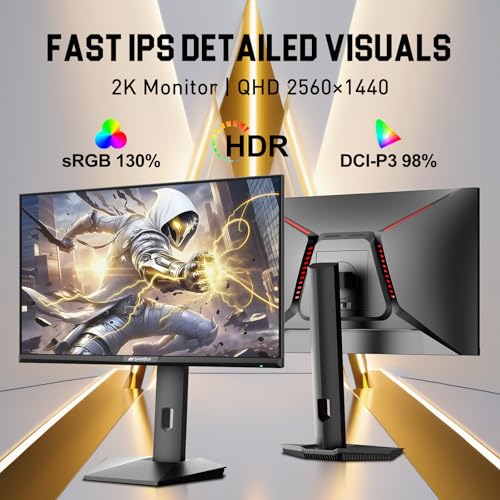
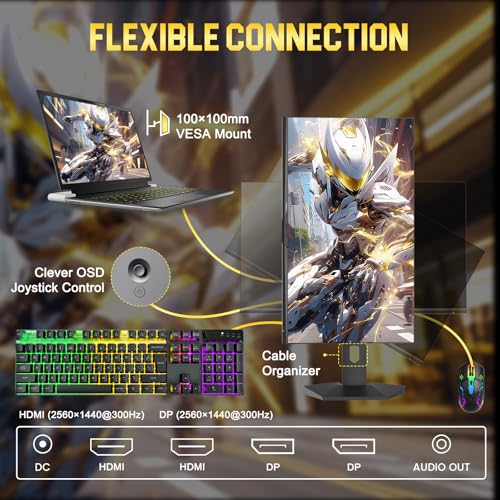
SANSUI 24.5 Inch Gaming Monitor QHD 1440P 300Hz 240Hz, 1ms Fast IPS Computer Monitor, 2× HDMI 2.1 Up to 300Hz, 2× DP 1.4 Up to 300Hz, 130% sRGB Eye Care VESA Support (DP Cable Included ES-G25F6Q Pro)



As an Amazon Associate we earn from qualifying purchases. Product prices and availability are accurate as of the date/time indicated.

Gawfolk 27 Inch 4K Gaming Monitor UHD 160Hz/ FHD 320Hz Dual Mode PC Monitor | IPS Computer Screen Built-in Speakers | PIP/PBP multitasking | HDMI 2.1 & DP 1.4 | VESA 75×75mm | For PS5, Xbox, PC gaming


As an Amazon Associate we earn from qualifying purchases. Product prices and availability are accurate as of the date/time indicated.
Before comparing monitors it helps to know what the console can actually send. Sony’s console tops out at 4K resolution and 120Hz refresh, and it supports variable refresh rate on displays that offer it through HDMI 2.1. It does not output 240Hz or 320Hz, so the headline refresh numbers on several of these titles, such as 280Hz, 300Hz and 320Hz, only matter to a PC. On a PS5 they all drop to 120Hz at best.
That changes how you read the list. What matters for a PS5 owner is resolution, panel type, a verified HDMI 2.1 port that can carry the modes you want, and the extras that apply to consoles such as VRR and low-latency mode. Everything else is a bonus.
All eight monitors on one page
| Monitor | Size and resolution | Price tier | Best for |
|---|---|---|---|
| Sceptre 22-inch 144Hz | 22 inch, 1080p, HDMI and DisplayPort (no 2.1 in title) | Budget | Secondary screen or a child’s room |
| ETiansu 24-inch QHD 320Hz | 24 inch, 1440p IPS, HDMI 2.1, HDR600 in title | Budget | Small desk, console plus PC |
| Hikers G27H1Q | 27 inch curved, 1440p VA, 2x HDMI 2.1 | Budget | Entry-level 1440p at 120Hz |
| Hikers G27H1Q Pro | 27 inch curved, 1440p VA, 2x HDMI 2.1, 280Hz | Mid-range | Console and PC sharing one screen |
| SANSUI ES-G25F6Q Pro | 24.5 inch, 1440p fast IPS, 2x HDMI 2.1 | Mid-range | Two consoles or console plus PC |
| Gawfolk 27-inch 4K | 27 inch, 4K IPS 160Hz, HDMI 2.1 | Mid-range | Sharp 4K at a desk |
| CRUA 32-inch 4K | 32 inch curved, 4K VA 160Hz, HDMI 2.1 | Premium | Big-screen 4K gaming |
| ASUS TUF VG27UQ1A | 27 inch, 4K 160Hz, HDMI version not in title | Premium | Buyers who verify the port and want a known brand |
The eight monitors in detail
Gawfolk 27-inch 4K: the dual-mode all-rounder
The title describes a 27-inch IPS panel running 4K at 160Hz or, in a “dual mode,” Full HD at 320Hz, with built-in speakers, picture-in-picture and picture-by-picture, HDMI 2.1 and DisplayPort 1.4, and a 75×75 VESA mount. For a PS5, the 4K mode is the one that matters, since the console will cap at 120Hz anyway. The 320Hz Full HD mode only helps a PC. Still, it is a sign that the panel can be shared with a PC that wants speed instead of resolution.
At 27 inches, 4K gives about 163 pixels per inch, which is sharp at desk distance. IPS panels generally offer wide viewing angles and stable colors compared to VA, which suits split-screen sessions with a friend sitting at the side. The title does not give brightness, contrast or HDR details, so do not assume HDR performance. Check the listing for the actual HDMI 2.1 bandwidth, because some monitors accept the standard but carry less than the full signal.
The built-in speakers are a convenience, not a substitute for headphones. Picture-in-picture is a nice feature for watching a stream while you play, though on a console it depends on which inputs are connected.
A practical way to judge this monitor against the others: ask which of your games actually offer a 4K 120Hz mode. Many titles pair 120Hz with a lower internal resolution that the console upscales, so the sharpness advantage over a 1440p panel narrows in motion. For slower, cinematic games, the 4K image is where this panel earns its place. If you mostly play fast shooters in a performance mode, you may be paying for pixels you rarely see, so compare your library against the console’s game-mode lists first.
Pros
- 4K IPS panel with HDMI 2.1 named in the title
- Dual mode adds a high-refresh Full HD option for a PC
- Mid-range price tier for 4K
Cons
- HDR, brightness and response time are not in the title
- Refresh above 120Hz is wasted on the PS5
- Brand has little track record; check the warranty terms
Who it’s for: PS5 owners who want true 4K at desk distance and may share the monitor with a PC.
CRUA 32-inch 4K Curved: the big-screen choice
This listing is a 32-inch curved VA monitor, 3840×2160 at 160Hz with a 1500R curve, AMD FreeSync, 120 percent sRGB, built-in speakers, HDMI 2.1 and DisplayPort 1.4, and a 75x75mm wall-mount pattern. For a PS5 it checks the key boxes: 4K and an HDMI 2.1 port. At 32 inches, 4K works out to about 138 pixels per inch, which is lower than a 27-inch 4K screen but still crisp from a normal desk distance.
VA panels typically give deeper contrast than IPS, which suits dark games, though they can show slower pixel transitions in dark scenes. The title does not quote response time or contrast ratio, so treat those as unknowns. The 1500R curve is gentle enough for a desk, and some people enjoy it for immersion while others find it distracting for non-gaming tasks.
The listing mentions FreeSync, which is an AMD PC technology. The PS5 uses HDMI VRR instead, so check that the listing names VRR over HDMI if you want it on the console. The monitor is the largest in the set, so measure your desk, because a 32-inch screen needs about 28 inches of width and enough depth to sit back from it.
Size changes how you use a monitor. At 32 inches you sit further back, often two and a half to three feet, and the screen fills much more of your field of view, which is where the curve helps. If your setup is a desk against a wall, check that the stand’s footprint fits, and consider a monitor arm using the VESA pattern the title mentions. Large screens also make a console feel closer to a small TV, so they suit shared play, but they magnify any compression artifacts in streaming video.
Pros
- 32-inch 4K with HDMI 2.1 named in the title
- VA contrast and a gentle curve for immersion
- Wall-mount pattern for a clean setup
Cons
- Lower pixel density than a 27-inch 4K screen
- Premium tier; HDMI VRR support is not stated in the title
- Large footprint for smaller desks
Who it’s for: players who want a large 4K screen for couch-adjacent or big-desk setups.
ASUS TUF Gaming VG27UQ1A: the name brand that needs a spec check
The title says 27-inch 4K, 160Hz, G-SYNC, ELMB Sync, 1ms, 95 percent DCI-P3, FreeSync Premium, DisplayWidget Center, “for PS5 and Xbox.” It never says HDMI 2.1. For a shopper searching for an HDMI 2.1 monitor, that omission matters more than any other detail on the page. A monitor can be marketed for consoles and still be limited to 4K at 60Hz over HDMI if its ports are the older version. The only way to be sure is the manufacturer’s specification sheet.
What the title does tell us is attractive: a wide color gamut (95 percent DCI-P3), a 1ms response claim, motion-blur reduction branding and a recognizable maker. G-SYNC and FreeSync are PC features; the console does not use them. If the HDMI ports are version 2.1 with full bandwidth, the monitor is a strong match. If not, it still works well with a PC over DisplayPort, but the PS5 would be limited.
The price tier is the highest in the set. That makes verification doubly important: you are paying for a name and a color gamut, and you should not pay it until the port question is settled.
The practical advice is simple: do the five minutes of homework. Search the exact model number on the manufacturer’s site, find the input table, and read what each HDMI port supports. Some monitors have one HDMI 2.1 port and one older port, and the older port will not carry 4K120. Also read the buyer questions on the listing, where owners often report what the PS5 negotiated with the monitor. If the answer is positive and the port is confirmed, the TUF becomes a safe premium option.
Pros
- 95 percent DCI-P3 and 4K resolution named in the title
- Established monitor brand with a PS5 and Xbox callout
- Motion-blur reduction feature mentioned
Cons
- HDMI 2.1 is not mentioned in the title
- Highest price tier in the set
- G-SYNC and FreeSync features do not apply to a console
Who it’s for: buyers who confirm the HDMI specification and also use a gaming PC.
Hikers G27H1Q Pro: 1440p with two HDMI 2.1 ports
The Pro title describes a 27-inch curved gaming monitor with 280Hz and 240Hz modes, 1ms, 2K WQHD 1440p, two HDMI 2.1 ports and one DisplayPort 1.4, a Fast VA panel with 5000:1 contrast, 134 percent sRGB, a 1500R curve and VESA support, and it includes one HDMI 2.1 cable. For a PS5 owner, two HDMI 2.1 ports are the main attraction: you can connect the console and a second device, such as a PC or a Switch dock, without swapping cables.
The PS5 will run it at 1440p and up to 120Hz, assuming the monitor accepts those modes over HDMI. At 27 inches and 1440p, pixel density is about 109 per inch, which looks clean for gaming and easier on the console than 4K. The 280Hz rating is wasted on the console but useful if you also game on a PC.
The included cable is a practical plus because the cable is a common weak link. Fast VA panels tend to offer strong contrast, with the usual caveat about motion handling in dark scenes. The title does not mention HDR, so do not count on it. Check the listing for the stated HDMI 2.1 feature set, including VRR.
One caution about the “HDMI 2.1” label on monitors at this price: it can describe the feature set without promising the full 48 Gbps link. For a 1440p panel, that is rarely a problem, since 1440p at 120Hz needs far less bandwidth than 4K, which is a point in this monitor’s favor. Still, look at the listing for the supported modes over HDMI, and for VRR and low-latency mode if you want them on the console. A curved VA screen also looks best straight on, so it suits solo play more than shared couch sessions.
Pros
- Two HDMI 2.1 ports plus DisplayPort 1.4
- HDMI 2.1 cable included
- High-contrast VA panel with 1500R curve
Cons
- Refresh above 120Hz does nothing on a console
- HDR is not mentioned
- 1440p, not 4K
Who it’s for: households that share a monitor between a PS5 and a PC.
Hikers G27H1Q: the budget 1440p entry
This earlier Hikers model is a 27-inch curved 1440p panel at 170Hz or 144Hz, with two HDMI 2.1 ports, one DisplayPort 1.4, “AI crosshair,” Fast VA with 4000:1 contrast, and one HDMI 2.1 cable included. It sits in the lowest price tier among the 27-inch options. For a PS5, the practical result is a 1440p image at up to 120Hz, which many players find a comfortable compromise between sharpness and performance.
Because the console caps at 120Hz, the 170Hz rating means nothing for a PS5. If you add a PC later, it becomes a bonus. The “AI crosshair” feature is a PC shooter aid that overlays a fixed crosshair on the screen; some online games ban or frown on such overlays, so check the rules of the games you play before using it.
The title says nothing about HDR, speakers or response times. Check the listing for the exact HDMI 2.1 capabilities and whether VRR is supported. Compared with the Pro version, the contrast ratio is lower and the refresh ceiling is lower; if you do not need 240Hz and above, this is the better value.
For comparison, the Pro model above raises the refresh ceiling and the contrast ratio, but a PS5 owner benefits from neither. That is the argument for the cheaper model: you pay less and lose nothing on the console. The case against it is future flexibility; if you might build a gaming PC next year, the extra refresh headroom of the Pro could matter. Either way, confirm the warranty length and the return window, since newer monitor brands handle support differently and you want an easy exit if a dead pixel shows up.
Pros
- Lowest price among the 27-inch curved monitors
- Two HDMI 2.1 ports and an included cable
- 1440p suits PS5 performance modes
Cons
- 4000:1 contrast is lower than the Pro
- No HDR or speaker details in the title
- AI crosshair overlay may be restricted in some games
Who it’s for: budget-conscious PS5 players who want a sharp 27-inch screen.
SANSUI ES-G25F6Q Pro: small, fast and port-rich
The title reads: 24.5-inch gaming monitor, QHD 1440p, 300Hz and 240Hz, 1ms fast IPS, two HDMI 2.1 ports up to 300Hz, two DisplayPort 1.4 ports up to 300Hz, 130 percent sRGB, eye-care and VESA support, with a DisplayPort cable included. A 24.5-inch 1440p panel has about 120 pixels per inch, which is sharper than a 27-inch 1440p screen. For a desk where viewing distance is under three feet, that density looks very clean.
On a PS5, this is another 1440p, 120Hz monitor; the 300Hz capability serves a PC. The fast IPS panel should offer good viewing angles, but the title gives no HDR or brightness figures. Four ports in total is generous. The cable included is DisplayPort, so you will use the cable that ships with the console for HDMI, which supports the 2.1 modes.
At this size, the screen is smaller than the 27 and 32-inch options. If you sit on a couch several feet away, the picture will look small. If you play at a desk, it is a tidy fit.
The input count is the real story here. Many households have a PS5, a PC and perhaps a Switch or a streaming box, and a monitor with four inputs avoids cable swapping. Check how the monitor handles input switching in its menu, because some budget models make it fiddly. Eye-care branding in the title usually refers to flicker or blue-light features, but the title gives no measurements, so treat it as a feature to read about, not a guarantee. Size is the trade: at 24.5 inches the screen is easy to place but small for a couch.
Pros
- Four video inputs: two HDMI 2.1 and two DisplayPort
- Higher pixel density than 27-inch 1440p monitors
- Fast IPS panel with VESA support
Cons
- Small screen for couch play
- Only a DisplayPort cable in the title, no HDMI cable
- Refresh above 120Hz is unused on a console
Who it’s for: desk gamers with two or more devices.
ETiansu 24-inch QHD 320Hz: HDR on a small screen
This 24-inch QHD IPS monitor lists 320Hz, 0.5ms, FreeSync Premium, “HDR600” and HDMI 2.1, with a height-adjustable stand and a note for Xbox, PS5 and Switch. The listing’s HDR600 wording is the part that needs scrutiny. HDR600 refers to a performance tier that normally implies a peak brightness of 600 nits, but monitors at this price rarely deliver the dimming hardware that makes HDR convincing. Check the product page for local dimming and brightness specs, and read buyer comments about HDR.
The height adjustment is a useful ergonomic feature that many budget monitors skip. A 24-inch 1440p screen has about 122 pixels per inch, giving a sharp, compact picture. On a PS5 you get 1440p at up to 120Hz, assuming the monitor supports the mode. The 320Hz figure is for a PC.
The brand is relatively obscure, which makes the warranty and return policy worth checking. A low price tier makes this a low-risk way to try a 1440p 120Hz setup.
For ergonomics, the adjustable stand is more valuable than it sounds. Positioning the top of the screen at or slightly below eye level reduces neck strain during long sessions, and many monitors in this tier ship with a fixed stand. If you later want a monitor arm, check that the listing mentions a VESA pattern, because the title does not. Also remember that a 320Hz rating on the box is aimed at PC players; on a PS5 the screen will operate at 120Hz at most, so enjoy the sharp 1440p image and ignore the headline number.
Pros
- Height-adjustable stand in a budget tier
- HDMI 2.1 and 1440p named in the title
- Compact size suits small desks
Cons
- HDR600 claim is unverified and may be modest in practice
- Unfamiliar brand; check warranty terms
- Smallest 1440p screen for couch distance
Who it’s for: small-desk players on a budget who want a height-adjustable 1440p screen.
Sceptre 22-inch 144Hz: a 1080p monitor in an HDMI 2.1 search
The Sceptre title describes a 22-inch Full HD monitor, up to 144Hz, with HDMI, DisplayPort and built-in speakers. It does not say HDMI 2.1. This listing is in the set because it appears in PS5-related searches, but it does not match the keyword’s HDMI 2.1 requirement on the evidence of the title. It is a 1080p screen at the lowest price tier here, so treat it as a secondary or entry-level monitor.
A 22-inch 1080p panel has about 100 pixels per inch. The PS5 can output 1080p at up to 120Hz, but whether this monitor accepts that over its HDMI port depends on the HDMI version, so check the listing. Without an HDMI 2.1 port, 4K120 and likely VRR are not on offer.
The advantages are modest size, low cost and speakers for a bedroom or kid’s room. For anyone serious about the PS5’s best modes, step up to a 1440p or 4K model.
If you do buy it, set expectations accordingly. Entry monitors in this class generally use basic panels with limited color range and viewing angles, but that is a category observation and not a statement from the title. A 144Hz refresh rate is an improvement over a 60Hz office screen, though on a PS5 you would only see it when the monitor accepts a 120Hz signal at 1080p. The built-in speakers are fine for casual play but thin for action games, so plan on a headset. As a spare screen it works; as a main PS5 display it leaves features on the table.
Pros
- Lowest price tier in the set
- Built-in speakers and both HDMI and DisplayPort
- Small footprint
Cons
- No HDMI 2.1 in the title, so it misses the keyword
- 1080p only, with the lowest pixel density here
- Limited to entry-level use
Who it’s for: casual players or secondary rooms where price outranks features.
How we picked these
This page was compiled by the Editorial team from published specifications, manufacturer documentation and buyer reviews. Nobody on the team used or measured these units. That is why every claim here comes from a listing title or from standard facts about the PS5 and HDMI, and why color accuracy, input lag, backlight bleed and real HDR behavior are left as unknowns.
We filtered the set against the keyword. A monitor earned a high place only if its title names HDMI 2.1 and a resolution that suits the console. The ASUS TUF and the Sceptre both lack an HDMI 2.1 statement, so they are flagged. We ranked by resolution and panel type first, then by port count, then by extras such as an included cable. Refresh rate above 120Hz was treated as irrelevant for the console and a bonus for a PC.
The price tier column compares products within the set only. Because monitor prices change often, we left out dollar figures. Always check the live price and return policy.
A bandwidth and pixel-density cheat sheet
Here are two small calculations you can reuse. Both are estimates based on standard formulas, not measurements of any monitor.
Why HDMI 2.0 is enough at 1440p but not at 4K120
Raw pixel data per second equals width times height times refresh rate times bits per pixel. At 3840×2160, 120Hz and 10 bits per color (30 bits per pixel), that is about 29.9 gigabits per second, and real signals add blanking overhead, so call it roughly 32 Gbps. HDMI 2.0 carries about 14.4 Gbps of usable data. HDMI 2.1 is rated up to 48 Gbps. At 2560×1440, 120Hz and 8 bits per color, the figure is about 10.6 Gbps before overhead, which an HDMI 2.0 port can handle. That is why 1440p at 120Hz is easier to support than 4K at 120Hz. If you are curious about the details, our HDMI 2.0 versus HDMI 2.1 for 1440p comparison goes deeper.
Pixel density by size and resolution
- 22-inch 1080p: about 100 pixels per inch
- 24-inch 1440p: about 122
- 24.5-inch 1440p: about 120
- 27-inch 1440p: about 109
- 27-inch 4K: about 163
- 32-inch 4K: about 138
As a rule of thumb, density above 110 looks clean at an arm’s length. If you sit farther back, lower density is less noticeable, which is why a 32-inch 4K screen can still look sharp from a couch-adjacent seat.
Five checks before you click buy
- Find the HDMI version on the specification sheet. A title that says HDMI 2.1 is a good sign. A title that says nothing is a prompt to look it up. Our guide to HDMI 2.1 features on monitors explains what to look for beyond the version number.
- Look for the maximum mode over HDMI, not just the panel’s best number. Some monitors list a high refresh rate that only works over DisplayPort.
- Use a certified cable. For 4K at 120Hz you need an Ultra High Speed cable. See our HDMI 2.1 cable buying guide.
- Confirm VRR and low-latency mode. They are listed as HDMI 2.1 features and matter for consoles.
- Check the return window. Specifications vary between production runs, and being able to return a monitor that fails to deliver 4K120 is a real protection.
HDMI or DisplayPort for a console desk
The PS5 only has HDMI output, so the monitor’s HDMI 2.1 ports are the ones that count. If you also have a PC, DisplayPort 1.4 is the common connection on these monitors. For a deeper look at how the two connectors compare for consoles, see our explainer on HDMI 2.1 versus DisplayPort 2.1 for console gaming.
If you play shooters such as Helldivers 2 on the console, resolution and frame rate trade off in different ways; our Helldivers 2 monitor guide looks at that choice.
Verdict
The Gawfolk 27-inch 4K is the top pick for most PS5 owners because it combines 4K, IPS and HDMI 2.1 in one mid-range listing. The CRUA 32-inch 4K is the choice if you want a bigger screen. The Hikers G27H1Q is the value pick for 1440p, and its Pro sibling suits households that share a monitor with a PC. The ASUS TUF is worth considering only after you confirm its HDMI version. The Sceptre is a budget secondary screen, not an HDMI 2.1 match.
Frequently asked questions
Do I need an HDMI 2.1 monitor for a PS5?
Only if you want 4K at 120Hz. The PS5 can output 4K120 and variable refresh rate over HDMI 2.1, and a monitor limited to HDMI 2.0 generally tops out at 4K60 with full color. At 1440p or 1080p, an HDMI 2.0 port can often carry 120Hz, so the upgrade matters less. Check the listing for the port version and the supported modes, because a title that says HDMI 2.1 does not always spell out the bandwidth, and the console only uses what both ends agree on.
Will a 240Hz or 320Hz monitor run faster on a PS5?
No. The PS5 outputs a maximum of 120Hz, so panels rated for 240Hz, 280Hz, 300Hz or 320Hz will run at 120Hz with the console. Those higher numbers only help if you also own a gaming PC. If your monitor will serve both machines, a fast panel makes sense. If it is only for the PS5, spend the money on resolution, panel type and a verified HDMI 2.1 port instead of refresh rate you cannot use.
Is 1440p or 4K better for a PS5 monitor?
It depends on screen size and the games you play. At 27 inches, 4K gives about 163 pixels per inch against about 109 for 1440p, which is visibly sharper but needs more from the console. Many 120Hz game modes render below native 4K and upscale, so 1440p can look similar in motion. A 1440p panel at 120Hz is easier on the console, while 4K 120Hz suits the few games that support it fully.
Does the ASUS TUF VG27UQ1A have HDMI 2.1?
The listing title names 4K, 160Hz, G-SYNC, FreeSync Premium and “for PS5 and Xbox”, but it does not state HDMI 2.1. That is the single most important thing to verify for a PS5 buyer. Open the product page and the manufacturer’s specification sheet, find the HDMI version and the maximum resolution and refresh rate over HDMI, and only then decide. Without a confirmed HDMI 2.1 port, do not assume the console will reach 4K at 120Hz on this monitor.
What PS5 settings should I change after plugging in a new monitor?
Connect the console with the cable supplied with it or an Ultra High Speed HDMI cable, then open Settings, Screen and Video, and check Video Output. Look for options such as 120Hz output and variable refresh rate, and enable them if the monitor supports them. Turn on the monitor’s game or HDMI 2.1 mode in its on-screen menu if it has one. Menu names vary by software version and monitor, so consult the console and monitor manuals for the exact steps.