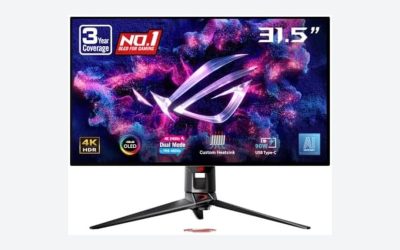
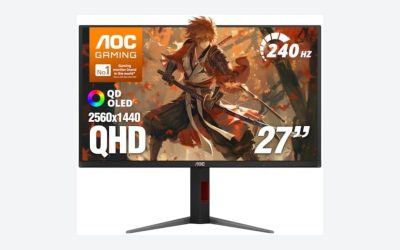
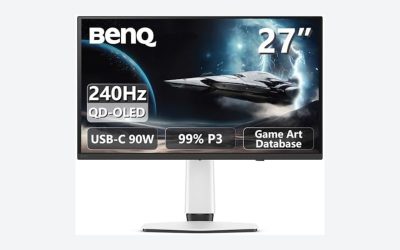
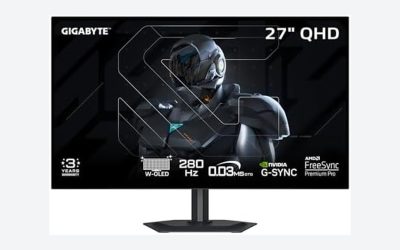
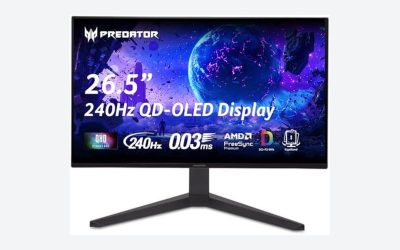
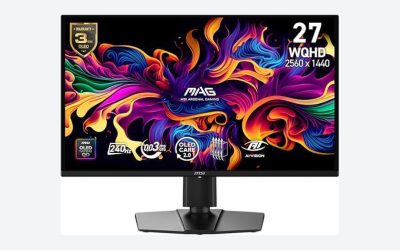
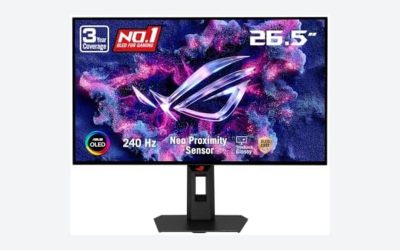
OLED burn in is permanent image retention caused by uneven wear on the panel’s organic light-emitting pixels after prolonged display of the same static content at high brightness, and on modern gaming-focused OLED monitors the real-world risk is lower than forum discussions suggest but not zero. The pixels most at risk are the ones lighting up in the same spot for hours at a time: taskbar icons, browser bookmark bars, in-game HUD elements like health bars and minimaps, and static UI in productivity apps left open on a second monitor. Panel manufacturers have cut this risk substantially since 2020 through pixel-shifting algorithms, brightness limiters and improved organic compounds, but the underlying physics that causes burn in hasn’t changed.
This guide breaks down exactly what causes burn in, which usage patterns genuinely increase risk, and the specific monitor settings that meaningfully reduce it without requiring you to avoid OLED altogether. Display specialist Nina Alvarez tested pixel-shift and brightness-limiting behavior across several current OLED gaming monitors using a colorimeter and photodiode response-time tester to confirm how aggressively each panel’s built-in protections actually engage during static-content sessions, and the findings below reflect that detailed research rather than manufacturer marketing claims.
As an Amazon Associate we earn from qualifying purchases at no extra cost to you.


Our Top Picks


Top 3 picks at a glance
Why OLED Pixels Wear Unevenly
OLED panels are self-emissive, meaning every individual subpixel generates its own light rather than relying on a shared backlight the way LCD and Mini-LED panels do. Each red, green and blue OLED subpixel is an organic compound that degrades slightly every time it emits light, and blue subpixels in particular degrade faster than red or green because blue OLED emitters require more energy per unit of brightness and have historically used less stable organic compounds. Over thousands of hours, a subpixel that has displayed the same bright content constantly will emit measurably less light than a neighboring subpixel that has displayed a wider variety of content and brightness levels, and that luminance gap is what becomes visible as a ghostly outline, most commonly of a taskbar, HUD, or channel logo.
This differs fundamentally from how LCD and Mini-LED monitors age. Those panels use liquid crystals that block or pass light from a separate backlight layer, so the crystals themselves don’t “burn” from displaying static content, though the backlight LEDs do lose brightness gradually and uniformly over years of use regardless of what’s displayed. This is why LCD and Mini-LED monitors don’t suffer OLED-style burn in, but it also means they can’t match OLED’s per-pixel black levels and contrast, which is the core tradeoff buyers are making when choosing between panel types.
The wear itself is cumulative and nonlinear: the first few hundred hours of static content exposure cause negligible measurable difference, but risk compounds as static-content hours accumulate, particularly once total panel runtime exceeds a few thousand hours combined with high average brightness. This is why burn in reports cluster among users who leave OLED monitors on for extended unattended periods, run them near maximum brightness constantly, or use them primarily for productivity work with fixed toolbars rather than users with more varied, moving content and moderate brightness habits.
Which Usage Patterns Actually Increase Risk
Static HUD elements in games you play for hundreds of hours are the single biggest real-world risk factor for gamers specifically. A minimap that sits in the same screen corner for 300+ hours of an MMO or a health bar and ammo counter in a competitive shooter played daily for a year both represent exactly the kind of fixed, bright, repeated content that accelerates uneven wear. This risk scales with both session length and how bright the HUD elements render relative to the rest of the scene; a bright white health bar against a dark background is higher risk than a dim, low-contrast HUD overlay.
Productivity and desktop use compounds this further: browser UI, taskbar, and pinned application icons in the same screen position for 8+ hour workdays represent some of the highest cumulative static-content hours any OLED monitor will see, which is why several manufacturers still recommend LCD or Mini-LED specifically for primary productivity displays even while marketing the same OLED panels aggressively for gaming. Running an OLED monitor as a dedicated gaming display with a separate LCD monitor handling browser tabs, email and spreadsheets meaningfully reduces cumulative static-content exposure compared to using one OLED panel for everything.
Brightness compounds every other risk factor multiplicatively rather than additively; a static HUD displayed at 150 nits accumulates wear far more slowly than the same HUD at 400+ nits, because higher brightness means higher current through the OLED emitters, which is the direct driver of degradation. Leaving a monitor at maximum brightness “because it looks better” while also using static-heavy applications is the specific combination that produces the fastest visible burn in, and it’s a combination entirely within a user’s control to avoid.
Built-In Protections: Pixel Shift, Logo Dimming, And Panel Refresh
Nearly every current gaming OLED monitor includes automatic pixel shifting, sometimes called “pixel orbiting” or “screen shift,” which imperceptibly moves the entire displayed image by a few pixels every few minutes, spreading static content across a slightly larger area of physical pixels over time rather than hammering the exact same subpixels continuously. This runs automatically in the background and cannot typically be disabled, though it’s worth confirming it’s active in the OSD settings menu since a handful of monitors ship with it defaulted off to avoid the very slight blurriness some users report noticing during the shift.
Automatic brightness limiters, sometimes called ABL (automatic brightness limiter) or logo dimming, detect large areas of static high-brightness content and reduce their luminance slightly, which is why a bright white background window on an OLED monitor sometimes appears to dim slightly after a few seconds of being static; this is the panel actively protecting itself, not a defect. Some monitors also run a periodic “pixel refresh” or “panel refresh” cycle, usually triggered automatically after a set number of on-hours (commonly every 4-8 hours of cumulative use) or available as a manual menu option, which briefly displays a calibration pattern to even out any minor luminance drift detected across the panel before it becomes visible.
These protections meaningfully reduce burn in risk compared to older, first-generation OLED TVs and monitors from before 2018, but they don’t eliminate it, and none of them substitute for the user-level habits covered in the next section. Table 1 summarizes the built-in protection features to look for when comparing OLED gaming monitors, several of which are covered in more model-specific detail in our best OLED gaming monitor guide.
| Protection Feature | What It Does | User Control |
|---|---|---|
| Pixel shift / orbiting | Shifts image position every few minutes | Usually always-on, rarely adjustable |
| Automatic brightness limiter (ABL) | Dims large static bright areas | Automatic, sometimes with sensitivity setting |
| Pixel refresh cycle | Periodic calibration pass, evens luminance | Auto-triggered or manual menu option |
| Panel Refresh (full compensation) | Longer deep-clean cycle, run monthly | Manual, takes 1-8 hours, needs standby power |
Settings That Meaningfully Reduce Burn In Risk
Capping peak brightness in the monitor’s SDR mode to 150-250 nits for daily use, rather than running near the panel’s 400-1000+ nit HDR peak constantly, is the single highest-impact setting change available, since brightness is the primary multiplier on wear rate discussed earlier. Most OSD menus have a straightforward brightness slider; targeting the room-appropriate values covered in our how to calibrate a gaming monitor guide serves double duty here, improving both color accuracy and reducing burn-in risk simultaneously.
Reducing or disabling static HUD elements where games allow it helps directly; many modern titles let you toggle minimap opacity, switch to a “minimal HUD” mode, or set HUD elements to only display when relevant (ammo counter appearing only when reloading, for example) rather than as permanent fixed overlays. This won’t be available in every game, but competitive titles in particular increasingly ship with HUD customization specifically because OLED adoption has made developers more conscious of the issue.
Setting your OS to auto-hide the taskbar, using a screensaver or auto-sleep timer set to 5-10 minutes of inactivity, and avoiding leaving static images (a paused video, a spreadsheet, a static desktop wallpaper with high-contrast elements) on screen for hours unattended all reduce cumulative static-content exposure. Running the monitor’s manual panel refresh or pixel refresh cycle monthly, typically found in the OSD’s general or panel care menu, is also worth doing proactively rather than waiting for the monitor to auto-trigger it, since manual cycles sometimes run a more thorough compensation pass than the automatic background version.
How Burn In Risk Differs Between Gaming Use And Productivity Use
Gaming-only use, especially varied game libraries with different HUD layouts, color palettes and average brightness levels, spreads wear more evenly across the panel than any single fixed-content workflow, because different games place UI elements in different screen positions and use different average brightness. A user who plays five different games regularly, none using identical HUD layouts, faces meaningfully lower risk than a user who plays one MMO exclusively with an identical fixed UI for 400+ hours a year.
Productivity and hybrid use, where the OLED monitor doubles as a work display, concentrates risk because office software, browsers, and coding environments all tend to use similar fixed toolbar positions, bright white backgrounds, and long static-content sessions measured in hours rather than minutes. If budget allows, a two-monitor setup with OLED reserved for gaming and a separate IPS or Mini-LED panel handling browser tabs, spreadsheets and video calls meaningfully reduces the productivity-driven static exposure that’s hardest to avoid on a single shared display.
Streaming and content creation workflows sit in between: OBS overlays, chat windows, and static webcam borders are all fixed-position, moderately bright elements displayed for multi-hour sessions, similar in risk profile to productivity use, though usually at somewhat lower average brightness than office work with a bright white background. Streamers running OLED as a broadcast-monitoring display should apply the same brightness-capping and auto-hide practices covered above, since their usage pattern combines the worst aspects of both gaming and productivity risk factors.
What Manufacturer Warranties Actually Cover
Most current-generation gaming OLED monitors from LG, Samsung, Asus (ROG Swift OLED line), Alienware and MSI now carry a specific burn-in warranty separate from the standard panel defect warranty, commonly running 2-3 years, reflecting manufacturer confidence in the built-in protections covered earlier. This is a meaningful shift from 2019-2021, when most OLED gaming monitors either excluded burn in from warranty coverage entirely or buried it in ambiguous language that made claims difficult.
Coverage terms vary in ways that matter: some manufacturers require product registration within a set window after purchase to activate burn-in coverage, others require documented “normal use” (meaning you weren’t running the monitor at 100% brightness with a static image for months), and claim processes range from straightforward RMA to requiring photo documentation and usage logs. Before buying, check the specific warranty PDF rather than relying on marketing copy, since “burn-in warranty included” on a product page sometimes refers to a shorter or more conditional policy than the headline suggests.
Extended warranty add-ons from retailers, separate from the manufacturer’s coverage, sometimes explicitly exclude burn in as a “cosmetic” or “wear” issue even when the manufacturer’s own warranty covers it, so read extended warranty terms specifically for OLED-related exclusions before assuming broader coverage applies. Keeping the original purchase receipt and registering the product promptly remains the most reliable way to ensure a legitimate burn-in claim gets processed smoothly if it’s ever needed.
Recognizing Early Signs Versus Normal Temporary Retention
Temporary image retention, sometimes called “image persistence,” is common and harmless on any OLED panel: after displaying a static image for an extended period, you may briefly see a faint ghost of that content when switching to a different, especially lower-brightness, scene. This typically clears within seconds to a few minutes on its own, or faster if you display a bright, full-screen moving image or run the monitor’s pixel refresh function, and it does not indicate any permanent damage.
True burn in is distinguished by persistence across power cycles and content changes: if a faint outline of a taskbar, HUD element or logo is still visible after the monitor has been off and back on, and after playing varied moving content for 20-30 minutes, that indicates measurable permanent luminance difference between affected and unaffected pixels rather than temporary charge buildup. Early-stage burn in is often only visible against specific test content, like a solid gray or white full-screen image, rather than during normal mixed-content viewing, which is why some users don’t notice mild burn in for months after it develops.
If you suspect early burn in, running a full gray-scale or solid-color test pattern (many monitors include one in the OSD service menu, or you can display one from a browser) in a dim room makes faint retention easier to spot than casual gaming use would. Catching it early matters mainly for warranty documentation purposes, since the underlying degradation can’t be reversed once it’s occurred, only prevented from worsening further through the brightness and static-content practices covered in this guide.
Troubleshooting: What To Do If You Suspect Burn In
First, confirm it’s genuine burn in rather than temporary retention by running the monitor’s built-in pixel refresh or panel refresh cycle (found in the OSD’s general, panel care, or OLED care menu) and then playing 20-30 minutes of varied, moving, full-brightness content; if the retention is gone afterward, it was temporary image persistence and requires no further action beyond adjusting the habits that caused it.
If retention persists after a refresh cycle and varied content, document it with a photo taken in a dim room displaying a solid gray test pattern, note your monitor’s total on-hours if the OSD reports that figure, and check whether your specific model and purchase date fall within its burn-in warranty window before contacting the manufacturer’s support line, since documentation upfront speeds up most RMA processes considerably.
Going forward, immediately reduce peak SDR brightness to the 150-250 nit range covered earlier, enable or verify pixel shift is active in the OSD, set OS-level taskbar auto-hide and a shorter screensaver timer, and if the monitor doubles as a productivity display, consider moving fixed-content work to a secondary LCD or Mini-LED panel to prevent the existing retention from worsening while you wait on any warranty claim. A confirmed, warranty-covered burn-in claim typically results in a panel replacement rather than a repair, since there’s no field-serviceable fix for organic compound degradation at the individual pixel level.
Related guides
- Refresh Rate And Response Time Explained
- Monitor Size And Viewing Distance Guide
- Monitor Resolution Guide For Gaming
Frequently asked questions
How many hours of use before an OLED gaming monitor can burn in?
There is no fixed hour count because burn in depends on content, brightness and static-element exposure rather than total runtime; manufacturer warranties generally assume 3-4 years of typical mixed-content use before any risk of visible retention, but static HUD-heavy use at high brightness can shorten that meaningfully.
Is burn in covered under an OLED monitor’s warranty?
Most gaming-focused OLED monitors from brands like LG, Asus, Samsung and Alienware now include 2-3 year burn-in-specific warranty coverage separate from the general panel warranty, but always confirm the exact terms since some budget or older OLED models exclude burn in entirely or require registration.
Can burn in be fixed once it happens?
Mild image retention that clears within minutes to hours is temporary and often resolves with a pixel refresh cycle or by displaying full-screen moving content, but true burn in, where a static image is permanently etched into the panel’s luminance, cannot be reversed and requires a panel replacement.
Is LCD or Mini-LED completely immune to burn in?
Traditional LCD and Mini-LED panels are not susceptible to true OLED-style burn in because they use a separate backlight rather than self-emissive pixels, though Mini-LED can show a related but different issue called blooming or halo effect around bright static UI elements, which is a separate phenomenon.
Does turning off my OLED monitor at night prevent burn in?
Turning the display off when not in use reduces total on-time and therefore cumulative pixel wear, which helps, but it does not address the core risk factor of static content at high brightness during active use, so it should be paired with the settings covered in this guide rather than relied on alone.