Two numbers dominate every gaming monitor spec sheet: refresh rate in Hz and response time in milliseconds, and confusing the two leads to buying decisions that don’t fix the problem you’re actually trying to solve. Refresh rate controls how often the screen updates; response time controls how fast each pixel can change. A monitor can excel at one and disappoint at the other, and this guide separates the two so you know which spec to check for which symptom.
I’m Nina Alvarez, and I measure both of these specs directly with a photodiode response-time tester and pattern generator rather than relying on manufacturer claims, which is a habit from nine years of professional display calibration before I moved into gaming monitors full time. The gap between advertised and measured response time is often larger than buyers expect, and that gap is exactly what causes the “why does my 144Hz monitor still blur” complaints I hear most often.
As an Amazon Associate we earn from qualifying purchases at no extra cost to you.






Our Top Picks
 Armed Response: A Comprehensive Guide to Using Firearms6.12 x 0.6 x 8.96 inches0.7 poundsCheck on Amazon
 The Nonprofit Strategy Revolution: Real-Time Strategic Planning in7 x 0.6 x 9.9 Inches1 poundsCheck on Amazon




Top 3 picks at a glance
What refresh rate actually measures
Refresh rate is the number of times per second a monitor redraws its entire image, expressed in Hertz. A 60Hz monitor redraws 60 times per second, a 144Hz monitor redraws 144 times per second, and so on. Each redraw is an opportunity to show a new frame from your GPU, so higher Hz means the screen can display more updates per second if your GPU is producing them.
The practical effect is smoother-looking motion and reduced perceived blur during camera pans or fast movement, because less time passes between each displayed frame. At 60Hz, a new frame appears every 16.7 milliseconds; at 144Hz, every 6.9 milliseconds; at 240Hz, every 4.2 milliseconds. That shrinking gap is why higher refresh rates feel more responsive even before response time enters the picture.
Refresh rate is a hardware ceiling, not a guarantee — a 240Hz panel only shows 240 unique frames per second if your GPU renders that many. If your GPU outputs 100fps on a 240Hz screen, the panel simply repeats or interpolates frames to fill the gap, which does not add new visual information and provides no meaningful smoothness benefit over a 144Hz screen at that same 100fps.
This is why refresh rate needs to be evaluated against your GPU’s realistic frame rate in your actual games, not treated as a standalone quality metric — a topic we cover from the GPU-matching side in our how to choose a gaming monitor guide.
Diminishing returns set in earlier than most buyers expect: the perceptual jump from 60Hz to 144Hz is large, 144Hz to 240Hz is moderate, and 240Hz to 360Hz is small enough that only sub-professional competitive players reliably notice it in blind testing.
What response time actually measures
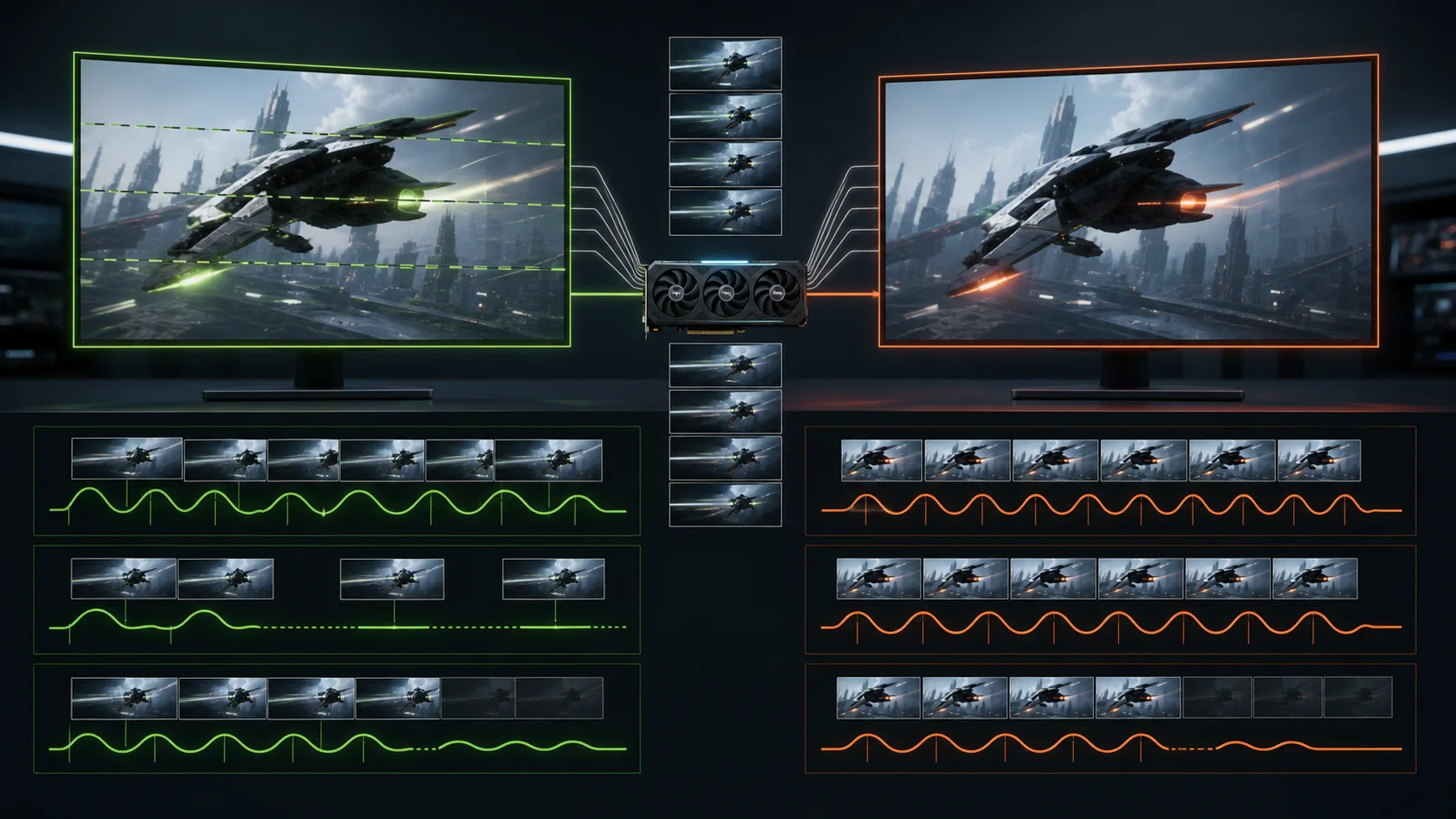
Response time is how long it takes a single pixel to shift from one color value to another, typically measured as gray-to-gray (GtG) in milliseconds. A slower response time means pixels are still transitioning when the next frame arrives, which creates a visible trailing smear behind moving objects — commonly called ghosting.
Manufacturer-quoted response times are usually best-case numbers measured on the fastest possible color transition, often a specific gray-to-gray shift chosen because it’s the panel’s quickest path, not a representative average across all the color changes that happen during actual gameplay.
IPS panels have closed much of the gap with TN panels over the past several years — a good modern IPS gaming monitor now measures in the 1-4ms GtG range on my equipment, compared to TN’s typical 1ms best case, and the visible difference in ghosting is minor for most content. VA panels remain the outlier, often measuring 4-8ms or slower for dark-to-dark transitions specifically, which is the root cause of the “black smearing” VA panels are known for.
Response time and refresh rate need to be paired sensibly — a slow-response panel at a high refresh rate wastes the extra Hz, since new frames arrive faster than the pixels can finish changing, and you end up seeing partially-transitioned, blurred frames rather than crisp new ones.
We measured response time separately across panel technologies, including how VA’s black smearing behaves differently from IPS ghosting, in our IPS vs VA vs TN panels compared guide.
How overdrive settings change response time — and can backfire
Overdrive, sometimes labeled “response time,” “OD,” or “trace free” in monitor menus, applies extra voltage to push pixels through color transitions faster than they naturally would. Set correctly, it reduces ghosting noticeably. Set too aggressively, it causes inverse ghosting — a bright or dark halo that overshoots the target color before settling, visible as a trailing outline around moving objects.
Most monitors offer three to five overdrive levels, and the highest setting is rarely the best one despite what the naming suggests.
Overdrive performance also changes with refresh rate on variable refresh rate displays — a setting tuned for 144Hz can overshoot at 240Hz or undershoot at 60Hz, which is why some monitors include multiple overdrive profiles that adjust automatically with detected refresh rate, a feature worth checking for if you frequently change resolution or Hz.
Testing overdrive takes about five minutes and meaningfully changes how sharp fast motion looks, yet most buyers never touch the setting after unboxing. Load a scrolling test pattern, cycle through each overdrive level, and pick the one with the least visible trailing in either direction rather than trusting the factory default.
Sample-and-hold blur: the motion blur refresh rate alone can’t fix
Even a monitor with a fast response time and high refresh rate still exhibits some motion blur compared to old CRT displays, due to a phenomenon called sample-and-hold. LCD and OLED panels display each frame continuously until the next one arrives, and your eyes naturally track moving objects smoothly across that static frame, which creates perceived blur even when the pixels themselves are switching instantly.
This is a fundamentally different cause of blur than slow response time, and it explains why some players still perceive softness in fast motion even on a 240Hz OLED panel with near-instant pixel response. The fix for sample-and-hold blur isn’t response time — it’s either raw refresh rate (blur decreases as Hz increases, since each frame is held for less time) or a backlight strobing feature.
Backlight strobing, sold under names like ULMB (Ultra Low Motion Blur), ELMB, or simply “MBR,” flickers the backlight between frames to mimic a CRT’s impulse-driven display, drastically cutting perceived motion blur at the cost of reduced brightness (often 30-50% dimmer) and, on some implementations, visible flicker or reduced color accuracy.
Strobing and adaptive sync (G-Sync or FreeSync) are usually mutually exclusive on a given monitor, since both technologies control frame timing in incompatible ways — check whether a specific monitor lets you switch between the two or forces a choice, since some competitive players prefer strobing for maximum clarity and give up variable refresh rate to get it.
We explain how adaptive sync handles frame timing, and where it conflicts with strobing modes, in our G-Sync vs FreeSync compared guide.
Input lag: the spec that’s neither refresh rate nor response time
Input lag — the delay between a mouse click or controller press and the resulting action appearing on screen — is often confused with both refresh rate and response time, but it’s a distinct measurement covering the monitor’s internal processing delay plus the display chain’s total latency. A monitor with excellent response time can still have mediocre input lag if its internal scaler or image processing adds delay.
Higher refresh rates do reduce one component of input lag, since less time passes between when a frame is ready and when the display can show it, but the GPU’s rendering time and any V-Sync-related frame queuing usually contribute more total delay than the monitor itself in most setups.
“Game Mode” or “Fast Mode” settings on many monitors reduce input lag by bypassing extra image processing like motion interpolation or excessive sharpening, sometimes cutting 5-15ms of unnecessary delay — check that this mode is enabled, since some monitors ship with it off by default in favor of processing that improves picture quality at the cost of latency.
Total system input lag — GPU render time, monitor processing, and response time combined — matters most for competitive shooters, where even 10-20ms differences are perceptible to trained players, while for single-player and story games the difference is rarely noticeable in practice.
Reading spec sheets: what numbers to trust and what to verify
Refresh rate numbers on spec sheets are generally accurate and verifiable — a monitor advertised at 165Hz will display 165Hz in your display settings, assuming your cable and GPU support it. Response time numbers are far less reliable, since manufacturers can choose favorable test conditions and rarely disclose their testing methodology in detail.
“Up to” language is a red flag on both specs — “up to 240Hz” sometimes means only specific resolutions or overclocked modes reach that number, and “1ms response time” sometimes refers to MPRT (Moving Picture Response Time), a different measurement from GtG that includes backlight strobing effects and produces much lower numbers that aren’t directly comparable.
MPRT and GtG are not interchangeable — MPRT measures how long a viewer perceives motion blur, factoring in strobing, while GtG measures pure pixel transition time. A monitor listing “1ms MPRT” may have a GtG response time of 4-5ms, which is a meaningfully different and more relevant number for judging ghosting in non-strobed use.
| Spec claim | What it actually measures | What to check instead |
|---|---|---|
| “1ms response time” | Often MPRT with strobing enabled | Look for GtG spec specifically |
| “Up to 240Hz” | May require specific resolution/mode | Confirm native max Hz at your target resolution |
| “HDR400” | 400 nits peak, often no local dimming | Look for 600+ nits with dimming zones |
| “G-Sync Compatible” | FreeSync hardware, Nvidia-validated | Check variable refresh range (e.g. 48-165Hz) |
Matching refresh rate and response time to your game genre
Competitive shooters like Valorant, Counter-Strike, and Apex Legends benefit most from the combination of high refresh rate (165Hz-240Hz) and low GtG response time (1-3ms), since fast horizontal camera movement and precise tracking make both blur and ghosting immediately noticeable to trained players.
Racing and flight sims benefit heavily from high refresh rate due to constant fast motion across the whole frame, but are somewhat more tolerant of response time in the 3-5ms range since the visual style is less about pixel-perfect tracking of a small target and more about overall smoothness.
Story-driven and open-world games — RPGs, adventure titles, narrative games — are the least sensitive to both specs, since camera movement is typically slower and deliberate; a 100-144Hz panel with a 4-5ms IPS response time is functionally indistinguishable from a 240Hz 1ms panel in this genre for most players.
Console gaming on PS5 or Xbox Series X is capped by the console’s own output, usually 60fps or 120fps depending on performance mode, so a monitor’s refresh rate ceiling above 120Hz provides no benefit unless you also game on PC at higher frame rates on the same display.
If your primary use case is console gaming, our monitor for console gaming and monitor for PS5 guides focus on panels matched to console output ceilings rather than PC-only refresh rate extremes.
Troubleshooting: ghosting, stutter, or blur that won’t go away
If you see a clear trailing smear behind moving objects, first check your overdrive setting — try the next level down before assuming the panel itself is at fault, since inverse ghosting from an overly aggressive setting looks similar to slow-response ghosting at a glance.
If motion still looks blurry despite a high refresh rate and reasonable response time, confirm your GPU is actually hitting that refresh rate in-game using an on-screen fps counter (MSI Afterburner or your GPU vendor’s overlay); a 144Hz monitor running a game at 75fps will feel far less smooth than the Hz number suggests.
Stutter that feels different from blur — a hitching or juddering sensation — usually points to V-Sync interacting poorly with adaptive sync, or your frame rate crossing above your monitor’s max refresh rate without a frame rate cap in place; setting an in-game or driver-level fps cap 2-3fps below your monitor’s max Hz usually resolves it.
If ghosting appears only in dark scenes specifically, it’s likely a VA panel’s dark-to-dark transition weakness rather than a general response time problem, and no overdrive setting fully eliminates it — that’s an inherent panel-technology tradeoff covered in our panel comparison guide.
Frequently asked questions
What is the difference between refresh rate and response time?
Refresh rate, measured in Hz, is how many times per second the monitor redraws the entire image, while response time, measured in milliseconds, is how fast an individual pixel changes from one color to another; a monitor can have a high Hz number and still show ghosting if its response time is slow.
What response time is fast enough for gaming?
A gray-to-gray response time of 1-5ms is fast enough to avoid visible ghosting for the vast majority of players, and most modern IPS gaming monitors now fall in that range, so treat sub-1ms marketing claims with skepticism since they’re usually measured under best-case conditions that don’t reflect full color transitions.
Does a higher refresh rate reduce input lag?
Indirectly yes, because a higher refresh rate shortens the time between when a frame is rendered and when it appears on screen, but the bigger input lag factors are your GPU’s frame rendering time and whether V-Sync is forcing a queue, so refresh rate alone is not the full input lag picture.
Why does my 144Hz monitor still show motion blur?
Motion blur at high refresh rates is usually caused by slow pixel response time creating trailing artifacts, by your GPU not actually reaching 144fps, or by sample-and-hold display technology itself, which inherently blurs motion compared to old CRT displays regardless of refresh rate.
Is overdrive or response time boost always worth enabling?
No, overdrive settings above the panel’s optimal level cause inverse ghosting, a bright trailing halo behind moving objects, so the highest overdrive setting is often worse than the medium setting; test two or three levels with a moving test pattern rather than assuming maximum is best.