Buying a monitor for photo editing is mostly an exercise in trust. Every adjustment you make, from skin tones to a gradient in a sunset, is judged through the screen in front of you, so a display that shifts colors or crushes shadows quietly undermines the work. The decision comes down to three questions: which color gamut your output needs (sRGB for the web, Adobe RGB or DCI-P3 for print and wide-gamut workflows), how accurate the panel is straight from the factory, and how much resolution you want for pixel-level retouching. Speed and gaming features barely matter here.
This guide is for hobbyists upgrading from a laptop screen, freelancers who deliver edited images to clients, and anyone moving to a Mac or USB-C laptop who wants one cable to carry video, data, and power. The seven monitors below span QHD and 4K, 24 to 32 inches, and sRGB to Adobe RGB coverage. Each is described only by what its title states, so figures such as calibration reports or panel uniformity should be confirmed on the manufacturer page before you buy in 2026.
Our Top Picks
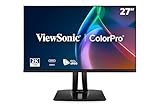
 ViewSonic VP2766-2K 27 Inch ColorPro 2K QHD IPS14.3" x 24.1" x 1.4"8.15 x 24.15 x 16.09 inches12.1 PoundsCheck on Amazon
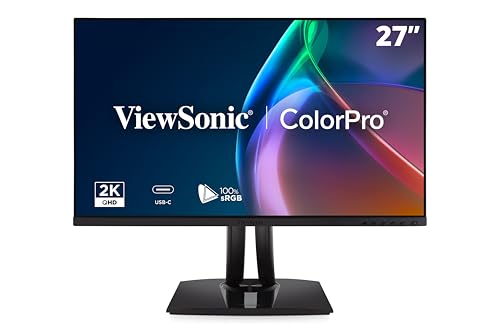 ViewSonic VP2756A-2K 27 Inch 1440p Monitor27 Inches8.46 x 24.15 x 21.27 inches16 poundsCheck on Amazon


Top 3 picks at a glance
Quick Picks
As an Amazon Associate we earn from qualifying purchases at no extra cost to you.




| Product | Best for | Key spec from the title |
|---|---|---|
| ViewSonic VP2766-2K | All-round editing at QHD | 27 inch ColorPro QHD IPS, 90W USB-C, 120Hz |
| CUNPU 24-inch 4K | Small desks and sharp detail | 24 inch 4K IPS, 185PPI, Delta E under 2, 100% DCI-P3 |
| ZZA 27 Inch 4K | Entry-level 4K IPS | 27 inch 4K IPS, 120% sRGB, HDR10 |
| ViewSonic VP2756A-2K | Pantone-validated web and design work | 27 inch 1440p, 100% sRGB, Pantone Validated |
| INNOCN CB27U1 | Mac users who want 4K and USB-C | 27 inch 4K 120Hz, 90W USB-C, Delta E under 1 |
| BenQ SW272QN | Print-oriented photo work | 27 inch 2K, 99% Adobe RGB, 90W USB-C |
| ViewSonic VP3256A-4K | Large 4K canvas for pros | 32 inch 4K, 100W USB-C, Pantone Validated |
How to Choose
Pick the color gamut that matches your output
If you publish mainly to the web and social platforms, 100% sRGB coverage is the baseline and is enough for most work. If you send images to a photo lab or print your own, look for 95% to 99% Adobe RGB, which reaches into more saturated greens and cyans. DCI-P3 is the standard for cinema and many modern phones and displays, so it matters if you edit video alongside stills. Ignore coverage above 100% sRGB when it is described as “120% sRGB,” because that only means the panel is oversaturated relative to the standard unless it can be clamped to sRGB mode.
Accuracy: Delta E, factory calibration, and validation
Delta E measures color error, and a value below 2 is generally considered visually indistinguishable from the target for most viewers; below 1 is excellent. Titles that mention Pantone Validated, Calman Verified, or a stated Delta E suggest the manufacturer has checked accuracy, but a factory report is more reliable than a claim in the title. Hardware calibration support is a bonus for pros, and any monitor benefits from a periodic check with a colorimeter. Also look at uniformity and a matte coating, which reduces reflections that skew your perception of shadows.
Resolution, size, and pixel density
A 27-inch QHD panel (2560 by 1440) has roughly 109 pixels per inch, which is comfortable at normal scaling. A 27-inch 4K screen reaches about 163 pixels per inch, and a 24-inch 4K screen about 185, which shows fine retouching detail but needs operating system scaling to keep the interface readable. A 32-inch 4K gives a larger canvas at about 138 pixels per inch. Pick QHD for lower graphics-card demands and a simple workflow, and 4K if you zoom to 100 percent often or want to view high-resolution files with more of the frame visible.
Connectivity, ergonomics, and what to ignore
USB-C with 90W or 100W power delivery lets one cable charge a laptop, carry video, and add USB ports, which is a real convenience for a MacBook or a thin Windows laptop. Check for height and tilt adjustment, since sitting at the right eye level matters on long sessions. Ignore high refresh rates beyond 60Hz unless you also play games, and treat “HDR” labels as secondary, because photo editing is done in SDR and most monitors in this tier lack the dimming zones that make HDR convincing.
The 7 Best Options
ViewSonic VP2766-2K
A ColorPro model for creators who work across stills, video, and design. The title lists a 27-inch 2K QHD IPS panel, 90W USB-C, a 120Hz refresh rate, and a description built for video editing, graphic design, and animation. For photo work, the QHD resolution keeps interface scaling simple, and the 120Hz refresh rate makes scrolling and timeline scrubbing feel smoother than a standard 60Hz display. The ColorPro branding signals a focus on color-critical work rather than office use.
- Strength: 90W USB-C power delivery covers a typical laptop with one cable.
- Strength: IPS panel with a 120Hz refresh rate helps both editing and general use.
- Trade-off: the visible title does not state a gamut percentage or Delta E figure.
Skip it if you need documented Adobe RGB coverage for print work.
CUNPU 24-inch 4K
A compact 4K option made for photo editing and everyday office use. The title lists a 24-inch 4K UHD IPS panel with USB-C at 15W, 185 pixels per inch, Delta E under 2, 100% DCI-P3, 1.07 billion colors, and a height and vertical adjustable stand. The pixel density is the highest in this guide, which is useful for inspecting sharpness and retouching small details. The 15W USB-C figure is a data and light-charging port, not a laptop-charging one.
- Strength: 185 pixels per inch and 4K resolution give very fine detail on a small footprint.
- Strength: Delta E under 2 and 100% DCI-P3 are stated in the title.
- Trade-off: 15W USB-C will not power most laptops, so a separate charger is likely needed.
Skip it if you want a bigger screen or single-cable laptop charging.
ZZA 27 Inch 4K
The entry-level 4K choice here. The title lists a 27-inch 3840 by 2160 IPS panel at 60Hz with HDR10, 120% sRGB, FreeSync, low blue light, flicker-free operation, HDMI, DisplayPort, and VESA mounting, and it is described as a computer monitor for office use. For hobbyists on a budget who want a sharp IPS screen for casual editing, it provides resolution and a wide gamut claim. The title offers no accuracy or calibration data.
- Strength: 4K IPS at 27 inches provides sharp detail and wide viewing angles.
- Strength: both HDMI and DisplayPort are listed, with VESA mounting for an arm.
- Trade-off: 120% sRGB without stated Delta E means colors may look oversaturated until calibrated.
Skip it if you deliver color-critical work to clients.
ViewSonic VP2756A-2K
A designer-oriented 27-inch 1440p monitor. The title lists 120Hz, 90W USB-C, 100% sRGB, Rec 709, Pantone Validated, advanced ergonomics, HDMI, and DisplayPort. Pantone validation indicates the display has been checked for matching Pantone colors, which matters for brand and print design as well as photo work. It is a close sibling to the VP2766-2K, with a more explicit color standard list in the title and a stand designed for adjustment. That ergonomic focus matters during long retouching sessions, when a poorly aligned screen leads to neck strain and inconsistent viewing angles across the panel.
- Strength: 100% sRGB and Rec 709 coverage suit web and video-adjacent photo work.
- Strength: Pantone Validated plus 90W USB-C pairs color confidence with convenience.
- Trade-off: sRGB-focused coverage is less suited to wide-gamut print workflows.
Skip it if you need Adobe RGB or 4K detail.
INNOCN CB27U1
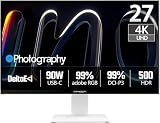
Built with Apple users in mind. The title lists a 27-inch 4K IPS panel at 120Hz with HDR500, 90W USB-C, an integrated Mac-View mode, Delta E under 1, and 500 nits of brightness, for MacBook and Mac mini setups. Delta E under 1 is the strongest accuracy figure in the guide, and 4K at 27 inches works well with macOS scaling for crisp text. The 120Hz refresh rate adds smoothness for general use.
- Strength: Delta E under 1 and 500 nits brightness are stated in the title.
- Strength: 4K, 120Hz, and 90W USB-C make it a one-cable partner for a MacBook.
- Trade-off: the title does not list Adobe RGB coverage, so print workflows need confirmation.
Skip it if you need documented wide-gamut coverage for print work.
BenQ SW272QN
The most print-focused monitor here. The title lists a 27-inch 2K panel with 99% Adobe RGB coverage and 90W USB-C, aimed at photo and video editing. Adobe RGB at 99% is the key spec for photographers who print, since it reproduces more of the saturated cyans and greens that print workflows can reach. The title lists only the essentials, so confirm calibration and uniformity details on the manufacturer page. It is a natural fit for photographers who already own a printer or order prints regularly and want the screen to preview wide-gamut colors.
- Strength: 99% Adobe RGB coverage is the best match for print-oriented editing.
- Strength: 90W USB-C simplifies laptop connections.
- Trade-off: 2K resolution means less pixel density than the 4K options.
Skip it if your work is mainly for the web or if 4K sharpness is a priority.
ViewSonic VP3256A-4K
A large 4K canvas for professional use. The title lists a 32-inch 4K UHD ColorPro monitor with 100W USB-C, Pantone validation, 100% sRGB, HDMI 2.1, and DisplayPort. The 32-inch size shows more of a high-resolution image at once and leaves room for palettes and panels alongside the picture. The 100W power delivery can handle larger laptops, and HDMI 2.1 gives modern connectivity for other devices. For studios that edit stills and video on the same display, the large size and wide connectivity make it a flexible centerpiece.
- Strength: 32-inch 4K gives a big workspace, and 100W USB-C powers larger laptops.
- Strength: Pantone Validated and 100% sRGB support color-critical web and design work.
- Trade-off: it needs more desk space and sits at the top of this group.
Skip it if you have a compact desk or a modest budget.
Which One Fits Your Situation
You print your photos or send files to a lab
Choose the BenQ SW272QN. Its 99% Adobe RGB coverage is the spec that most directly affects print results, and 90W USB-C keeps your laptop connected.
You edit on a MacBook and want a sharp screen
The INNOCN CB27U1 is built around Mac use, with 4K at 27 inches, Mac-View mode, and 90W USB-C. For a smaller footprint, the CUNPU 24-inch 4K is a compact alternative.
You work for web clients and brand designers
The ViewSonic VP2756A-2K, or the larger VP3256A-4K, pairs Pantone validation with 100% sRGB. Pick the 4K version if you have the desk space.
You are upgrading on a budget
The ZZA 27 Inch 4K gives 4K IPS detail at an entry tier. Plan to calibrate with a colorimeter since the title provides no accuracy data.
Common Mistakes
- Treating “120% sRGB” as a quality figure when it can simply mean oversaturated colors without an sRGB clamp mode.
- Buying a wide-gamut monitor and editing for web output without a color-managed workflow, producing images that look flat or wrong elsewhere.
- Paying for high refresh rates and HDR labels instead of accuracy, uniformity, and a matte coating.
- Skipping calibration entirely, even though a monitor’s accuracy drifts and room lighting changes your perception.
- Choosing a 24-inch 4K or 27-inch 4K without planning for operating system scaling, then finding the interface text too small.
Related guides
- 24 Inch 240Hz Gaming Monitor For Esports
- Gaming Monitor For Competitive Shooters
- Low Latency 1080P High Refresh Monitors
Frequently Asked Questions
Do I need Adobe RGB for photo editing?
Only if you print or work with wide-gamut workflows. For web and social delivery, 100% sRGB is sufficient. Adobe RGB coverage helps you see and edit colors that print can reproduce but sRGB cannot.
Is 4K necessary for photo editing?
No. QHD at 27 inches is workable and easier on graphics hardware. 4K helps when you inspect fine detail at 100 percent zoom, work with very high-resolution files, or want crisper text.
What does Delta E under 2 mean?
It means the average color error is small enough that most people will not see a difference from the target color. Delta E under 1 is even tighter. Both figures depend on how and when they were measured, so look for a factory report.
Should I still calibrate a factory-calibrated monitor?
A periodic check with a colorimeter is good practice, because panels age and room lighting changes. For hobby work, a factory profile may be enough; for client work, regular calibration is worth the small effort.