G-Sync and FreeSync both solve the same problem — screen tearing and stutter when your GPU’s frame rate doesn’t match your monitor’s refresh rate — but they reached that goal through different hardware paths, and the practical differences today are smaller than the branding suggests. Nvidia’s G-Sync historically required a dedicated hardware module inside the monitor; AMD’s FreeSync used the GPU and display’s existing scaler hardware through the open VESA Adaptive-Sync standard. That gap has narrowed enough that GPU brand is no longer the strict dividing line it once was.
As an Amazon Associate we earn from qualifying purchases at no extra cost to you.






Our Top Picks


Top 3 picks at a glance
How adaptive sync works, in plain terms
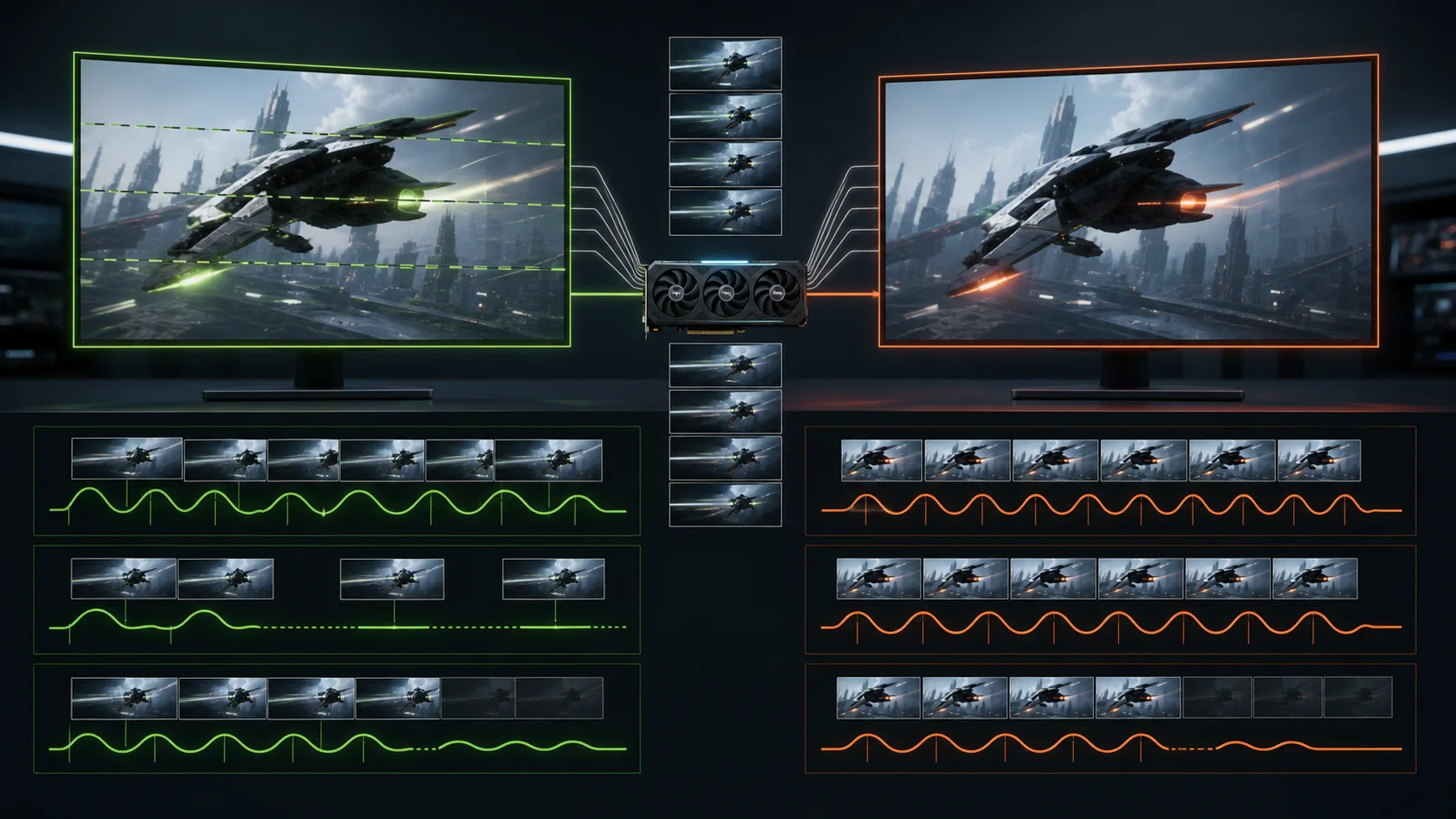
Without adaptive sync, a monitor redraws at a fixed interval regardless of what the GPU is doing, and if a new frame arrives mid-redraw, the screen shows part of the old frame and part of the new one — visible as a horizontal tear line, most noticeable during fast horizontal camera movement. Traditional V-Sync fixes tearing by forcing the GPU to wait for the monitor’s refresh cycle, but that wait adds input lag and can cause stutter when frame rate drops below the refresh rate.
Adaptive sync flips the relationship: instead of the GPU waiting for the monitor, the monitor’s refresh rate dynamically matches whatever frame rate the GPU is currently producing, within a supported range. If your GPU outputs 87fps, the monitor refreshes at 87Hz for that instant, eliminating both the tear line and the added latency of forced V-Sync.
This only works within a monitor’s variable refresh range, typically something like 48-165Hz — below the floor, most implementations fall back to frame doubling or standard V-Sync-like behavior, and above the ceiling, adaptive sync effectively stops mattering since you’d need V-Sync or a frame cap to avoid tearing at that point.
The underlying protocol difference is technical rather than experiential today: G-Sync originally required an FPGA-based hardware module in the monitor, adding $150-$300 to the manufacturing cost, while FreeSync uses the DisplayPort Adaptive-Sync standard already built into the scaler hardware most monitors ship with, at effectively no extra cost.
How this maps to your buying decision — matching sync range to your GPU’s realistic frame rate — connects directly to the GPU-matching approach in our how to choose a gaming monitor guide.
G-Sync’s three tiers explained
Nvidia currently splits G-Sync into three certification tiers, and the naming is a common source of confusion. G-Sync Ultimate is the top tier, requiring the dedicated hardware module, HDR with a minimum number of local dimming zones, and a wide variable refresh range, typically found on premium monitors priced $600 and up.
G-Sync (without a modifier) is a middle tier that still uses the hardware module but without the HDR and dimming requirements of Ultimate — this tier has become less common as manufacturers shift toward the module-free certification instead, since it costs more to build without the marketing upside of the Ultimate badge.
G-Sync Compatible is the tier that matters for most buyers today: it’s Nvidia’s validation program for standard FreeSync/Adaptive-Sync monitors, confirming the panel operates without flickering or blanking across its stated range on GeForce GPUs. There’s no extra hardware module and typically no price premium over the equivalent non-certified FreeSync monitor.
For most builds pairing a mid-range GPU like an RTX 4060 or RTX 4070 with a 1440p monitor, G-Sync Compatible covers the practical need without the Ultimate price premium, which is money better spent on panel size or resolution per our 1440p gaming monitor picks.
FreeSync’s three tiers explained
AMD’s FreeSync branding follows a similar three-tier structure. Base FreeSync is the entry point, requiring only that a monitor supports variable refresh rate without flickering across some stated range — the range itself isn’t standardized, so a “FreeSync” monitor could have a narrow 48-75Hz window or a wide one, and the base tier alone doesn’t tell you which.
FreeSync Premium adds two concrete requirements: a minimum 120Hz refresh rate at the monitor’s native resolution, and Low Framerate Compensation (LFC), which duplicates frames when your GPU’s output drops below the sync range’s floor, preventing the stutter that would otherwise occur. This is the tier most gaming monitors released in the last few years target.
FreeSync Premium Pro adds HDR requirements on top of Premium’s specs, including validated brightness and color performance with adaptive sync active simultaneously — this combination is harder to implement well than it sounds, since HDR processing and variable refresh timing can interact poorly on lower-tier hardware, which is why Premium Pro implies a more capable scaler chip.
Unlike G-Sync’s tiers, all three FreeSync levels use the same underlying hardware approach — there’s no dedicated module distinguishing them, only which capabilities the manufacturer chose to validate and certify, which keeps FreeSync monitors generally cheaper across all three tiers than their G-Sync-branded equivalents.
Check the specific Hz range printed on a FreeSync monitor’s spec sheet rather than relying on the tier name alone — two Premium-tier monitors can still have meaningfully different floors, one at 48Hz and another at 60Hz, which matters if your GPU’s frame rate dips into that territory during demanding scenes.
Which one should you buy based on your GPU brand
If you run an Nvidia GeForce card, prioritize monitors with the “G-Sync Compatible” badge specifically, since that indicates Nvidia has validated the panel rather than you gambling on whether an uncertified FreeSync monitor happens to work cleanly. The certified list covers the large majority of mainstream gaming monitors released since roughly 2019.
If you run an AMD Radeon card, any FreeSync-certified monitor works natively, and there’s no need to look for G-Sync branding at all — Radeon GPUs don’t use Nvidia’s certification program, so a FreeSync Premium monitor is the more relevant spec to check.
If you’re buying a monitor before deciding on your next GPU, or you switch between Nvidia and AMD cards across upgrade cycles, a G-Sync Compatible certified monitor is the safer universal choice, since it guarantees FreeSync compatibility with AMD cards (the certification doesn’t remove the underlying FreeSync hardware) while adding validated Nvidia support on top.
Console gaming complicates this slightly — PS5 supports VRR (a generic implementation of the same Adaptive-Sync standard) over HDMI on compatible monitors, and Xbox Series X supports both FreeSync and a similar generic VRR mode, so most modern monitors with HDMI 2.1 work with console adaptive sync regardless of their PC-focused G-Sync or FreeSync branding.
Our monitor for console gaming guide covers which certified panels also carry confirmed HDMI VRR support for PS5 and Xbox specifically, since not every FreeSync monitor’s HDMI implementation matches its DisplayPort behavior.
Variable refresh range: the number that matters more than the logo
The variable refresh range — the Hz span across which adaptive sync actually functions — is printed in fine detail on spec sheets but rarely highlighted in marketing, even though it affects your experience more directly than which certification logo appears on the box. A monitor rated “48-165Hz” syncs smoothly across that entire span; outside it, you’re back to tearing or forced V-Sync behavior.
The floor of that range matters most for demanding single-player games where frame rate dips are common. A monitor with LFC (standard on FreeSync Premium and G-Sync Ultimate) handles dips below the floor by frame doubling, maintaining smooth sync even at 25-30fps, while a monitor without LFC can stutter noticeably once frame rate drops below its stated minimum.
| Tier | Typical VRR range | LFC included | Typical price add |
|---|---|---|---|
| FreeSync (base) | Varies, often narrow (e.g. 48-75Hz) | Not guaranteed | $0 |
| FreeSync Premium | Wider, min 120Hz native | Yes | $0-$20 |
| G-Sync Compatible | Model-dependent, Nvidia-validated | Model-dependent | $0-$20 |
| G-Sync Ultimate | Wide, hardware-guaranteed | Yes, hardware-based | $150-$300 |
Adaptive sync and HDR: where things get complicated
Running HDR and adaptive sync simultaneously places extra demand on a monitor’s scaler chip, since it has to process wider color and brightness data while also handling variable timing — on lower-tier hardware, this combination sometimes triggers a slightly reduced effective refresh range or minor brightness flicker that doesn’t occur with either feature running alone.
FreeSync Premium Pro and G-Sync Ultimate are the two certifications that specifically validate this combination, testing HDR and VRR together rather than each in isolation, which is the main practical reason to pay for either top tier if HDR gaming with sync enabled is a priority for you.
On monitors without Pro or Ultimate certification, HDR and adaptive sync often still work together fine, but it’s worth testing your specific panel — if you notice flickering only when both are active simultaneously, try lowering the refresh rate ceiling slightly in your GPU control panel, which sometimes resolves scaler-related instability.
We cover which specific brightness and dimming-zone thresholds actually produce a visible HDR effect, separate from the sync question, in our HDR gaming monitor guide.
Common misconceptions worth clearing up
“FreeSync monitors don’t work with Nvidia cards” is outdated — this was mostly true before 2019, but Nvidia’s driver-level support for the open Adaptive-Sync standard means the majority of FreeSync monitors now work with GeForce cards, whether officially G-Sync Compatible certified or manually enabled.
“G-Sync is always better than FreeSync” oversimplifies a comparison that’s really about tier, not brand — a FreeSync Premium monitor with a wide, well-implemented range often outperforms a base-tier or older G-Sync monitor with a narrower one, so compare specific specs rather than assuming brand hierarchy.
“Adaptive sync fixes low frame rate” is a common misunderstanding — sync eliminates tearing and reduces stutter within its supported range, but it does not raise your GPU’s actual frame rate ceiling; a struggling GPU still produces a low, syncable frame rate that simply looks smoother than it would unsynced, not faster.
“You need matching GPU and monitor brands” is the biggest misconception overall — certification programs exist specifically because this used to be true and no longer is for the vast majority of current-generation hardware, which is worth remembering if you’re shopping secondhand or cross-shopping monitors before settling on your next GPU.
Troubleshooting: flickering, tearing, or sync not engaging
If adaptive sync isn’t working at all, first confirm it’s enabled in both the monitor’s on-screen menu (often listed as FreeSync, VRR, or Adaptive-Sync) and your GPU control panel (Nvidia Control Panel’s G-Sync settings or AMD Software’s Radeon Sync) — both need to be turned on, and many monitors ship with the feature off by default.
If you see flickering specifically at the edges of the refresh range, try enabling a frame rate cap 3-5fps below your monitor’s maximum, using an in-game limiter or your GPU driver’s frame rate cap, which keeps the GPU’s output comfortably inside the stable portion of the sync range rather than bouncing against the ceiling.
Brightness pulsing during HDR with sync active usually indicates the panel isn’t fully validated for that combination — check if a firmware update is available, and if the issue persists, try disabling HDR or sync individually to isolate which feature is causing the interaction before assuming a defective unit.
If tearing appears despite sync being enabled, verify the cable and port — variable refresh rate over HDMI requires HDMI 2.1 hardware end to end, and an older HDMI 2.0 cable or port will silently disable the feature without any error message, which is a more common cause than people expect.
Frequently asked questions
Can a FreeSync monitor work with an Nvidia graphics card?
Yes, if the monitor carries Nvidia’s “G-Sync Compatible” certification, which covers the large majority of FreeSync monitors sold in the last several years; Nvidia tests these panels and enables variable refresh rate through the same FreeSync hardware, so you don’t need a dedicated G-Sync module to use adaptive sync with a GeForce card.
What’s the real difference between G-Sync Ultimate and G-Sync Compatible?
G-Sync Ultimate monitors use a dedicated Nvidia hardware module that enables a wider variable refresh range, HDR with local dimming validation, and lower minimum framerate compensation floors, while G-Sync Compatible monitors run standard FreeSync hardware that Nvidia has validated to work without tearing or flickering, at a lower price but with a narrower guaranteed range.
Does FreeSync work with Nvidia GPUs that aren’t G-Sync Compatible certified?
Often yes in practice, since FreeSync is based on the open VESA Adaptive-Sync standard and Nvidia drivers let you manually enable it on uncertified monitors, but you may encounter flickering or brightness pulsing that certified models have been tested to avoid, so it’s a gamble rather than a guarantee.
Which matters more, G-Sync/FreeSync support or the monitor’s refresh rate?
Refresh rate and panel quality matter more for most players, since adaptive sync only fixes tearing and stutter within your GPU’s frame rate range and does nothing to raise that ceiling; a well-matched non-sync monitor with a frame rate cap can look nearly as smooth as one with sync enabled in many single-player games.
Do I need FreeSync Premium Pro specifically, or is base FreeSync enough?
Base FreeSync is enough for most players since it guarantees flicker-free operation across a stated range, while Premium adds a minimum 120Hz at the monitor’s native resolution and low-framerate compensation, and Premium Pro adds HDR support on top of that — only pay extra for Pro if you specifically want HDR gaming with adaptive sync active.