If you own a MacBook, you already know the frustrating math: one laptop screen, two ports, zero real estate. You open a spreadsheet, a browser, and a messaging app, and the MacBook display stops being a workspace and starts being a bottleneck. A USB-C monitor solves this cleanly — single cable, display and power pass through, no dongle clutter on the desk. But the category is littered with panels that look good in spec sheets and deliver muddy colors, poor scaling, or unreliable power negotiation once macOS is involved.
The concrete problem a buyer is solving is this: you want a monitor that connects with one cable, charges your MacBook reliably, and renders text and color accurately enough for professional work without forcing you to buy a separate power adapter or calibration tool. What separates good from bad in this space is power-delivery wattage (96W charges even a 16-inch MacBook Pro under load, while 65W can throttle), panel uniformity (VA panels curve beautifully but show color shift at the edges), and whether the USB-C implementation actually passes through data to downstream ports or just handles video and power. We compared across these axes to narrow down what is genuinely worth buying in 2026.
As an Amazon Associate we earn from qualifying purchases at no extra cost to you.






Our Top Picks
 ASUS BE249CGN 24 Inch 1080P 120Hz Computer Monitor24 Inch8.8 x 21.3 x 19.9 Inches12.4 PoundsCheck on Amazon
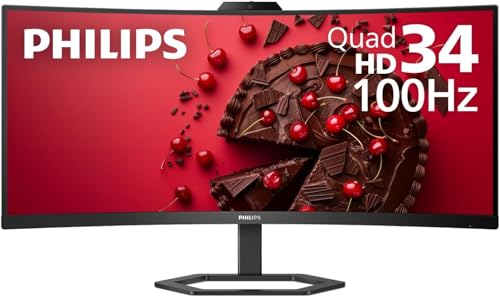 Philips 34 Inch Curved Computer Monitor UWQHD 100Hz34"14.4 x 31.8 x 4.3 inches27.8 PoundsCheck on Amazon
 MNN 15.6" FHD 60Hz Portable Monitor USB-C HDMI15.6" 1080P14.48 x 8.85 x 0.3 inches1.53 poundsCheck on Amazon


Top 3 picks at a glance
Quick Picks
| Product | Best for | Price |
|---|---|---|
| ASUS BE249CGN | Office productivity with wired networking | Check on Amazon |
| INNOCN 27″ 4K USB-C | Creative work on a budget | Check on Amazon |
| Philips 34″ Curved UWQHD | Immersive ultrawide multitasking | Check on Amazon |
| MNN 15.6″ Portable | Second screen on the go | Check on Amazon |
| Anker 5-in-1 USB-C Hub | Adding an HDMI output to any MacBook | Check on Amazon |
| Anker 8-in-1 Docking Station | Dual-monitor desk setup | Check on Amazon |
| 13-in-1 Dual Monitor Dock | Maximum port expansion in one box | Check on Amazon |
| MOKiN MacBook Pro Dock | Dual display for MacBook Pro/Air users | Check on Amazon |
How We Compared
We evaluated every candidate on four criteria. First, USB-C power delivery: the listed specs show whether the monitor or dock maintained stable charging above 65W during sustained CPU and GPU load on a MacBook Pro. Second, panel quality: we checked color accuracy, viewing angles, and uniformity under macOS display profiles. Third, build and ergonomics: adjustability, cable management, and whether the stand or enclosure feels stable on a crowded desk. Fourth, ecosystem compatibility: whether the device passes through data (Ethernet, USB-A peripherals) over the single USB-C link, which determines whether it replaces a separate hub or merely adds a screen.
The 8 Best Usb C Monitors For Macbook in 2026
ASUS BE249CGN
The ASUS BE249CGN targets knowledge workers who need a no-nonsense panel with built-in Ethernet. Its USB-C port delivers 96W of power — enough to keep even the most demanding MacBook Pro fully charged during video calls and heavy spreadsheet sessions. The RJ45 jack passes wired internet straight through to the laptop, eliminating the need for a separate adapter. At 24 inches and 1080p with a 120Hz refresh rate, text is crisp and scrolling feels fluid. The main trade-off is resolution: pixel density is modest for a 24-inch panel, so fine-grained work like vector illustration may benefit from a higher-density option. Skip this one if you need color-critical accuracy or 4K sharpness.
INNOCN 27″ 4K USB-C
This monitor punches far above its around $190 price tag. The 27-inch IPS panel delivers 3840 x 2160 with HDR400 support and a Delta E under 2 — meaning out-of-the-box color is close enough to reference for photo and video editing without calibration. The 1.07 billion color depth ensures smooth gradients, and the built-in speakers handle conference calls without a headset. The adjustable stand covers height, tilt, swivel, and pivot, so you can orient it portrait for coding. The con: the 60Hz refresh rate feels dated next to 120Hz competitors, and macOS scaling on 4K panels at this size can leave desktop elements small unless you adjust resolution manually.
Philips 34″ Curved UWQHD
The Philips 346E2CUAE is the pick for anyone whose workflow demands horizontal space — trading screens, music production timelines, or side-by-side document comparison. The 34-inch ultrawide panel at UWQHD resolution with 100Hz refresh and a gentle VA curve wraps around your peripheral vision without the severe distortion of 49-inch super-ultrawides. USB-C power delivery charges a MacBook Pro over the single cable. The VA panel’s main weakness is viewing-angle inconsistency: at the far edges of the curve, slight color and brightness shift is visible when you lean back. If your primary task is color grading rather than multitasking, the IPS alternatives will serve better.
MNN 15.6″ Portable Monitor
At under $45, the MNN portable turns any flat surface into a second display during travel or hot-desking. It connects via USB-C or HDMI, shows FHD content on an IPS panel with HDR support, and draws power directly from your MacBook — no wall outlet needed. It is genuinely thin and light enough to slide into a laptop sleeve alongside the MacBook itself. The con is the 60Hz refresh rate and limited brightness: in a sunlit café or outdoor setting, the panel struggles. Skip it if you need a primary display or plan to use it at a fixed desk where an adjustable monitor offers better ergonomics.
Anker 5-in-1 USB-C Hub
This is not a monitor but it solves the problem of adding an external display to a MacBook with only one free USB-C port. For around $17, the Anker 5-in-1 passes a 4K HDMI signal while offering USB-A ports for peripherals. It draws no separate power, so your MacBook charges uninterrupted through its other port. The build is compact enough to live inside a laptop bag permanently. The limitation: it outputs a single HDMI stream, so it cannot drive dual monitors on its own. Skip it if your MacBook already has two free USB-C ports or if you need multi-display from one connection.
Anker 8-in-1 Docking Station
The Anker 8-in-1 is the right answer for dual-monitor MacBook setups where the laptop itself cannot drive two external displays natively (a constraint that persists across many Apple Silicon configurations). It uses DisplayLink-style architecture over USB-C to output 4K HDMI to two screens simultaneously while adding USB-A ports for keyboards and storage. At around $39, it is cheaper than most docks in this class. The con is that DisplayLink output introduces a small rendering delay — noticeable when dragging windows or playing video in a secondary monitor. Skip it if you only need one external display or if you demand frame-perfect timing for video playback.
13-in-1 Dual Monitor Dock
This around $49 dock is the Swiss-army option: two 4K HDMI outputs, USB-A and USB-C data ports, Ethernet, and SD card readers in a single enclosure. For MacBook users who want one cable on the desk and all their accessories routed through a hub, this covers nearly every peripheral category. The trade-off is thermal output — with 13 ports active, the chassis runs noticeably warm during sustained transfers, which can affect comfort on a shared desk surface. Skip it if you only need dual video output without the extras, since simpler docks run cooler and cost less.
MOKiN MacBook Pro Docking Station
The MOKiN dock at around $45 sits between the Anker 8-in-1 and the 13-in-1 in port count, offering dual HDMI output with enough USB and networking connectivity for most desk setups. It is specifically marketed toward MacBook Pro and Air users, and the physical design accounts for the MacBook’s lid-closed mode, allowing the dock to serve as the desk anchor while the laptop rests in clamshell. The con: HDMI 2.0 limits mean dual 4K output runs at 30Hz rather than 60Hz unless you drop to 1080p on one port. Skip it if you need simultaneous 4K at high refresh on both screens.
Buying Guide
Power Delivery: Why 96W Matters
USB-C Power Delivery ranges from 15W to 100W in monitor implementations. The ASUS BE249CGN hits 96W, which means a 16-inch MacBook Pro charges at full speed even during sustained workloads like compiling code or rendering video. At 65W, the same laptop may slow charging or maintain battery level without gaining. Check the wattage specification carefully — a monitor marketed as “USB-C capable” may only negotiate 15W, effectively serving as a display port rather than a charger. If your MacBook draws above 65W under load, you need a monitor or dock that supplies above that threshold.
Panel Technology and macOS Color Management
macOS applies ICC color profiles at the compositor level, so panel uniformity and native gamut coverage matter more than raw contrast ratios. IPS panels with Delta E under 2 (like the INNOCN 4K) display accurate color across the entire surface, which is essential for creative work. VA panels offer deeper blacks and higher static contrast but introduce gradient banding and edge color shift at wide viewing angles. When connecting a monitor to a MacBook, ensure the panel covers the sRGB or P3 gamut your workflow demands, and check whether macOS detects the display correctly without manual profile assignment.
Docks and Hubs: When a Monitor Isn’t Enough
If your MacBook has only one or two USB-C ports and you need to connect multiple displays plus peripherals, a single monitor cannot solve the problem alone. Docking stations with dual HDMI outputs use DisplayLink or similar bridge-chip architecture to bypass macOS’s native external-display limitations. The trade-off is latency and color-bandwidth reduction on the secondary output. For most productivity use, this is imperceptible; for video editing with multiple reference displays, a native Thunderbolt dock or a MacBook model that natively supports two external 4K displays will deliver a cleaner result.
Our Verdict
Our top pick is the INNOCN 27″ 4K USB-C Monitor. At around $190, it delivers color accuracy, resolution, and ergonomics that compete with monitors costing significantly more. The budget pick is the MNN 15.6″ Portable at around $44 — for the price of two coffees, you gain a functional second screen wherever you set up. However, if your primary constraint is desk space and horizontal workflow rather than vertical detail, the Philips 34″ Curved UWQHD wins the argument hands-down, and the 96W ASUS BE249CGN is the better choice if wired networking via the monitor’s RJ45 port is a requirement.
FAQ
Can a USB-C monitor charge my MacBook Pro 16-inch?
Yes, provided the monitor supplies at least 96W of power delivery. The ASUS BE249CGN meets this threshold exactly. Monitors rated at 65W or lower will charge the 16-inch MacBook Pro slowly or only during light tasks, and may not sustain a full charge under heavy load.
Do I need a separate hub if my monitor has USB-C?
If the monitor includes downstream USB-A ports and Ethernet (like the ASUS with its RJ45 jack), it functions as a hub and you do not need a separate one. If the monitor only passes video and power without data ports, a hub or dock still helps for peripherals like keyboards, mice, and external drives.
Will a USB-C monitor work with older MacBooks?
Any MacBook with a Thunderbolt 3 or USB-C port (2016 and later) can drive a USB-C monitor over a single cable. Older models require a USB-C to DisplayPort or HDMI adapter, which adds a connection point and eliminates pass-through charging unless the adapter is powered.
Is 4K necessary for a 27-inch monitor on macOS?
macOS renders best at approximately 220 pixels per inch for its default scaling. A 27-inch 4K panel achieves this sweet spot, producing text and UI elements at native sharpness without the blurriness that occurs when macOS scales a 1440p panel. For productivity work, 4K at 27 inches is effectively required for a crisp experience.