The best monitor stands for a better desk setup are the ones that match your monitor weight, VESA pattern, required viewing height, and available desk depth—not necessarily the most expensive model.
A good stand can raise a screen to a healthier eye line, create storage for a keyboard or laptop, and reclaim desk space. The right choice depends mainly on whether you need a simple shelf, a height-adjustable riser, a single-monitor arm, or a multi-monitor support system.
As an Amazon Associate we earn from qualifying purchases at no extra cost to you.



Our Top Picks


Top 3 picks at a glance
Quick comparison: which monitor stand fits your desk?
| Desk situation | Best stand type | Useful target specifications | Main advantage |
|---|---|---|---|
| One monitor, no drilling | Single monitor riser or desktop arm with clamp | 4–8 inches of lift; 40–60 lb capacity | Simple height improvement with low installation effort |
| One heavy ultrawide | Reinforced single-monitor arm or heavy-duty stand | 20–42 lb capacity; VESA 75×75 or 100×100 | Better stability and more usable desk area |
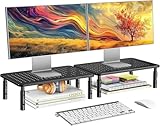
| Two monitors side by side | Dual-monitor arm or wide two-monitor riser | Two separate adjustments; 30–40 lb total or more | Independent alignment and cleaner cable routing |
| Two monitors plus laptop | Wide shelf or multi-monitor arm with laptop tray | At least 36 inches wide; 12–18 inches of usable depth | Combines screen elevation with storage |
| Small or shallow desk | Clamp-mounted monitor arm | Desk-clamp clearance and 4–10 inches of depth saved | Leaves the desktop open for speakers and peripherals |
Best monitor stands by design
Best for simple height adjustment: a desktop monitor riser
A riser is the easiest option when your monitor already has a stable base and you only need more height. Look for a platform at least 20–24 inches wide for a single display, rubber feet, and a load rating comfortably above your monitor’s total weight.
Fixed risers are inexpensive and reliable, while adjustable risers usually use legs, spacers, or a sliding frame to provide two or three height positions. A platform lifting the screen by 4–6 inches is suitable for many desks. Taller models can be useful for a seated-and-standing workstation, but check that the monitor does not become uncomfortable to view when you sit.
Models such as the Rain Design mStand are designed primarily for laptops rather than heavy desktop monitors, so verify the intended load and platform dimensions before using one with a display. A generic metal or solid-wood monitor riser is often the safer choice for a large screen.
Best for storage: a monitor stand with a shelf
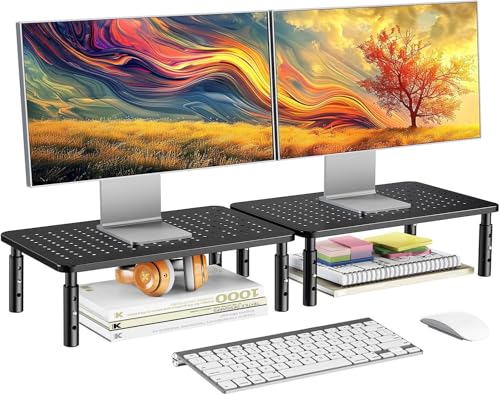
A shelf-style stand creates a second level on the desk. The space underneath can hold a keyboard, controller, notebook, USB hub, or small speakers. This is particularly useful if your desk is crowded but you do not want a clamp attached to its rear edge.
Measure the clearance under the shelf, not only the overall height. A stand may advertise 5 inches of lift, but a thick platform and support legs can leave only 3 inches underneath. For a full-size keyboard, aim for at least 2.5 inches of vertical clearance and roughly 18 inches of internal width. For a keyboard plus mouse, 28–32 inches is more practical.
Wide desk shelves from brands such as Grovemade and Oakywood can improve organization and appearance, but their solid materials make them heavy and relatively expensive. They work best on a deep, sturdy desk. For a lightweight particleboard desk, choose a shorter, lighter platform and distribute the monitor weight near the desk’s support structure.
Best for flexible positioning: a single-monitor arm
A monitor arm is the better choice when you want to move the display forward, backward, sideways, or into portrait orientation. Clamp-mounted arms also free the area below the monitor, which can be more valuable than a shelf.
Check five specifications before buying:
- Weight range: include the monitor without its original stand, and leave a safety margin of at least 2–4 lb.
- VESA compatibility: most computer displays use 75×75 mm or 100×100 mm mounting holes.
- Desk thickness: confirm that the clamp opens wide enough and can reach a solid section of the desktop.
- Extension depth: a short arm may not pull a large monitor far enough forward.
- Tilt and rotation: verify that the joint can hold the screen without slowly dropping.
The Ergotron LX is a well-known single-monitor arm for compatible displays, while the Ergotron HX is intended for heavier monitors and large ultrawide screens when configured with the appropriate mount. These arms are more expensive than basic risers, but their adjustment range and long-term serviceability can justify the cost for a primary gaming desk.
Best for two monitors: a dual arm or two independent arms
Dual-monitor stands save space, but a single central pole does not automatically make alignment easy. Two displays with different sizes, bezels, or weights may sit at different heights even when their arm joints are set identically.
A dual arm is convenient for two similar monitors. Two independent arms are better when one screen is a 27-inch display and the other is an ultrawide, when one monitor needs portrait orientation, or when you frequently change the layout.
For a dual setup, add the weights of both monitors and compare the total with the stand’s capacity. Then check the capacity of each individual arm. A stand rated for 44 lb total may still be limited to 22 lb per side.
Height adjustment: calculate the position instead of guessing
Your primary monitor should usually be positioned so that the top edge is near eye level, with the center of the screen slightly below your horizontal gaze. The exact height depends on screen size and whether you recline, but the following method gives a useful starting point.
- Sit in your normal gaming position with your back supported.
- Measure from the desktop to your eye level; call this value E.
- Measure the monitor’s visible height; call this value H.
- Set the top edge near E, then place the screen center approximately H ÷ 2 below that point.
For example, if your seated eye level is 47 inches and a 27-inch monitor has a visible height of about 13.5 inches, the screen center should begin around 6.75 inches below eye level. The top edge would therefore be close to 47 inches, and the center about 40.25 inches above the floor. Compare that with the monitor’s current center height to estimate how much lift you need. This is more useful than buying a stand solely because it says “adjustable.”
Footprint and storage: the measurements that matter
Measure the desk in three directions:
- Width: allow space for the stand plus speakers, lighting, or a second display.
- Depth: a shelf that is 10 inches deep can push the monitor and keyboard toward you on a shallow desk.
- Rear clearance: clamp arms need a clear edge, while freestanding stands need a stable, flat surface.
A freestanding base is usually more stable when it is at least half as deep as it is wide, particularly with a heavy monitor mounted high above the desk. For an arm, stability comes from the clamp and the desk itself. A thin desk may flex under a concentrated clamp load, so use a reinforcement plate or choose a broad-base freestanding stand.
If storage is the priority, compare usable shelf area rather than advertised width. A 32-inch stand with thick side supports may provide less keyboard room than a 28-inch platform with an open center.
VESA compatibility and monitor weight
Turn off the monitor and check its rear panel for four threaded holes arranged in a square. The distance between the holes is commonly 75×75 mm or 100×100 mm. Some displays hide the holes behind a removable plate, while others require a VESA adapter. Curved ultrawides and gaming monitors can have unusual mounting depth, so confirm that the stand’s screws and spacer kit fit without contacting the panel.
Use the monitor’s weight without its original stand when checking capacity. If the monitor weighs 18 lb and the arm supports 7–25 lb, it is within range. If the monitor weighs 24 lb and the arm supports 10–22 lb, it is not compatible even if the mount physically attaches.
Buying recommendations by budget
- Usually under $50: fixed metal, plastic, or bamboo risers. Choose these for a single lightweight display and basic height improvement.
- Usually $50–$150: adjustable risers, wide shelves, and entry-level single or dual arms. This is the practical range for most single-monitor gaming desks.
- Usually $150–$350: stronger gas-spring arms, premium dual systems, and heavy-duty ultrawide mounts. Spend here when adjustment, cable management, or weight capacity matters.
- Usually $350–$600 or more: premium ergonomic arms and specialized heavy-monitor systems. These make most sense for large ultrawides, standing desks, or long-term professional use.
Final choice: stand, shelf, or arm?
Choose a fixed riser when you want the lowest cost and maximum simplicity. Choose a shelf-style stand when keyboard storage and desk organization are more important than movement. Choose a single arm when you need frequent height, depth, or portrait adjustments. For two screens, select a dual arm for matching monitors and independent arms for mixed sizes or changing layouts.
The best monitor stands improve the whole workstation only when the numbers fit: enough height range for your posture, enough capacity for the actual monitor weight, enough depth for your desk, and a VESA pattern that matches the display. Measure those four factors first, then choose the design that solves your specific desk problem.
Frequently asked questions
Can I use a monitor riser with a monitor that still has its original stand?
Yes, a desktop riser is suitable when the monitor already has a stable base and you only need more height. Choose a platform at least 20–24 inches wide for a single display, with rubber feet and a load rating comfortably above the monitor’s total weight. A generic metal or solid-wood riser may be safer for a large screen than a laptop-focused model.
How do I know whether my desk is suitable for a clamp-mounted monitor arm?
Your desk is suitable if the clamp can open wide enough, reach a solid section of the desktop, and attach to a clear rear edge. Check the desk thickness before buying. A thin desk may flex under concentrated clamp pressure, so use a reinforcement plate or choose a broad-base freestanding stand instead.
Should I choose one dual-monitor arm or two separate arms?
Choose a dual arm for two similar monitors, but choose two independent arms when the screens differ in size or weight, one needs portrait orientation, or you frequently change the layout. Check both the combined capacity and the capacity of each arm, because a total rating does not guarantee that either side supports the full amount.
What should I do if my monitor does not have visible VESA mounting holes?
Check whether the mounting holes are hidden behind a removable plate or whether the display requires a VESA adapter. The common patterns are 75×75 mm and 100×100 mm, but curved ultrawides and gaming monitors can have unusual mounting depth. Confirm that the screws and spacer kit fit without contacting the panel before purchasing an arm.
How much space should I leave under a monitor shelf for a keyboard?
Leave at least 2.5 inches of vertical clearance and roughly 18 inches of internal width for a full-size keyboard. A keyboard plus mouse is more practical with 28–32 inches of width. Measure the clearance under the shelf rather than relying on its advertised lift, because the platform and support legs reduce the usable space.