The best ergonomic mice for programming are the Logitech MX Vertical for a pronounced handshake grip, the Logitech Lift for smaller hands, the Logitech MX Master 3S for productivity controls, and the Razer Pro Click for a conventional shape with stronger gaming-style tracking.
Long coding sessions put less strain on your hand when the mouse lets your wrist stay closer to neutral, your fingers remain relaxed, and common commands are reachable without stretching. The right choice depends less on the number of buttons than on shape, hand size, pointer sensitivity, and whether you prefer a cable-free desk.
As an Amazon Associate we earn from qualifying purchases at no extra cost to you.



Our Top Picks
 Anker 2.4G Wireless Ergonomic Mouse4.72"L x 2.94"W3.98 x 3.23 x 3.15 inches0.28 poundsCheck on Amazon
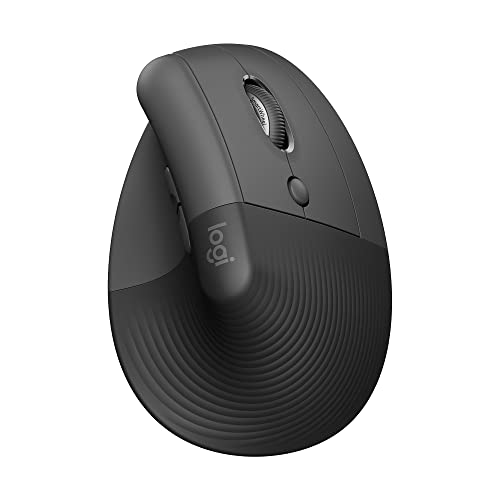
 Logitech MX Vertical Wireless Mouse Ergonomic Design1 Pack4.7 x 3.11 x 3.09 Inches0.5 PoundsCheck on Amazon

Top 3 picks at a glance
Quick comparison
| Mouse | Shape and hand fit | Controls | Connection | Typical market range | Best for |
|---|---|---|---|---|---|
| Logitech MX Vertical | 57-degree vertical design; medium to large hands | Back, forward, DPI, two main buttons, scroll wheel | USB receiver, Bluetooth, wired USB-C | Usually $80–$120 | Reducing forearm rotation during long sessions |
| Logitech Lift | 57-degree vertical design; small to medium hands | Back, forward, middle button, scroll wheel | USB receiver or Bluetooth | Usually $50–$80 | Smaller hands and compact desks |
| Logitech MX Master 3S | High, broad palm support; medium to large hands | Thumb wheel, gesture button, side buttons, horizontal scroll | USB receiver or Bluetooth; USB-C charging | Usually $80–$120 | Heavy shortcut and window-management use |
| Razer Pro Click | Traditional right-handed shell; medium to large hands | Side buttons, DPI controls, scroll wheel | USB receiver, Bluetooth, wired USB | Usually $60–$100 | Users who dislike vertical mice but want wrist support |
| Kensington Pro Fit Ergo Vertical Wireless Mouse | Moderate vertical angle; medium hands | Back, forward, DPI, scroll wheel | USB receiver or Bluetooth, depending on version | Usually $35–$70 | Budget ergonomic setups |
| Evoluent VerticalMouse D | Pronounced vertical shape in multiple hand sizes | Several programmable buttons and thumb controls | Wired or wireless versions, depending on model | Usually $100–$150 | Users who need vertical support and extensive customization |
Which ergonomic mouse shape suits your hand?
Vertical mice: the biggest change in wrist position
A vertical mouse turns your hand toward a handshake position instead of placing the palm face-down. This can reduce the amount of forearm rotation required to control the pointer. The Logitech MX Vertical and Lift are the clearest choices in this category, while the Evoluent VerticalMouse D offers more size and button variations.
Vertical mice are most useful if you already notice wrist twisting, pressure on the heel of your palm, or fatigue after several hours. They also require a short adaptation period. Text selection, dragging, and precise cursor placement may feel less natural for the first few days because the mouse moves differently under your thumb and fingers.
Raised conventional mice: an easier transition
The Logitech MX Master 3S and Razer Pro Click raise the palm and provide a fuller thumb rest without rotating the hand as aggressively. They are a safer choice if you switch between coding, design work, spreadsheets, and occasional gaming, or if a fully vertical mouse feels awkward.
The MX Master 3S is particularly strong for developers who use many windows. Its thumb wheel can scroll horizontally through wide code panes, terminal output, timelines, and spreadsheets. The Razer Pro Click has a more familiar pointer-control feel and may suit users who want ergonomic support without a heavy productivity-oriented shell.
Trackballs: less arm movement, different learning curve
A thumb-operated trackball such as the Kensington Expert Mouse Wireless can reduce the amount of desk space and arm movement needed. It is useful when your workspace is shallow or your shoulder becomes tired from repeated mouse movement. However, the thumb performs more continuous precision work, so it is not automatically better for every wrist or hand problem.
Measure your hand before choosing
Measure from the tip of your middle finger to the crease where your wrist begins. As a practical guide, hands under about 17 cm generally fit compact designs such as the Logitech Lift better; hands around 17–19.5 cm often fit the Lift, MX Vertical, Razer Pro Click, or MX Master 3S; hands above roughly 19.5 cm are more likely to need the larger MX Vertical, MX Master 3S, or a large Evoluent model.
Hand length is only half the decision. Broad palms may need a wider mouse, while long fingers may prefer extra button reach. When your hand is resting correctly, the palm should be supported without being pushed upward, the index and middle fingers should fall naturally over the main buttons, and your thumb should reach the side controls without pinching.
| Your situation | Shape to prioritize | Shortlist | Why |
|---|---|---|---|
| Small hand, compact desk | Small vertical or low-profile ergonomic | Logitech Lift | Shorter body and narrower grip reduce finger overextension |
| Medium or large hand, wrist rotation is tiring | Steep vertical | MX Vertical or Evoluent VerticalMouse D | More neutral handshake posture |
| Many windows, tabs, and horizontal documents | Raised productivity shell | MX Master 3S | Thumb wheel and gesture controls reduce repeated pointer travel |
| Ergonomic support without a major shape change | Raised conventional | Razer Pro Click | Easier transition from a standard mouse |
| Limited desk space or shoulder movement | Trackball | Kensington Expert Mouse Wireless | Cursor movement uses the ball rather than the whole forearm |
Programmable buttons that help programmers
Extra controls are valuable when they replace repetitive reach and clicking. They are less useful when every button requires remembering a complex profile. Start with a small set of commands:
- Back and forward: move through browser documentation, IDE tabs, and file history.
- Middle click: open or close links and tabs without moving to the keyboard.
- Copy and paste: useful for terminal work, but avoid placing both commands where an accidental press is likely.
- Previous and next editor tab: helpful when your IDE supports custom shortcuts.
- Push-to-talk or mute: practical for developers who attend frequent meetings.
- Window switching: a thumb button mapped to an operating-system shortcut can reduce repeated keyboard movement.
A good starting layout is back and forward on the side buttons, middle click on the clickable wheel, and one additional button assigned to your editor’s “next tab” shortcut. Keep destructive commands such as closing a tab away from the thumb rest. The aim is fewer awkward movements, not maximum button count.
Wired or wireless for coding?
Wireless is usually the better desk experience for programming because it removes cable drag and makes it easier to change posture. Bluetooth is convenient for laptops and can preserve a receiver port. A 2.4 GHz USB receiver generally provides lower perceived latency and more consistent pairing, while a wired mode is useful when charging or troubleshooting.
For coding, latency differences between modern wireless mice are rarely the deciding factor. Battery convenience matters more. For example, if a mouse uses a 500 mAh battery and averages 20 mA during active and idle use, a simple estimate is:
500 mAh ÷ 20 mA = 25 hours
Real runtime will differ because sleep modes, lighting, polling rate, and battery limits affect consumption. A mouse advertised for weeks or months will usually be less disruptive than one that needs frequent charging. Rechargeable USB-C models are convenient if you already charge other devices; replaceable-battery models can be preferable for a machine that must remain available all day.
Settings for comfortable long sessions
Begin with a moderate pointer speed rather than immediately choosing the highest DPI. On Windows, a useful starting point is pointer speed 6 out of 11 with “enhance pointer precision” disabled if you want consistent movement; then adjust DPI until moving from the center of the mousepad to its edge covers roughly one full screen width. On macOS, start near the middle of the tracking-speed slider and change only one setting at a time.
For high-resolution or multi-monitor desks, 800–1600 DPI is a practical range for many users. Higher DPI does not automatically mean better control. If the pointer feels nervous during code selection, reduce DPI or operating-system speed. If your shoulder moves repeatedly to cross the screen, raise sensitivity slightly or use a larger mousepad.
Keep the wrist floating or lightly supported rather than planted on a hard edge. Move from the elbow and shoulder for large pointer travel, and keep the mouse close enough that your upper arm stays near your torso. Even the best ergonomic mouse cannot compensate for a desk that is too high or a mouse positioned far away.
Frequently asked questions
How long does it take to adapt to a vertical mouse?
Most users should expect a short adaptation period, with the first few days potentially feeling less natural. Text selection, dragging, and precise cursor placement may require adjustment because the mouse moves differently under the thumb and fingers. The change is most relevant for people who notice wrist twisting, pressure on the heel of the palm, or fatigue after several hours.
Are ergonomic mice suitable for occasional gaming?
Yes, a raised conventional mouse may be more suitable for occasional gaming than a fully vertical design. The Razer Pro Click offers a familiar pointer-control feel while providing ergonomic support, and the article describes it as a choice for users who dislike vertical mice. The Logitech MX Master 3S is stronger for productivity and window management than for this mixed use.
Should I choose a thumb trackball if my shoulder gets tired?
A thumb-operated trackball can be useful when your shoulder becomes tired from repeated mouse movement because the cursor moves with the ball rather than the whole forearm. It also works well in a shallow workspace. However, the thumb performs more continuous precision work, so a trackball is not automatically better for every wrist or hand problem.
How should my hand rest on an ergonomic mouse?
Your palm should be supported without being pushed upward, while your index and middle fingers fall naturally over the main buttons. Your thumb should reach the side controls without pinching. Keep the wrist floating or lightly supported rather than planted on a hard edge, and keep the mouse close so large pointer movements do not require repeated shoulder movement.
What should I do if my pointer feels too sensitive during coding?
If the pointer feels nervous during code selection, reduce the mouse DPI or operating-system speed. Begin with moderate pointer speed rather than immediately choosing the highest DPI, and change only one setting at a time on macOS. On Windows, a useful starting point is pointer speed 6 out of 11 with enhance pointer precision disabled for consistent movement.
Final recommendations
- Best overall for a clear ergonomic change: Logitech MX Vertical.
- Best for small hands: Logitech Lift.
- Best for programming shortcuts and multitasking: Logitech MX Master 3S.
- Best conventional-shape alternative: Razer Pro Click.
- Best for extensive button customization: Evoluent VerticalMouse D.
- Best budget direction: a Kensington Pro Fit Ergo Vertical model with the correct hand size and connection type.
Choose the shape first, then confirm hand-size fit, button placement, software support, and charging method. A mouse with fewer features that keeps your hand relaxed for six hours is a better programming tool than a feature-rich model that forces your fingers to stretch.