The best motorized projector screens are matched to your room first: choose a tab-tensioned matte-white screen for a dark, dedicated cinema, a gray or ambient-light-rejecting material for brighter rooms, and a recessed or wall-mounted housing according to how permanently you want the installation to look.
As an Amazon Associate we earn from qualifying purchases at no extra cost to you.


Our Top Picks
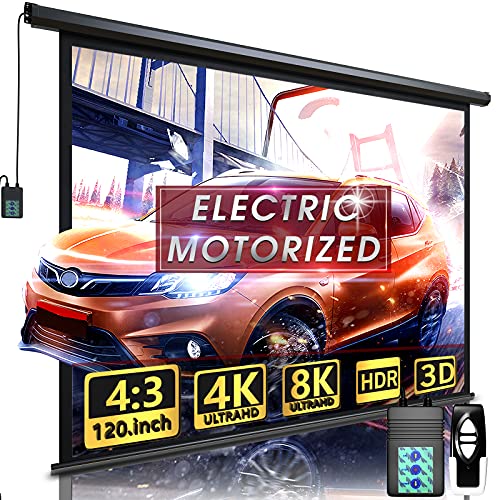
 Kayle 120 Inch Motorized Projector Screen w/Wireless Remote120" (16:9)0 x 116.53 x 86.81 inches26.46 poundsCheck on Amazon
 YODOLLA 100" Projector Screen Motorized 16:9 for Home100'' 16:90 x 87 x 49 Inches18.7 poundsCheck on Amazon
 DINAH 120 Inch Electric Projector Screen with Remote120" Diagonal (4:3)0 x 87 x 49 Inches26 PoundsCheck on Amazon
Top 3 picks at a glance
Quick recommendations by room and priority
| Your situation | Best screen direction | Why |
|---|---|---|
| Dark room, centered seating, best image uniformity | Motorized tab-tensioned matte white, approximately 1.0–1.3 gain | Wide viewing cone and predictable color |
| Living room with lamps or windows | Ambient-light-rejecting material, usually 0.8–1.5 gain | Improves perceived contrast when light cannot be eliminated |
| Hidden installation in a ceiling | Recessed motorized screen such as the Elite Screens Evanesce Tab-Tension series | Only the projection surface and lower case edge are visible |
| Visible wall or ceiling installation | Elite Screens Saker Tab-Tension, Silver Ticket motorized, or Da-Lite electric-screen families | More accessible installation and servicing |
| Large, high-end dedicated theater | Stewart Filmscreen or Screen Innovations motorized system | Broader customization of size, masking, material, and control |
| Gaming room with short viewing distances | Moderate screen size with a wide-viewing-angle material | Reduces brightness falloff and visible texture from nearby seats |
Best motorized projector screens by screen material
Matte white: the safest choice for a cinema room
A matte-white screen around 1.0 gain is the default recommendation when you can dim the room. It reflects light broadly, so viewers seated away from the center still see consistent brightness and color. It also avoids the glittering or hotspotting that can appear with strongly directional surfaces.
Look at the CineWhite versions of Elite Screens motorized ranges, Silver Ticket’s white electric-screen options, or a Da-Lite electric screen using a conventional matte-white surface. These are appropriate for LCD, DLP, and LCoS projectors, including 4K models, provided the material has a sufficiently smooth surface for your viewing distance.
Use tab tensioning rather than a basic roller screen for a permanent home cinema. Side tabs pull the fabric flat and reduce waves, which can otherwise make subtitles, game menus, and horizontal camera pans appear to bend.
Gray material: useful when black levels matter more than maximum brightness
Gray screens reduce overall reflected light and can make projected blacks appear deeper in a room with some uncontrolled light. The trade-off is lower peak brightness and, depending on the material, a narrower useful viewing angle. A gray screen is most effective when the projector has enough light output and the room’s walls are not excessively bright.
Choose gray when you mostly watch from a central seating area and want stronger perceived contrast. Avoid it if the room is wide, seating is spread across the sides, or the projector is already near the lower end of the brightness required for the screen size.
Ambient-light-rejecting material: a targeted solution, not a universal upgrade
ALR screens use directional or optical layers to favor projector light while rejecting some light from the ceiling, sides, or other angles. Elite Screens CineGrey 5D is a well-known example of a gray ALR material offered in motorized tab-tensioned formats. Screen Innovations also offers motorized systems with specialty materials designed for brighter rooms.
ALR works best when the projector and seats are positioned within the material’s intended viewing geometry. A ceiling light directly behind the audience may be less damaging than a lamp near the projector-to-screen path, but the result depends on the screen’s optical design. Do not select an ALR screen solely by its headline gain: a high number can mean a narrower viewing cone and more visible hotspotting.
Screen size: calculate the viewing width before buying
Projector screens are commonly specified by diagonal size, but viewing comfort depends more directly on image width and seating distance. For a 16:9 screen, the approximate image width is 0.872 times the diagonal. That means a 120-inch screen is about 105 inches wide, or 8.7 feet.
| 16:9 diagonal | Approximate image width | Approximate image height | Useful seating-distance range |
|---|---|---|---|
| 100 inches | 87 inches | 49 inches | About 9–14 feet |
| 120 inches | 105 inches | 59 inches | About 10–16 feet |
| 135 inches | 118 inches | 66 inches | About 11–18 feet |
| 150 inches | 131 inches | 74 inches | About 12–20 feet |
These are planning ranges, not rules. For competitive gaming, sit closer only if you can see the entire image without excessive eye or head movement. For cinematic viewing, a larger image can be comfortable at the same distance, particularly with a 4K projector and a well-focused lens.
Leave space for the case, brackets, black drop, speakers, and cable routing. A screen advertised as 120 inches does not mean its housing is only 120 inches wide. Check the complete product drawing before positioning wall speakers or a ceiling-mounted projector.
Motor noise, housing, and mounting options
Open-wall or ceiling-mounted
An exposed case is usually the simplest and most economical installation. Elite Screens Saker Tab-Tension and many Silver Ticket electric screens are aimed at this type of fit. They work well when the screen is installed in front of a flat wall, above a television, or between ceiling joists that do not need to be concealed.
Measure the case depth as well as its width. A deep case can interfere with a ceiling-mounted projector, pendant lights, cabinet doors, or a TV mounted behind the screen.
Recessed ceiling
A recessed screen such as the Elite Screens Evanesce Tab-Tension series is designed to sit inside a ceiling cavity or framed enclosure. This produces a cleaner result, but it requires access for power, accurate cavity dimensions, and a way to service the motor later. Do not close the ceiling permanently until the screen has been tested through its full travel.
Motor noise
Motor noise matters most when the screen lowers immediately before a quiet film or when the housing is mounted to a resonant ceiling. Published noise figures are not always measured under identical conditions, so compare them cautiously. In practical terms, choose a screen with a reputable tubular motor, rigid mounting, and vibration-isolating washers rather than relying on a single decibel claim.
Keep the screen’s lower limit high enough to avoid unnecessary travel. If the image begins 30 inches below the housing, there is no benefit in running the fabric several inches farther down into a speaker cabinet or walkway.
Control compatibility: plan this before installation
At minimum, verify that the screen includes a wired wall switch or low-voltage trigger option. A 12-volt trigger from a compatible projector or AV receiver can lower the screen automatically when the system starts. This is usually more reliable than an infrared remote because it does not depend on line of sight.
For smart-home integration, check whether the screen exposes dry-contact, relay, RS-232, or IP control. A screen with only infrared control may still work with a universal automation hub, but it adds another device and may not report screen position. Screen Innovations and premium Da-Lite or Stewart systems commonly offer more extensive control choices, although the exact interface varies by configuration.
- Use a 12-volt trigger when the projector provides one and you want simple automatic operation.
- Use a dry-contact relay when integrating the screen with lighting, shades, or a theater-control processor.
- Use RS-232 or IP control when you need two-way automation, scheduled scenes, or position feedback.
- Keep the manual control accessible even if automation fails.
Brightness and gain: a practical calculation
Gain is not a direct brightness rating, but it helps compare screen materials. A useful planning estimate is: screen illuminance is roughly projector lumens multiplied by gain, divided by screen area. For a 120-inch 16:9 image, the area is approximately 43 square feet. A 2,400-lumen projector with a 1.0-gain screen therefore produces about 56 foot-lamberts before accounting for lens losses, calibration, and lamp or laser operating mode.
In practice, expect less than the headline calculation because projectors rarely deliver their maximum specification in the most accurate picture mode. If you choose a 0.8-gain ALR or gray material, the same projector delivers approximately 20% less reflected light than with a 1.0-gain surface. That may be worthwhile for improved contrast, but it is a poor trade if the image already looks dim in HDR games.
Buying checklist
- Choose the diagonal only after measuring seating distance and wall width.
- Confirm the actual image dimensions separately from the housing dimensions.
- Prefer tab tensioning for screens that will be used several times per week.
- Use matte white in a dark room; consider gray or ALR only for a specific lighting problem.
- Check whether the material supports your projector’s throw angle and seating layout.
- Verify motor power, outlet location, trigger voltage, remote type, and automation interfaces.
- Leave service access around a recessed housing.
- Confirm that the drop length places the image at a comfortable eye level.
For most home cinemas, the best all-round choice is a tab-tensioned motorized screen with a matte-white surface sized around 100–120 inches. Move to an ALR material when room lighting cannot be controlled, choose a recessed housing when appearance matters most, and spend more on premium control or custom sizing only when those features solve a real installation constraint.