
Walk into any home office setup decision in 2026 and you’ll hit the same fork in the road: do you connect your monitors to a docking station over USB-C, or over DisplayPort? On paper, both carry video to your screen. In practice, they behave very differently in a docking setup — especially once you factor in charging your laptop, driving two or three displays, and keeping cables from taking over your desk. This guide breaks down how each connection actually works in a home docking scenario, what it costs, and which one fits the way you live.
Our Top Picks


Top 3 picks at a glance
Quick Verdict
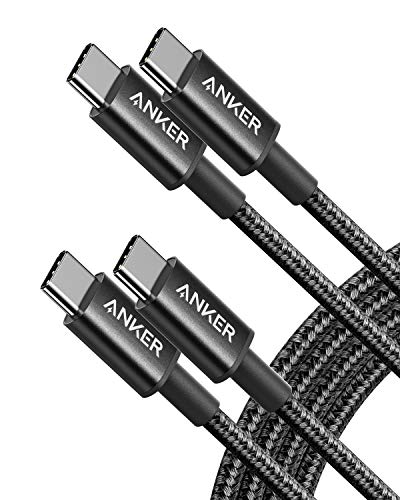
For most home users, USB-C is the right choice. A single USB-C cable can carry video, data, and up to 85–100W of charging power to your laptop, which means one plug at the end of the day instead of three. DisplayPort, whether the full-size connector or the mini variant, still wins on pure display performance — higher refresh rates at 4K, better multi-monitor support over daisy chains, and rock-solid signal stability for fixed setups. If your laptop stays parked at a desk and you want maximum monitor capability per dollar, DisplayPort is the smarter pipe. If you move your laptop between rooms or take it to work, USB-C’s one-cable convenience is hard to beat. A good USB-C cable capable of handling the job, like a 60W Anker USB-C to USB-C cable in 6-foot length, costs under $10, so entry into the USB-C camp is cheap — the real money goes into the dock itself.
As an Amazon Associate we earn from qualifying purchases at no extra cost to you.



Side by Side
| Factor | USB-C Monitor Connection | DisplayPort Monitor Connection |
|---|---|---|
| Comfort of daily use | Excellent — one reversible cable docks video, data, and charging in a single plug | Fair — separate power cable plus video cable means plugging in two or more connectors |
| Video bandwidth | DisplayPort Alt Mode over USB-C typically supports 4K at 60Hz on one or two displays depending on the dock | DisplayPort 1.4 handles 4K at 120Hz+; DisplayPort 2.0 pushes far beyond that on compatible hardware |
| Durability of connectors | USB-C connectors are rated for roughly 10,000 insertions but the small port wears if you’re plugging in all day | DisplayPort plugs are chunkier with a locking latch; rated similarly but physically sturdier in place |
| Price range (cables) | $9–$30 for a quality 6-foot USB-C cable rated 60–100W | $10–$25 for a certified DisplayPort 1.4 cable in 6 feet |
| Price range (docks) | $30–$350 depending on port count and power delivery | DisplayPort-centric docks and MST hubs run $30–$200 |
| Maintenance | Low — but lint in the USB-C port is the most common laptop repair complaint; clean gently with a wooden pick | Very low — the latching connector stays put and rarely loosens over years |
| Space needed | Minimal — a single slim cable runs behind the desk; a compact dock takes about 4–6 inches of desk depth | More — multiple cables plus a latching connector that resists being tucked tightly |
| Look on the desk | Clean — one cable disappearing into the laptop is the tidy-home-office ideal | Busier — visibly more cabling, though the connector itself looks purpose-built |
| Resale / future-proofing | Strong — USB-C or Thunderbolt is standard on virtually every new laptop | Weaker on the laptop side — many thin laptops have dropped DisplayPort; monitors keep it |
| Best for | Laptop users who dock and undock daily at home | Fixed desk setups with high-refresh or triple-monitor needs |
Where Usb C Wins
The case for USB-C in a docking scenario comes down to consolidation. Power Delivery means one cable negotiates charging — a dock with 85W PD, such as the WAVLINK triple-monitor docking station, can run two or three displays and charge most mainstream laptops through the same upstream connection. That’s the difference between grabbing your laptop and leaving versus unplugging a power brick, a video cable, and a hub.
USB-C is also reversible, which sounds trivial until you’re reaching behind a monitor in dim light. And because the connector is universal, the same cable that docks your laptop also charges a phone, tablet, or handheld console — a 2-pack of 6-foot Anker USB-C cables at around $9 or a 5-pack of LISEN 60W cables at around $8 covers the whole household for the price of lunch.
Finally, portability. A compact USB-C dock with dual HDMI or DisplayPort output weighs roughly half a pound and slips into a laptop sleeve. DisplayPort cables, with their larger connectors and stiffness, are genuinely annoying to travel with.
Where Displayport Monitor Connection for Laptop Docking Wins
DisplayPort is the display specialist, and it shows. Where a USB-C dock might push 4K at 60Hz to two monitors, a DisplayPort 1.4 connection carries 4K at 120Hz or 1440p at 165Hz without compression — a real difference if your “home office” doubles as a gaming setup or you do color-critical video work.
Multi-monitor behavior is the other big advantage. DisplayPort supports MST (Multi-Stream Transport), letting one port drive multiple displays in sequence. This is why so many multi-monitor docks — including dual-DisplayPort units like the WAVLINK — use DisplayPort for their downstream monitor outputs even when the upstream link to the laptop is USB-C. The docking station market for HP and other laptops at the $32 price point typically relies on DisplayPort-class output chips to feed three monitors at once.
Mechanically, the latching DisplayPort connector simply doesn’t fall out. In a permanent setup behind a desk where nobody touches the cables for two years, that reliability matters, and it costs nothing extra.
Cost Over 5 Years
Assume a typical home setup replacing hardware only when it fails.
USB-C route: One dock with PD at $32–$100, plus one or two quality USB-C cables at $9–$15 each. Expect to replace a cable once or twice over five years if it’s in daily use — budget another $20. Five-year total: roughly $60–$150, assuming your laptop keeps its USB-C port, which nearly all do.
DisplayPort route: A DisplayPort-capable dock or hub at $35–$100, plus DisplayPort cables at $10–$20 each for two monitors. Cables are durable and rarely need replacing; budget $10 for one failure. Five-year total: roughly $55–$140.
The totals are nearly identical. The hidden cost difference is your time: daily plug-and-unplug with a multi-cable DisplayPort setup, versus one motion with USB-C. There’s also a small risk on the USB-C side — a worn or damaged cable plugged in at full wattage is the most common cause of port damage, so buy certified cables rather than the cheapest no-name option.
Which One for Your Home
Small Apartment or Studio
Space and tidiness rule here. Go USB-C with a single 6-foot cable and a compact dock — the ~$32 dual-monitor docking stations designed for HP and similar laptops sit unobtrusively behind a monitor and give you two displays plus charging from one cable. When your desk doubles as a dining table, being able to undock in one second is worth real money in quality of life.
Family with Kids or Pets
Traffic and tugged cables are the enemy. DisplayPort’s latching connector resists being yanked loose, but a hard yank will damage the port — and kids find cables. USB-C on a dock actually performs well here because everything runs to the dock, not the laptop, so a trip hazard pulls on the dock’s fixed cables rather than your laptop’s port. Keep cables run along the desk’s rear edge with clips, choose a dock secured behind the monitor, and a 5-pack of inexpensive cables means a chewed or pinched cable is a $2 replacement, not a crisis.
Rental or Temporary Home
You’ll move, so optimize for teardown and setup. USB-C wins clearly: one dock, one or two cables, ten minutes to pack. DisplayPort’s latches are fine to disconnect but the multi-cable spaghetti takes longer to sort out at the new place. A sub-$35 USB-C dock is also cheap enough that you can leave one at each end of a two-location routine — home and a partner’s place, say — and just carry the laptop.
Long-Term Home Office
If the desk is permanent and the laptop rarely leaves, DisplayPort earns its place. Wire the dock or monitors directly with DisplayPort cables, enjoy higher refresh rates and rock-steady connections, and accept the extra two minutes of cable management during setup. Pair a DisplayPort-rich dock like the WAVLINK triple-monitor unit with your laptop over its USB-C upstream port — you get DisplayPort’s display muscle with USB-C’s one-cable docking. That hybrid is arguably the best long-term answer of all.
FAQ
Can I connect a DisplayPort monitor to a USB-C laptop?
Yes, in most cases. Many USB-C ports support DisplayPort Alt Mode, and a simple USB-C to DisplayPort cable or a docking station bridges the two. Check that your laptop’s USB-C port is a full-featured “Thunderbolt” or DP Alt Mode port, not a charge-only port — the laptop manual or port icon will tell you.
Does USB-C charge my laptop while driving monitors?
Yes, if both the dock and cable support Power Delivery at sufficient wattage. A dock with 85W PD charges most 13- to 16-inch laptops; gaming laptops needing 100W+ may still require their own charger. Use a cable rated for at least 60W, like the common 60W-rated options in the $9–$10 range.
Why won’t my three monitors work through one USB-C dock?
Bandwidth limits. A single USB-C connection often can’t drive three displays at full resolution simultaneously, and some laptop brands restrict multi-display output over their USB-C ports. Check the dock’s specification — units advertising triple-monitor support usually split output across DisplayPort and HDMI to work around the limit.
Is a more expensive USB-C cable worth it?
Within reason, yes. Certified cables with proper 60W or 100W e-marker chips cost $5–$15 and protect your laptop’s port; bargain-bin cables can overheat or deliver unstable video. You don’t need to spend more than about $15 for a 6-foot cable, but the $2 mystery cable from a gas station is a genuine risk to a $1,500 laptop.









