
A powerline adapter is a pair of plug-in units that send network data through your home’s electrical wiring, so you can get a wired Ethernet connection to your gaming PC where running a cable is impractical. It usually beats a weak or distant Wi-Fi signal for stability, but it is not as good as a proper Ethernet cable, and results depend heavily on your wiring.
As an Amazon Associate we earn from qualifying purchases at no extra cost to you.
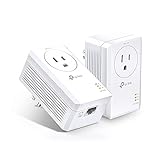
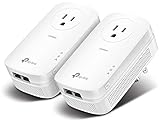
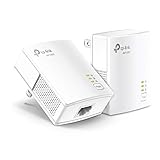

Our Top Picks
 TP-Link AV600 Powerline Ethernet Adapter Kit with 100600 Mbps2 x 2.6 x 1.1 inches0.7 poundsCheck on Amazon

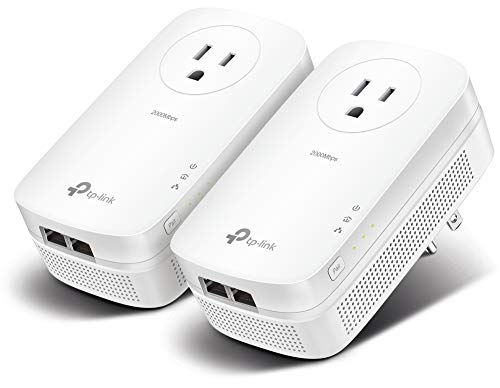
Top 3 picks at a glance
What a Powerline Adapter Is
A powerline kit has two adapters. One plugs into a wall outlet near your router and connects to it with an Ethernet cable. The other plugs into an outlet near your PC or console and offers an Ethernet port for the device. The two units talk to each other over the building’s electrical circuit, creating a wired-style link without new cabling.
Some adapters include a pass-through outlet so you do not lose a socket, and some add Wi-Fi so the remote unit also acts as an access point. For gaming, the Ethernet port is the part you care about.
How It Works
Standard power is a low-frequency signal. Adapters add a high-frequency data signal on top of it. Two main standards exist. HomePlug AV2 adapters are rated up to 2000 Mbps on the box, but real homes usually deliver far less. Reports from review roundups suggest 200 to 400 Mbps is typical, with less when the signal crosses circuit breaker branches. G.hn adapters, such as models from Zyxel and TP-Link, use a different standard and do not interoperate with HomePlug AV and AV2 units, so both ends must be the same standard. Maker documentation for G.hn kits notes that units must be on the same electrical circuit.
Quick Reference Table
| Connection | Typical latency | Stability | Setup effort | Notes |
|---|---|---|---|---|
| Ethernet cable | Lowest | Best | Needs cable run | The reference for competitive play |
| Powerline adapter | Often a few milliseconds more than Ethernet | Good on clean wiring, varies by home | Plug and pair | Same circuit works best |
| Wi-Fi 6, 6E, 7 | Low when signal is strong | Can spike with distance or interference | None | Best when router is close |
| MoCA over coax | Low | Very good | Needs coax outlets | Alternative if your home has coax |
Why It Matters for Gaming PCs
Online games depend on low, steady latency and few dropped packets. Raw bandwidth matters for downloads and updates but little for gameplay itself. Reviewers and forum users report that powerline adds roughly 4 to 10 milliseconds compared with direct Ethernet, and some tests show game pings of about 10 to 20 milliseconds on clean wiring. A forum comparison cited in search results found similar ping on powerline and Wi-Fi at 9 to 12 milliseconds, while Wi-Fi had higher throughput. Most sources say powerline is steadier than distant Wi-Fi, because it is less exposed to random interference from neighbors and walls.
Powerline performance can also fluctuate when large appliances such as refrigerators, washing machines or air conditioners start up, since they add electrical noise. Anecdotal reports describe brief micro-drops when this happens. Most published tests come from retailer or affiliate sites rather than independent labs, so treat precise numbers with caution.
How to Check and Set It Up on Your System
- Buy a kit where both adapters use the same standard, such as two HomePlug AV2 units or two G.hn units. Do not mix standards.
- Plug the first adapter directly into a wall outlet near the router, not into a power strip or surge protector, because filtering can weaken the signal. Connect it to a router LAN port with an Ethernet cable.
- Plug the second adapter into a wall outlet near the PC. Connect it to the PC’s Ethernet port.
- Wait for the link light to turn solid. If the kit needs pairing, press the pair button on each unit within the time listed in the manual.
- Test the connection. In Windows, open Command Prompt and run a ping to your router or a game server for a minute, noting the average and the variation. Compare with Wi-Fi.
- Run a speed test and a long ping test while a large appliance cycles on to see how stable the link is.
- If your PC has two network adapters active, disable Wi-Fi so Windows does not switch between them during games.
Before moving a plug or touching any outlet, make sure your hands are dry and follow the adapter manual. If the outlet is loose, warm or discolored, stop use and call a qualified electrician.
Common Misconceptions
- “The box speed is what I will get.” A rating of 2000 Mbps is a theoretical link rate, not real throughput. Real homes often see a fraction of it.
- “Powerline works across the whole house.” It works best on one circuit. Crossing breaker branches or using older wiring can reduce speed.
- “Any two adapters will pair.” Different standards, such as HomePlug and G.hn, do not work together.
- “A power strip is fine.” Surge protectors and strips often filter out the data signal.
- “Powerline is always better than Wi-Fi.” With a strong Wi-Fi 6E or Wi-Fi 7 signal near the router, Wi-Fi can match it or do better.
When to Care and When to Ignore It
Care about powerline if your PC is far from the router, walls block Wi-Fi, running a cable is impractical, and you play online games that need steady latency. Reviewers note that G.hn adapters may help in older homes where HomePlug AV2 units struggled, though evidence is mostly anecdotal.
Ignore powerline if you can run an Ethernet cable, since a cable beats it on latency and consistency. Also skip it if your router sits in the same room as the PC, or if your Wi-Fi is already strong, since extra hardware adds little.
Alternatives include running a cable along baseboards, using MoCA adapters over existing coax lines, or adding a mesh node with wired backhaul. A mesh node near the PC can offer a strong Wi-Fi connection without the electrical variability of powerline.
Troubleshooting Tips
- If speeds are low, move both adapters to outlets on the same circuit and away from noise sources such as microwaves, chargers and LED dimmers.
- If the link keeps dropping, try a different outlet for the PC-side unit and avoid shared strips.
- Update the adapter firmware only through the maker’s official tool or app.
- If the unit is hot to the touch, smells burnt, or sparks, unplug it and contact the maker.
Frequently Asked Questions
Are powerline adapters good for gaming?
They can be, if your home wiring is in good shape and both adapters sit on the same circuit. Latency is usually a few milliseconds higher than Ethernet, but often steadier than weak Wi-Fi.
Do powerline adapters add lag?
Yes, a little. Reports put the added delay at about 4 to 10 milliseconds compared with direct Ethernet, and it can spike when appliances create noise on the line.
Can I plug a powerline adapter into a power strip?
It is best to plug directly into a wall outlet. Power strips and surge protectors can filter the data signal and cut speed. Some adapters include a pass-through socket for this reason.
What is the difference between HomePlug AV2 and G.hn?
They are different standards, and adapters of one type do not talk to adapters of the other. G.hn kits are noted for working on difficult wiring, while HomePlug AV2 is more widely sold. Always buy matched pairs.
Does powerline work with Wi-Fi 7?
Powerline and Wi-Fi are separate paths. A powerline adapter gives you a wired Ethernet link, which does not depend on the Wi-Fi standard, though adapters with built-in Wi-Fi follow their own listed standard.
Is powerline safe?
Certified adapters are designed for household use. Follow the maker’s instructions, avoid damaged outlets, and consult a qualified electrician if you notice heat or damage.


