Designing an efficient home creative nook requires balancing spatial aesthetics, ambient light, and hardware performance. When selecting a display for processing RAW files, retouching portraits, or grading commercial photography, the choice often comes down to display panel technology: OLED versus IPS. While tech specs emphasize color gamut percentages and refresh rates, home desktop users face practical trade-offs involving desk footprints, power draw, room lighting conditions, and long-term hardware longevity.
An oled vs ips monitor for photo editing choice dictates not only how rich your shadows look on screen, but also how comfortable your eyes feel during late-night retouching sessions and how well your monitor fits into a bright, sunlit living area. Both technologies have evolved significantly, but they serve different editing workflows and home environments.
As an Amazon Associate we earn from qualifying purchases at no extra cost to you.


Our Top Picks
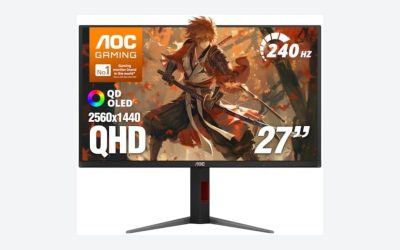
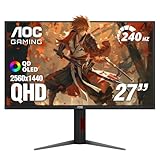
 AOC 27" Gaming Monitor QHD 240Hz QD OLED27" 240Hz Height Adjustable9.45 x 23.99 x 21.17 inchesCheck on Amazon
 ASUS ProArt PA278QV 27 Inch 1440p QHD Professional27 inches15.04 x 24.21 x 8.9 inches17 poundsCheck on Amazon

Top 3 picks at a glance
Quick Verdict
For purists who work in light-controlled rooms, edit dark or moody photography, and want a display that doubles as an ultra-sleek high-end entertainment screen, OLED provides unmatched contrast ratios, true pitch blacks, and vibrant color saturation. However, for most home creators who work near sunny windows, keep Lightroom or Photoshop open for eight hours a day with static toolbars, and need accurate full-screen brightness without dimming safety features, IPS remains the practical, cost-effective, and ultra-reliable workhorse for photo editing.
Side by Side
| Feature | OLED Display | IPS Display |
|---|---|---|
| Visual Comfort & Eye Strain | Excellent dark-room comfort due to perfect blacks; low flicker options. | Consistent uniform illumination; easier on eyes in brightly lit rooms. |
| Durability & Lifespan | Susceptible to image retention or burn-in over long-term static editing. | Exceptionally durable; panel retains performance for 7–10+ years without burn-in. |
| Price Range | $300 to $1,200+ (Typically premium pricing for desktop sizes). | $150 to $800+ (Highly accessible across all budget tiers). |
| Maintenance & Care | Requires regular pixel-refresh cycles, auto-dimming settings, and careful panel care. | Plug-and-play; minimal maintenance required beyond basic surface wiping. |
| Space & Weight Footprint | Ultra-thin panel profiles (under 0.2 inches at edges); chassis weight ~8–14 lbs. | Standard panel thickness (0.5–1.2 inches); chassis weight ~10–18 lbs. |
| Aesthetic & Form Factor | Futuristic, ultra-thin bezels, high-end desktop visual appeal. | Functional, clean studio look; ultra-slim bezels standard on modern models. |
| Resale Value | Depreciates faster due to buyer concerns over pixel wear and panel hours. | Holds steady baseline value due to proven longevity and utility. |
| Best For | Contrast-critical editing, darkroom setups, hybrid editing/gaming spaces. | Bright home offices, static application toolbars, color-critical print workflows. |
Where Oled Wins
OLED (Organic Light-Emitting Diode) technology represents a paradigm shift in contrast. Because every individual pixel generates its own light and can turn off completely, the dynamic range of an OLED monitor is mathematically infinite. For photo editors working on low-key portraits, night astrophotography, or high-contrast architectural imagery, this results in shadow details that look entirely natural without the light leakage or “IPS glow” common to backlit screens.
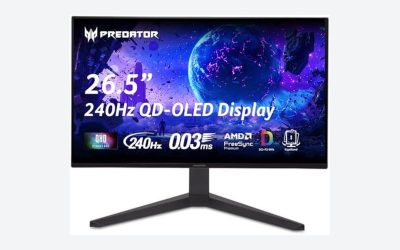
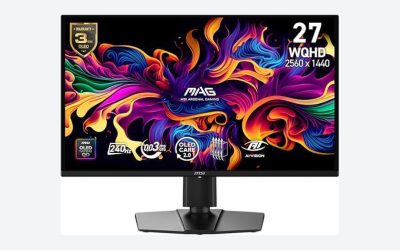
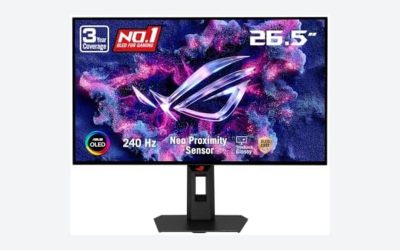
Modern QD-OLED (Quantum Dot OLED) designs have expanded color volume significantly. Displays like the AOC 27″ Gaming Monitor QHD 240Hz QD OLED Q27GAZDV (priced around $310) and its counterpart, the AOC 27″ Gaming Monitor QHD 240Hz QD OLED Q27GAZD (priced around $330), demonstrate how accessible high-end QD-OLED tech has become. These panels cover wide color spaces like DCI-P3 and AdobeRGB with incredible richness, making colors pop with dimensional reality even at moderate brightness levels.
From a home design perspective, OLED displays are remarkably slender. Because they do not require a separate backlight unit, the screen edge can measure less than a quarter-inch deep. Mounted on a minimalist monitor arm in a modern home office, an OLED display floats weightlessly over your desk, freeing up physical and visual space in smaller rooms. Response times are also instantaneous (0.03ms typical), meaning scrolling through dense photo catalogs in Lightroom yields zero blur or ghosting.
Where Ips Monitor for Photo Editing Wins
In the ongoing discussion of an oled vs ips monitor for photo editing, In-Plane Switching (IPS) technology maintains a powerful hold on professional photo workflows for several practical reasons. The primary advantage is sustained, uniform brightness across the entire screen surface. OLED monitors utilize an Automatic Brightness Limiter (ABL) to prevent thermal overload and burn-in. When a photo editor maximizes a bright white canvas or a high-key photo on an OLED, the display automatically dims the entire panel. IPS monitors do not suffer from ABL; a 350-nit IPS screen maintains 350 nits whether displaying a tiny highlight or a full-screen snowscape.
Static UI elements are the bread and butter of photo editing applications. Programs like Adobe Photoshop, Lightroom Classic, and Capture One feature static grey toolbars, dark mode borders, and color palettes that remain in the exact same desktop coordinates for hours. On an IPS display—such as the established ASUS ProArt PA278QV 27 Inch 1440p QHD Professional Monitor ( priced around $230)—you can leave your photo editing workspace open all day without stressing over permanent pixel degradation or ghost images.
Text rendering and clarity also lean heavily in favor of IPS. Because IPS panels use standard RGB subpixel layouts, fine typography, file labels, and slider values in editing software remain razor-sharp. Furthermore, high-resolution options are exceptionally affordable; entry-level solutions like the CUNPU 27″ 4K 70Hz IPS Ultra-Slim Bezel Black Photo Video Editing Monitor ( priced around $150) allow creators to access 4K pixel density for detailed retouching without breaking the bank.
Cost Over 5 Years
When evaluating hardware for your home, the purchase price is only part of the financial equation. Running costs, power draw, and replacement cycles contribute to total cost of ownership over a standard 5-year hardware lifecycle.
- Initial Hardware Cost: IPS displays for photo editing range between $150 and $500 for high-quality QHD and 4K panels. OLED displays range between $300 and $1,000+.
- Power Consumption: IPS panels consume a consistent power load, typically between 25W and 40W for a 27-inch model. OLED power draw varies based on content brightness; displaying bright white photo editing interfaces causes OLEDs to draw between 45W and 85W. Over 5 years of daily 8-hour use, an OLED display can add an extra $30–$60 in electricity depending on local utility rates.
- Lifecycle & Replacement: An IPS monitor easily maintains color accuracy and backlight stability for 5 to 8 years. OLED displays may require panel replacement or screen upgrade after 3 to 5 years if heavy static editing causes cumulative subpixel wear or uneven panel degradation.
Estimated 5-year total cost for a mid-tier IPS setup averages $250 – $450, whereas a comparable OLED setup averages $450 – $950 when factoring in higher upfront purchase prices and earlier replacement cadences.
Which One for Your Home
Small Apartment Desk
If your editing desk resides in a cozy living room nook or bedroom corner, space efficiency and aesthetics matter. An OLED monitor’s sleek panel depth and slim profile give your workspace a clean, high-tech look that doesn’t overwhelm a compact room. However, if your apartment features large uncurtained windows nearby, an IPS screen with high sustained luminance and an anti-glare matte coating will handle daytime glare much better.
Family Home with Kids or Pets
In a shared family space where a monitor might be left powered on on a desktop for hours displaying static wallpaper, web browsers, or school portals, IPS is the clear winner. Kids and family members will not remember to run pixel-cleaning cycles or hide taskbars. An IPS monitor easily withstands accidental static display abuse, physical bumps, and continuous daily use without risking costly panel burn-in.
Rental or Shared Workspace
For renters or hot-desking setups where lighting control changes with every move, versatility is paramount. An IPS monitor is light, highly compatible with standard VESA mounting arms (typically weighing 10–12 lbs without stand), and predictable under both overhead fluorescent lighting and soft floor lamps. It offers robust performance without needing specialized screen savers or power-management tweaks.
Long-Term Dedicated Home Studio
In a light-controlled editing suite equipped with blackout shades and dedicated neutral lighting, an OLED screen shines. Photographers who spend hours finetuning subtle shadow gradients, working with HDR imagery, or editing both photos and high-frame-rate video will appreciate the deep immersion and rich color pop of QD-OLED panel options. As we approach 2026, panel protection algorithms on OLEDs have grown far smarter, making them increasingly viable for dedicated creative studios.
FAQ
Does OLED suffer from text fringing during photo editing?
Some OLED displays use triangular or non-standard subpixel layouts (like certain QD-OLED generations) that can cause subtle color fringing around small high-contrast text and thin vector lines. While barely noticeable in high-resolution photo imagery, users who read extensive text or adjust fine tool sliders may notice slightly softer text rendering compared to standard IPS RGB subpixel layouts.
Is IPS still the industry standard for photo color accuracy in 2026?
Yes. IPS technology remains the primary standard for print labs, commercial design agencies, and color-critical photography. Its predictable gamma curve, uniform full-screen brightness without automatic dimming, and stable sRGB/AdobeRGB calibrations make it the safest choice for predictable print-to-screen matching.
How do I prevent burn-in on an OLED monitor when using Photoshop?
To protect an OLED panel during long photo editing sessions: set your desktop taskbar to auto-hide, enable dark mode in application preferences, use a dark canvas background, set screen timeout to 5 minutes or less, and allow the monitor to complete its automated background pixel-refresh cycles when going into standby mode.
What resolution is best for a 27-inch photo editing display?
For a standard 27-inch desktop display viewed from 20 to 30 inches away, QHD (2560×1440) offers a comfortable balance of workspace and readable UI scaling. However, 4K (3840×2160) provides exceptional pixel density (around 163 pixels per inch), making photo grain, critical focus points, and fine detail retouching look almost like a physical print.