Our Top Picks
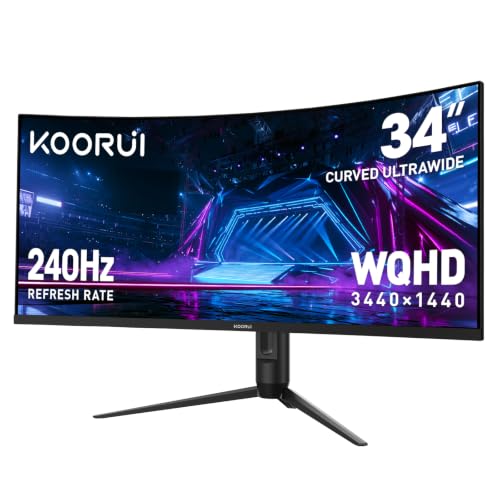 KOORUI 34 Inch 240Hz WQHD 3440x1440 Ultrawide Curved34inch 240Hz/WQHD/Curved10.63 x 31.83 x 20.24 inches17.6 PoundsCheck on Amazon

The Short Answer
It depends on what kind of FPS player you are. If you play mostly for immersion, single-player campaigns, or casual-to-mid-rank competitive shooters like Apex Legends, Call of Duty, or Destiny 2, an ultrawide is absolutely worth it — but only if you get a true 21:9 3440×1440 panel with at least 165Hz and low response time. If you are grinding ranked Valorant, Counter-Strike 2, or Overwatch 2 at a high competitive level where every frame and every pixel of focus matters, a standard 16:9 monitor will still serve you better.
The one condition that decides it: your GPU has to be able to drive 3440×1440 at high refresh rates. That resolution pushes about 34% more pixels than standard 2560×1440, so you need considerably more horsepower than you do for a regular QHD 27-inch or 32-inch display. If your system can handle it, the extra peripheral vision is a real advantage. If it cannot, you will end up lowering settings or frame rate just to fill the wider screen, which defeats the purpose.
As an Amazon Associate we earn from qualifying purchases at no extra cost to you.

What You Actually Get
An ultrawide for FPS gaming typically means a 34-inch 21:9 panel with a 3440×1440 (WQHD) resolution and a curve of 1500R to 1800R. For reference, a 34-inch ultrawide measures roughly 31.8 inches wide by 14.3 inches tall without the stand, with a total footprint of about 31.8 x 10.2 x 18.5 inches including a standard stand, and weighs between 13.5 and 18.2 pounds depending on the stand and chassis. Most models draw 45 to 75 watts during gaming and 0.5 to 1.2 watts in standby.
Compared to a 27-inch 16:9 monitor, you are getting the same vertical height as a 27-inch display but with about 33% more horizontal space. That translates to a wider field of view in games that properly support 21:9, which is most modern FPS titles as of 2026. You see more of the environment to your left and right without having to turn your character. The 1500R curve is designed to bring those far edges slightly closer to your eyes so you are not turning your head to check the minimap or ammo count.
In practical terms, the KOORUI 34 Inch 240Hz WQHD Ultrawide Curved Gaming Monitor is representative of what buyers should look for in this category: 3440×1440 resolution, 240Hz refresh rate, and a 1500R curve for around $300. By contrast, a traditional 16:9 option like the AOC 32 Inch Curved Gaming Monitor with 2K QHD 180Hz sits at 2560×1440, 180Hz, and around $180. The price gap of roughly $100 to $140 is the cost of the wider panel and the higher refresh ceiling.
You also need to consider desk space and viewing distance. An ultrawide performs best at 24 to 32 inches of viewing distance. Closer than that, you will be moving your eyes a lot to track enemies at the edges. Your desk should be at least 47 to 55 inches wide and 22 inches deep to accommodate the stand and allow a comfortable distance. If your desk is smaller, plan for a monitor arm that supports 15 to 20 pounds and VESA 75×75 or 100×100 mounting.
Pros
- Wider field of view without sacrificing vertical resolution. In supported FPS games, 21:9 renders more of the scene on the sides. This helps you spot movement in your periphery in battle royale and extraction shooters where flanking is common.
- More immersive without needing VR or triple monitors. The curved 21:9 format fills more of your natural vision than 16:9, which makes single-player FPS campaigns and story-driven shooters feel significantly more engaging.
- Replaces a dual-monitor setup for many players. A 34-inch 3440×1440 ultrawide has the same pixel width as a 27-inch QHD plus extra room for Discord, OBS, or a browser on the side without bezels in the middle.
- High refresh rates are now affordable. Entry 34-inch ultrawides with 165Hz to 180Hz now range from $260 to $350, while 240Hz models range from $290 to $430. You no longer have to choose between ultrawide and competitive refresh rates.
- Productivity bonus when you are not gaming. Video editing timelines, spreadsheets, and multitasking benefit directly from the extra 880 pixels of horizontal resolution over standard QHD.
Cons
- Not all competitive shooters support it equally. Valorant, for example, deliberately adds black bars on the sides in 21:9 to prevent an advantage, so you get no extra field of view. Overwatch 2 crops the top and bottom instead of widening the view. Always check your main game before buying.
- Higher GPU cost to maintain frame rate. Driving 3440×1440 at 144Hz+ requires a mid-range to high-end GPU from the last two generations. Expect a 25% to 40% frame rate drop compared to 2560×1440 with the same settings. If you are currently borderline for 144Hz at QHD, ultrawide will push you below it.
- More eye and neck movement. The extra width means your eyes scan a larger area. In fast, close-quarters FPS matches, some players find this tiring or distracting compared to the tighter focus of a 24 to 27-inch 16:9 display.
- Bigger, heavier, and harder to place. An ultrawide stand is wider and deeper than a standard monitor stand. If you have a compact desk, limited depth, or need to wall-mount, you will need to verify clearance and arm support.
- Potential for stretching and HUD issues. Older FPS titles and some indie shooters may stretch the image, misplace HUD elements at the far edges, or show fish-eye distortion if the field of view slider is not adjusted correctly.
Who Should Buy It
You should buy an ultrawide if your FPS mix leans toward immersion and situational awareness over pure ranked performance. This includes players who spend most of their time in Call of Duty: Warzone, Apex Legends, Battlefield, Escape from Tarkov, Destiny 2, Halo Infinite, or single-player shooters like Cyberpunk 2077 and Far Cry. If you also use your PC for work, content creation, or sim racing and flight sims, the value is even stronger because you get gaming and productivity benefits from one display.
You are a good candidate if you have a GPU equivalent to an RTX 4070, RX 7800 XT, or better, a desk at least 47 inches wide, and you view your monitor from about 26 to 30 inches away. If you prefer a single, clean setup without a second monitor and want the most cinematic FPS experience without buying three panels, the 34-inch 3440×1440 240Hz class is the sweet spot for price versus performance right now.
Who Should Skip It
Skip ultrawide if you are focused on climbing the ranked ladder in Valorant, Counter-Strike 2, or Overwatch 2. In those esports titles, a 24 to 27-inch 16:9 display with 240Hz to 360Hz, faster pixel response, and a smaller image to track gives you a competitive edge. Most professional players still use 24.5-inch 16:9 for a reason: less head movement, easier target acquisition in the center, and guaranteed native support without quirks.
You should also skip it if your PC consistently runs below 120 frames per second at 2560×1440 in your main games, or if your desk is under 42 inches wide or very shallow. In those cases you will either pay to upgrade your GPU immediately or end up uncomfortable trying to see the whole screen. A standard 27-inch or 32-inch QHD 165Hz to 180Hz monitor will be lighter on your system, your desk, and your budget.
Cheaper Alternatives
If ultrawide sounds appealing but the cost, size, or GPU load is a concern, these options deliver most of the benefit for less money and less demanding performance.
| Option | Cost | Trade-off |
|---|---|---|
| 32-Inch Curved QHD 16:9 180Hz (e.g., AOC CQ32G4VE class) | $160 – $210 | Saves $90 – $150 vs. 34-inch ultrawide 240Hz; same 2560×1440 sharpness but no extra peripheral view; 32-inch is taller and can feel too large at close range for competitive shooters |
| 27-Inch Flat QHD 16:9 180Hz to 240Hz IPS | $150 – $260 | Most balanced for competitive FPS; compact 24.1 x 18.5 x 8.5 inch footprint and 9.5 to 13 pounds; easier to drive to high frames; loses immersion and multitasking width |
| 27-Inch Full HD 16:9 240Hz to 280Hz | $130 – $200 | Lowest GPU load, highest competitive clarity; ideal for esports on a budget; noticeably less sharp for desktop use and single-player visuals |
| 34-Inch Ultrawide WQHD 120Hz to 165Hz (Budget VA) | $220 – $300 | Keeps the 21:9 field of view for $40 – $90 less than 240Hz ultrawides; gives up top-end refresh rate and sometimes response time, less ideal if you play fast shooters above 165 fps |
FAQ
Do I get a real advantage in FPS games with a 21:9 ultrawide?
In games with proper 21:9 implementation, yes, you see more on the sides — usually about 30% more horizontal view than 16:9 at the same field of view setting. That helps with spotting flankers and tracking movement in battle royales. In competitive titles that purposely limit ultrawide to keep the playing field level, you get black bars or a cropped image instead, so there is no advantage. Check your specific game’s support before you buy.
Will a 3440×1440 ultrawide hurt my frame rate?
It will reduce frame rate compared to 2560×1440 because it has 4.95 million pixels versus 3.68 million. Expect 25% to 40% lower frames at the same graphics preset. For example, if you get 165 frames per second on a 27-inch QHD monitor, the same system might deliver 100 to 125 frames per second on a 34-inch ultrawide. You can offset this by lowering shadow, reflection, or anti-aliasing settings, or by using upscaling like DLSS or FSR.
Is a curved 1500R screen better than a flat screen for FPS games?
For a 34-inch 21:9 panel, a 1500R to 1800R curve helps the edges stay at a more even viewing distance and reduces the need to turn your head. Most players find the curve comfortable for immersive FPS games and neutral for competitive play once they adjust their field of view to 95 to 103. If you do precise photo or design work and prefer zero distortion for straight lines, a flat panel may feel more natural, but for gaming the curve is generally preferred at this size.
What should I look for on the spec sheet for FPS use?
Prioritize 3440×1440, at least 165Hz, advertised 1ms GtG or 0.5ms MPRT response on a VA or IPS panel, and Adaptive Sync support. Look for a stand with height, tilt, and swivel adjustment or VESA mounting if your desk is tight, and verify ports: at least one DisplayPort 1.4 and one HDMI 2.0 or 2.1 to hit full refresh rate at native resolution. Weight and wattage ranges above can help you plan for an arm and power strip capacity without surprises at setup.