
Our Top Picks
 Calibrite Display 123 Monitor Calibration Colorimeter for Photo2.501.5 x 1.5 x 1.4 inches0.3 PoundsCheck on Amazon
The Short Answer
Yes, but it depends on one critical condition: whether your photos are leaving your screen to be printed, sold, or viewed on other professional devices. If you are a professional photographer, a print maker, or a serious hobbyist who values color accuracy, a hardware color calibration tool is absolutely worth the investment. However, if your work is strictly for casual social media sharing where viewers look at your images on uncalibrated, auto-brightness-enabled smartphones, a dedicated hardware colorimeter is a luxury you can safely skip in favor of cheaper manual alternatives.
What You Actually Get
When people talk about color calibration tools, they are usually referring to two distinct types of products that serve different parts of the photography workflow: hardware monitor calibrators (colorimeters) and physical color charts.
As an Amazon Associate we earn from qualifying purchases at no extra cost to you.

A hardware monitor calibrator, such as the Calibrite Display 123 (priced around $119), is a physical sensor that hangs over your screen. Weighing just a few ounces and connecting via a modern USB-C cable, this device works in tandem with specialized software. The software flashes a sequence of known colors on your screen, and the hardware colorimeter measures the light output. It then generates a custom International Color Consortium (ICC) profile that corrects your monitor’s color, contrast, white balance, and brightness (typically targeting a standard 120 cd/m² for editing environments). This ensures that a true red or a neutral gray displays exactly as intended.
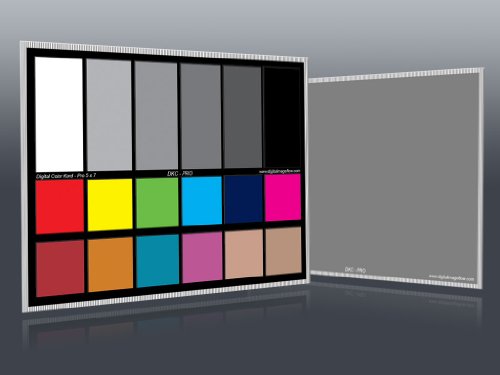
On the other hand, physical color charts, such as the DGK Color Tools DKC-Pro 5″ x 7″ Set of 2 (priced around $16), are used at the point of capture. This set includes two waterproof plastic charts featuring 12% and 18% gray targets along with 18 color patches. By placing these 5″ x 7″ cards into your shooting scene under your current lighting setup, you capture a baseline reference. Later, in editing software like Lightroom or Photoshop, you can use the eyedropper tool on the gray patch to instantly achieve a perfect white balance, eliminating color casts before you even begin fine-tuning your image.
As we look ahead to 2026, the integration of high-dynamic-range (HDR) screens and advanced OLED panels into home workspaces makes these tools even more vital, as modern displays often ship with aggressive, oversaturated factory settings designed to look good in retail showrooms rather than in a color-accurate home studio.
Pros
- Unmatched Visual Consistency: If you use a dual-monitor setup, you have likely noticed that the same image looks vastly different on each screen. A hardware calibrator standardizes both displays so they match perfectly.
- Reduced Print Waste: High-quality matte and glossy photo papers can easily cost between around $1 and around $5 per sheet. Without calibration, you will waste time, ink, and paper on prints that turn out too dark or have an unexpected green or magenta tint.
- Saves Post-Processing Time: Instead of guessing whether a skin tone is too warm or adjusting your white balance back and forth, physical charts and monitor profiles give you a trusted starting point, cutting editing time in half.
- Neutralizes Ambient Lighting Issues: The light in your home office changes throughout the day. Advanced calibrators measure ambient room light and adjust your screen profile accordingly so your eyes aren’t tricked by warm morning light or cool afternoon shadows.
Cons
- Upfront Financial Investment: A reliable entry-level hardware colorimeter will cost you between $110 and $280. While physical target charts are much cheaper (under $20), they do not calibrate your screen—only your camera’s input.
- Required Maintenance and Drift: Monitors do not stay calibrated forever. LED backlights degrade and shift in color temperature over time. To maintain accuracy, you must recalibrate your screen every two to four weeks, which adds a recurring chore to your workflow.
- The “Ugly” Initial Shock: Standard consumer monitors are set to a very cool, blue-white color temperature (often 9300K) to look bright and crisp. When you first calibrate to the industry-standard daylight profile (6500K / D65), your screen will look surprisingly warm and slightly dim. It takes several days for your eyes to adjust to this accurate baseline.
- Diminishing Returns for Mobile-Only Viewing: If your target audience views your work on mobile screens with auto-brightness and True Tone enabled, your painstakingly calibrated colors will be automatically altered by their devices anyway.
Who Should Buy It
You should invest in a hardware monitor calibrator if you print your photos at home or use professional lab services. It is also an essential tool for commercial photographers, graphic designers, and digital artists whose clients demand exact brand color replication. If you work in a home studio with mixed lighting (such as overhead yellow bulbs combined with natural window light), a colorimeter is the only way to keep your eyes from compensating for the room’s color bias.
Additionally, if you frequently shoot in challenging lighting conditions—such as under fluorescent office tubes, at golden hour, or in shadow-heavy forests—a physical target like the 5″ x 7″ DGK Color Tools set is a must-buy. At under $20, it is a low-cost, high-reward tool that ensures your camera captures accurate raw data from the start.
Who Should Skip It
You can skip a hardware monitor calibrator if you are a casual hobbyist who only shares photos on platforms like Instagram or personal blogs. You should also skip it if you edit on a high-end, modern Apple Silicon MacBook Pro or an iMac. Apple’s modern Liquid Retina XDR displays are factory-calibrated to a very high standard that is more than sufficient for non-commercial work.
Furthermore, if you own a cheap, budget-grade TN panel monitor with poor viewing angles and low color gamut coverage (less than 95% sRGB), a calibration tool cannot magically make your monitor display colors it is physically incapable of producing. In this case, your money is better spent upgrading to a decent IPS monitor first.
Cheaper Alternatives
If you are not ready to spend over $100 on a hardware colorimeter, there are several budget-friendly alternatives that can still improve your color workflow dramatically.
| Option | Approx. Cost | Trade-off |
|---|---|---|
| In-Camera White Balance Charts (e.g., DGK 5″ x 7″ Set) | $15 – $25 | Corrects the photo’s source colors and white balance in-camera, but does not fix or calibrate how those colors actually display on your physical computer screen. |
| OS Built-In Calibration Tools (macOS Display Calibrator / Windows Color Calibration) | Free (Built-in) | Relies entirely on your eyes to match gray patterns. Because human vision adapts to surrounding light, this manual method is highly subjective and inconsistent. |
| Factory sRGB Preset Mode | Free | Most mid-range monitors include a factory-tuned “sRGB” or “Standard” picture profile. While better than “Vivid” or “Game” modes, it does not account for screen aging or room lighting. |
FAQ
Can I share a single hardware monitor calibrator with my friends to split the cost?
Yes. Unlike software licenses that are locked to a single user, most calibration hardware allows you to install the accompanying software on multiple computers. Sharing a colorimeter with a few local photographer friends is an excellent, cost-effective way to get professional results without paying the full price individually.
Do I need to calibrate a brand-new monitor?
Yes. Out of the box, almost all consumer and business monitors are configured to look bright, vibrant, and cool to attract buyers in retail spaces. Even dedicated “factory-calibrated” creative monitors can drift during shipping, storage, and initial use, meaning they still require a baseline calibration once set up in your specific home workspace.
What is the difference between a colorimeter and a spectrophotometer?
A colorimeter (like the Calibrite Display 123) uses red, green, and blue filters to mimic human eye perception and is ideal for calibrating emissive displays like monitors and laptops. A spectrophotometer is a more expensive, advanced tool ($500+) that measures the entire visible light spectrum. It is primarily used by high-end print shops to create custom profiles for physical paper and ink combinations.
Will a color calibration tool make my screen look dimmer?
Often, yes. Most uncalibrated monitors run at maximum brightness, which can exceed 250 to 350 nits. For accurate photo editing and print matching, the software will usually guide you to dim your screen to a standard target of 120 nits. While this may feel dark at first, it prevents you from accidentally editing your photos too dark, which is the most common mistake made on uncalibrated screens.









