
A monitor light bar should light your desk, not your screen. When it is set up poorly, you get the opposite: a bright stripe reflected in your display, washed-out contrast, eye strain from uneven lighting, and a cramped desk that feels darker than before. The fix is almost always placement and angle, not brightness. With the right position, a light bar casts an asymmetrical beam forward over your keyboard and documents while keeping light off the monitor itself, which is how you get glare-free, usable light without adding a desk lamp footprint.
Most bars do this with a weighted clip that sits on top of your monitor and an angled shade or lens. When the optics are aligned correctly, the cutoff is sharp enough that you can run the light at full brightness and still see no reflection. As of 2026, even budget models use this asymmetric design, so setup matters more than price. The steps below work for flat, curved, and ultrawide monitors.
As an Amazon Associate we earn from qualifying purchases at no extra cost to you.


Our Top Picks
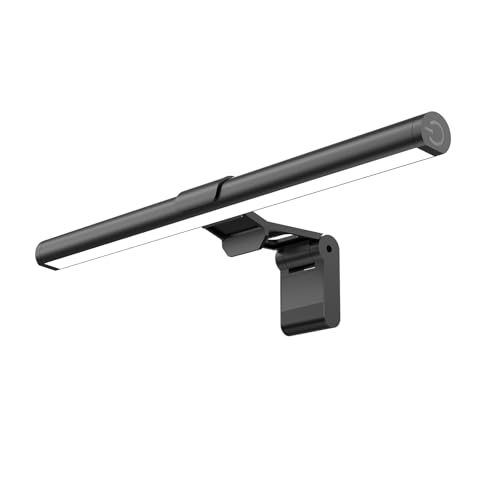

What You Need
| Item | Why | Optional? |
|---|---|---|
| Monitor light bar with weighted clip | Provides forward-throw light without a base; typical sizes are 11 to 20 inches wide, 0.4 to 0.9 pounds, and 3 to 8 watts via USB | No |
| USB power source (monitor USB-A port, PC, or 5V adapter) | Powers the bar; most bars draw 5V/0.6A to 5V/1.5A and include a 50 to 70-inch USB-C cable | No |
| Monitor with flat top edge 0.3 to 1.2 inches deep | Gives the clip a stable seat; curved-back or ultra-thin monitors may need a thicker counterweight | No |
| Soft microfiber cloth | Cleans dust from the top bezel so the clip does not slip and the optics stay clear | Yes |
| Small level or phone level app | Checks that the bar is parallel to the screen for an even light pool | Yes |
| Cable clips or sleeve | Routes the USB cable down the back of the monitor arm or stand to prevent snagging | Yes |
Two common reference points for shoppers: a compact bar like the Samphon Monitor Light Bar at 11.8 inches and around $13 covers a standard 24 to 27-inch desk area, while a larger, feature-heavy option like the Quntis Monitor Light Bar Pro in white at around $42 adds stepless dimming, auto-dimming, and dual controls with a wider beam for 32 to 40-inch setups. Prices for most quality bars fall between $12 and $50, with premium models at $60 to $90. You do not need the most expensive model to avoid glare; you need correct mounting and angle.
Step-by-Step
Step 1: Check Fit and Power – About 2 minutes
Measure the top of your monitor. Most clips need at least 0.4 inches of flat surface and grip bezels up to 1.0 inch thick. If your monitor has a heavily curved back, a protruding camera bump, or a very thin 0.2-inch edge, test the clip dry before powering anything. Confirm you have a free USB-A or USB-C port within 60 inches. If you plan to power from the monitor’s own USB hub, check that the port stays powered when the PC sleeps; otherwise use a rear PC port or a 5V/1A wall adapter. Wipe the top edge with a dry microfiber cloth.
Step 2: Mount the Clip Centered and Level – About 3 minutes
Open the clip and seat it dead center on the top bezel. The weighted or silicone-padded base should overhang the back slightly to counterbalance the front light tube. The front edge of the clip should be flush with the front face of the monitor, not tilted forward or back. Look from the side: the light bar cylinder should be parallel to the top of the screen. If it slopes left or right, slide the clip a few millimeters until it sits level. On monitors 27 inches and larger, centering prevents a brighter hotspot on one side of the desk. Do not add adhesive; the weight and friction are designed to hold 0.5 to 0.9 pounds without it.
Step 3: Angle the Beam Forward, Off the Screen – About 2 minutes
This is the step that eliminates glare. Most bars rotate 30 to 45 degrees inside the clip. With the bar on but dimmed low, slowly tilt the light tube away from the screen until you see no reflection on a dark or black display. The correct angle throws light in a roughly 110 to 120-degree asymmetric wedge that starts just in front of the monitor and spreads 20 to 30 inches deep across the desk. A quick test: place a white sheet of paper where your keyboard sits. You should see a bright, even rectangle on the paper and no bright line on the screen itself. If you see glare, rotate the bar a few degrees further forward. If the front edge of the desk is dark, rotate it slightly back.
Step 4: Set Height and Distance From Your Eyes – About 2 minutes
If your bar has a height adjustment or a stepped clip, keep the light source just above the top bezel, typically 0.5 to 1.0 inch above the screen frame. Higher than that softens the cutoff and can spill light onto the top of the display. Sit in your normal chair position, eye level about 24 to 30 inches from the screen. You should not see the LED line directly; you should only see its effect on the desk. If you can see bare LEDs, the bar is tilted too far back toward you. Nudge it forward until the LEDs disappear from view but the desk stays bright.
Step 5: Dial In Brightness and Color Temperature – About 3 minutes
Start at 30 to 40 percent brightness and increase slowly. For evening work, many people prefer 2700K to 3200K warm light; for detailed paperwork or reading, 4000K to 5000K is more neutral. Bars with 3-step color switching will offer warm, natural, and cool presets, while stepless models let you tune continuously. Match the bar to your room light rather than overpowering it. A good balance is when the desk surface measures roughly similar brightness to the wall behind the monitor, which avoids the tunnel effect that strains eyes. If your bar has auto-dimming, let it set a baseline, then fine-tune manually by 10 to 15 percent; sensors often sit on top of the bar and can be fooled by overhead ceiling lights.
Step 6: Manage Cables and Test for Glare at Night – About 2 minutes
Route the USB cable straight down the back of the monitor using one or two small clips so it does not pull on the light bar. Leave a 2 to 3-inch service loop near the clip to allow rotation. Once the room is dark, open a blank dark document and a white document and check both. On dark backgrounds there should be no horizontal reflection; on white backgrounds the screen should not look washed out at the top. Type for a minute and check for reflections of the bar in glossy screens or glasses. If you wear glasses and still see a faint line, lower brightness by 15 to 20 percent and tilt the bar 2 to 3 degrees further forward.
Mistakes to Avoid
Mounting off-center to avoid a webcam. Pushing the bar to one side creates uneven coverage and often angles light across the screen coating, which shows as glare. If your webcam sits in the middle, choose a bar with a notched clip or raise the webcam slightly; do not offset the light.
Tilting the bar toward the screen for more light. It feels intuitive but it lights the monitor instead of the desk. Keep the beam cutoff just in front of the bezel. More desk light should come from higher brightness, not a steeper angle.
Powering from an underpowered hub. Passive hubs and some keyboard pass-through ports deliver less than 500mA, which causes flicker or dimming when you raise brightness. Use a direct PC port or powered hub rated for 900mA or higher.
Using maximum cool white in a dark room. A 6500K setting at 100 percent in a dark room increases eye fatigue and makes screen glare more noticeable. Drop to 4000K or below at night and let brightness sit at 50 to 70 percent for most 5-watt bars.
Blocking the sensor or controls. Auto-dimming sensors on top of the bar need a clear view of ambient light. Do not place decor, cameras, or cable bundles over the sensor, and position wireless remotes or pucks within 24 inches for reliable control.
How Often
Check alignment every 2 to 4 weeks. Clips can shift a few millimeters when you adjust monitor tilt or height, which is enough to reintroduce glare. Dust the light bar lens and the monitor top with a dry microfiber cloth monthly; a thin film of dust softens the beam cutoff. If you move between day and night work, reset brightness and color temperature at each session rather than leaving it on one setting. LED bars rated for 25,000 to 50,000 hours do not need bulb changes, but inspect the USB cable every 3 to 6 months for kinks near the strain relief.
When to Call a Pro or Replace
You do not need an electrician for a USB light bar, but there are times to stop adjusting and replace or seek help. Replace the bar if it flickers at multiple power sources, if the dimmer or color control only works intermittently, or if the housing runs hot above warm to the touch after 30 minutes at 50 percent brightness, which can indicate a failing driver. If the clip will not hold on a curved-back, ultra-thin, or very thick bezel monitor and the bar rocks or slides, switch to a model with a deeper counterweight or an adjustable hinge designed for curved displays. For built-in desk lighting or hardwired overhead lights that create competing glare, an electrician or lighting consultant can help reposition fixtures rather than forcing the monitor bar to compensate. If you notice persistent eye strain, headaches, or reflections that remain after correct angling, have your eye care provider check monitor distance, prescription, and ambient lighting levels before buying another accessory.
FAQ
Why do I still see a bright line on my screen after installing?
The beam is angled too far back toward you. With the screen showing black, rotate the bar forward in small 2 to 3-degree increments until the reflection disappears from the top third of the display. Then adjust brightness, not angle, to get more desk light. Also confirm the bar is centered and level; a diagonal mount spills light onto one corner.
Will a monitor light bar work on a curved or ultrawide monitor?
Yes, if the clip can sit level. Most 34 to 49-inch curved ultrawides have a flat top strip that accepts standard clips. Check that the bar length matches the monitor: an 11 to 13-inch bar suits 24 to 27-inch screens, while a 19 to 21-inch bar covers 34 inches and wider without leaving dark edges. Bars under 5 watts may look dim across a deep 30-inch desk, so consider 5 to 8 watts for ultrawide setups.
How bright should the light bar be compared to my monitor?
Aim for the desk to be slightly less bright than the monitor’s white areas, not brighter. Start at 300 to 500 lux on the desk surface for reading and writing, which for most bars is 40 to 70 percent power at 18 to 24 inches distance. If your monitor is at 120 to 160 nits for indoor use, matching ambient light to that range reduces contrast strain without washing out the screen.
Can I use the USB port on my monitor to power the bar?
Often yes. Many monitors provide 5V/900mA to 5V/1.5A on a USB-A hub port, which is enough for most 3 to 5-watt bars. Test by setting the bar to maximum brightness and maximum warm white; if it dims, flickers, or resets, move to a rear motherboard USB port or a 5V/1A adapter. Avoid unpowered hubs or keyboard USB pass-throughs, which often limit current to 100 to 500mA.









