
A clean wall-mounted monitor looks effortless until the cables ruin it. Done badly, dangling HDMI, power, and USB cords collect dust, snag when you adjust the arm, and put constant strain on ports. Worse, pinching a power cord behind a tight mount or running an extension cord through the wall creates a real fire hazard and can violate electrical code. The fix is planning the path before you drill, separating power from low-voltage signals, and giving every cable enough slack to move without tension. With the right layout, your setup looks wireless from the front and stays safe and serviceable behind the screen.
Our Top Picks

What You Need
| Item | Why | Optional? |
|---|---|---|
| Stud finder and painter’s tape | Locate studs and mark cable entry/exit points without damaging drywall | No |
| In-wall cable management kit with power and low-voltage plates | Provides code-compliant way to hide power and HDMI/DisplayPort/USB behind drywall; typically $28-$38 for a kit that includes hole saw, grommets, and power inlet/outlet | No for in-wall method |
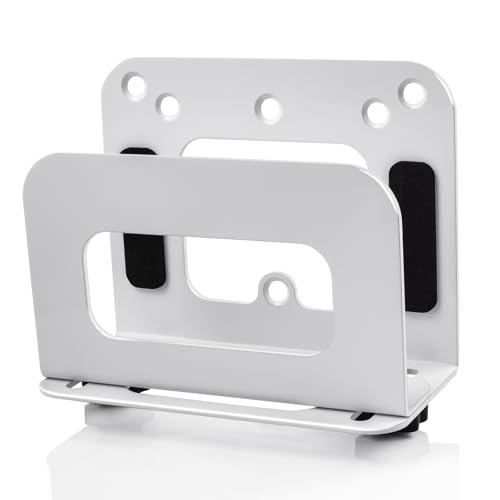
| Adjustable cable box wall mount or VESA mount shelf (thickened metal) | Holds small devices like Mac mini, Mini PC, Roku, routers, or streaming boxes behind the monitor; supports 8-12 lbs and fits devices 1.5 to 3.5 inches thick, usually $17-$24 | Yes, if you need to hide a device |
| Level, drill, and included hole saw (typically 2 to 2.5 inches) | Ensures straight cuts for low-voltage grommets and power plates | No for in-wall method |
| Fish tape or glow rods (48-72 inches long) | Pulls cables through insulated walls over 12-24 inches of vertical drop | Yes, but highly recommended for insulated walls |
| Short-length cables (1.5 to 3 feet HDMI 2.0/2.1, USB-C, power) | Reduces slack and clutter behind a 24 to 32-inch monitor | No |
| Cable raceway or cord cover (0.75 to 1.5 inches wide) | Surface-mounted alternative when you cannot go inside the wall, $12-$20 for a 6-foot channel | Yes, if not opening drywall |
| Velcro straps and adhesive cable clips | Secures slack and prevents strain on ports; rated for 1-3 lbs per clip | No |
Step-by-Step
Step 1: Plan the Path and Check the Wall (10-15 minutes)
Decide where the monitor will sit and where the cables will exit near your desk or outlet. Hold the mount plate against the wall and use a level to mark the center of the screen at eye height, usually 42 to 48 inches from the floor for a seated desk setup. Scan with a stud finder. Most interior walls have studs every 16 inches on center, sometimes 24 inches. You want your cable entry hole in the open bay between studs, centered 2 to 3 inches below the mount. Mark a second exit hole 12 to 18 inches above the baseboard or directly behind your power strip. Check for horizontal fire blocks by tapping or using a thin inspection probe. If you cannot go in-wall because you rent or have concrete or plaster, plan a surface raceway running vertically from behind the monitor to the desk instead.
As an Amazon Associate we earn from qualifying purchases at no extra cost to you.

Step 2: Power Down and Dry-Fit Everything (5 minutes)
Unplug the monitor and all peripherals. Lay the monitor face-down on a blanket and attach the VESA plate. Most monitors use 75x75mm or 100x100mm VESA patterns. If you are adding an adjustable cable box wall mount or VESA shelf behind the monitor, attach it to the VESA holes now. These thickened metal brackets typically weigh 1.2 to 1.8 lbs and create a 2 to 4-inch deep shelf for devices up to 8.6 inches wide. Place your Mini PC, streaming stick, or power brick on the shelf to confirm clearance. The mount plus device should not push the monitor more than 1.5 inches from the wall or block ventilation slots. Keep power bricks ventilated; they can reach 110 to 130 degrees Fahrenheit under load.
Step 3: Cut Holes for In-Wall Routing (15-20 minutes)
For the in-wall method, use the template that comes with your in-wall cable management kit. Tape it behind the monitor mount area and near the lower outlet. Drill pilot holes, then use the included 2-inch hole saw to cut drywall. You will make two low-voltage openings and, if the kit includes code-compliant power, two rectangular openings for the recessed power inlet and outlet. Do not run a standard extension cord or power strip cord inside the wall. Code-compliant kits use Romex rated NM-B cable behind the drywall to connect a lower power inlet to an upper recessed outlet, so only the factory power cord shows on the outside. Vacuum dust and test-fit the grommets and plates. They should sit flush with no gaps larger than 1/16 inch.
Step 4: Fish and Separate Your Cables (15-25 minutes)
Feed fish tape from the top hole to the bottom. Tape your low-voltage cables (HDMI, DisplayPort, USB) together with electrical tape, leaving a 6 to 8-inch service loop at each end for adjustments. Pull them through gently. Keep low-voltage and power separated by at least 2 inches inside the wall cavity to reduce interference. Never bundle power with HDMI tightly with zip ties. Use the glow rods if insulation snags the cables. For most desk setups you only need 3 to 6 feet of cable inside the wall. If you are hiding a device on the rear shelf, connect its short 1.5-foot HDMI and power cables first, then route the longer run down the wall. Leave 3 to 4 inches of slack behind the monitor so the arm can tilt and swivel without pulling connectors.
Step 5: Mount, Connect, and Dress the Cables (20-30 minutes)
Secure the wall mount to at least one stud with lag bolts rated for 80 to 100 lbs shear, or use four heavy-duty drywall anchors rated for 50 to 75 lbs each for lighter 15 to 25 lb monitors. Hang the monitor and connect power to the upper recessed outlet and low-voltage to your PC or dock below. Strap any excess cable length into a 4 to 5-inch loop behind the monitor and secure with Velcro, not plastic zip ties, so you can re-adjust later. If you used a surface raceway instead, snap cables into the channel and paint it to match the wall. Test the display at its highest refresh rate and wiggle cables lightly to confirm no intermittent signal loss, which signals a bent pin or over-tight bend radius. HDMI and DisplayPort should not be bent tighter than a 1.5-inch radius.
Step 6: Test Safety and Final Tidy (5-10 minutes)
Power everything on and check for heat. Power bricks and the recessed outlet should feel warm, not hot, to the touch. Use a simple outlet tester ($12-$18) to confirm the upper outlet is properly grounded. Tug gently at each cable exit; nothing should pull free or strain the port. Add adhesive clips along the back of the desk leg if a vertical drop remains exposed. Step back and check sightlines from your chair. If you still see a cord line, shift the lower plate 2 to 3 inches or add a flat 90-degree HDMI adapter to reduce bulge. As of 2026, most kits include brush-style grommets that seal better against dust while letting you add a cable later without cutting again.
Mistakes to Avoid
Do not run an ordinary power cord, surge protector, or extension inside the wall cavity to make the power cord disappear. That is the most common code violation and a fire risk. Always use a kit that creates a proper power bridge or hire an electrician to add a new outlet. Do not overfill a grommet. A standard 1.5-inch grommet fits two to three thin cables comfortably; cramming five creates friction and damages jackets. Avoid sharp right-angle bends behind a flush mount. Monitors that sit 0.5 to 1 inch from the wall need right-angle adapters instead of forcing straight plugs. Do not skip measuring slack. A monitor on an arm needs 6 to 10 inches of extra cable to extend fully without yanking. Finally, do not drill without confirming studs and electrical lines. Power lines often run vertically from existing outlets, so stay at least 3 inches away from them.
How Often
Inspect behind the monitor every 6 to 12 months, or anytime you swap a device. Dust behind a warm monitor can accumulate quickly and raise operating temperatures by 10 to 15 degrees. Undo Velcro, vacuum lightly with a brush attachment, and check that clips still hold. Replace any cable that feels stiff, has a cracked jacket, or needs to be wiggled to work. If you use an adjustable rear shelf for a Mini PC or media player that draws 30 to 65 watts continuously, check that ventilation around the metal bracket remains open and that the device has not shifted and blocked vents. Tighten VESA screws and mount bolts once a year; vibration from desks and monitor arms can loosen them over time.
When to Call a Pro or Replace
Call an electrician if you need a new outlet added inside the wall, if you see scorch marks, melted plastic, or smell burning near a plate, or if your wall contains knob-and-tube wiring, aluminum wiring, or plaster over metal lath. Those situations require professional handling and are not suitable for DIY kits. Call a handyman or installer if you hit a fire block you cannot drill through, or if you need to route across two stud bays. That often means cutting and patching drywall. Replace your in-wall kit if plates crack, grommets no longer grip, or the power inlet feels loose. Replace cables that do not support your monitor’s resolution and refresh rate. For example, older HDMI 1.4 cables cannot reliably carry 4K at 60Hz and should be upgraded to Ultra High Speed HDMI 2.1 cables ($9-$15 for 6 feet).
FAQ
Can I hide cables without cutting into the wall?
Yes. Use a paintable cord raceway that sticks to the wall. A 6-foot kit in the $12-$20 range covers the vertical run from behind a 27-inch monitor to the desk and can be cut to length with a utility knife. Gather power on one side of the channel and low-voltage on the other if the raceway has a divider, and avoid overfilling by more than 70 percent capacity so the cover snaps shut cleanly.
Is it safe to put the power cord behind the drywall?
Only if you use a code-compliant in-wall power kit or a professionally installed outlet. The kits that cost $28-$38 include a power inlet at the bottom and a recessed outlet at the top connected by in-wall rated cable. You then plug a short extension cord from the wall to the inlet and the monitor’s power cord into the upper outlet. Never fish a power strip cord or standard plug-through cord inside the wall.
What if I have a monitor arm instead of a fixed mount?
Leave a larger service loop. Arms that extend 18 to 28 inches and swivel 180 degrees need at least 10 to 12 inches of slack formed into a gentle S-curve along the arm. Use Velcro straps every 6 to 8 inches on the arm itself and avoid taping cables tightly to the joint. Test the full range of motion before final tightening.
How do I hide a Mini PC or streaming device too?
Mount an adjustable VESA shelf directly behind the monitor. Thickened metal models in the $17-$24 range clamp to the VESA holes and hold 8 to 12 lbs, which covers most Mini PCs at 1.1 to 2.5 lbs, plus streaming sticks and routers. Keep the device centered for balance, leave 1 inch of airflow on all sides, and use 1 to 1.5-foot cables to connect it to the monitor so the longer run down the wall stays single and tidy.









