
Buying a 144Hz monitor for your console is a great upgrade — but here’s the catch most shoppers discover too late: plugging in a 144Hz display doesn’t automatically give you 144 frames per second. A PlayStation 5 or Xbox Series X tops out at 120Hz output, so the best you can actually get is 120fps. If you set things up wrong, you can end up stuck at 60Hz, seeing stuttery motion, input lag, or a blank screen when you boot up. This guide walks you through enabling every hertz your console can deliver on a 144Hz monitor, step by step, so nothing gets wasted.
Our Top Picks

What You Need
Before you start, gather everything on this list. Most problems come down to one missing piece — usually a cable.
As an Amazon Associate we earn from qualifying purchases at no extra cost to you.


| Item | Why You Need It | Optional? |
|---|---|---|
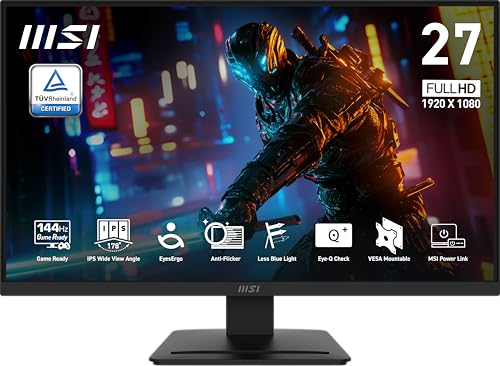
| 144Hz-capable monitor with HDMI 2.0 or better | The monitor must accept a high refresh rate over HDMI at 1080p. Budget picks like the MSI PRO MP243L E14 (24-inch, 1080p IPS, 144Hz, FreeSync, around $90) and the larger MSI PRO MP273L E14 (27-inch, same panel specs, around $115–$120) both handle this fine. | No |
| Certified Premium High Speed HDMI cable (18Gbps) | 1080p at 120Hz requires roughly 12Gbps of bandwidth. Old or bargain-bin cables often max out at 60Hz. | No |
| PS5, PS5 Slim, Xbox Series X, or Xbox Series S | Only current-gen consoles support 120Hz output. PS4, Xbox One, and the Nintendo Switch cap at 60Hz. | No |
| Monitor power cable and a working outlet | These panels typically draw 25–35 watts, but a loose power connection mimics a dead monitor. | No |
| Second HDMI cable (for troubleshooting) | Swapping cables is the fastest way to isolate a bandwidth problem. | Yes |
| Console controller with a charged battery | You’ll be navigating settings menus, and some games only expose 120Hz options on updated firmware. | Yes |
| USB flash drive (for monitor firmware updates on select models) | A few monitors need a firmware file to unlock 120Hz over specific HDMI ports. | Yes |
Step-by-Step
Step 1: Verify your console actually supports 120Hz output (5 minutes)
Press the PlayStation button (PS5) or Xbox button (Series X/S) to open the dashboard. On PS5, go to Settings > Screen and Video > Video Output. On Xbox, go to Profile & system > Settings > General > TV & display options. Look for a refresh rate dropdown that includes 120Hz. If your console is a PS4, Xbox One, or Switch, it cannot output more than 60Hz no matter what monitor you buy — stop here and enjoy your monitor at 60Hz, which is still a big clarity upgrade over an old TV.
Step 2: Connect the console to the correct HDMI port (5 minutes)
Power everything off. Plug the HDMI cable into your console’s HDMI out port, then into the monitor’s HDMI input. On most 144Hz monitors, all HDMI ports are rated equally, but check the manual — some budget panels only guarantee 144Hz on HDMI 1. If your monitor has multiple ports labeled 2.0 or 2.1, use those first. Avoid routing the signal through a receiver, switch box, or cheap adapter, since each extra hop can drop the refresh rate to 60Hz.
Step 3: Set the console’s output to 120Hz (5 minutes)
Power on the console and monitor. On PS5, set Video Output > 120 Hz Output to Automatic, then set resolution to 1080p (the maximum for most 144Hz 1080p monitors over HDMI 2.0). On Xbox, choose Refresh rate > 120Hz and pick 1080p. If 120Hz appears grayed out, the console can’t negotiate it — jump to the troubleshooting steps below before giving up.
Step 4: Enable the monitor’s high refresh rate and adaptive sync (3 minutes)
Open the monitor’s on-screen display using the physical buttons, usually on the bottom edge or rear. Navigate to the Game or Setup menu and make sure the response time/overdrive setting is at a standard level (not “off”). If your monitor has FreeSync or Adaptive Sync, turn it on — this lets the console’s variable refresh rate output sync with the panel, eliminating screen tearing. Note: the PS5 supports VRR only on TVs and monitors that explicitly enable it for HDMI; Xbox Series consoles support FreeSync over HDMI 2.0 more broadly.
Step 5: Confirm you’re actually getting 120Hz (5 minutes)
On Xbox, the display settings screen shows the active refresh rate directly. On PS5, run the Test 120Hz Output option if available, or launch a game with a known 120fps performance mode — Fortnite, COD: Black Ops-era shooters, and several racing titles all expose a 120Hz toggle in their own graphics menus. You’ll also need to enable that in-game toggle; many games default to 60fps performance mode even when the console outputs 120Hz. The motion should look visibly smoother when you whip the camera around.
Step 6: Calibrate and mount if desired (15 minutes)
Set brightness to 200–250 nits equivalent (around 40–60% on most panels), disable any aggressive “dynamic contrast” mode, and pick the monitor’s sRGB or standard picture mode for accurate color. Both the 24-inch and 27-inch MSI models mentioned above are VESA mountable (100x100mm pattern) and weigh roughly 6–8 pounds without the stand, so a basic desk arm works if you want to free up space.
Mistakes to Avoid
Assuming 144Hz means 144fps on console. Consoles output 60Hz or 120Hz. The extra headroom on a 144Hz panel is simply unused — you’ll get exactly 120fps maximum, and only in games with a 120Hz performance mode.
Using the wrong cable. A cable bundled with an older TV or console may be rated for only 4K@60 or 1080p@60. If 120Hz won’t lock in, the cable is the first suspect — not the monitor.
Buying 1440p monitors for a PS5/Series S setup expecting full 120Hz. The PS5 gained 1440p support in a firmware update, but many budget 1440p 144Hz monitors only do 120Hz at 1080p. A 1080p 144Hz panel like the ones listed above sidesteps that issue entirely.
Forgetting the in-game toggle. Dozens of games support 120fps, but it’s off by default. Check each game’s graphics menu for a “120Hz” or “Performance” mode switch.
Leaving HDR on when the panel isn’t genuinely bright. Monitors marketed as “HDR Ready” at under $150 usually lack the brightness (typically 250–300 nits) and local dimming to make HDR worthwhile. Force HDR off at the console level for a cleaner image.
How Often
This is a set-it-and-forget-it process. Check your settings after major console firmware updates (roughly 2–4 times a year), since updates occasionally reset video output. Re-check the in-game 120Hz toggle whenever you install a new game — it defaults to off more often than not. Dust the monitor’s vents and HDMI ports every few months, and inspect the cable for kinks if you move your setup. No routine maintenance beyond that is required; a well-cared-for panel easily lasts 5–7 years.
When to Call a Pro or Replace
Call in help (or a tech-savvy friend) if the monitor consistently refuses 120Hz after trying a new Premium High Speed cable, both HDMI ports, and a factory reset of the monitor’s OSD. That points to a hardware defect worth claiming under warranty — the monitors referenced here carry standard 1–3 year coverage depending on the retailer.
Consider replacing your monitor if you’re on a panel older than roughly 2018 that only has HDMI 1.4 (capped at 1080p@60 or 1440p@75), or if you notice persistent dead pixels, flickering at high refresh rates, or backlight bleed that’s visible in dark scenes. Also reconsider if you primarily play story-driven single-player games at 30fps — a 144Hz panel’s benefits shrink dramatically, and a cheaper 60Hz monitor might serve you just as well. By the time 2026 console refreshes are widely available, expect HDMI 2.1 support to become standard even on budget displays, so anything you buy now should at least have HDMI 2.0 to stay future-proof.
FAQ
Can a 144Hz monitor damage my console?
No. The console and monitor negotiate the refresh rate over HDMI automatically. The console only outputs what it’s set to output — 60Hz or 120Hz — regardless of the monitor’s maximum capability.
Why does my 144Hz monitor only show 60Hz with my PS5?
Usually one of three things: the cable isn’t Premium High Speed rated, the console’s 120Hz output is set to “Off,” or the game itself is running in a 60fps mode. Work through them in that order — the cable is the culprit most often.
Is 1080p at 120Hz better than 1440p at 60Hz for console gaming?
For fast-paced competitive games, yes — smooth motion matters more than pixel density at typical desk distances, especially at 24 inches. For slow, cinematic games, 1440p at 60Hz can look richer. It depends on what you play most.
Do I need a $150+ monitor to get 120Hz on console?
Not at all. Well-reviewed 1080p 144Hz IPS panels with FreeSync sit in the $90–$120 range as of recent pricing — the 24-inch MSI PRO MP243L E14 lands around $90 and the 27-inch PRO MP273L E14 around $115–$120, and both handle 1080p@120Hz console output without issue.









