
Shopping for a Mini LED display is easy to get wrong because the headline specifications are so persuasive. “HDR1000,” “1,000 nits,” and “hundreds of dimming zones” sound like automatic proof of great HDR, but they do not tell the full story. A monitor can be bright yet bloom badly around subtitles, have excellent local dimming but weak color accuracy, or deliver a strong HDR image only after several settings adjustments.
The other common mistake is buying a display meant for a different job. A 27-inch QHD Mini LED monitor can be an excellent desktop choice for HDR games, streaming, and photo work, while a 55-inch 4K Mini LED smart display is better suited to a media room or bedroom wall. And a 7-inch portable screen with a claimed HDR-compatible HDMI input is not remotely comparable to a true HDR desktop monitor, regardless of the word “HDR” in a listing.
As an Amazon Associate we earn from qualifying purchases at no extra cost to you.


If you are researching how to choose a mini led monitor for hdr content, focus less on one flashy number and more on the relationship between screen size, resolution, backlight zones, brightness, contrast behavior, color support, and the devices you plan to connect.
Our Top Picks
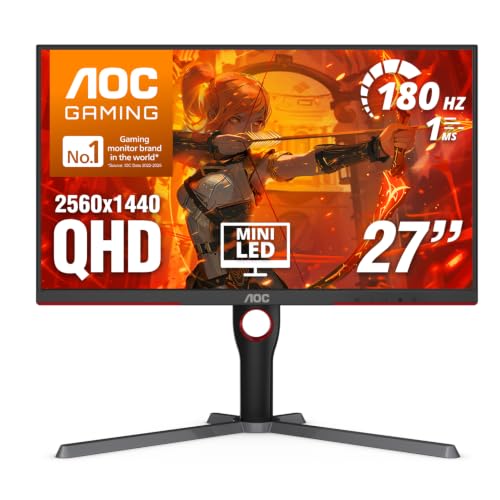 AOC 27 Inch Gaming Monitor QHD 180Hz Mini-LED27" 180Hz Mini-LED10.19 x 23.82 x 20.94 Inches15.6 poundsCheck on Amazon


Top 3 picks at a glance
Decide These 3 Things First
- Choose your main use. For HDR movies and streaming, prioritize 4K resolution, strong local dimming, HDMI bandwidth, and a screen large enough for your viewing distance. For PC gaming, refresh rate, response time, adaptive-sync support, and DisplayPort connectivity matter just as much as HDR brightness. For editing photos or video, look for broad color coverage, a usable sRGB mode, and reliable calibration controls.
- Set the right size and resolution pairing. A 27-inch QHD monitor has about 109 pixels per inch, which is sharp at a typical 24- to 32-inch desk distance. A 27-inch 4K screen reaches roughly 163 pixels per inch and looks exceptionally crisp, though text scaling may be necessary. At 32 inches, 4K is a comfortable all-around choice. For couch viewing from 6 to 8 feet away, a 55-inch 4K screen is far more appropriate than a desktop monitor.
- Decide how much HDR compromise you will accept. Mini LED is a backlight technology, not a guarantee of flawless pixel-level contrast. It can produce striking highlights and much better HDR than standard edge-lit LCDs, but bright objects on dark backgrounds may show blooming. If absolute black levels in a dark room are your top priority, compare Mini LED with OLED before buying.
Size and Viewing Distance
For most desks, 27 to 32 inches is the practical Mini LED monitor range. A 27-inch model is usually about 24 inches wide and 14 inches tall without its stand, while a 32-inch model is closer to 28 inches wide and 16 inches tall. Once the stand is attached, many displays need 8 to 12 inches of desk depth.
A 27-inch QHD screen is a sensible value choice for gamers who sit 2 to 3 feet away. It asks less of a graphics card than 4K and commonly appears in 165Hz, 180Hz, and 300Hz configurations. A 27-inch QHD 180Hz Mini LED monitor in the $230 range can offer much better HDR impact than a similarly priced conventional IPS monitor, though its zone count and tuning will still matter.
Choose 32-inch 4K if you want a more cinematic desktop experience, work with detailed images, or regularly watch 4K HDR video at your desk. It is also a better fit for split-screen productivity. For a 43- to 55-inch Mini LED screen, measure carefully: a 55-inch television is roughly 48 inches wide and weighs about 25 to 45 pounds without its packaging, depending on stand and chassis design. It needs a stable media console or a properly rated wall mount.
Panel Material and Screen Finish
Most Mini LED monitors use an LCD panel with a Mini LED backlight. The LCD layer may be IPS, VA, or a related panel type, and that panel choice affects the viewing experience as much as the backlight does.
IPS-style panels generally offer wider viewing angles and more consistent color when you move off-center. They are a strong choice for shared viewing, creative work, and desk setups where you are not always seated in exactly the same position. VA panels often provide higher native contrast, which can make dark scenes look deeper before local dimming even activates. However, VA panels can show more motion smearing in very dark fast-moving scenes, and off-angle viewing is often less consistent.
Also inspect the screen finish. A matte anti-glare coating is useful in a bright office with windows or overhead lights, but aggressive matte coatings can slightly soften perceived clarity. A glossy or semi-gloss finish can make HDR highlights and color look richer, but reflections become much more visible. For a monitor placed perpendicular to a window, matte is usually the safer choice. For a light-controlled room, a glossier finish can be more rewarding.
The outer enclosure is usually plastic over a metal internal frame. That is normal. What matters is whether the stand, VESA mount points, and rear panel feel substantial enough for the display’s weight. Look for a 100 x 100 mm VESA pattern on 27- and 32-inch monitors; larger displays may use 200 x 200 mm or wider patterns.
Mini LED Construction: Zones, Brightness, and Connections
Mini LED works by placing many small LEDs behind the LCD panel and grouping them into independently controlled local-dimming zones. More zones generally allow the display to keep a bright highlight brighter while dimming nearby dark areas. But zone count is not the only measure of quality: the local-dimming algorithm, panel contrast, and content all affect blooming.
For entry-level HDR, avoid treating a low zone count as equivalent to high-end Mini LED. A monitor with fewer than 100 zones may still improve contrast over a basic edge-lit screen, but it can create obvious halos around white text, game HUD elements, and subtitles. Around 300 to 600 zones is a more meaningful starting point for a 27-inch HDR monitor. Premium 27- to 32-inch models can offer 1,000 zones or more, while large 4K televisions may use hundreds to several thousand zones depending on size and tier.
For HDR impact, look for at least 600 cd/m², commonly called nits, of meaningful peak brightness. Around 1,000 nits is a strong target for specular highlights such as sunlight on water, chrome, sparks, and bright reflections. Do not assume a “HDR1000” label means the entire screen can sustain 1,000 nits; HDR specifications may refer to a limited test window. That is normal, since sustained full-screen brightness creates substantial heat and power demand.
Connection standards matter. For a modern PC, seek DisplayPort 1.4 with DSC or DisplayPort 2.1 where needed for high-refresh 4K. For PlayStation 5, Xbox Series X, and current streaming hardware, at least two HDMI 2.1 ports are ideal. HDMI 2.1 is especially useful for 4K at up to 120Hz, variable refresh rate, and console HDR. USB-C with 65W to 90W power delivery is convenient for laptops, but it is not essential if you use a desktop PC.
Comfort and HDR Performance
HDR performance is not only about peak brightness. A good Mini LED monitor should give you sensible control over local dimming, color temperature, tone mapping, and brightness. Check whether HDR mode locks too many settings. Some displays are excellent in HDR but offer limited adjustment; others let you select local dimming strength or switch between HDR movie, game, and desktop modes.
For gaming, a 144Hz to 180Hz refresh rate is plenty for most players, while 240Hz and 300Hz appeal to competitive users. Higher refresh rates can be valuable, but do not pay a major premium for 300Hz if your priority is HDR films or console gaming at 4K 120Hz. Also confirm adaptive-sync compatibility. Variable refresh rate reduces tearing and stutter when frame rates fluctuate.
For long workdays, prioritize ergonomics. A useful stand should offer at least 4 inches of height adjustment, tilt of roughly -5 to +20 degrees, and preferably swivel. Pivot rotation is convenient for coding and documents but less important for HDR video. If the included stand only tilts, budget $40 to $150 for a quality monitor arm that supports the display’s actual weight.
Mini LED monitors can run warmer and use more power than basic LCD displays. A 27-inch model may draw roughly 35 to 80 watts during typical use and more during bright HDR scenes. Leave several inches of ventilation space around the rear of the display rather than pressing it tightly against a wall or cabinet.
Price Tiers and Realistic Value
Budget: $200 to $350. This range includes some compelling 27-inch QHD gaming monitors, often with 165Hz to 180Hz refresh rates and HDR1000-style positioning. Expect compromises in dimming-zone count, stand adjustment, input selection, built-in speakers, or quality-control consistency. This tier is best for buyers who want noticeably brighter HDR gaming without spending flagship money.
Mid-range: $400 to $800. Here, look for 27-inch 4K or 32-inch 4K monitors, more robust local dimming, better USB-C features, and improved ergonomics. A well-chosen mid-range Mini LED monitor can be the sweet spot for mixed work, games, and HDR streaming.
Premium: $900 to $1,800 or more. Expect higher zone counts, 4K at 144Hz or faster, stronger build quality, more advanced connectivity, and more serious color-management options. Premium pricing makes the most sense for demanding PC gaming, professional visual work, or buyers who need one display to handle both.
Large Mini LED smart displays can sometimes cost less than premium desktop monitors. A 55-inch 4K model around $300 may be attractive for casual streaming, but it is not automatically a better computer monitor. Check text clarity, input lag, desk ergonomics, PC chroma support, and whether its stand footprint fits your furniture.
Warranty, Delivery, and Assembly
Look for at least a 1-year warranty, but a 2- or 3-year warranty is preferable for Mini LED products because the backlight system is more complex than a basic LCD backlight. Read the dead-pixel and bright-pixel policy before purchase. Manufacturers vary widely: some require several defective pixels before authorizing replacement, while others offer more generous zero-bright-dot coverage for a limited period.
For a 27-inch monitor, the assembled weight is often 12 to 18 pounds. A 32-inch model may be 18 to 28 pounds, and a 55-inch screen can exceed 35 pounds with its stand. Have a second person available for larger displays, particularly if wall mounting. Never lift a screen by its panel; hold the lower edge and chassis according to the manufacturer’s instructions.
Keep the box until you confirm there are no panel defects, backlight problems, or shipping damage. Test HDR with real content during the return window, not just a bright desktop image. In 2026, it is also worth confirming that firmware updates can be installed easily through USB, an app, or the display’s network connection.
Spec Checklist
| Spec | Budget | Mid | Premium |
|---|---|---|---|
| Screen size and resolution | 27-inch QHD (2560 × 1440) | 27-inch 4K or 32-inch 4K | 32-inch 4K or ultrawide 4K-class |
| Peak HDR brightness | 600 to 1,000 nits claimed | 1,000 nits class | 1,000 to 1,600 nits class |
| Local-dimming zones | 100 to 500 | 500 to 1,200 | 1,000+ |
| Refresh rate | 144Hz to 180Hz | 144Hz to 240Hz | 240Hz to 360Hz, depending on resolution |
| Core inputs | DisplayPort 1.4, HDMI | DisplayPort 1.4, 2 x HDMI 2.1 | DisplayPort 2.1 or DSC, HDMI 2.1, USB-C |
| Typical price | $200 to $350 | $400 to $800 | $900 to $1,800+ |
Red Flags
- “HDR” is listed, but there is no peak-brightness figure, local-dimming information, or recognized HDR certification.
- The listing emphasizes 1,000 nits but does not say whether local dimming is available in HDR mode.
- A large screen is marketed as a monitor but lacks HDMI 2.1, PC-friendly resolution support, or a usable low-latency mode.
- The display has only a fixed stand and no VESA mounting option.
- There is no stated warranty length, pixel policy, return process, or manufacturer support information.
- A portable 7-inch or 10-inch LCD is presented as a substitute for a full Mini LED HDR monitor. Small utility displays have valid uses, but they are not designed for serious HDR viewing.
FAQ
Is Mini LED better than OLED for HDR content?
Not in every situation. OLED generally delivers deeper blacks and no blooming because each pixel controls its own light. Mini LED can reach very high brightness, avoids permanent burn-in concerns associated with static desktop elements, and may cost less at certain sizes. Mini LED is often a strong choice for bright rooms, mixed computer use, and long gaming sessions.
How many local-dimming zones do I need?
For a 27-inch HDR monitor, 300 to 600 zones is a reasonable baseline for visibly improved HDR. More than 1,000 zones can improve control further, especially in dark games and movies. Still, panel quality and dimming software matter, so do not buy on zone count alone.
Do I need 4K for HDR?
No. HDR and resolution are separate features. A 27-inch QHD Mini LED monitor can look excellent in HDR and is easier to drive at high frame rates. Choose 4K if you value fine text, detailed video, console use, or a larger 32-inch screen.
Can I use a Mini LED monitor for everyday office work?
Yes. Use SDR mode for documents, web browsing, and spreadsheets, then switch to HDR for compatible games, movies, and video. If you work with static windows for many hours, Mini LED is often a practical alternative to OLED because it does not rely on self-emissive pixels that can face long-term static-image wear.









