The best hard drive docking stations for bare drives are the Sabrent DS-U3B for simple 2.5/3.5-inch SATA work, the StarTech SATDOCK2REU3 for a durable dual-bay SATA setup, and a USB 3.2 Gen 2 NVMe/SATA dock when you also need to access M.2 SSDs.
A bare-drive dock is more useful than a basic USB enclosure when you regularly swap disks, recover files, clone a system drive, or maintain several internal drives. The right choice depends on four things: the drive interface, whether you need offline cloning, the USB speed of your computer, and whether the dock provides enough power for 3.5-inch disks.
As an Amazon Associate we earn from qualifying purchases at no extra cost to you.


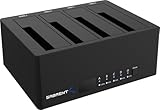
Our Top Picks
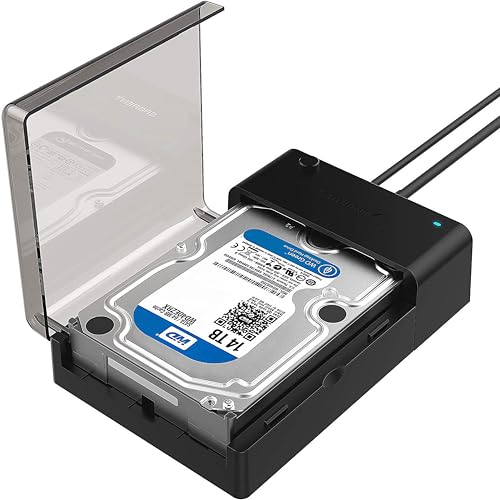 SABRENT USB 3.0 to SATA Hard Drive Docking2.5/3.5 inch Docking Station7.09 x 4.8 x 1.6 inches0.5 poundsCheck on Amazon
 SABRENT Dual-Bay USB-C Hard Drive Docking Station &2-Bay SATA Dock – USB-C 5Gbps6.2 x 4 x 2.7 inches0.6 poundsCheck on Amazon
 SABRENT 4-Bay USB 3.0 Hard Drive Docking Station4 BAY6.3 x 4.72 x 2.76 inches1 PoundsCheck on Amazon
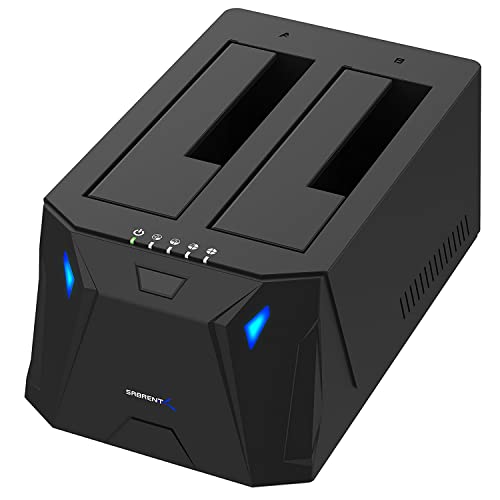
Top 3 picks at a glance
Quick comparison
| Dock type or model | Drive support | Typical USB link | Offline clone | Best for |
|---|---|---|---|---|
| Sabrent DS-U3B | 2.5/3.5-inch SATA | USB 3.x, commonly up to 5Gbps | Yes, on supported dual-bay versions | Occasional SATA swaps and backups |
| StarTech SATDOCK2REU3 | Two 2.5/3.5-inch SATA drives | USB 3.0, up to 5Gbps | Yes | Reliable SATA cloning and two-drive access |
| Inateck FD2005C | Two 2.5/3.5-inch SATA drives | USB-C, up to 5Gbps class | Yes, depending on revision | USB-C laptops and desktop maintenance |
| USB 3.2 Gen 2 NVMe/SATA dock | M.2 NVMe plus 2.5/3.5-inch SATA | Up to 10Gbps | Usually no; verify the exact model | Mixed SSD and hard-drive workflows |
| USB 3.2 Gen 2 dual-NVMe dock | Two M.2 NVMe SSDs | Up to 10Gbps total or per bay, model-dependent | Sometimes | Fast SSD transfers and NVMe duplication |
Model revisions matter, so check the exact specification before buying. A USB-C plug does not automatically mean USB 3.2 Gen 2, and a dock that accepts an M.2 drive may support SATA M.2 rather than NVMe, or vice versa.
Best overall for SATA bare drives: Sabrent DS-U3B
The Sabrent DS-U3B is a practical choice for users who mainly handle standard 2.5-inch and 3.5-inch SATA drives. Its two-slot design makes it useful for moving data between disks, checking an old drive, or cloning one drive to another without installing either disk inside a computer.
Its main limitation is speed. A 5Gbps USB connection has a theoretical ceiling of 625MB/s, but protocol overhead and the SATA interface reduce real sequential transfers. A modern SATA SSD normally reaches about 400–550MB/s through a good UASP-enabled dock. A mechanical hard drive is usually much slower, commonly around 100–220MB/s depending on its platter density and condition.
Why choose it
- Accepts both laptop-sized 2.5-inch and desktop-sized 3.5-inch SATA drives.
- External power is provided for 3.5-inch hard drives.
- Two bays are convenient for disk-to-disk copying.
- Some versions include a one-button offline-clone function.
Choose this class of dock if your drives are SATA and your priority is convenience rather than maximum NVMe speed.
Best for repeat cloning: StarTech SATDOCK2REU3
The StarTech SATDOCK2REU3 is a strong fit for technicians, PC builders, and anyone who frequently clones 2.5-inch or 3.5-inch SATA drives. It is a dual-bay SATA dock with USB 3 connectivity and standalone cloning, so the source drive can be copied directly to a target without a computer managing the file system.
Offline cloning is useful when replacing a system drive, but it is not a selective backup. The destination is generally overwritten, and the clone process copies partitions or sectors according to the dock’s implementation. The destination must normally be at least as large as the source drive, even if the source contains only a small amount of data.
Offline cloning steps
- Back up important files separately. A clone is not protection against accidentally selecting the wrong disk.
- Insert the old drive into the source bay and the replacement into the target bay.
- Confirm the source and target positions from the dock’s labels.
- Power on the dock and wait for both drives to spin up or enumerate.
- Press the clone button according to the dock’s instructions, usually requiring a second press or a long press to confirm.
- Wait for the progress indicator to finish before switching off power or removing either drive.
After cloning a Windows boot drive, shut down fully, disconnect the old disk, and boot with only the new disk attached. This avoids boot-manager confusion and confirms that the clone is independently bootable.
Best for NVMe: a USB 3.2 Gen 2 NVMe/SATA dock
If your current drives include M.2 NVMe SSDs, a SATA-only dock is the wrong purchase. Select a dock explicitly supporting NVMe, preferably over USB 3.2 Gen 2 at 10Gbps. These docks can also be sold as dual-interface units with one M.2 slot and one 2.5/3.5-inch SATA bay.
USB 3.2 Gen 2 has a theoretical rate of 10Gbps, equivalent to 1,250MB/s before encoding and protocol overhead. In practice, a fast NVMe SSD connected through a 10Gbps bridge often transfers at roughly 800–1,050MB/s. The SSD may be capable of 5,000MB/s internally, but the USB link is the bottleneck.
For this reason, paying extra for a high-end PCIe 4.0 NVMe drive does not improve a single 10Gbps dock very much. The premium may still make sense if you will later install the SSD internally, but it will not turn the dock into a 5GB/s external drive.
Check the M.2 details
- Keying: NVMe drives generally use an M-key connector; SATA M.2 drives may use B-key or B+M-key connectors.
- Length: Most consumer modules are 2280, but some docks also support 2230, 2242, and 2260.
- Thermals: Sustained transfers can make an NVMe SSD throttle. A dock with a thermal pad or heatsink is preferable.
- Clone support: Many NVMe docks support normal computer-managed cloning but not one-button offline cloning.
USB speed and UASP: what you will actually get
| Connection | Theoretical bandwidth | Typical sequential result through a good dock | Likely bottleneck |
|---|---|---|---|
| USB 3.2 Gen 1, 5Gbps | 625MB/s | 350–550MB/s | SATA SSD or USB protocol overhead |
| USB 3.2 Gen 2, 10Gbps | 1,250MB/s | 800–1,050MB/s | USB bridge, NVMe thermals, or source drive |
| 2.5-inch HDD | Interface may support more | 80–150MB/s | Mechanical disk |
| 3.5-inch HDD | Interface may support more | 120–220MB/s | Mechanical disk and platter layout |
UASP improves USB storage performance by allowing command queuing and reducing the overhead of the older BOT protocol. It matters most with SSDs and small-file workloads; it cannot make a slow mechanical drive exceed its physical limits. Use a direct motherboard USB port, a short certified cable, and current chipset drivers. A hub, front-panel cable, or USB 2.0 fallback can reduce performance dramatically.
Decision matrix
| Your situation | Recommended specification | Reason |
|---|---|---|
| One old laptop HDD | Single-bay 2.5-inch SATA, bus-powered | Small, inexpensive, and does not need a 12V adapter |
| Several desktop HDDs | Dual-bay SATA dock with an external power brick | 3.5-inch disks need 12V power and two bays simplify copying |
| Replacing a boot drive | Dual-bay SATA dock with offline cloning | Copies without installing cloning software |
| NVMe system migration | USB 3.2 Gen 2 NVMe dock with the correct M.2 key | Provides the required interface and higher transfer ceiling |
| Mixed SATA and NVMe collection | Dual-interface dock or separate SATA and NVMe docks | Avoids assuming one M.2 slot supports every SSD type |
| Frequent professional imaging | Powered dual-bay SATA dock with UASP and clear drive indicators | Better visibility, cooling, and repeatability matter more than headline speed |
Power, safety, and compatibility checks
A 2.5-inch SATA SSD or HDD can often run from USB power, while a 3.5-inch HDD needs a separate 12V supply for its motor. A dock rated only for 2.5-inch drives should not be used with a 3.5-inch disk through an improvised adapter.
For a simple capacity check, a dock moving 2TB at a sustained 450MB/s would need approximately 4,444 seconds: 2,000,000MB divided by 450MB/s, or about 74 minutes. Real jobs take longer because of small files, verification, thermal throttling, and occasional retries. A mechanical disk may extend the same transfer to several hours.
Always eject the mounted volume before removing a drive. For a disk that clicks, disconnects, reports a damaged partition, or repeatedly vanishes, stop writing to it first. Clone or image it to a healthy disk before attempting repairs; repeated repair scans can worsen a failing drive.
Frequently asked questions
Can I use a hard drive dock to recover files from a damaged drive?
Yes, a dock can let you connect the drive to access files, but a failing drive needs care. If it clicks, disconnects, reports a damaged partition, or repeatedly vanishes, stop writing to it and clone or image it to a healthy disk before trying repairs. Repeated repair scans can worsen a failing drive.
Will offline cloning copy only the files I choose?
No, offline cloning is not a selective backup. It generally overwrites the destination and copies partitions or sectors according to the dock’s implementation. The destination normally needs to be at least as large as the source, even when the source contains only a small amount of data.
Can I connect two docks to a USB hub without losing speed?
A hub can reduce performance, as can a front-panel cable or a USB 2.0 fallback. For better performance, use a direct motherboard USB port, a short certified cable, and current chipset drivers. UASP can improve SSD and small-file performance, but it cannot make a mechanical drive exceed its physical limits.
How can I avoid problems after cloning a Windows boot drive?
After cloning, shut down fully, disconnect the old disk, and boot with only the new disk attached. This avoids boot-manager confusion and confirms that the clone is independently bootable. Before cloning, back up important files separately and confirm which dock bay holds the source and which holds the target.
How do I know whether an M.2 SSD will fit and work in a dock?
Check that the dock supports the SSD’s interface, keying, and length. NVMe drives generally use an M-key connector, while SATA M.2 drives may use B-key or B+M-key connectors. Most consumer modules are 2280, but some docks also support 2230, 2242, and 2260. An M.2 slot does not guarantee support for both interfaces.
Final buying advice
For ordinary 2.5/3.5-inch SATA drives, buy a powered dual-bay dock with UASP and offline cloning, such as the Sabrent DS-U3B or StarTech SATDOCK2REU3 class. For M.2 NVMe SSDs, prioritize explicit NVMe support and USB 3.2 Gen 2 rather than the shape of the connector. If you need both interfaces regularly, verify every supported M.2 key, drive length, cloning direction, and maximum USB speed before ordering.