
The best budget 4K monitor in this group depends on whether you play games: the Dell S2725QS is the pick for 120Hz at 27 inches, the Samsung S71H is the low-cost 27-inch IPS option, and the Sceptre U325W gives the largest screen with the most ports. Four of the eight are 60Hz or do not state a rate, so they suit documents, video and streaming better than fast games. The honest limit of a cheap 4K screen is your graphics card, not the panel, so this guide includes a pixel-load estimate and a scaling worksheet to help you size the whole setup before you buy.
Our Top Picks
Eight 4K screens in one table

Samsung 27" ViewFinity S7 (S71H) 4K UHD IPS HDR10 High Resolution Monitor | Explore and buy 27 inch 4K UHD ViewFinity S7 S71H Monitor LS27H710EANXZA, Featuring IPS Panel, HDR10 and Eye Saver Mode




As an Amazon Associate we earn from qualifying purchases. Product prices and availability are accurate as of the date/time indicated.

Sceptre 32-inch 4K UHD 3840 x 2160 Monitor 70Hz DisplayPort x2 HDMI x2 100% sRGB Build-in Speakers, Machine Black 2026 (U325W-UPT Series)




As an Amazon Associate we earn from qualifying purchases. Product prices and availability are accurate as of the date/time indicated.

LG 27US500-W Ultrafine Monitor 27-Inch 4K UHD (3840x2160) HDR10 IPS Borderless Design Reader Mode Flicker Safe Switch App HDMI DisplayPort - White


As an Amazon Associate we earn from qualifying purchases. Product prices and availability are accurate as of the date/time indicated.

Dell 27 Monitor S2725QS, 4K UHD IPS, 120Hz, 5ms, FreeSync Premium | 350 cd/m2 Brightness, 1,500:1 Contrast, 99% sRGB, Anti-Glare, HDMI, DisplayPort, USB‑C, Height Adjustable, Swivel, Pivot


As an Amazon Associate we earn from qualifying purchases. Product prices and availability are accurate as of the date/time indicated.
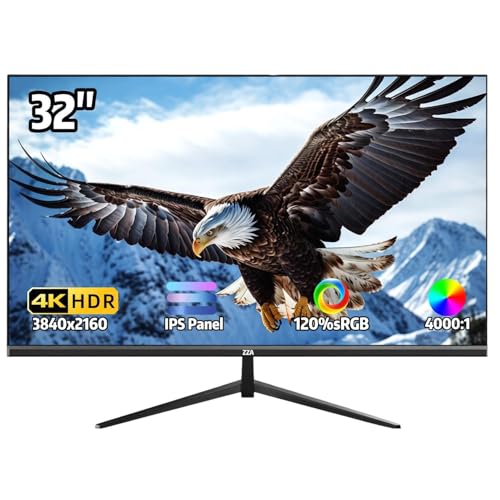
32 Inch 4K UHD Monitor (3840x2160), IPS,60Hz Refresh Rate, 120% sRGB, AMD FreeSync, 178° Viewing Angle, HDMI/DisplayPort, VESA 100x100mm Mount Compatible, Tilt Adjustable - Black


As an Amazon Associate we earn from qualifying purchases. Product prices and availability are accurate as of the date/time indicated.

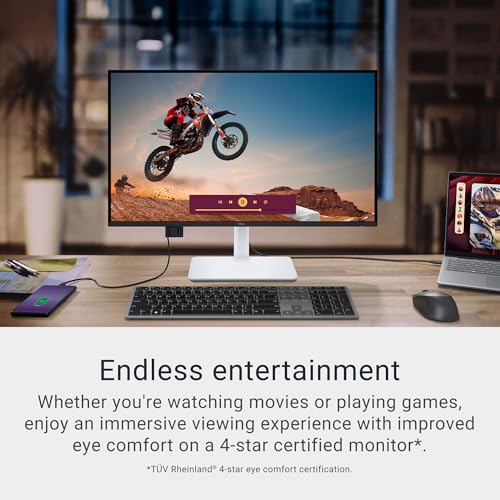
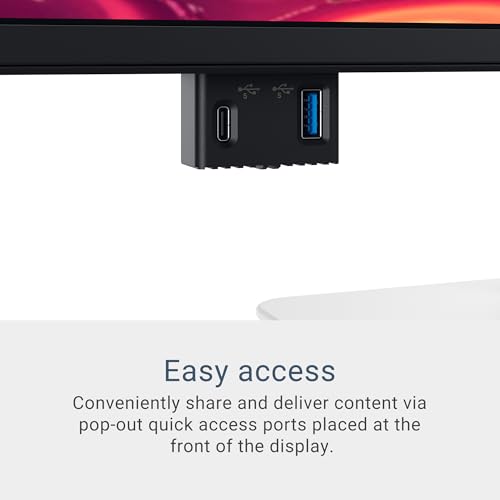
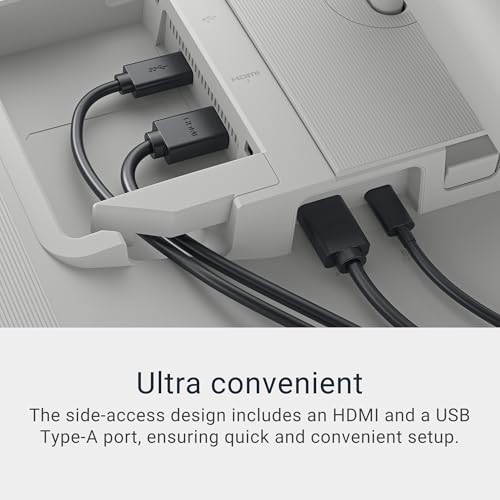
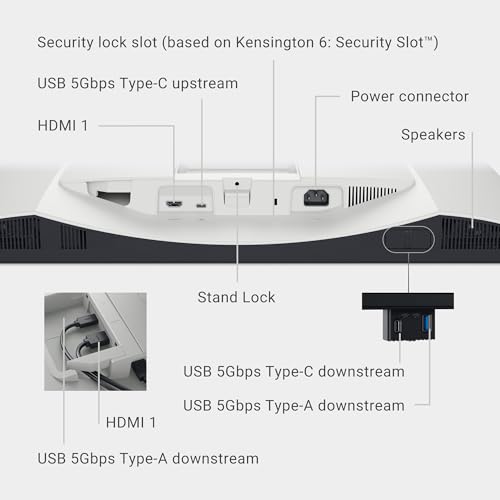
Dell 27 Monitor S2725QC, 4K UHD IPS, 120Hz, 99% sRGB, 4ms, FreeSync Premium | 3840x2160, 163 PPI, USB-C, HDMI, DisplayPort, Anti-Glare, Eye Comfort Technology, LED Edgelight System





As an Amazon Associate we earn from qualifying purchases. Product prices and availability are accurate as of the date/time indicated.

ASUS VP327Q 32 Inch 4K UHD Computer Monitor, HDMI, DisplayPort, Speakers | UHD (3840 x 2160), 99% sRGB, HDR-10, Adaptive-Sync, Flicker Free, Blue Light Filter, VESA Wall Mount, Tilt


As an Amazon Associate we earn from qualifying purchases. Product prices and availability are accurate as of the date/time indicated.

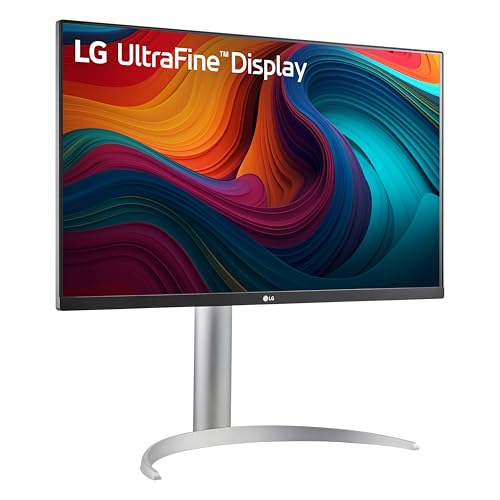
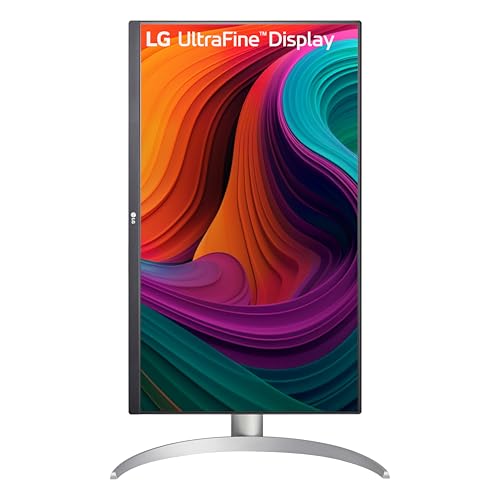
LG 27UP650K-W 27-inch Ultrafine 4K UHD (3840 x 2160) IPS Computer Monitor, 60Hz, 5ms, DisplayHDR 400, Reader Mode, Flicker Safe, HDMI, DisplayPort, Tilt/Height/Pivot Adjustable Stand, White






As an Amazon Associate we earn from qualifying purchases. Product prices and availability are accurate as of the date/time indicated.
Price tiers compare these eight models only.
| Model | Key point from title | Price tier | Best for |
|---|---|---|---|
| Sceptre U325W-UPT | 32-inch 4K, 70Hz, 2 DisplayPort, 2 HDMI, speakers | Budget | Largest screen and most inputs |
| ASUS VP327Q | 32-inch 4K, 99% sRGB, HDR-10, Adaptive-Sync | Budget | Office and media at 32 inches |
| Samsung S71H | 27-inch 4K IPS, HDR10, Eye Saver Mode | Budget | Compact 4K for everyday work |
| ZZA 32-inch 4K | 32-inch IPS, 60Hz, FreeSync, no model number | Budget | Cost-first buyers who accept a gamble |
| LG 27US500-W | 27-inch 4K IPS, HDR10, Reader Mode | Mid-range | Reading and browsing |
| LG 27UP650K-W | 27-inch 4K IPS, 60Hz, DisplayHDR 400 | Mid-range | Steady office use, height-adjustable |
| Dell S2725QS | 27-inch 4K IPS, 120Hz, FreeSync Premium, USB-C | Mid-range | 4K gaming at 27 inches |
| Dell S2725QC | 27-inch 4K IPS, 120Hz, 163 PPI, USB-C | Premium | As the QS; compare the listings |
The eight monitors one by one
Dell S2725QS: the 120Hz 4K choice for games
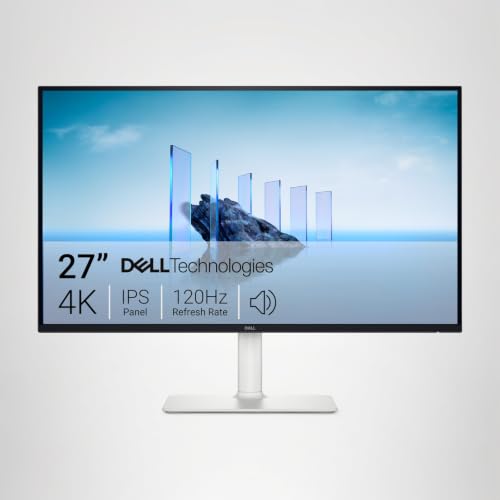
This is the listing that fits gaming best. It describes a 27-inch 4K IPS panel at 120Hz with a 5ms rating, FreeSync Premium, 350 cd/m2 brightness, 1,500:1 contrast, 99% sRGB, an anti-glare coating, HDMI, DisplayPort, USB-C and a stand with height, swivel and pivot. A 4K signal at 120Hz carries about 24 Gbps of pixel data in our estimate, so it needs DisplayPort 1.4 or HDMI 2.1; the title gives no HDMI version, so check it before connecting a console. The 5ms and the brightness figures are seller claims, and a 27-inch size keeps the pixel density high at about 163 per inch.
Pros
- 120Hz with FreeSync Premium on the title
- Complete stand adjustment plus USB-C
Cons
- HDMI version is not stated
- Contrast of 1,500:1 is ordinary for IPS
Who it’s for: PC players who want 4K and can reach more than 60 fps.
Dell S2725QC: the near-twin with a few different words
The title swaps 5ms for 4ms and adds 163 PPI, an Eye Comfort mention and an LED Edgelight system, while keeping 27 inches, 4K, 120Hz, 99% sRGB, FreeSync Premium, USB-C, HDMI and DisplayPort. Nothing in the title says what physically separates it from the S2725QS apart from wording, and it sits one tier higher in this set, so the extra spend must be justified by the full listings. Read both brightness and stand details before paying more. The 4ms figure is also a seller claim, and USB-C wattage is not stated in the title.
Pros
- Same 120Hz 4K capability as its sibling
- Pixel density is stated outright at 163 PPI
Cons
- Highest price tier here without clear gain
- Difference from the S2725QS is not explained in the title
Who it’s for: Buyers who find a better deal on this exact listing.
Samsung S71H: the low-cost 27-inch IPS
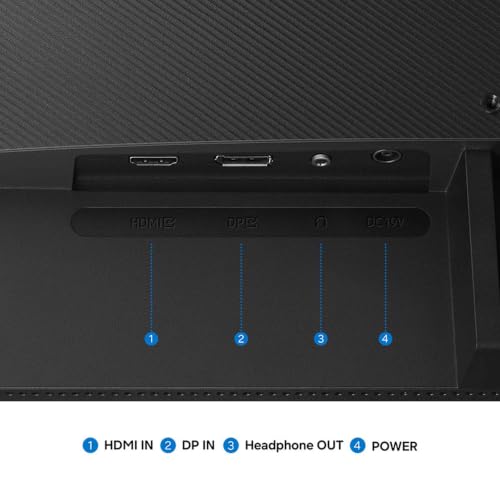
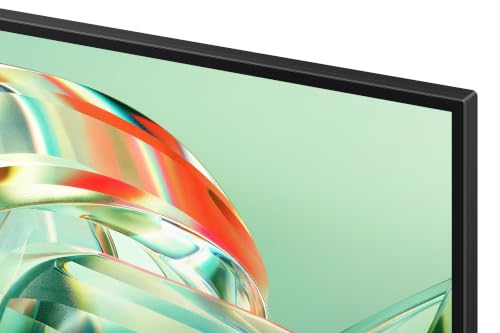
The title is cluttered with marketing text, but the specs are readable: 27 inches, 4K UHD, IPS, HDR10 and an Eye Saver Mode. Refresh rate, ports and stand details are not given, so assume a standard 60Hz office screen until the listing says otherwise. At the budget tier, it is the cheapest 27-inch IPS here. HDR10 on a screen like this typically means it accepts the signal rather than delivering strong highlights. Treat it as a text-and-video monitor, and verify the stand before assuming any height adjustment.
Pros
- Cheapest 27-inch IPS in the group
- Eye Saver Mode for long reading sessions
Cons
- Refresh rate and ports are missing from the title
- HDR10 is a signal label, not a brightness promise
Who it’s for: Home-office users who want sharp text on a tight budget.
Sceptre U325W-UPT: 32 inches, 70Hz and four inputs
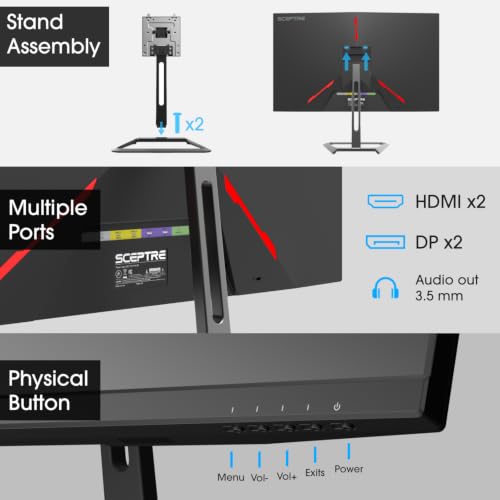
A 32-inch 4K screen with a 70Hz claim, two DisplayPorts, two HDMI ports, 100% sRGB and built-in speakers. Four inputs make it easy to share between a PC and a console or laptop. The 70Hz figure needs about 14 Gbps of pixel data in our estimate, which likely exceeds HDMI 2.0 payload, so expect DisplayPort to be the route for that rate and HDMI to run at 60Hz. Panel type is not stated, so check the full listing. Speakers are for basic audio only, and wall-mount details should be read on the listing.
Pros
- Four video inputs for multi-device desks
- Large 32-inch canvas at the lowest tier
Cons
- Panel type is not named
- 70Hz probably needs DisplayPort
Who it’s for: Shared desks with more than one source device.
ASUS VP327Q: the 32-inch with HDR-10 wording
The title describes 32 inches, 4K, 99% sRGB, HDR-10, Adaptive-Sync, flicker-free backlighting, a blue light filter, speakers, HDMI, DisplayPort, tilt and a VESA wall mount. Refresh rate is not stated, so plan for 60Hz. The VESA mention is useful if you want an arm, but check the pattern and weight. As with other HDR10 labels here, it is best read as signal compatibility. ASUS is a widely known brand, which helps when you need to compare support options, though the title shows no pivot or height adjustment.
Pros
- Recognized brand with Adaptive-Sync named
- VESA wall-mount support in the title
Cons
- Refresh rate is not listed
- Only tilt adjustment is mentioned
Who it’s for: Everyday users who want 32 inches from a familiar brand.
LG 27US500-W: the white 27-inch reading screen
This LG lists a 27-inch 4K UHD IPS panel with HDR10, a borderless design, Reader Mode, a Flicker Safe feature and a Switch App, with HDMI and DisplayPort inputs and a white finish. The title says nothing about refresh rate or stand adjustment, so assume 60Hz and limited ergonomics. Reader Mode is a software preset that warms the colors; helpful for long documents, though not a medical feature. Mid-range in this set, it is a plain, dependable-looking office choice rather than a gaming one, so pair it with a GPU only for casual play.
Pros
- Reader Mode and flicker-safe wording for text work
- Both HDMI and DisplayPort named
Cons
- Refresh rate and stand details are unstated
- White finish may not suit every desk
Who it’s for: Readers, writers and spreadsheet users.
LG 27UP650K-W: 60Hz with DisplayHDR 400
The title confirms 27 inches, 4K, IPS, 60Hz, 5ms and DisplayHDR 400, with Reader Mode, Flicker Safe, HDMI, DisplayPort and a stand that tilts, adjusts in height and pivots. DisplayHDR 400 is a stated minimum tier that requires modest peak brightness, so HDR content will look a bit brighter, though not dramatically different. It looks like a sibling of the 27US500-W with firmer specifications, and pivot support suits vertical code or document views, and a 60Hz cap means games will not use more than 60 frames.
Pros
- Stand adjusts for height, tilt and pivot
- DisplayHDR 400 is a named tier
Cons
- 60Hz only, per the title
- Similar in spirit to a cheaper LG sibling
Who it’s for: Office workers who need a height-adjustable 4K screen.
ZZA 32-inch 4K: the generic-title gamble
There is no model number or product name in the title, only a list: 32 inches, 4K, IPS, 60Hz, 120% sRGB, AMD FreeSync, 178 degree viewing angle, HDMI and DisplayPort, VESA 100×100 and tilt. The 120% sRGB figure is a gamut-volume claim and not a coverage score, so it says little about accuracy. With little brand history to lean on, returns and warranty terms matter more than usual. Consider it a backup option if the better-known 32-inch listings are unavailable, and keep the packaging until you have checked the panel.
Pros
- Includes VESA 100×100 and both digital inputs
- Cost sits in the lowest tier
Cons
- Generic title and unfamiliar brand
- Support and warranty quality are unclear
Who it’s for: Shoppers who read return terms carefully and accept some risk.
How we selected and compared these
The Editorial team assembled the list from published specifications, manufacturer documentation and buyer reviews. Nobody on the team used or measured these units, so we make no claims about brightness, color accuracy, uniformity or input lag. We compared what each title states, noted what it omits, and flagged the near-twin Dell pair, the model-less ZZA listing and the HDR wording. Bandwidth and GPU-load figures are estimates with assumptions stated in the text. Manufacturer claims such as 4ms and 5ms appear as claims.
What matters most in a budget 4K monitor
Can your graphics card feed it?
3840×2160 is 8,294,400 pixels, which is 2.25 times 2560×1440 and four times 1920×1080. If a game is fully GPU-bound, frame rates scale roughly in inverse proportion, so 120 fps at 1440p becomes about 53 fps at 4K. That is an estimate. Upscaling and lower settings can claw some of that back.
Scaling worksheet
| Screen | Pixels per inch | Scale setting | Effective workspace |
|---|---|---|---|
| 27-inch 4K | about 163 | 150% | 2560×1440 |
| 27-inch 4K | about 163 | 200% | 1920×1080 |
| 32-inch 4K | about 138 | 125% | 3072×1728 |
| 32-inch 4K | about 138 | 150% | 2560×1440 |
Pick the row that matches how much space you want, then choose the size that gets you there comfortably.
Refresh rate and the cable
4K at 60Hz needs about 12 Gbps of pixel data in 8-bit color, which HDMI 2.0 and DisplayPort 1.2 or later can carry. HDMI 1.4 cannot. 4K at 120Hz needs about 24 Gbps before overhead, so it needs DisplayPort 1.4 or HDMI 2.1 and a certified cable. Consoles require HDMI 2.1 for 4K120, and our guide to the best 4K 120Hz monitor for Xbox Series X covers that case.
27 inches or 32 inches
As an estimate from the 16:9 shape, a 27-inch panel is about 23.5 inches wide and 13 inches tall, while a 32-inch panel is about 28 inches wide and 16 inches tall. The larger one needs more desk width and a seat roughly an arm and a half away. The smaller one is crisper at 163 pixels per inch against 138.
Reading the sRGB numbers
Titles quote 99%, 100% and even 120% sRGB. These are seller figures for how much of the sRGB gamut the panel covers, and a higher number does not mean the colors are accurate without calibration. For office and gaming use, 99% is plenty.
HDR labels at this price
HDR10 means the screen reads an HDR signal. DisplayHDR 400 is the entry tier. Neither implies local dimming, and highlights will stay modest.
USB-C and stands
USB-C helps if you use a laptop, but the title rarely states wattage or video support. Height-adjustable stands are rarer than tilt-only stands at this price.
Common budget 4K mistakes
- Buying 4K before checking the GPU. Our RX 9070 XT monitor guide shows how a card at that level pairs with 1440p and 4K screens.
- Running 4K at 100 percent scaling. Text on a 27-inch screen becomes tiny.
- Assuming HDMI is HDMI. Version matters more than the connector shape.
- Treating HDR10 as true HDR. Look at peak brightness and local dimming instead.
- Choosing 32 inches for a shallow desk. The panel is about 28 inches wide and needs roughly an arm and a half of viewing distance.
- Expecting a console to hit 120Hz over any HDMI port. The title rarely names the HDMI version, so confirm 2.1 before counting on it.
- Ignoring generic listings. A title with no model number makes warranty claims harder.
The bottom line
For games, the Dell S2725QS is the most targeted pick, as long as your graphics card can exceed 60 fps at 4K. For a larger screen with many inputs, the Sceptre U325W stands out. For text work, the Samsung S71H or the LG pair keep costs down. If you are weighing resolution against refresh rate, read our 1440p OLED versus 4K OLED comparison, since the same trade-off applies. Always check the full listing for ports and warranty first.
Frequently asked questions
Can my graphics card run games at 4K on a budget monitor?
A 4K screen has 8,294,400 pixels, which is 2.25 times a 1440p screen. If your GPU is the bottleneck, frame rates may fall to roughly 44 percent of what you see at 1440p; this is an estimate. Many games offer resolution scaling or upscaling to reduce the load. A mid-range card suits lighter titles at 4K, and heavier ones need lower settings.
Is 120Hz worth it on a budget 4K monitor?
Only if your graphics card can supply high frame rates at 4K and your cable can carry the signal. The two Dell 27-inch titles list 120Hz, while most others here are 60Hz or do not state a rate. For office work and video, 60Hz is fine. For games, 120Hz helps if your frame rate regularly goes above 60.
Which port should I use for 4K at 60Hz or higher?
DisplayPort is the safest default for PC connections. HDMI 2.0 can carry 4K at 60Hz, but HDMI 1.4 is limited to lower refresh rates at 4K. For 4K at 120Hz you generally need DisplayPort 1.4 or HDMI 2.1, plus a cable rated for it. The listing titles often omit port versions, so check the full specification.
What does HDR10 mean on a budget monitor?
It usually means the screen accepts an HDR10 signal, not that it can display HDR at high brightness. Without strong peak brightness and local dimming, HDR content may look similar to standard content. DisplayHDR 400 is a stated minimum tier, but it is still modest. Treat HDR labels at this price as a minor bonus.
Is a 32-inch 4K monitor sharper than a 27-inch one?
No. At the same resolution, a larger panel spreads the pixels more thinly. A 27-inch 4K screen has about 163 pixels per inch and a 32-inch one about 138, so the smaller screen looks crisper. The 32-inch size gives more room, and it is often run at 125 to 150 percent scaling for comfortable text.









