
Picking the best 27 inch monitor for video editing color accuracy is trickier than it sounds. The sweet spot for editing sits between portability and desktop real estate: a 27-inch panel at 1440p or 4K gives you enough pixels to judge sharpness, a timeline you can actually read, and color fields large enough to spot a cast before it ruins a render. But color work punishes cheap panels fast. A monitor with a narrow gamut, poor factory calibration, or visible backlight bleed will lie to you, and you won’t know until your client asks why the footage looks green on their end.
We rounded up eight panels that cover the realistic range for editors on a budget, from a sub-$100 fallback to a factory-calibrated 4K display built specifically for creative work. Not every monitor below is a color-accuracy powerhouse — some are better understood as capable generalists that won’t sabotage your grade — and we’ll be honest about where each one falls short. Prices below are what we saw at the time of writing; expect swings of $20–40 around sale events through 2026.
As an Amazon Associate we earn from qualifying purchases at no extra cost to you.



Our Top Picks
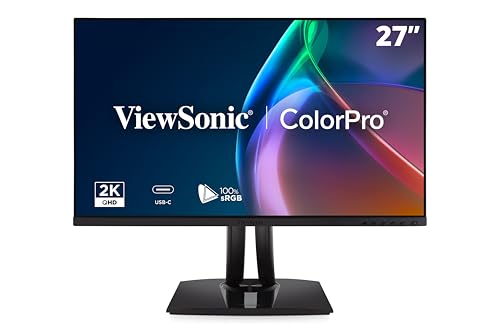 ViewSonic VP2756A-2K 27 Inch 1440p Monitor27 Inches8.46 x 24.15 x 21.27 inches16 poundsCheck on Amazon




Top 3 picks at a glance
Quick Picks
| Product | Best for | Price |
|---|---|---|
| ViewSonic VP2756A-2K 27″ 1440p 120Hz USB-C | Best overall value for editors | Check on Amazon |
| CUNPU 27″ 4K 70Hz IPS Photo/Video Monitor | Best budget 4K resolution | Check on Amazon |
| Dell SE2726H 27″ FHD 144Hz IPS | Best ultra-cheap editing-adjacent panel | Check on Amazon |
| BenQ PD2706U Mac-Ready 27″ 4K UHD | Best color accuracy, period | Check on Amazon |
| Philips 271V8LB 27″ FHD 100Hz VA | Best eye-comfort backup display | Check on Amazon |
| SANSUI 27″ FHD 120Hz Frameless | Best second/preview monitor | Check on Amazon |
| ViewSonic VG2741V 27″ 1080p Webcam USB-C | Best for editor-presenters | Check on Amazon |
| LG 27U631A-B 27″ QHD IPS HDR10 | Best mid-range QHD everyday panel | Check on Amazon |
How We Compared
We focused on what actually matters for color-critical work at this size and price band. First, panel technology: IPS panels dominate this list because they hold color consistency across wide viewing angles, which matters when you’re leaning toward the screen or a client is standing beside you. Second, resolution — 1080p at 27 inches is workable for cutting but thin for judging fine detail, while 1440p and 4K give you the pixel density to evaluate focus and texture. Third, factory calibration and gamut coverage: specs like a DeltaE of 3 or lower, stated sRGB/P3 percentages, and uniformity correction separate true editing monitors from general-purpose displays.
We also weighed practical workflow needs: USB-C with power delivery for single-cable laptop setups, ergonomic stands for long sessions, and eye-care features for the eight-hour days editing demands. We did not run our own lab colorimeter tests on every unit — where manufacturers publish calibration figures, we report them as stated. Every product below was chosen to serve a specific type of editor, from the full-time colorist down to the hobbyist who just needs a screen that won’t distort their work.
The 8 Best Picks
1. ViewSonic VP2756A-2K 27 Inch 1440p Monitor
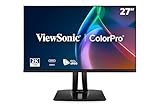
The VP2756A-2K is our pick for most editors: a 27-inch 1440p IPS panel at 120Hz with 90W USB-C power delivery, which means one cable charges your laptop and carries video. The Designer-series positioning signals ViewSonic’s attention to color-consistent output, and 1440p at this size hits the pixel-density sweet spot for timeline work without hammering your GPU the way 4K scrubbing can. It sits between the sub-$150 budget tier and the $400 calibration-focused BenQ, making it the pragmatic center of this roundup.
- 90W USB-C power delivery simplifies a laptop editing rig to a single cable
- 120Hz refresh on an IPS panel keeps the interface fluid during scrubbing
- Not factory-calibrated to a published DeltaE, so profiles demand a colorimeter for critical grading
Skip it if you need guaranteed out-of-box reference accuracy — the BenQ below is worth the extra $120.
2. CUNPU 27″ 4K 70Hz IPS Ultra-Slim Bezel Monitor
At around $150, this is the cheapest way to get true 4K (3840 x 2160) at 27 inches, which works out to roughly 163 pixels per inch — sharp enough to judge fine texture and focus pull accuracy in full-resolution playback. The IPS panel and slim bezels make it a strong candidate for a multi-monitor preview array, and the “photo video editing” framing suggests gamut tuned for content work rather than gaming. The 70Hz refresh is fine for editing; you’re not buying this for esports.
- Full 4K resolution at a budget price for detail-critical review
- Ultra-slim bezels suit dual- or triple-monitor editing setups
- 70Hz and a lesser-known brand mean fewer calibration guarantees than established rivals
Skip it if you want a manufacturer-published accuracy spec behind your grade.
3. Dell SE2726H 27″ FHD 144Hz IPS Monitor
The SE2726H is a 1080p IPS panel with a 144Hz refresh rate, 1ms response, AMD FreeSync, and dual HDMI inputs, all for around $110. It’s not a color-critical monitor and we won’t pretend otherwise — but Dell’s IPS panels are consistent, the TÜV 3-star certification speaks to low-blue-light and flicker comfort, and the tilt-only stand is the main compromise. As a cutting display where you’re assembling timelines and checking sync rather than grading, it’s honest and dependable.
- 144Hz IPS with FreeSync doubles as a solid gaming display after hours
- TÜV 3-star eye-comfort certification for long editing sessions
- 1080p at 27 inches lacks the pixel density for detail judgment, and the stand is tilt-only
Skip it as your primary color monitor — buy it as a capable secondary instead.
4. BenQ PD2706U Mac-Ready Monitor 27″ 4K UHD
This is the monitor the headline keyword exists for. The PD2706U pairs a 27-inch 4K UHD IPS panel with BenQ’s AQCOLOR system: 99% sRGB, 95% P3 coverage, a factory-calibrated DeltaE of 3 or under, DisplayHDR 400, and uniformity technology to keep brightness even across the panel. Add 90W USB-C, a KVM switch for toggling between a laptop and desktop, a USB hub, and the HotKey Puck for switching picture modes without diving into menus, and it’s the complete color-work package under $400.
- Factory-calibrated with published figures: DeltaE ≤3, 99% sRGB, 95% P3
- 90W USB-C plus KVM makes Mac/PC hybrid workflows effortless
- DisplayHDR 400 is entry-level HDR, not a true HDR grading reference
Skip it only if you’re cutting casual social content — at around $400 it’s overkill for that.
5. Philips 271V8LB 27″ FHD 100Hz VA Monitor
At around $89, the Philips 271V8LB is the price floor of this list. It’s a 27-inch 1080p VA panel running 100Hz with VESA 100 x 100mm mounting and Philips’ eye-care feature set (flicker-free and low-blue-light modes). Fair warning on color: VA panels typically show more contrast (deep blacks look great) but shift color when viewed off-angle, which is the opposite of what grading demands. That said, its contrast makes general viewing pleasant, and VESA mounting lets it disappear into a wall-mounted preview or documentation station.
- Sub-$100 price with VESA mounting flexibility
- 100Hz VA contrast makes non-color work look richer
- VA viewing-angle color shift makes it unsuitable as a grading reference
Skip it for color work; consider it only as a support display on a tight budget.
6. SANSUI 27 Inch 120Hz FHD Frameless Monitor
The SANSUI is a 27-inch 1080p monitor with a stated 110% sRGB coverage, 4000:1 contrast, 120Hz refresh, HDMI and DisplayPort inputs, and 100 x 100mm VESA mounting in a frameless design. That claimed sRGB figure is the reason it earns a place here: among sub-$100 panels, extended-gamut coverage is rare, and it makes this a plausible preview monitor where you need shots to roughly match a calibrated primary. Its eye-care features and minimal bezels round out a strong value at around $99.
- Claimed 110% sRGB coverage is unusual at this price
- 120Hz and frameless design make it a clean secondary display
- No factory calibration data, so treat color figures as approximate
Skip it if your primary monitor is already accurate and you need precise matching instead.
7. ViewSonic VG2741V 27 Inch 1080p Webcam Monitor
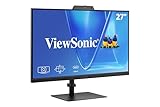
The VG2741V is built for editors who are also on camera: a 27-inch 1080p IPS panel at 120Hz with an integrated webcam and 90W USB-C conferencing connectivity. If you deliver feedback over Zoom, run client reviews, or teach editing, killing a webcam-arm and its cable clutter is genuinely valuable. Color-wise, it’s a standard ViewSonic IPS panel — reliable for cutting and review playback, though not a calibration reference. Think of it as a productivity monitor that happens to live happily inside a video workflow.
- Built-in webcam and 90W USB-C create a one-cable review station
- 120Hz IPS keeps timeline scrubbing smooth
- No published color-accuracy specs; not for critical grading
Skip it if you never appear on camera — put that around $220 toward the BenQ instead.
8. LG 27U631A-B 27-inch QHD IPS Monitor
The LG 27U631A-B lands in the middle of the pack on price (around $170) but earns its spot with a 27-inch QHD (2560 x 1440) IPS panel, 100Hz refresh, HDR10 support, and a USB Type-C port with 15W power delivery — enough to top up a tablet or phone, not a laptop. LG’s Reader Mode and Flicker Safe features target eye strain during long sessions, and the 5ms response is fine for editing. QHD at 27 inches is a meaningful sharpness upgrade over the 1080p options above and the resolution many full-time editors still prefer.
- QHD IPS at a mid-range price hits the resolution sweet spot
- HDR10 support and flicker-free design for comfortable long sessions
- 15W USB-C can’t power a laptop, and no factory calibration figures are published
Skip it if single-cable laptop charging is non-negotiable — the ViewSonic or BenQ handle that.
Buying Guide
Resolution and Pixel Density
At 27 inches, 1080p gives you about 81 pixels per inch, which is visible as softness at normal desk distance. QHD (2560 x 1440) bumps that to roughly 109 ppi — the long-standing sweet spot for editing — while 4K (3840 x 2160) reaches about 163 ppi, letting you inspect fine detail at 100% zoom. Higher resolution costs GPU headroom during playback, so pair a 4K editing monitor with hardware that can scrub 4K timelines smoothly, or drop preview resolution while grading.
Color Accuracy Specs That Actually Matter
Three numbers tell you most of the story. Gamut coverage: aim for at least 99% sRGB for web-delivered video, and 95% P3 or better if you grade in wide color. DeltaE: this measures perceptible color error; a factory-calibrated DeltaE of 3 or under (like the BenQ PD2706U’s published figure) means the panel is trustworthy out of the box. Uniformity: color that shifts across the screen will sabotage a grade even if the center measures perfectly, so look for monitors that advertise uniformity correction. Panel type matters too — IPS holds color at wide viewing angles; VA panels typically don’t.
Connectivity and Ergonomics
USB-C with power delivery is the single biggest quality-of-life feature for laptop-based editors: 90W units (ViewSonic VP2756A-2K, BenQ PD2706U, ViewSonic VG2741V) run and charge a MacBook-class machine over one cable, while the LG’s 15W port handles phones and tablets only. Check VESA compatibility (100 x 100mm on the Philips and SANSUI) if you use arms or wall mounts, and confirm the stand offers height and pivot adjustment if you work long hours — the Dell’s tilt-only stand is the main ergonomic concession on this list.
Our Verdict
If color accuracy is the job, buy the BenQ PD2706U at around $400. It’s the only monitor here with published factory calibration (DeltaE ≤3, 99% sRGB, 95% P3), plus the USB-C, KVM, and ergonomics to anchor a serious editing desk. If that’s above budget, the ViewSonic VP2756A-2K at around $280 is the best all-around editor’s monitor — 1440p, 120Hz, and 90W USB-C — with the caveat that you may want a colorimeter down the line. Editors who need 4K sharpness on a shoestring should grab the CUNPU at around $150, and everyone else on this list is best understood as a secondary display or a non-color-critical workhorse. Match the monitor to how much your color decisions are worth.
FAQ
Is 27 inches actually the right size for video editing?
Yes, for most desks. At 27 inches, QHD and 4K panels deliver comfortable pixel density, the full frame occupies a large enough portion of your vision to judge composition, and menus and timelines remain readable without scaling gymnastics. Larger 32-inch monitors offer more real estate but demand deeper desks and cost significantly more for equivalent color specs.
Do I really need factory calibration, or can I calibrate myself?
You can calibrate any monitor yourself with a colorimeter (hardware typically runs $100–250), which often makes a cheaper panel viable for color work. Factory calibration like the BenQ’s DeltaE ≤3 guarantee simply means the monitor is trustworthy the moment you unbox it — valuable if you don’t own measurement hardware or need consistent results across a team.
Is a 60Hz or 70Hz refresh rate a problem for editing?
Not for color work. Refresh rate affects how smoothly your interface and scrubbing feel, not the accuracy of the image. Higher rates (100–144Hz on several picks above) make scrubbing more pleasant, but a calibrated 70Hz panel will grade better than an uncalibrated 144Hz one every time.
Can I use one of these for HDR grading?
Not seriously. The HDR-capable options here top out at DisplayHDR 400 or HDR10 support, which indicates compatible signal handling rather than the brightness (typically 600+ nits sustained) and local dimming real HDR grading demands. Use these monitors for SDR color work and HDR conforming previews, and move final HDR passes to a dedicated reference display.









