
Shopping for a monitor that is easy on the eyes is more confusing than it should be. Most people focus on the wrong specs, chase the highest resolution or the flashiest design, and overlook the features that actually determine whether your eyes feel fresh or fatigued after eight hours. Understanding what to look for in a monitor for eye comfort means looking past marketing buzzwords and focusing on measurable, practical details that affect flicker, glare, posture, and viewing distance.
The three most common mistakes are easy to avoid once you know them. First, buying a monitor that is too large or too small for your desk depth, which forces you to lean in or constantly move your head. Second, assuming all “eye care” labels mean the same thing — a TÜV Rheinland certification, a generic “low blue light” claim, and true flicker-free DC dimming are very different technologies. Third, ignoring ergonomics and lighting. Even the best panel will strain your eyes if it sits too low, reflects a window, or forces you to work in a dark room with a bright screen. Get those fundamentals right, and any panel becomes far more comfortable.
As an Amazon Associate we earn from qualifying purchases at no extra cost to you.




Our Top Picks
 Philips 22 Inch Computer Monitor FHD 100Hz VA22 inch 100Hz8.7 x 19.4 x 14.5 inches9.3 poundsCheck on Amazon


Top 3 picks at a glance
Decide These 3 Things First
Before you compare models, lock in these three decisions. They narrow your options immediately and prevent expensive returns.
1. Where and how far will you sit? Measure your eye-to-screen distance. For most desks 24 to 30 inches deep, a 23.8 to 27-inch monitor is the sweet spot. If your eyes are closer than 20 inches, stay at 22 to 24 inches. If you are 30 to 36 inches away, you can comfortably go to 32 inches without excessive head movement.
2. What is your primary use? Text-heavy office work and reading benefit most from high pixel density, a matte coating, and excellent height adjustment. Gaming and video benefit from higher refresh rates and adaptive sync, which reduce perceived stutter that makes your eyes work harder. Creative work needs accurate color plus eye-comfort features, not one or the other.
3. What is your room lighting like? If you work near a bright window or under overhead fluorescents, glare handling and brightness range matter more than any blue light filter. If you work late or in a dim room, look for a monitor that dims cleanly below 40 nits without flickering and consider adding a bias light or monitor light bar.
Size, Resolution, and Viewing Distance
Size without the right resolution and distance is a recipe for strain. You want text that is sharp at your natural viewing distance, so you are not leaning forward to read or squinting at tiny fonts.
For eye comfort, pixel density matters more than raw resolution. A 23.8-inch Full HD (1920×1080) display delivers about 93 pixels per inch, which is acceptable for general office work at 24 to 28 inches. A 27-inch Full HD drops to about 82 pixels per inch and will look noticeably softer, forcing many users to sit closer than is comfortable. A 27-inch QHD (2560×1440) hits about 109 pixels per inch and is the current value sweet spot for sharp text without needing scaling. A 27 to 32-inch 4K (3840×2160) display offers 138 to 163 pixels per inch and looks exceptionally crisp, but requires 125 to 150 percent scaling in Windows or macOS to keep text readable.
Weight and footprint also affect comfort indirectly. A typical 24-inch monitor weighs 6 to 9 pounds without the stand and 8 to 12 pounds with it, with a stand footprint of about 8 x 9 inches. A 32-inch model is usually 13 to 18 pounds and needs a deeper base or a clamp mount. If your desk is under 24 inches deep or under 47 inches wide, a 32-inch screen will dominate your field of view and increase neck movement. For small desks, consider a monitor arm that clamps to the edge to reclaim 4 to 6 inches of depth.
Panel Material and Coating
The panel material determines viewing angles, contrast, and how color shifts when you move your head — all of which affect how hard your eyes work to maintain focus.
IPS (In-Plane Switching) is the safest choice for eye comfort for most buyers. It maintains consistent color and brightness up to about 178 degrees horizontally and vertically, so you do not see a brightness drop when you sit slightly off-center. This reduces the need to constantly reposition your head.
VA (Vertical Alignment) offers higher native contrast, often 2500:1 to 4000:1 compared to 1000:1 for IPS, which makes blacks look deeper and can reduce glare perception in dim rooms. However, VA can show more black smearing in fast motion and narrower optimal viewing angles, which may cause subtle eye effort during scrolling.
OLED delivers per-pixel dimming and near-infinite contrast but is still premium-priced for desktop monitors and can use more aggressive auto-brightness limiting. For pure eye comfort in long work sessions, a good IPS or VA with a quality matte coating usually wins on value.
Coating matters as much as panel type. Look for a matte, anti-glare 3H hard coating rather than glossy. Matte diffuses reflections from windows and overhead lights without adding grain if it is well implemented. A glossy coating may look punchier in a store but will act like a mirror on a bright day. If you can, check the haze value — 25 percent haze provides strong glare reduction with minimal sparkle, while very low haze under 10 percent behaves closer to glossy.
Construction and Ergonomics
A comfortable monitor is one you can put exactly where your body wants it. Without proper ergonomics, you will crane your neck, hunch your shoulders, and create strain that no blue light filter can fix.
Prioritize a stand with at least 4.7 to 5.9 inches (120 to 150 mm) of height adjustment, tilt of -5 to +21 degrees, and swivel of plus or minus 30 to 45 degrees. Height adjustment is non-negotiable — the top of the screen should be at or just below eye level so your gaze is slightly downward, about 15 to 20 degrees below horizontal. This is the most natural position for your eyelids and neck. Pivot to portrait is useful for documents, but less critical for eye comfort than height and tilt.
Check the mounting options. VESA 75×75 mm or 100×100 mm compatibility lets you use an arm if the included stand is limited. Many budget monitors in the $70 to $110 range, such as 22 to 24-inch 100Hz VA and IPS models, include only tilt. Mid-range monitors from $150 to $280 more often include full height, tilt, swivel, and pivot.
Bezels and build affect placement too. Thin bezels of 6 to 9 mm reduce the visual barrier in multi-monitor setups, so your eyes do not have to jump over a thick frame. A stable stand that does not wobble when you type matters because micro-vibrations force constant refocusing. Heavier metal-base stands and arms tend to dampen vibration better than lightweight plastic bases.
Comfort and Performance Features That Actually Reduce Eye Strain
This is where marketing and real comfort diverge. Focus on features with a clear physical effect on your eyes.
Flicker-free technology: Most monitors dim the backlight with PWM (pulse-width modulation), which flickers invisibly at low brightness and can contribute to fatigue for sensitive users. True flicker-free monitors use DC dimming to control brightness without flicker across the entire range, often from 100 percent down to 15 to 20 percent brightness. Look for explicit mention of DC dimming or flicker-free verified by TÜV Rheinland. Certifications like TÜV Flicker Free or TÜV Low Blue Light and the newer TÜV 3-Star eye comfort standard indicate third-party testing, but the underlying method still matters. A monitor that claims flicker-free only above 50 percent brightness is not truly flicker-free for dim-room use.
Low blue light: There are two approaches. Software/low blue light modes shift the color temperature to 5000K to 6500K by reducing the blue channel, which warms the image. Hardware low blue light uses a different LED phosphor to lower the 415 to 455 nm blue peak while keeping colors more accurate. Hardware solutions let you keep a normal white point for daytime work. For evening use, a software mode that reaches 4500K to 5000K combined with automatic scheduling or ambient light sensing is more useful than a static filter left on all day, which can make color work impossible.
Brightness and ambient light handling: For a typical office of 300 to 500 lux, a screen brightness of 120 to 180 nits is comfortable. For a dim room under 150 lux, you will want 40 to 80 nits. Choose a monitor that can go dim enough without washing out or flickering, and that offers a wide range — for example, 30 to 350 nits — rather than just a high maximum. Auto-brightness or ambient light sensors that adjust in the background are helpful if they are gentle and can be disabled. Harsh, stepped changes are more distracting than helpful.
Refresh rate and adaptive sync: A higher refresh rate makes motion smoother and reduces eye tracking effort. For office work, 75Hz to 100Hz feels noticeably smoother than 60Hz when scrolling documents. For gaming, 120Hz to 144Hz with AMD FreeSync or compatible adaptive sync eliminates tearing and stutter that forces extra focus. You do not need 240Hz for eye comfort, but moving from 60Hz to 100Hz is one of the cheapest comfort upgrades, and many 23.8-inch IPS models now offer 100Hz to 144Hz around $90 to $130 while drawing only 13 to 18 watts typical power.
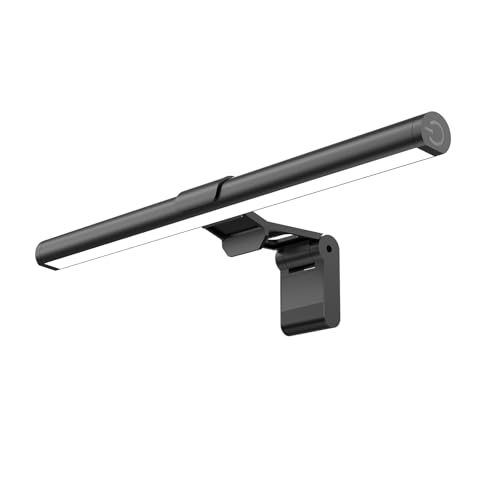
Anti-glare and bias lighting: No monitor can fix a bad lighting setup alone. Position the screen perpendicular to windows, not directly in front or behind them. Add a simple USB-powered monitor light bar, typically 11 to 20 inches wide, consuming 4 to 8 watts and offering 2700K to 6500K color temperature with dimming. Placed on top of the monitor, it washes the wall and desk with soft, even light, raising ambient brightness to match the screen and markedly reducing the contrast between a bright display and a dark room. This is especially effective for late-night sessions and costs as little as $14 to $40.
Price Tiers: What You Get for Your Money
Eye comfort does not require a premium budget, but what you get at each tier is different.
Budget $70 to $130: Expect 22 to 24-inch Full HD, VA or entry IPS, 75Hz to 100Hz, 250 nits brightness, basic flicker-free and low blue light modes, and tilt-only stands. Power consumption is low, usually 12 to 20 watts typical. This tier is perfectly comfortable for students and secondary displays if you add height adjustment via a $25 to $45 VESA arm and control room lighting. Example range includes 22-inch 100Hz VA at about $70 and 23.8-inch IPS 100 to 144Hz around $90 to $110.
Mid-range $150 to $300: The sweet spot for most home offices in 2026. You get 24 to 27-inch QHD or 27-inch 4K, IPS with better matte coatings, 100Hz to 144Hz, 300 to 350 nits, hardware low blue light options, TÜV-certified flicker-free across a wider dimming range, and fully adjustable stands with 130 to 150 mm height range and USB hubs. Typical power rises to 18 to 30 watts. You also get better factory calibration with Delta E under 2, so you do not need to crank brightness to see colors correctly.
Premium $350 to $700+: Here you pay for 27 to 32-inch 4K with excellent uniformity, mini-LED backlights with more dimming zones for less halo, hardware low blue light that preserves color accuracy, auto-brightness and color temperature sensors, KVM switches, USB-C with 65 to 90 watts power delivery, and premium build. These features save eye effort in mixed-use setups where you switch between laptop and desktop or work long hours, but the core comfort gains over a well-chosen mid-range monitor are incremental.
Warranty, Delivery, and Assembly
Comfort includes how easy it is to live with the monitor from day one. Before you buy, check three practical details.
Warranty: Most reputable brands offer 3 years on parts and labor, including backlight coverage, with advance replacement or cross-shipping for defects. Budget brands may offer 1 year. Look for a bright pixel policy that guarantees replacement with 1 to 3 bright sub-pixels rather than 5 or more. Keep the original box for at least 30 days, as many warranties require it for returns.
Delivery: A 24-inch monitor ships in a box about 22 x 16 x 6 inches weighing 11 to 15 pounds. A 32-inch ships at roughly 32 x 20 x 8 inches and 20 to 28 pounds. If you live in a walk-up or have a narrow doorway, check dimensional weight and whether the carrier leaves large boxes at the door. Inspect for panel pressure marks on delivery by displaying a solid gray and white screen at low brightness.
Assembly: Nearly all consumer monitors are tool-free. You click the base into the upright and snap or screw the upright to the panel, usually with one captive screw. Assembly time is 3 to 8 minutes. If you choose a monitor arm, verify desk thickness and material — most clamps support 0.4 to 3.5 inches and require a solid wood or metal edge, not a hollow core or glass top without a reinforcement plate. Route cables with enough slack so height adjustment does not tug on HDMI or DisplayPort connectors.
Spec Checklist
| Spec | Budget | Mid | Premium |
|---|---|---|---|
| Size and Resolution | 22 to 24-inch Full HD (1920×1080), ~82 to 93 PPI | 24 to 27-inch QHD (2560×1440) or 27-inch 4K, ~109 to 163 PPI | 27 to 32-inch 4K (3840×2160) with scaling, ~138 to 163 PPI |
| Panel and Coating | VA or entry IPS, matte 3H anti-glare | IPS with quality matte coating, 1000:1 contrast | IPS / Mini-LED IPS or OLED, advanced matte, high uniformity |
| Refresh Rate and Sync | 75 to 100Hz, basic FreeSync | 100 to 144Hz, AMD FreeSync, LFC support | 144Hz+, Adaptive Sync, wide VRR range 48 to 144Hz |
| Brightness Range | 200 to 250 nits max, dims to ~60 nits | 300 to 350 nits max, dims to ~30 to 40 nits DC dimming | 350 to 600 nits max with auto sensor, dims to ~20 to 30 nits |
| Eye Comfort Tech | Software low blue light, flicker-free above 50% | Hardware low blue light option, TÜV Flicker Free across range | Hardware low blue light + TÜV 3-Star, ambient color sensor |
| Ergonomics | Tilt only (-5 to +21 degrees), VESA 75/100 optional | Height 120 to 150 mm, tilt, swivel, pivot, VESA 100×100 | Full ergonomics plus USB-C 65 to 90W, KVM, height 130 to 150 mm |
| Power and Connectivity | 12 to 20W typical, 2x HDMI 1.4/2.0 | 18 to 30W typical, HDMI 2.0, DisplayPort 1.2/1.4, USB hub | 20 to 35W typical, HDMI 2.0/2.1, DP 1.4, USB-C with PD |
| Price Range | $70 to $130 | $150 to $300 | $350 to $700+ |
Red Flags
Walk away or look closer if you see these:
- Vague “eye care” with no specifics. If the listing says “eye care” but does not mention flicker-free method, blue light approach, or a certification name, assume it is a basic software filter.
- High brightness, tiny dimming range. A monitor that only dims from 250 to 120 nits will be painfully bright in a dark room. You need a low minimum, not just a high maximum.
- No height adjustment and no VESA. A fixed stand locks you into a posture compromise. Without VESA, you cannot fix it with an arm.
- Glossy screen in a bright room listing. Glossy plus a window behind you guarantees reflections. Unless you have full light control, choose matte.
- 60Hz-only at 27-inch Full HD. Low pixel density combined with 60Hz scrolling is the fastest way to create fatigue for readers and coders.
- Overblown wattage or weight claims. A typical 24-inch monitor does not draw 60 watts or weigh 30 pounds. Inflated specs often signal a generic listing with inaccurate details.
FAQ
Is a larger monitor better for eye comfort?
Not inherently. Comfort comes from matching size to distance and resolution. At a 24 to 28-inch viewing distance, a 27-inch QHD is comfortable for most people. Going to 32-inch Full HD at the same distance forces larger eye movements and shows pixelation, which increases effort. If you want a larger screen, also step up in resolution so pixel density stays at or above about 100 pixels per inch.
Do blue light filters and glasses actually help?
They can help at night by reducing alerting stimulus and making the screen feel warmer, but they are not a substitute for proper brightness, flicker-free dimming, and good lighting. For daytime work, a hardware low blue light panel that keeps whites fairly neutral is preferable to a strong yellow filter that distorts color. If you use glasses, choose a monitor mode that does not double-filter and make everything too warm.
What brightness and contrast settings reduce strain?
Set brightness so white on the screen looks like a sheet of paper under your room light — not glowing. In a 300 to 500 lux office that is often 120 to 180 nits; at night it is much lower. Keep contrast at 70 to 80 percent and adjust brightness first. Use dark mode sparingly; light mode with a properly dimmed screen is usually more comfortable for long reading than bright white text on a pitch-black background in a dark room.
Should I choose 60Hz, 100Hz, or 144Hz for eye comfort?
For office work, 100Hz is a clear, affordable step up from 60Hz because scrolling and cursor motion appear smoother, so your eyes track more easily. Gamers will notice the biggest benefit at 120Hz to 144Hz, especially with adaptive sync enabled to remove tearing. Above 144Hz, the eye-comfort return diminishes for non-competitive use, so prioritize flicker-free dimming, height adjustment, and matte coating before chasing higher refresh numbers.









