
Shopping for a budget 1440p gaming monitor sounds simple until you actually start comparing listings. Most buyers make the same three mistakes: they chase the highest refresh rate on the box without checking what panel is driving it, they assume all 27-inch 1440p monitors look the same, and they ignore the details that determine daily comfort like stand adjustability, port selection, and power draw. The result is a monitor that looks great in a spec table but feels wrong on your desk.
What to look for in a budget 1440p gaming monitor is not just one killer spec. It is the balance between resolution, speed, color, build quality, and price. At 2560×1440, you get 78 percent more pixels than 1080p without the GPU demands of 4K, which is why 1440p has become the sweet spot for budget to midrange gaming PCs and current consoles. This guide breaks down what actually matters so you can spend $150 to $320 wisely and avoid paying for marketing fluff.
As an Amazon Associate we earn from qualifying purchases at no extra cost to you.



Our Top Picks
 Acer Nitro 27in QHD 2560x1440 IPS 180Hz Gaming27-inch8.28 x 24.2 x 18.14 Inches12.1 poundsCheck on Amazon
 AOC 27" Gaming Monitor QHD 260Hz Overclocked IPS27" 240Hz IPS7.46 x 24.17 x 17.7 InchesCheck on Amazon
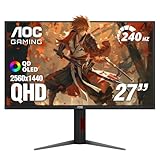
 AOC 27" Gaming Monitor QHD 240Hz QD OLED27" 240Hz Height Adjustable9.45 x 23.99 x 21.17 inchesCheck on Amazon

Top 3 picks at a glance
Decide These 3 Things First
Before you compare models, lock in these decisions. They filter out 80 percent of unsuitable options immediately.
1. Your GPU and target frame rate. A 1440p monitor only makes sense if your system can push it. An RTX 4060, RX 7600 XT, or RTX 5060 class card will typically deliver 80 to 120 fps at high settings in most AAA titles at 1440p. If you are consistently below 60 fps, you will not benefit from a 180Hz or 240Hz panel. If you are pushing over 144 fps in esports titles, high refresh rates become worth paying for.
2. Your desk and viewing distance. A 27-inch 1440p display is ideal at 24 to 32 inches of viewing distance, which fits desks that are 22 to 30 inches deep. If your desk is under 20 inches deep or you sit closer than 22 inches, consider a 24-inch 1440p model or plan for a monitor arm. If you sit farther than 36 inches, a 32-inch panel will be more comfortable.
3. Your must-have features. Pick two non-negotiables. For example: height-adjustable stand plus USB hub, or 240Hz plus OLED contrast, or built-in speakers plus low power draw for a small room. Budget monitors always involve tradeoffs. Knowing your priorities prevents you from overpaying for specs you will not use.
Size and Viewing Distance: Why 27 Inches Is the Standard
For 1440p, 27 inches is the default for a reason. Pixel density lands around 109 pixels per inch, which is sharp without requiring Windows scaling and large enough for immersive gaming without excessive head movement.
Here are practical numbers: A typical 27-inch monitor measures about 24.2 inches wide, 14.2 inches tall without the stand, and 17.5 to 21.5 inches tall with the stand at its lowest to highest setting. Weight is usually 9 to 13 pounds without the stand and 11 to 16 pounds with it. Bezel thickness on budget models is generally 0.3 to 0.4 inches on three sides with a slightly thicker bottom chin.
24-inch 1440p monitors exist and offer higher density at about 122 PPI, which looks crisper but makes text and HUD elements smaller at 100 percent scaling. 32-inch 1440p drops to about 92 PPI, so pixels become more visible under 28 inches of viewing distance. If you want 32 inches, 4K is a better pairing unless you sit farther back or prioritize frame rate over sharpness.
Curvature is another consideration. Most budget 1440p monitors are flat, which is preferable for competitive gaming and mixed productivity. 1000R or 1500R curved options appear around $200 to $250 in the Samsung Odyssey line and can feel more immersive at 27 inches, but they distort straight lines for photo editing and office work.
Panel Material: IPS vs VA vs QD-OLED on a Budget
Panel type determines color, contrast, and viewing angles more than any other spec.
IPS is the safest budget choice. Modern budget IPS panels cover 95 to 100 percent of sRGB and 80 to 95 percent of DCI-P3, offer 178-degree viewing angles, and keep colors consistent even if you shift in your chair. Typical contrast is 900:1 to 1200:1, so blacks look dark gray in a dark room. Response times are advertised at 1ms GtG or 0.5ms MPRT, but real-world transitions are usually in the 4 to 7ms range, which is still fine for 144Hz to 180Hz gaming.
VA trades angles for contrast. VA panels often hit 2500:1 to 3500:1 contrast, so blacks are noticeably deeper and night scenes look better. The tradeoff is narrower viewing angles and more smearing in dark transitions, which can cause black trails in fast games. VA makes sense if you play single-player games in a dim room and value contrast over speed.
QD-OLED is now reachable under $320. As of early 2026, 27-inch QHD QD-OLED monitors with 240Hz refresh rates have dropped to around $300 to $330, such as models in the AOC Q27GAZDV class. You get near-infinite contrast, 0.03ms-class pixel response, and 99 percent-plus DCI-P3 coverage. The tradeoffs are higher power draw at 35 to 55 watts typical versus 22 to 32 watts for IPS, the need for occasional pixel care cycles, and more aggressive automatic brightness limiting in bright rooms.
Performance and Comfort: Refresh Rate, Response, and Adaptive Sync
Do not buy refresh rate alone. Buy usable motion clarity.
Refresh rate tiers: 144Hz to 180Hz is the budget sweet spot at $140 to $180. You will find many 27-inch IPS models like the Acer Nitro KG271U at 180Hz for around $150. 200Hz to 260Hz overclocked IPS panels sit at $160 to $220 and are useful for esports players who can actually sustain those frame rates. 240Hz QD-OLED at $300-plus is premium tier but delivers visibly cleaner motion than any LCD.
Response time and overdrive: Look for a monitor with at least three overdrive settings in the menu. The middle setting is usually correct. The fastest setting often introduces inverse ghosting or coronas. If the listing only says 1ms without detailing GtG versus MPRT or overdrive options, assume it is a best-case MPRT figure with backlight strobing enabled.
Adaptive sync: Every budget 1440p monitor should support both AMD FreeSync and NVIDIA G-SYNC Compatible operation over DisplayPort and HDMI. Check the range. A good budget implementation is 48 to 180Hz or 48 to 240Hz with low framerate compensation. This eliminates tearing without the input lag of V-Sync. If you use a console, confirm the monitor supports 120Hz at 1440p over HDMI 2.0 or HDMI 2.1.
Eye comfort: Look for flicker-free backlights and a low blue light mode that does not turn the screen orange. Brightness of 300 to 350 nits is standard for budget IPS. 250 nits is dim for a bright room. If you work long hours, a height-adjustable stand that offers 4 to 5 inches of travel, plus tilt of -5 to 20 degrees, reduces neck strain far more than any coating or light mode.
Construction, Ports, and Ergonomics
Budget does not have to mean flimsy, but construction varies widely.
Stand and VESA: Many sub-$160 monitors use a simple tilt-only stand to hit price targets. If ergonomics matter, prioritize a stand with height, tilt, swivel, and pivot, or ensure the monitor has 75x75mm or 100x100mm VESA mounting. A basic VESA arm costs $25 to $40 and saves 6 to 8 inches of desk depth while adding full adjustment.
Materials: Expect a plastic chassis with a matte anti-glare coating. Weight and wobble tell you more than marketing photos. Press on the top bezel and check for flex, and check reviews for stand wobble when typing. Models under 9 pounds often use thinner plastics and lighter bases that wobble more.
Ports: A useful budget layout is one DisplayPort 1.4 and two HDMI 2.0 ports, plus a headphone out. HDMI 2.1 is a bonus at this price but not essential unless you need 1440p 120Hz from a console with VRR. USB hubs are rare under $180. If you need USB-A ports for peripherals, expect to pay $190 to $240.
Power and heat: Budget 27-inch IPS monitors typically draw 18 to 28 watts during gaming and under 0.5 watts in standby. QD-OLED draws more, often 32 to 55 watts depending on brightness and content. All should use an external power brick or internal supply rated at 45 to 65 watts. Check the brick size if your power strip is crowded.
Price Tiers: What $150 vs $220 vs $310 Actually Gets You
Use price as a feature map, not just a number.
$140 to $170 Budget: This is where 27-inch QHD IPS at 144Hz to 180Hz lives. You get solid sRGB color, FreeSync/G-SYNC Compatible support, and tilt-only or basic height-adjustable stands. Example class: Acer Nitro KG271U at around $150 and AOC Q27G41ZE at around $160 when on sale. Expect 300 nits brightness, 1x DisplayPort, 2x HDMI, and no USB hub. Best for students, first 1440p upgrades, and GPU-limited systems.
$180 to $240 Mid: You gain either higher refresh rates up to 240Hz to 260Hz overclocked IPS, or better build with height adjust, pivot, and sometimes a USB hub. Samsung Odyssey G5 models around $217 often add a more robust stand and 165Hz to 180Hz with better factory calibration. Color coverage often steps up to 90 percent-plus DCI-P3. This tier is ideal if you play competitive shooters or want a monitor that doubles for color-sensitive work.
$280 to $330 Premium Budget: QD-OLED enters at this level, such as 27-inch QHD 240Hz QD-OLED monitors around $310. You get true HDR with per-pixel dimming, near-instant response, and wider color gamut. You also get higher power draw and more careful burn-in mitigation. Buy this tier only if your PC can sustain 150-plus fps and you value contrast and motion clarity above all else.
Warranty, Dead Pixels, and Delivery
Warranty matters more for budget monitors because panel lottery is real.
Warranty length: Most budget brands offer 3 years on parts and labor, but some offer only 1 year. A 3-year warranty is standard and should be considered the minimum for a $150-plus purchase. Check whether the warranty covers backlight and panel separately.
Dead and stuck pixel policy: Many manufacturers require 3 to 5 bright dead pixels or 5-plus dark pixels before they authorize a replacement. Retailer return windows are often more generous: 30 days for most major retailers, sometimes 14 days for marketplace sellers. Test your panel on day one with solid white, black, red, green, and blue screens.
Delivery and assembly: A 27-inch monitor ships in a box about 26 x 18 x 7 inches and weighs 14 to 20 pounds packed. Assembly is tool-free on most models: the stand neck clicks into the panel and the base screws on with a thumb screw or single Phillips screw. Allow 10 minutes for unboxing, stand attachment, and cable routing. Keep the original foam and box for at least 30 days in case you need a return. If you are mounting to an arm, have a second person support the panel while you align the VESA plate to avoid scratching the coating.
Spec Checklist
| Spec | Budget $140-$170 | Mid $180-$240 | Premium $280-$330 |
|---|---|---|---|
| Resolution and Size | 2560×1440 at 27 in, 109 PPI, flat | 2560×1440 at 27 in, flat or 1000R curved option | 2560×1440 at 27 in QD-OLED, flat |
| Refresh Rate | 144Hz to 180Hz native | 165Hz to 260Hz overclocked IPS | 240Hz native OLED |
| Panel and Color | IPS, 99-100% sRGB, 80-90% DCI-P3, 1000:1 contrast | IPS, 90-95% DCI-P3, factory calibrated Delta E under 2.5 | QD-OLED, 99% DCI-P3, near-infinite contrast |
| Brightness and HDR | 300-350 nits, HDR10 basic, no local dimming | 300-400 nits, DisplayHDR 400 where listed | 250 nits full screen, 800-1000 nits peak HDR, true per-pixel HDR |
| Adaptive Sync | FreeSync and G-SYNC Compatible, 48-180Hz range | FreeSync Premium and G-SYNC Compatible, LFC support | G-SYNC Compatible plus FreeSync Premium Pro, full VRR range |
| Ports | 1x DP 1.4, 2x HDMI 2.0, headphone out | DP 1.4, HDMI 2.0 or 2.1, sometimes USB hub | DP 1.4, HDMI 2.1, USB hub, headphone out |
| Ergonomics | Tilt only or basic height adjust, 75×75 or 100×100 VESA | Height, tilt, swivel, pivot, VESA 100×100 | Height, tilt, swivel, VESA 100×100, better cable management |
| Power Draw | 18-28 watts typical, external 45W brick | 22-32 watts typical | 32-55 watts typical, larger 65W supply |
Red Flags
Walk away or dig deeper if you see these:
- No listed DCI-P3 or sRGB coverage and no mention of factory calibration. It usually means color was not a priority.
- Only one HDMI port and no DisplayPort. This limits refresh rate options and future GPU upgrades.
- Advertised 240Hz or 260Hz with HDMI 1.4 or single HDMI 2.0. You cannot reach that refresh rate at 1440p without DisplayPort 1.4 or HDMI 2.1.
- 1ms response claimed without overdrive settings explained. Expect heavy ghosting or inverse ghosting at the default mode.
- No VESA mount holes. You are locked into the included stand forever.
- HDR400 or HDR10 listed without any local dimming or OLED. HDR will look washed out and is not a buying reason at this tier.
- Weight under 8 pounds for a 27-inch monitor with a large base. It often signals a wobbly stand that shakes when you type.
- Warranty under 2 years or a pixel policy that requires 6-plus dead pixels. You have little recourse if you lose the panel lottery.
FAQ
Is 27 inches too big for 1440p on a small desk?
Not if your desk is at least 22 inches deep and you sit 24 to 30 inches away. At that distance 109 PPI looks sharp and you do not need to turn your head. If your desk is under 20 inches deep, a 27-inch panel will feel overwhelming and a 24-inch 1440p model or a monitor arm that reclaims 6 to 8 inches of depth is a better fit. For reference, a 27-inch monitor is about 24 inches wide, so measure your available width including speakers or other accessories.
Do I need HDMI 2.1 for a budget 1440p monitor?
For PC gaming over DisplayPort 1.4, no. DisplayPort 1.4 handles 2560×1440 at 180Hz to 240Hz with adaptive sync. HDMI 2.1 matters if you want 1440p at 120Hz with VRR from a PlayStation 5 or Xbox Series X, or if you want a single-cable console and PC setup at high refresh rates. Many budget monitors use HDMI 2.0, which still does 1440p at 144Hz. Check the port version in the specs table, not just the number of ports.
Will a $150 1440p monitor look worse than a $300 one for everyday use?
For web browsing, office work, and video, the difference is smaller than the price suggests. A around $150 IPS panel at 300 nits and 99 percent sRGB looks clean and bright in normal lighting. The extra $100 to $160 in the mid and premium tiers buys smoother motion at high frame rates, a more adjustable stand, wider color gamut, and in the case of QD-OLED near $310, dramatically better contrast and instant response. If you do not play fast-paced games or edit photos, the budget tier is often the smarter value.
How do I check a new monitor for defects right after setup?
Set the refresh rate correctly first. In Windows go to Display Settings, Advanced display, and select the highest available refresh rate. Enable FreeSync or G-SYNC Compatible in the monitor menu and in your GPU control panel. Then display solid color slides at full screen in white, black, red, green, and blue to spot dead or stuck pixels and uneven backlight. Drag a dark window across a gray background to check for smearing, and view the screen from 45 degrees off center to check for color shift. Do this within your retailer return window, ideally in the first 48 hours, and keep all packaging until you are satisfied.









